Introduction
If you’re trying to fix virus issue on Windows PC, you’re already taking the right step. Virus and malware infections are one of the most common reasons Windows systems become slow, unstable, or unsafe. You may notice pop-ups, unknown programs, slow startup, browser redirects, or high CPU usage without doing anything.
Many users immediately look for third-party antivirus tools, but Windows itself includes a powerful built-in malware removal utility called the Microsoft Malicious Software Removal Tool (MRT). After recent Windows 11 updates, this tool has become even more effective at detecting and removing common malware, trojans, worms, and other threats.
This article expands your step-by-step script into a complete, easy-to-follow guide to fix virus issue on Windows PC using MRT, along with FAQs, tips, and best practices.
Table of Contents
What Causes Virus Issues on Windows PC
Before you learn how to fix virus issue on Windows PC, it’s important to understand how infections usually happen:
- Downloading cracked or pirated software
- Clicking suspicious email links
- Visiting unsafe websites
- Installing fake browser extensions
- Plugging infected USB drives
- Skipping Windows security updates
Even careful users can get infected accidentally. That’s why using built-in security tools is essential.
What Is the MRT Tool in Windows
MRT stands for Microsoft Malicious Software Removal Tool. It is:
- Built into Windows
- Updated automatically through Windows Update
- Designed to remove widespread malware
- Lightweight and safe
- Trusted and maintained by Microsoft
Unlike Windows Defender, MRT focuses specifically on detecting and removing active infections that may already be on your system.
Microsoft explains MRT officially here (DoFollow):
https://learn.microsoft.com/en-us/windows/security/threat-protection/intelligence/microsoft-malicious-software-removal-tool
This makes MRT a reliable option to fix virus issue on Windows PC without installing third-party software.
How to Fix Virus Issue on Windows PC (Step-by-Step Guide)
Now let’s walk through your script in detail.
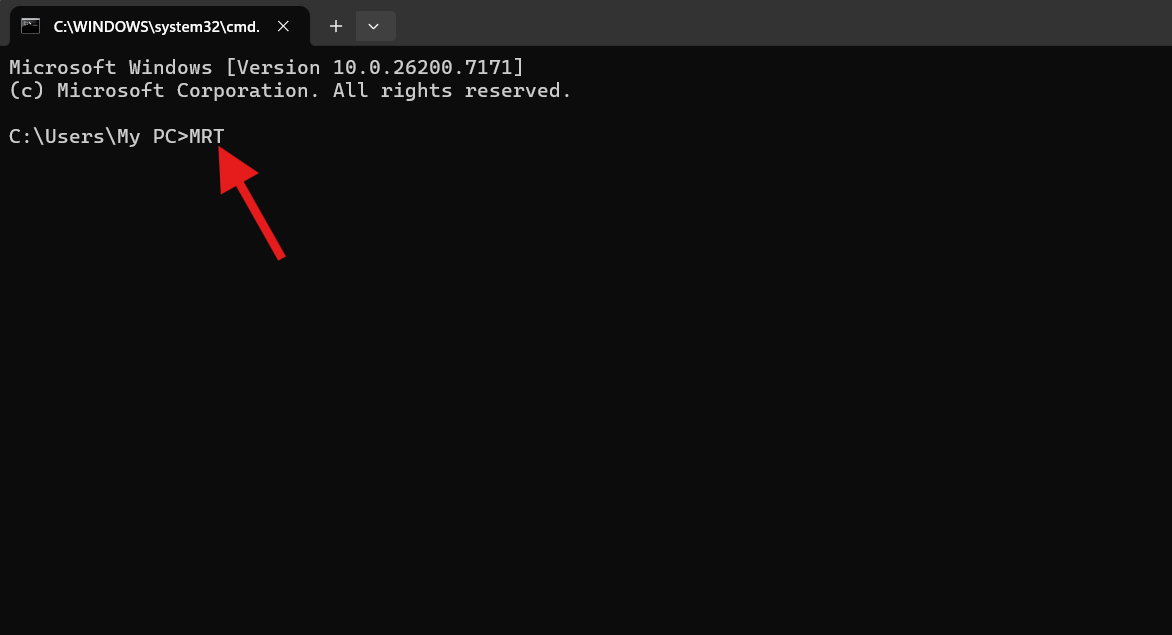
Step 1: Press Windows + R
- Press Windows + R on your keyboard
- The Run dialog box will open
This shortcut allows quick access to built-in Windows tools.
Step 2: Type MRT and Hit Enter
- In the Run box, type MRT
- Press Enter
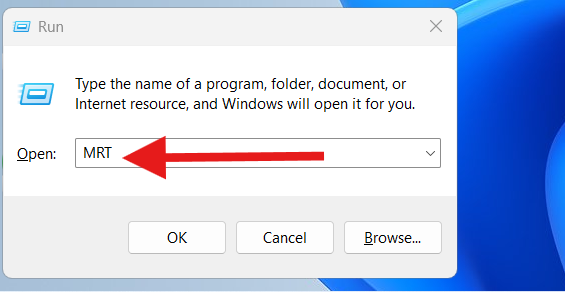
The Microsoft Malicious Software Removal Tool window will open.
This is the main tool we’ll use to fix virus issue on Windows PC.
Step 3: Click on Next
Once the MRT window opens:
- Read the introduction screen
- Click Next
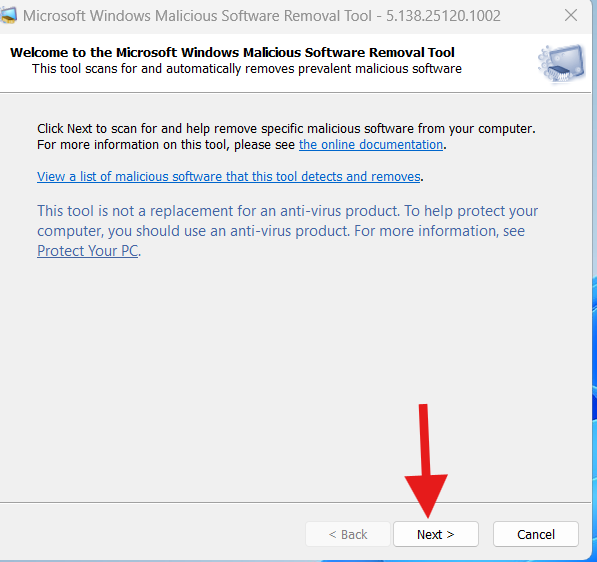
Windows is now preparing the malware scanning process.
Step 4: Choose Your Desired Scan Option
MRT offers three scan types. Choose based on your situation:
Quick Scan
- Scans common locations
- Fast and lightweight
- Best for routine checks
Full Scan
- Scans the entire system
- Takes more time
- Recommended if you suspect serious infection
Custom Scan
- Scan specific drives or folders
- Useful for USB drives
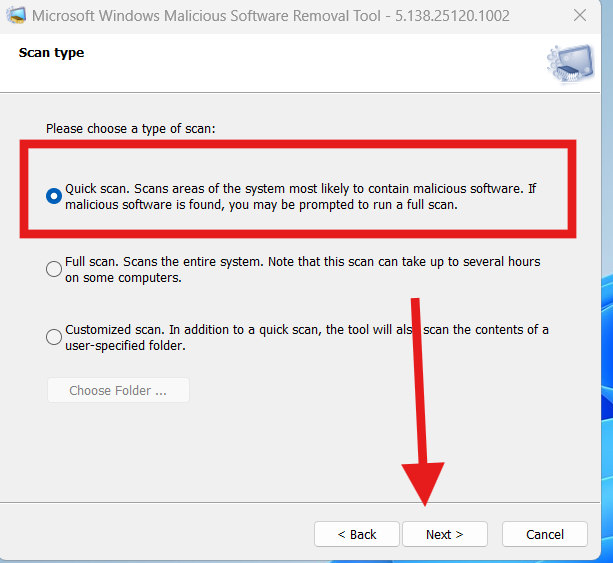
For best results when trying to fix virus issue on Windows PC, choose Full Scan.
Step 5: Click Next to Start the Scan
- After selecting the scan type, click Next
- The scan will begin automatically
Do not close the tool while scanning. Depending on your system size and infection level, the scan may take from a few minutes to over an hour.
Step 6: Wait for the Scan to Complete
During the scan, MRT will:
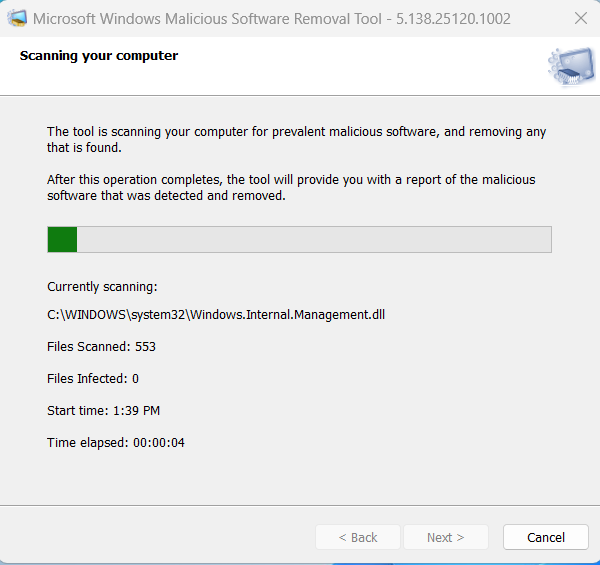
- Detect known malware families
- Remove infected files
- Clean registry entries
- Stop malicious processes
Once completed, you’ll see a summary screen showing whether threats were found and removed.
This completes the main process to fix virus issue on Windows PC.
Why MRT Is More Powerful After Windows 11 Updates
Recent Windows 11 updates have improved MRT by:
- Expanding malware definitions
- Improving scan accuracy
- Enhancing compatibility with modern threats
- Integrating better with Windows Security
MRT now works alongside Windows Defender for layered protection, making it an excellent cleanup tool.
What Happens After the Scan Completes
After MRT finishes:
- If no threats are found, your system is clean
- If threats are found, they are removed automatically
- A log file is created for reference
You may be prompted to restart your PC to complete removal. Always restart if asked.
Additional Safety Tips to Avoid Virus Issues
To prevent future problems after you fix virus issue on Windows PC, follow these tips:
1. Keep Windows Updated
Updates patch security vulnerabilities.
2. Use Windows Defender
Keep real-time protection enabled.
3. Avoid cracked software
Most infections come from pirated apps.
4. Scan USB drives
Always scan removable media.
5. Free up system space
Malware hides easily on cluttered systems.
Internal link: /free-up-c-drive-space
6. Keep apps updated
Outdated apps are security risks.
Internal link: /upgrade-installed-applications-on-windows-11
7. Fix slow system issues
Slow PCs are often infected.
Internal link: /fix-slow-windows-pc
Video Guide:
FAQs About How to Fix Virus Issue on Windows PC
Is MRT safe to use?
Yes. It is an official Microsoft tool.
Does MRT replace antivirus software?
No. It complements Windows Defender but does not replace real-time protection.
How often should I run MRT?
Once a month or whenever you suspect infection.
Does MRT delete personal files?
No. It removes only malicious content.
Why didn’t MRT detect anything?
It targets common malware families. Advanced threats may need Defender or other tools.
Can I use MRT on Windows 10?
Yes. It works on Windows 10 and Windows 11.
You can check this too..
Record Desktop Screen on Windows Easily With This Simple Guide
