Few things are more frustrating than opening a browser and seeing a connection error when you need internet access immediately. One of the most common network issues Windows users encounter is the DNS server not responding error in Windows.
This error prevents your computer from translating website names into IP addresses, making it impossible to access websites even when your internet connection appears active.
The good news is that most DNS-related problems can be fixed within minutes using a few troubleshooting methods. In this guide, you’ll learn what causes the issue and the most effective ways to resolve it on Windows 10 and Windows 11.
Table of Contents
What Does DNS Server Not Responding Mean?
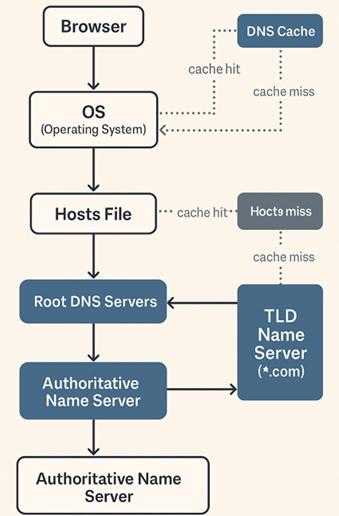
DNS stands for Domain Name System. Think of it as the internet’s phonebook.
When you type a website address like example.com, DNS converts that domain name into a numerical IP address that computers understand.
When the DNS server fails to respond, your browser cannot locate websites, resulting in errors such as:
- DNS Server Not Responding
- DNS_PROBE_FINISHED_NO_INTERNET
- DNS Address Could Not Be Found
- Server DNS Address Could Not Be Found
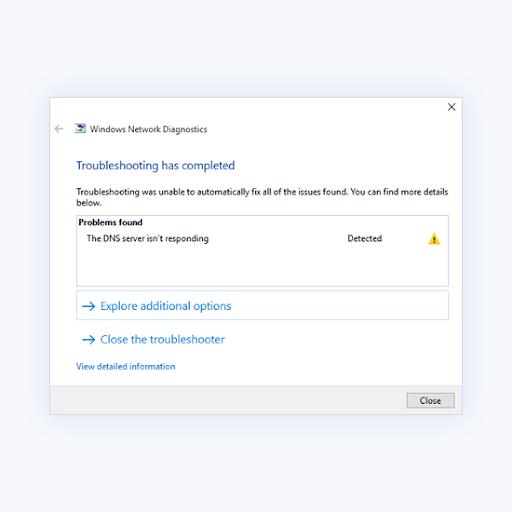
Although the error looks serious, it is often caused by simple network misconfigurations or temporary connectivity issues.
Common Causes of DNS Errors
Before applying fixes, it’s useful to understand what might be causing the problem.
Common causes include:
- Incorrect DNS settings
- Corrupted DNS cache
- Faulty router configuration
- ISP DNS outages
- Outdated network drivers
- Firewall or antivirus interference
- Windows network configuration errors
- Damaged TCP/IP settings
Identifying the cause can help you apply the right solution faster.
How to Fix DNS Server Not Responding Error in Windows
The following methods are arranged from easiest to more advanced. Try them in order until the issue is resolved.
1. Restart Your Router and Computer
A simple restart often fixes temporary networking glitches.
Steps
- Shut down your computer.
- Turn off your modem and router.
- Wait 60 seconds.
- Power on the router and modem.
- Start your computer.
- Test your internet connection.
Many DNS issues disappear after a fresh network restart.
💡 Pro Tip: Unplugging your router for a full minute clears temporary cached network data that may be causing conflicts.
2. Run the Windows Network Troubleshooter
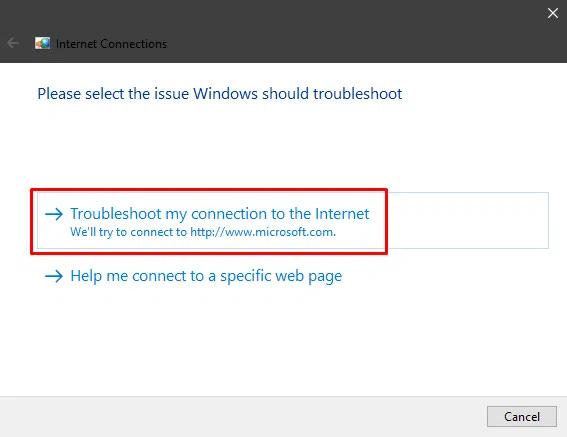
Windows includes built-in diagnostic tools that can automatically identify and repair common network problems.
Steps
- Open Settings.
- Select System.
- Click Troubleshoot.
- Choose Other Troubleshooters.
- Click Network and Internet.
- Follow the on-screen instructions.
The troubleshooter can often detect DNS misconfigurations automatically.
3. Flush the DNS Cache
Your PC stores DNS records locally to speed up website access. If these records become corrupted, websites may stop loading.
Steps
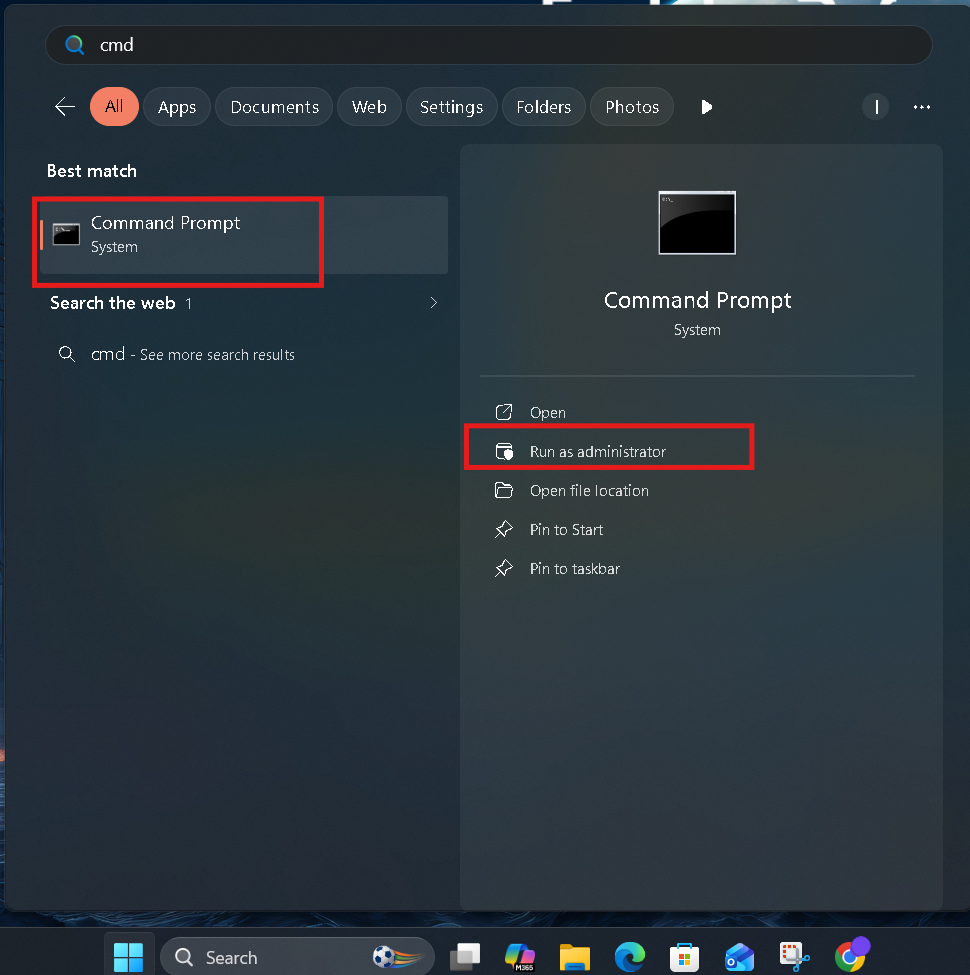
- Press Windows + S.
- Search for Command Prompt.
- Run it as Administrator.
- Enter the following command:
ipconfig /flushdns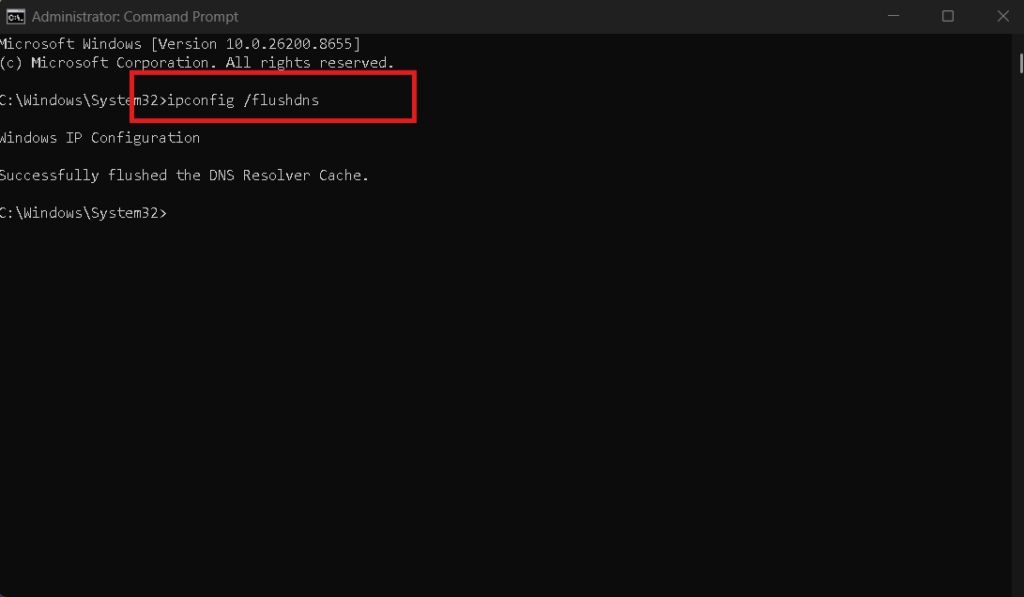
- Press Enter.
You should see:
Successfully flushed the DNS Resolver Cache.Restart your browser and test the connection.
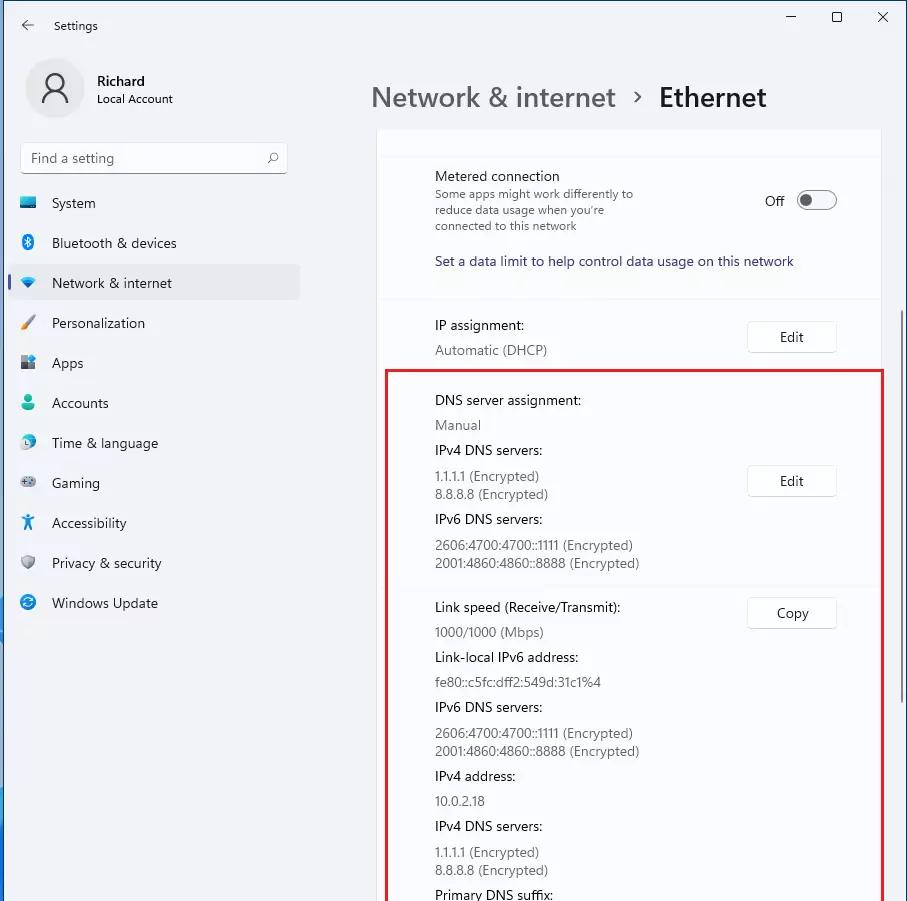
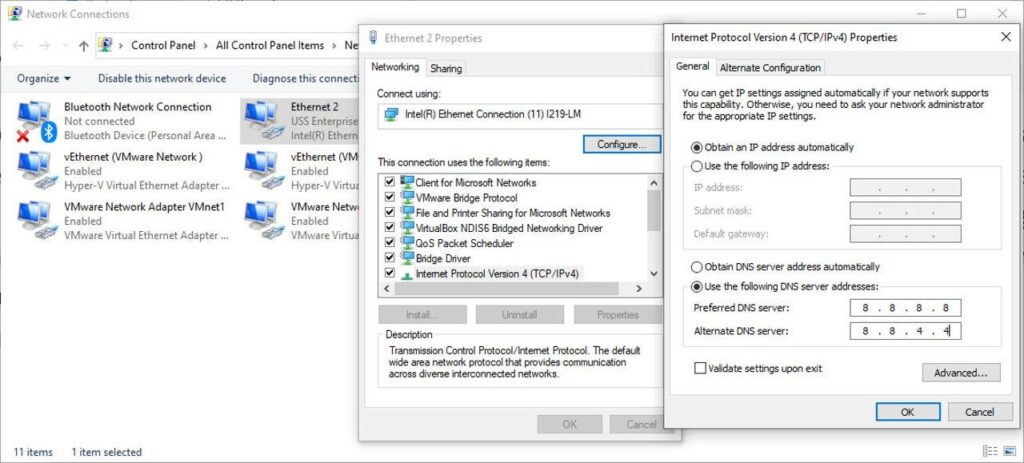
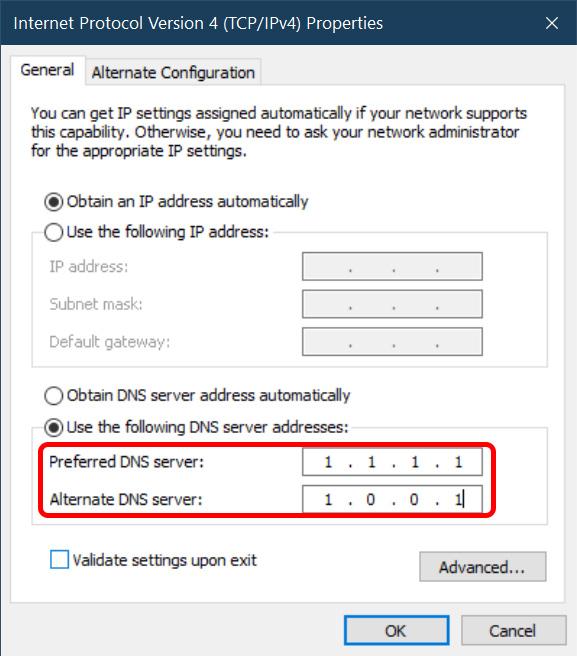
4. Change Your DNS Server Address
Sometimes your internet provider’s DNS servers experience outages or performance issues.
Switching to a public DNS service can solve the problem immediately.
Popular DNS providers include:
| Provider | Primary DNS | Secondary DNS |
|---|---|---|
| Google DNS | 8.8.8.8 | 8.8.4.4 |
| Cloudflare | 1.1.1.1 | 1.0.0.1 |
| OpenDNS | 208.67.222.222 | 208.67.220.220 |
Steps
- Open Control Panel.
- Click Network and Internet.
- Select Network and Sharing Center.
- Click Change Adapter Settings.
- Right-click your active connection.
- Choose Properties.
- Select Internet Protocol Version 4 (TCP/IPv4).
- Click Properties.
- Choose Use the following DNS server addresses.
- Enter Google or Cloudflare DNS addresses.
- Save changes.
This is one of the most effective solutions for the DNS server not responding error in Windows.
5. Reset TCP/IP Settings
Corrupted TCP/IP configurations can interfere with DNS resolution.
Steps
Open Command Prompt as Administrator and run:
netsh int ip resetThen run:
netsh winsock resetRestart your computer after executing both commands.
These commands restore networking components to their default state.
⚠️ Warning: Any custom networking settings may need to be reconfigured afterward.
6. Temporarily Disable Antivirus or Firewall
Some security programs mistakenly block DNS traffic.
Test This Safely
- Disable your antivirus temporarily.
- Turn off third-party firewall software.
- Check whether websites load normally.
If the issue disappears, review your security software settings and whitelist trusted network services.
Never leave your antivirus disabled permanently.
7. Update Network Drivers
Outdated or corrupted network adapter drivers can trigger DNS communication failures.
Steps
- Press Windows + X.
- Open Device Manager.
- Expand Network Adapters.
- Right-click your network device.
- Select Update Driver.
- Choose Search Automatically.
Windows will install available updates automatically.
You can also download the latest drivers directly from the manufacturer’s website.
For additional performance improvements, see:
- How to Clear Cache in Windows 11 to Speed Up Your Computer
- How to Disable Startup Programs in Windows 11 & 10 (5 Fast Ways)
8. Disable IPv6 Temporarily
In some cases, IPv6 conflicts with DNS configuration.
Steps
- Open Network Connections.
- Right-click your active adapter.
- Select Properties.
- Uncheck Internet Protocol Version 6 (TCP/IPv6).
- Click OK.
- Restart your PC.
If the issue is fixed, you can continue using IPv4 until the underlying conflict is identified.
9. Restart the DNS Client Service
Windows relies on the DNS Client service to manage DNS resolution requests.
Steps
- Press Windows + R.
- Type:
services.msc- Press Enter.
- Locate DNS Client.
- Right-click it.
- Choose Restart.
If restart is unavailable, rebooting Windows will restart the service automatically.
Advanced Fixes for Persistent DNS Problems
If none of the previous solutions work, consider these advanced options.
Reset Network Settings
Windows can completely reset all network configurations.
Navigate to:
Settings → Network & Internet → Advanced Network Settings → Network Reset
Restart your computer after the reset completes.
Test in Safe Mode with Networking
Safe Mode loads only essential drivers and services.
If DNS works correctly in Safe Mode, a third-party application is likely causing interference.
Contact Your ISP
Your Internet Service Provider may be experiencing DNS outages.
Check your ISP’s status page or contact support to confirm whether service disruptions are affecting DNS resolution.
Best Practices to Prevent DNS Errors
Preventing DNS issues is easier than fixing them repeatedly.
Follow these recommendations:
- Keep Windows updated.
- Use reliable public DNS providers.
- Update router firmware regularly.
- Avoid installing unnecessary networking utilities.
- Scan for malware periodically.
- Update network drivers consistently.
- Restart your router monthly.
💡 Pro Tip: Cloudflare DNS (1.1.1.1) is often faster than default ISP DNS servers and may improve browsing performance.
Recommended Resources
For additional technical guidance, refer to these trusted sources:
- Microsoft DNS troubleshooting documentation: https://learn.microsoft.com/
Signs the Problem Is Fixed
You’ll know the issue has been resolved when:
- Websites load normally.
- Browsers stop displaying DNS errors.
- Online apps reconnect successfully.
- Command Prompt ping tests succeed.
- Network diagnostics show no DNS failures.
Run a quick test by opening several websites after each fix.
Final Thoughts
The DNS server not responding error in Windows is one of the most common internet connectivity problems, but it is usually straightforward to fix.
Start with basic troubleshooting such as restarting your router, flushing the DNS cache, and switching DNS providers. If the issue persists, move on to resetting network settings, updating drivers, and checking for software conflicts.
In most cases, one of these solutions restores internet access within a few minutes and prevents future DNS interruptions.
Frequently Asked Questions
1. What causes a DNS server not responding error in Windows?
It is usually caused by incorrect DNS settings, router issues, ISP outages, or corrupted network configurations.
2. Is changing DNS servers safe?
Yes. Trusted providers like Google DNS and Cloudflare DNS are safe and widely used.
3. Can a VPN cause DNS errors?
Yes. Misconfigured VPN settings can interfere with DNS resolution and internet connectivity.
4. Does restarting the router fix DNS problems?
Often yes. Restarting clears temporary network glitches that may prevent DNS communication.
5. Which DNS server is best for Windows?
Cloudflare DNS (1.1.1.1) and Google DNS (8.8.8.8) are among the most reliable options.
