Introduction
If you want to disable startup programs in Windows, you’ve already taken the first step toward a faster PC.
Every time you turn on your computer, a hidden army of apps wakes up with it — Spotify, Discord, OneDrive, Teams, Steam, and dozens more. Most of them you didn’t even ask to launch. They just show up, quietly eating your RAM, slowing your boot time, and dragging down system performance before you’ve even opened a browser tab.
The good news? You don’t need to be a tech expert to fix this. In this guide, you’ll learn 5 proven methods to disable startup programs in Windows 11 and Windows 10, from the fastest one-click approach to more advanced options for power users.
Let’s get your PC booting fast again.
Table of Contents
Why You Should Disable Startup Programs in Windows
When too many programs launch at startup, your PC takes longer to become usable after booting. This is one of the most common reasons Windows computers feel sluggish — even on relatively new hardware.
Here’s what happens behind the scenes:
- Your CPU spikes to 90–100% usage while all those apps initialize
- Available RAM shrinks before you’ve opened a single window
- Your hard drive or SSD gets hammered with read requests all at once
- You’re left staring at a desktop that hasn’t fully loaded yet
According to Microsoft’s official Windows performance documentation, excessive startup programs are one of the leading causes of slow boot times on Windows 10 and 11.
Disabling startup programs in Windows costs you nothing, takes under five minutes, and can cut your boot time by 30–60 seconds or more.
Method 1: Use Task Manager (Fastest Way)
This is the quickest and most beginner-friendly way to disable startup programs in Windows 11 and 10.
Step 1: Press Ctrl + Shift + Esc to open Task Manager directly.
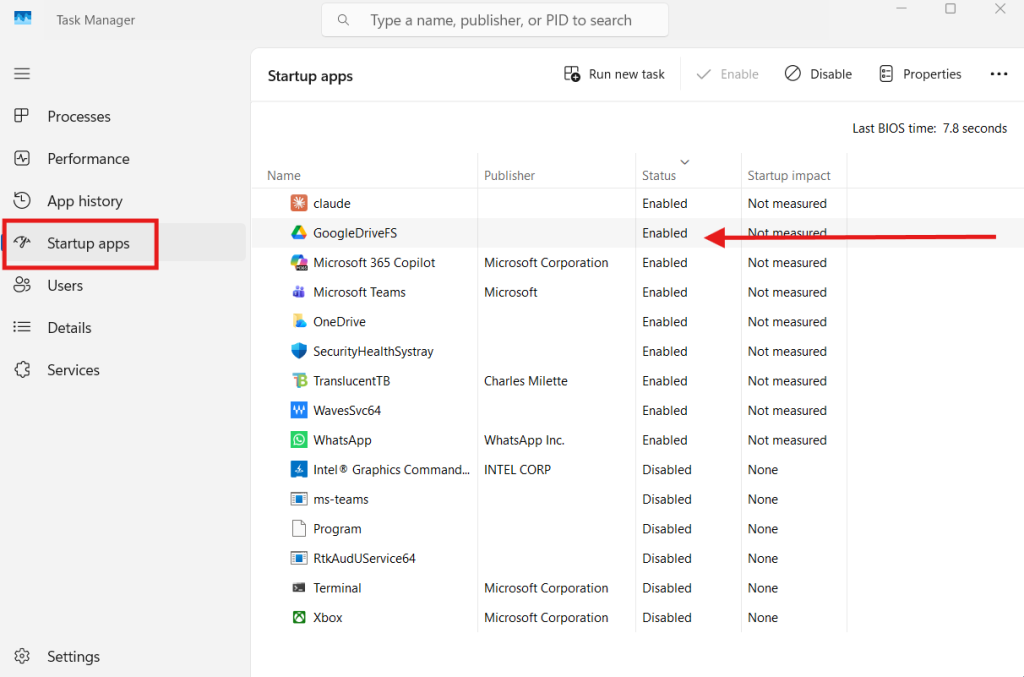
Step 2: Click the Startup tab at the top (in Windows 11, click “Startup apps” in the left sidebar).
Step 3: You’ll see a list of all programs set to launch at boot, along with their Startup Impact rating — Low, Medium, or High.
Step 4: Right-click any app you want to stop and select Disable.
Step 5: Restart your PC to see the difference.
💡 Pro Tip: Focus on apps with High startup impact first. Disabling even two or three of these can dramatically improve your boot speed.
Internal link suggestion: → See also: 15 Proven Ways to Speed Up Your Windows PC
Method 2: Use the Windows Settings App
Windows 11 users have a dedicated startup management screen inside the Settings app, making it even easier to manage startup apps without opening Task Manager.
Step 1: Press Windows + I to open Settings.
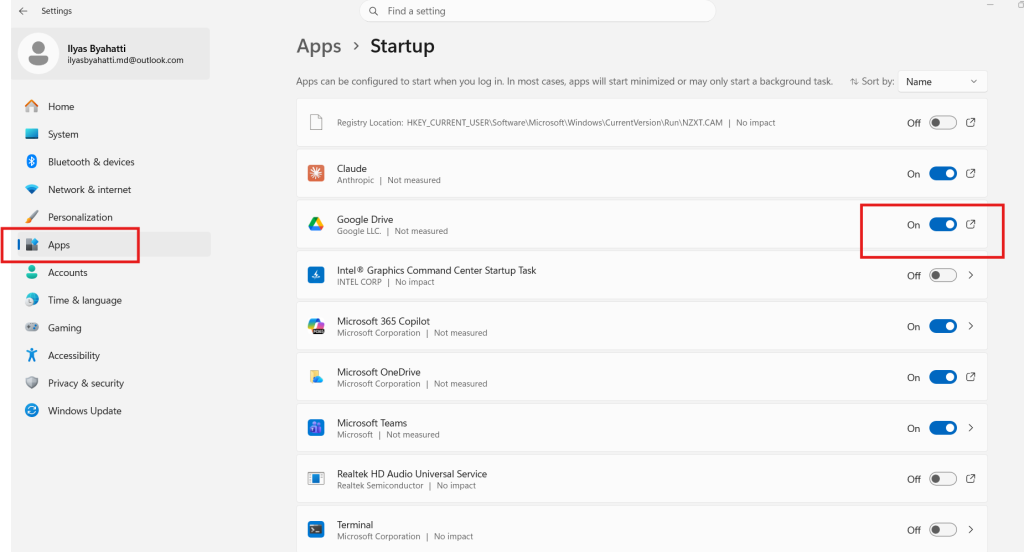
Step 2: Go to Apps → Startup (Windows 11) or Apps → Startup Apps (Windows 10).
Step 3: You’ll see a list of apps with toggle switches. Each app also shows a performance impact rating.
Step 4: Toggle off any app you don’t need running at startup.
💡 Pro Tip: In Windows 11, the Settings startup page is sorted by impact level by default. Start at the top of the list — that’s where the biggest offenders live.
This method is ideal if you prefer a cleaner interface over Task Manager’s utility-style layout.
Method 3: Use System Configuration Tool (MSConfig)
MSConfig is a powerful built-in Windows tool that lets you control startup services and apps. It’s been around since Windows XP and is still one of the most effective ways to disable startup programs in Windows 10.
Step 1: Press Windows + R, type msconfig, and hit Enter.
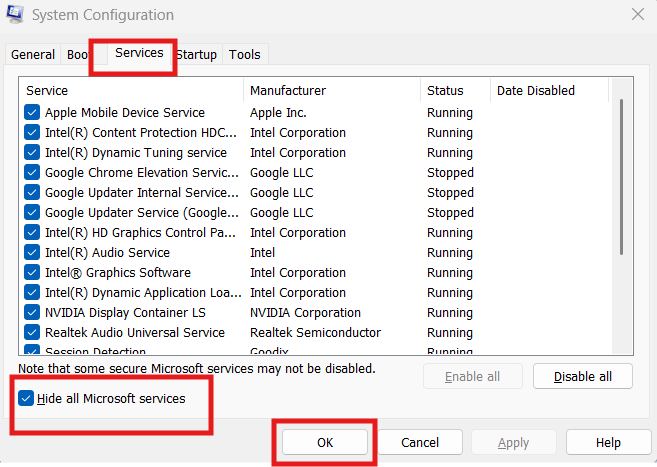
Step 2: Click the Services tab to see a list of all Windows services.
Step 3: Check “Hide all Microsoft services” at the bottom — this protects critical Windows services from being accidentally disabled.
Step 4: Uncheck any third-party services you don’t need at startup.
Step 5: Click Apply, then OK, and restart your PC.
⚠️ Warning: Don’t disable services you don’t recognize without researching them first. Disabling the wrong service can cause app crashes or system errors. When in doubt, leave it enabled.
Note: In Windows 10 and 11, MSConfig’s Startup tab now redirects you to Task Manager for managing startup apps. Use it primarily for managing startup services.
Method 4: Disable Startup Programs via Registry Editor
This method is for intermediate users who want granular control. The Windows Registry stores startup entries in specific locations that you can edit directly.
Step 1: Press Windows + R, type regedit, and press Enter.
Step 2: Navigate to one of the following paths depending on whether you want to affect all users or just your account:
- All Users:
HKEY_LOCAL_MACHINE\SOFTWARE\Microsoft\Windows\CurrentVersion\Run - Current User:
HKEY_CURRENT_USER\SOFTWARE\Microsoft\Windows\CurrentVersion\Run
Step 3: In the right panel, you’ll see a list of startup entries. Right-click any entry and select Delete to remove it from startup.
Step 4: Close Registry Editor and restart your PC.
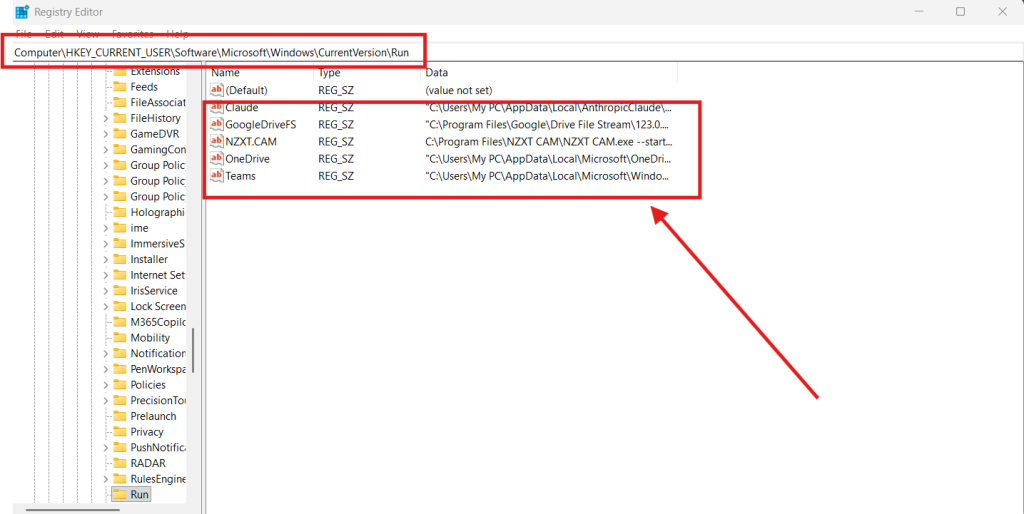
⚠️ Warning: Always back up your Registry before making changes. Press File → Export in Registry Editor to save a backup. A wrong edit here can cause serious system issues.
💡 Pro Tip: This method is especially useful for removing stubborn startup entries that don’t appear in Task Manager or Settings.
Method 5: Use a Third-Party Startup Manager
If you want more detail and control than Windows built-in tools offer, a third-party startup manager is the way to go.
Autoruns by Microsoft Sysinternals is the gold standard — it’s free, trusted, and shows every single startup entry on your system including scheduled tasks, browser extensions, and shell integrations.
Download it from the official Microsoft page: Sysinternals Autoruns (DoFollow external link)
How to use Autoruns:
- Download and run Autoruns (no installation needed)
- Click the Logon tab to see standard startup apps
- Uncheck any entry to disable it
- Use the Everything tab for a complete system view
Another popular free option is CCleaner’s Startup Manager, accessible under Tools → Startup inside the CCleaner application. (DoFollow external link)
💡 Pro Tip: Autoruns color-codes entries — yellow means the file wasn’t found (safe to remove), pink means the entry has no publisher info (worth researching before disabling).
Which Programs Are Safe to Disable?
Not every startup program is harmful — some are genuinely needed. Here’s a quick breakdown:
Generally Safe to Disable:
- Spotify, Steam, Discord, Slack (launch these when you need them)
- Adobe Creative Cloud updater
- OneDrive (unless you actively sync files on startup)
- Google Drive for Desktop
- Microsoft Teams (if you don’t use it at login)
- Zoom, Skype, or any video call app
Usually Keep Enabled:
- Windows Security / Defender
- Audio drivers (Realtek, etc.)
- GPU drivers (NVIDIA, AMD)
- Your antivirus software
- Bluetooth or Wi-Fi management tools
You can check this suggestion: → Protect Your PC from Core Level Attacks — 7 Powerful Windows Security Fixes (2026)
How Much Faster Will Your PC Boot After Disabling Startup Programs?
Results vary by hardware and how many programs you disable, but real-world results are consistently impressive:
| Scenario | Average Boot Time Before | Average Boot Time After |
|---|---|---|
| SSD with 15+ startup apps | 45–60 seconds | 15–20 seconds |
| HDD with 10+ startup apps | 90–120 seconds | 45–60 seconds |
| New laptop with bloatware | 60–90 seconds | 20–30 seconds |
Disabling startup programs in Windows is one of the highest-ROI fixes you can make — it takes five minutes and delivers results you’ll feel every single day.
FAQs
Q1: Is it safe to disable startup programs in Windows?
Yes, disabling startup apps is safe. These are third-party programs — not Windows system files. You can always re-enable them anytime.
Q2: Will disabling startup programs delete any apps?
No. Disabling a startup program only stops it from launching at boot. The app stays installed and fully functional.
Q3: How do I re-enable a startup program I disabled?
Open Task Manager → Startup tab, right-click the app, and select Enable. It will run at next startup.
Q4: Why can’t I see all startup programs in Task Manager?
Some programs use scheduled tasks or registry entries to start up. Use Autoruns by Sysinternals for a complete view.
Q5: Does disabling startup programs affect Windows updates?
No. Windows Update runs as a system service and is not affected by disabling third-party startup programs.
Q6: How often should I review my startup programs?
Check every few months. New software installs often add themselves to startup without asking.
Summary
Knowing how to disable startup programs in Windows is one of the most effective ways to speed up your PC without spending a cent. Whether you use Task Manager, Settings, MSConfig, Registry Editor, or Autoruns, the result is the same — a faster boot, more available memory, and a snappier Windows experience from the moment you log in.
Start with Method 1 (Task Manager) if you’re new to this. Work your way to Autoruns if you want total control.
