Introdution
Create restore point on Windows PC is one of the most important steps you can take to protect your computer from unexpected problems. Many users install new software, update drivers, or modify system settings without creating a restore point. When something goes wrong, they have no way to revert the system back to a stable state.
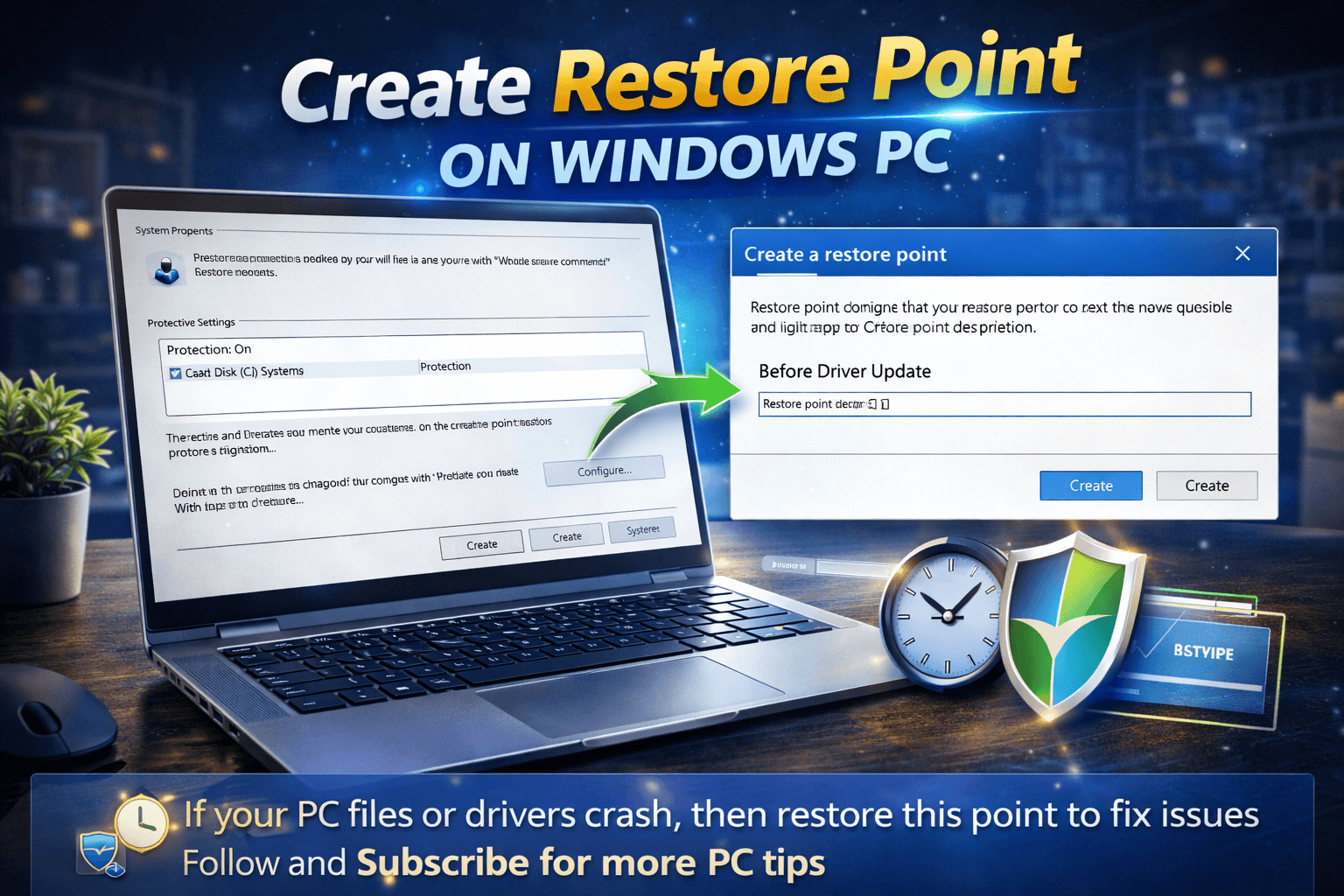
A restore point acts like a safety checkpoint for your system. If your computer files become corrupted or a driver causes crashes, you can easily roll your system back to a previous working state.
In this guide, you will learn how to create a restore point on Windows PC step by step and why it is essential for system stability.
Table of Contents
What Is a Restore Point in Windows
A restore point is a saved snapshot of your Windows system configuration. It records:
- System files
- Installed drivers
- Registry settings
- Important configurations
If a problem occurs later, Windows allows you to restore the system to that snapshot.
System Restore helps recover the system without affecting personal files like documents, photos, or videos.
Why You Should Create Restore Point on Windows PC
Many system issues occur after:
- Driver installations
- Windows updates
- Software installations
- Registry changes
When problems appear, a restore point allows you to reverse those changes quickly.
Creating restore points helps in situations such as:
- PC crashes after installing software
- Driver updates causing system instability
- Malware damaging system files
- Failed Windows updates
Learning how to create restore point on Windows PC ensures you always have a backup plan.
How Restore Points Work
When you create restore point on Windows PC, Windows stores system configuration data in a protected storage area.
This includes:
- Windows registry
- System drivers
- System configuration settings
If something breaks later, you can restore these components to their previous state.
Important note: restore points do not delete personal files such as photos, videos, or documents.
They only revert system-level changes.
Step-by-Step Guide to Create Restore Point on Windows PC
Follow these simple steps.
Step 1: Open Run Dialog
Press:
Windows + R
This opens the Run command window.
Step 2: Open System Properties
Type the following command:
sysdm.cpl
Press Enter.
The System Properties window will open.
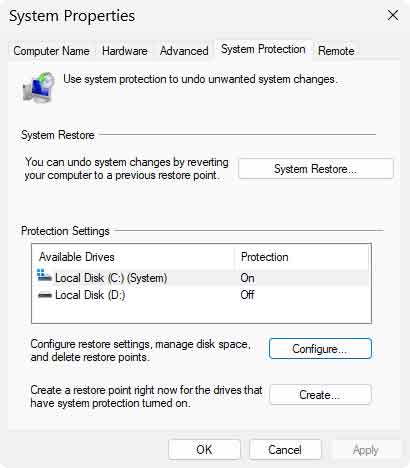
Step 3: Go to System Protection Tab
Inside System Properties:
- Click the System Protection tab.
This section manages restore points and protection settings.
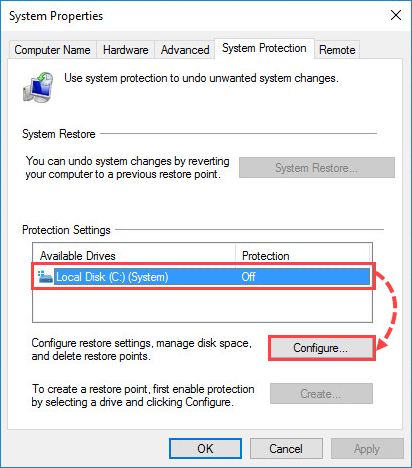
Step 4: Configure System Protection
Click Configure.
Now select:
Turn on system protection
Adjust disk space if necessary.
Click Apply then OK.
Enabling protection allows Windows to create restore points.
Step 5: Create a Restore Point
Now click the Create button.
Enter a name for your restore point.
Example:
- Before Driver Update
- Before Software Install
Click Create.
Windows will generate the restore point within a few seconds.
Now you have successfully learned how to create restore point on Windows PC.
Restoring Your System Using a Restore Point
If your system crashes or drivers fail, you can restore your PC.
Steps:
- Open System Protection again
- Click System Restore
- Select the restore point
- Follow the instructions
Your PC will restart and restore system settings.
Microsoft system restore documentation (DoFollow):
https://learn.microsoft.com/windows
This process can fix many issues including software conflicts and driver crashes.
When You Should Create Restore Points
You should create restore point on Windows PC before performing major system changes.
Examples include:
- Installing new drivers
- Updating Windows
- Installing large software packages
- Editing system settings
Creating restore points regularly ensures you always have a recovery option.
Benefits of Creating Restore Points
Creating restore points offers several advantages:
- Protects system configuration
- Allows quick recovery from errors
- Helps troubleshoot system crashes
- Saves time compared to reinstalling Windows
Without restore points, fixing system problems may require reinstalling the entire operating system.
Common Mistakes Users Make
Many users forget to enable system protection.
Other common mistakes include:
- Not creating restore points before driver updates
- Disabling system protection to save disk space
- Ignoring restore point management
Avoiding these mistakes ensures system safety.
Tips to Manage Restore Points Efficiently
To manage restore points effectively:
- Keep system protection enabled
- Allocate sufficient disk space
- Delete old restore points occasionally
Windows also creates automatic restore points during major system updates.
You can these too
If you want to improve your PC maintenance skills, explore:
👉 Powerful Command Prompt for C Drive Space Issues and How to Clean in 30 seconds
👉 Windows Command Prompt Reagentc and How It Helps You Fix Recovery Problems
These resources will help you maintain a healthy system.
Why Restore Points Are Essential for System Safety
Restore points are like a time machine for your system.
They allow you to undo changes that break your computer.
If your PC files or drivers crash, restoring your system to a previous point can fix the issue quickly.
Knowing how to create restore point on Windows PC protects your system from many common problems.
Final Thoughts
Creating restore points is one of the easiest and safest ways to protect your Windows computer.
By learning how to create restore point on Windows PC, you ensure that any system errors, driver crashes, or software conflicts can be reversed quickly.
This simple process can save hours of troubleshooting and prevent the need for a complete system reinstall.
Always create restore points before making major changes to your system.
FAQs
What is the purpose of a restore point?
It allows you to revert Windows system settings to a previous working state.
Does System Restore delete personal files?
No. Personal files remain unaffected.
How often should I create restore points?
Before installing drivers, updates, or important software.
Can restore points fix system crashes?
Yes. They can reverse changes that caused instability.
Is System Restore available in Windows 11?
Yes. It works in both Windows 10 and Windows 11.
Creating restore point on Windows PC is a simple habit that can protect your system from unexpected problems and keep your computer running smoothly.
