Introduction
Powerful command prompt for c drive space issues is one of the fastest ways to clean unnecessary temporary files from your Windows system. Many users struggle with low storage warnings, slow system performance, and application errors simply because the C drive is filled with unused temporary files.
Windows constantly creates temporary files when installing updates, running programs, or processing data. Over time these files accumulate in the Windows Temp folder and consume valuable storage.
In this guide, you will learn how to use a simple command prompt method to delete temporary files safely and reclaim space on your system drive.
Table of Contents
Why C Drive Runs Out of Space
Before using the powerful command prompt for c drive space issues, it helps to understand why storage fills up quickly.
Common causes include:
- Windows update temporary files
- Software installation leftovers
- Cached application data
- Temporary logs
- Browser cache
Even modern computers with large storage drives can experience this issue.
According to Microsoft documentation (DoFollow):
https://support.microsoft.com/windows
Temporary files can accumulate quickly and consume several gigabytes of storage.
Understanding the Powerful Command Prompt for C Drive Space Issues
The Windows Command Prompt provides advanced tools to manage system files and automate cleanup tasks.
The powerful command prompt for c drive space issues focuses on removing temporary files stored inside the Windows Temp folder.
These files are generally safe to delete because they are created only for temporary processing and are no longer needed after the task completes.
Using Command Prompt allows you to remove these files instantly without opening multiple folders.
How Temporary Files Affect Performance
Temporary files do more than just fill storage. They can also affect system performance.
When the C drive becomes full:
- Windows updates may fail
- Programs load slower
- System boot time increases
- Disk fragmentation increases
Keeping the system drive clean improves overall performance and stability.
Learning the powerful command prompt for c drive space issues helps maintain a healthier system.
Step-by-Step Powerful Command Prompt for C Drive Space Issues Method
Follow these simple steps.
Step 1: Open the Run Dialog
Press:
Windows + R
The Run window will appear.
Step 2: Open Command Prompt as Administrator
Type:
CMD
Then press:
Ctrl + Shift + Enter
This opens Command Prompt with administrator privileges.
Administrative access is required because system folders are protected.
Step 3: Run the Cleanup Command
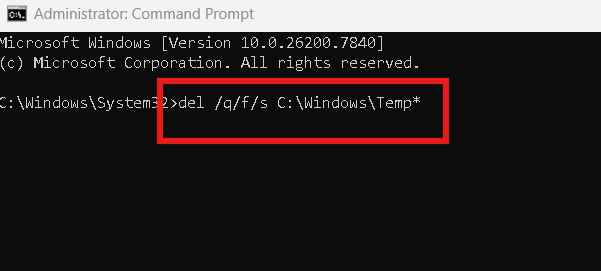
Now type the following command:
del /q/f/s C:\Windows\Temp\*
Press Enter.
This command will start deleting temporary files stored inside the Windows Temp folder.
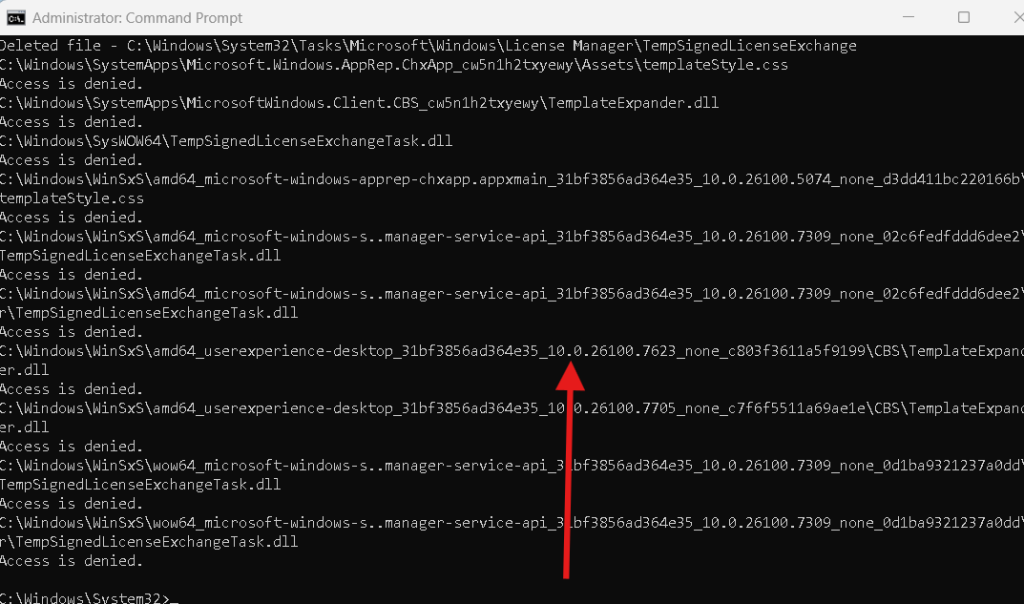
The process may take a few seconds depending on how many files exist.
Understanding the Command Used
The powerful command prompt for c drive space issues uses several parameters.
Let’s break them down.
del
Deletes files.
/q
Quiet mode.
Suppresses confirmation prompts.
/f
Forces deletion of read-only files.
/s
Deletes files in subdirectories as well.
C:\Windows\Temp*
Targets all files inside the Windows Temp directory.
Together, these parameters allow a complete cleanup of unnecessary temporary files.
Microsoft command reference (DoFollow):
https://learn.microsoft.com/windows-server/administration/windows-commands/del
Other Methods to Free Up C Drive Space
While the powerful command prompt for c drive space issues is effective, combining it with other methods improves results.
Use Windows Disk Cleanup
Windows includes a built-in cleanup tool.
Steps:
- Search Disk Cleanup
- Select drive C:
- Remove temporary files, logs, and update files.
Remove Temporary Files from Settings
You can also clean temporary files using Windows settings.
Steps:
Settings → System → Storage → Temporary Files
Select unnecessary files and delete them.
Uninstall Unused Programs
Programs often leave background files and updates.
Go to:
Settings → Apps → Installed Apps
Remove applications you no longer use.
Clear Browser Cache
Browsers store large cache files.
Clear them regularly from browser settings.
Preventing Future C Drive Space Problems
After using the powerful command prompt for c drive space issues, it is important to maintain your system regularly.
Follow these tips:
- Clean temporary files monthly
- Avoid installing unnecessary software
- Store large files on secondary drives
- Enable Storage Sense in Windows
Storage Sense automatically removes temporary files when space runs low.
You can check these
If you want to learn more Windows optimization techniques, explore:
👉 Windows Command Prompt Reagentc and How It Helps You Fix Recovery Problems
👉 Windows 11 Slow Boot Problem and How to Fix It Without Reinstalling
These guides provide deeper insights into system maintenance.
When You Should Use This Command
You should use the powerful command prompt for c drive space issues when:
- Your C drive shows low storage warnings
- Windows updates fail due to insufficient space
- System performance becomes slower
- Temporary files grow excessively
Regular cleanup keeps your system stable and responsive.
Final Thoughts
The powerful command prompt for c drive space issues is a simple yet effective solution for cleaning temporary files and reclaiming valuable disk space.
Instead of manually browsing system folders, a single command can remove unnecessary files instantly.
By running:
del /q/f/s C:\Windows\Temp\*
you can quickly clear temporary system data and improve storage efficiency.
Combined with regular maintenance practices, this method helps keep your Windows system running smoothly.
FAQs
What does the powerful command prompt for c drive space issues do?
It deletes temporary files stored in the Windows Temp folder to free disk space.
Is it safe to delete Windows Temp files?
Yes. These files are temporary and usually safe to remove.
Will this command delete important system files?
No. It only targets files inside the Temp folder.
How often should I clean the Temp folder?
Once every few weeks or when disk space becomes low.
Can this command improve system speed?
Yes. Removing unnecessary files reduces disk load and improves performance.
Using the powerful command prompt for c drive space issues regularly ensures that your system remains clean, fast, and free from unnecessary storage clutter.
