Introduction
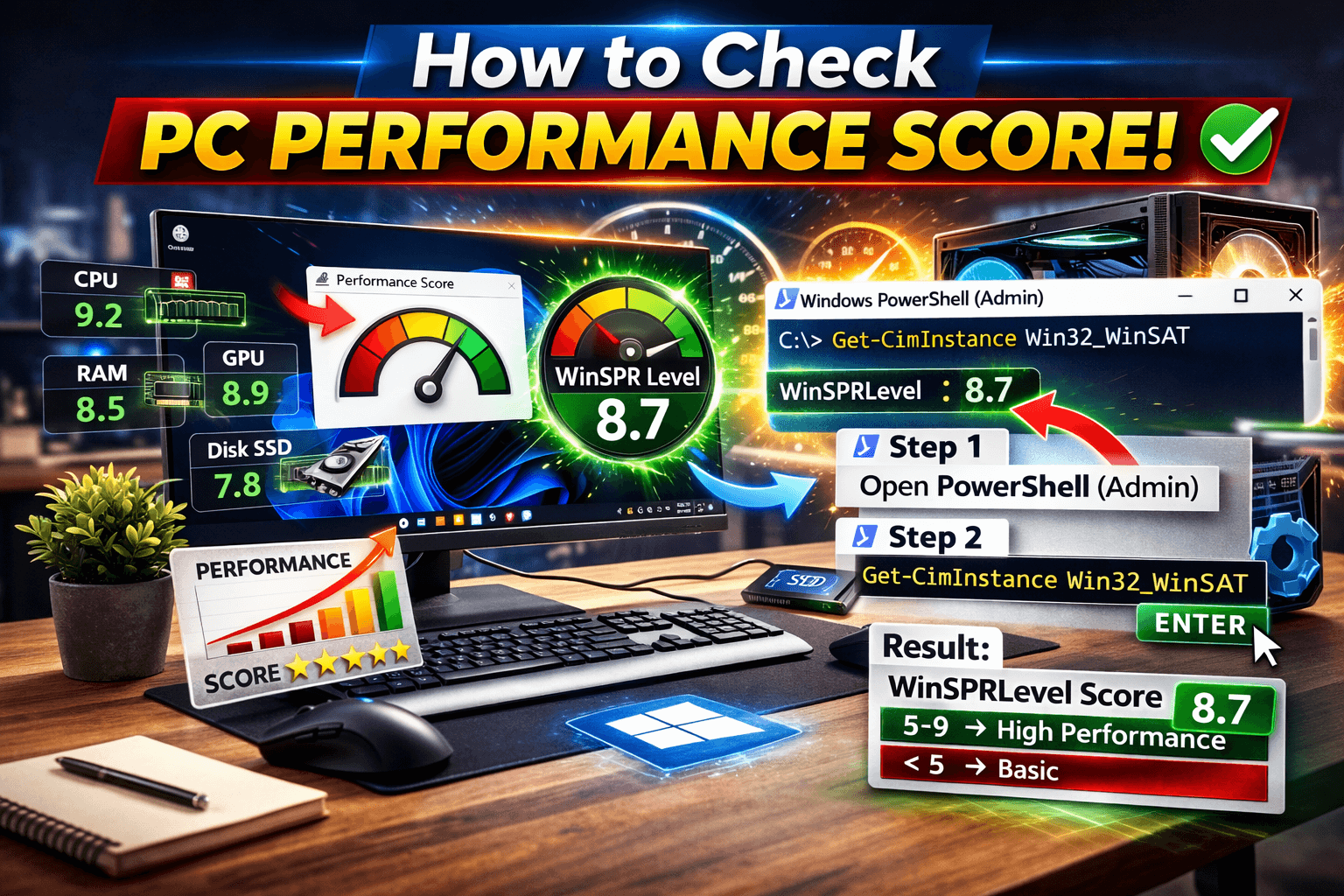
How to check PC performance score is something every Windows user should know. Whether you are a student, professional, gamer, or office user, understanding your PC’s capability helps you decide what tasks it can handle smoothly.
Most users think they need third-party software to measure performance. But Windows already has a built-in assessment tool that gives you a performance rating called the WinSPRLevel score.
In this complete guide, you will learn:
- How to check PC performance score using a simple command
- What the WinSPRLevel score means
- How to interpret the results
- When you should upgrade your system
Let’s begin step by step.
Table of Contents
What Is PC Performance Score in Windows
Windows includes a built-in assessment system known as Windows System Assessment Tool (WinSAT). It evaluates:
- Processor performance
- RAM performance
- Graphics performance
- Gaming graphics
- Disk speed
The final result is displayed as WinSPRLevel.
According to official Microsoft documentation (DoFollow):
https://learn.microsoft.com
This score helps users quickly understand system capability.
If you want a simple way to evaluate your computer without installing heavy benchmarking tools, learning how to check PC performance score is essential.
How to Check PC Performance Score Using PowerShell
Follow these simple steps.
Step 1: Open PowerShell as Administrator
- Press Windows + X
- Press A (Admin PowerShell)
Alternatively, right-click Start and choose Terminal (Admin).
Step 2: Enter the Command
Type the following command:
Get-CimInstance Win32_WinSAT
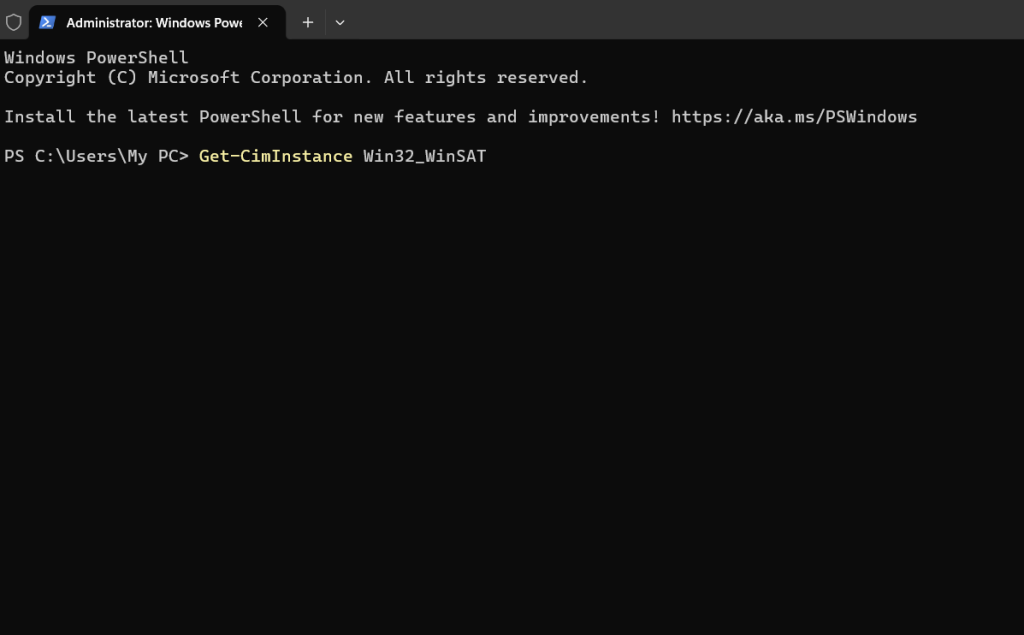
Press Enter.
Step 3: Check WinSPRLevel
Look for:
WinSPRLevel
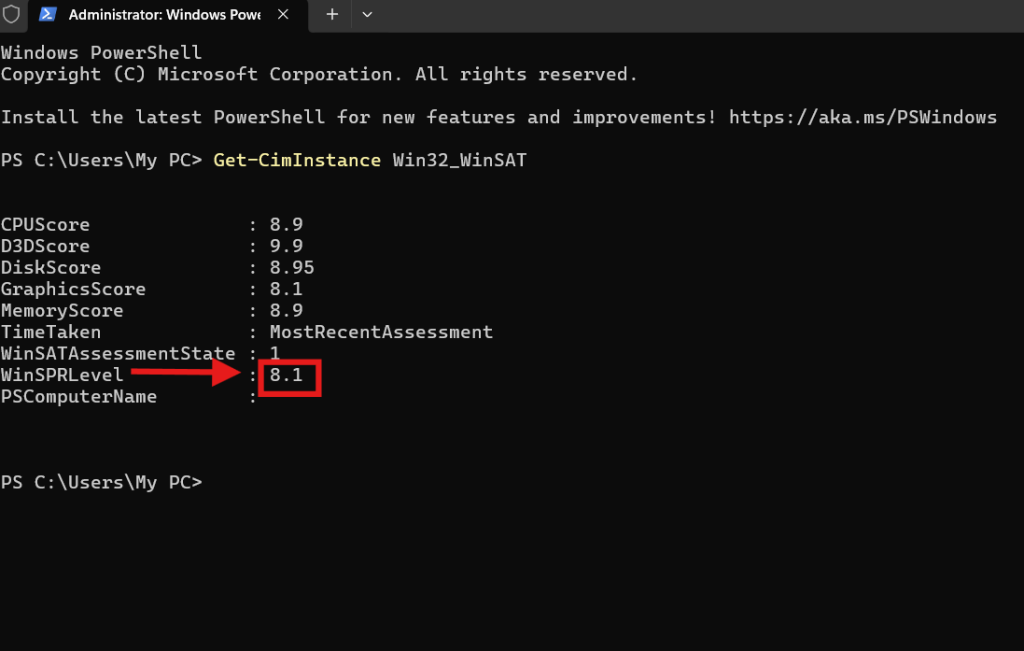
This number represents your PC performance score.
That’s it. You now know how to check PC performance score using a built-in Windows method.
Understanding WinSPRLevel Score
The WinSPRLevel score is calculated based on the lowest-performing component of your system.
If your processor is strong but your hard drive is slow, the lower component reduces the overall rating.
This method ensures that the weakest link in your system is identified.
Knowing how to check PC performance score helps you identify where the bottleneck exists.
What Different Score Ranges Mean
Now let’s interpret the results.
If WinSPRLevel Shows Below 5
- Suitable for light multitasking
- Basic office work
- Web browsing
- Online classes
Systems in this range are ideal for everyday users but not heavy workloads.
If WinSPRLevel Shows 5 to 9
- Suitable for advanced multitasking
- Video editing
- Programming
- High-end workstations
- Gaming (depending on GPU score)
If your score is above 7, your PC is considered powerful for most tasks.
Understanding how to check PC performance score helps you make smarter upgrade decisions.
Why Knowing How to Check PC Performance Score Matters
Many users complain that their PC feels slow without understanding the actual performance rating.
Checking your performance score helps you:
- Decide if you need an SSD upgrade
- Know if RAM is limiting performance
- Understand gaming capability
- Evaluate system resale value
These resources help you understand hardware improvements.
Improving Your PC Performance Score
If your WinSPRLevel is low, here are proven ways to improve it.
1. Upgrade to SSD
Replacing HDD with SSD drastically improves disk performance score.
This is the most effective upgrade.
2. Increase RAM
If RAM is low, performance score drops.
Upgrade to at least 8GB for smooth multitasking.
3. Clean Startup Programs
- Press Ctrl + Shift + Esc
- Go to Startup
- Disable unnecessary apps
This improves responsiveness.
4. Update Drivers
Outdated drivers reduce performance.
Update graphics, chipset, and storage drivers regularly.
5. Run Windows Updates
Keep Windows updated to improve stability and performance.
Go to:
Settings → Windows Update
Alternative Tools to Check PC Performance
If you want deeper analysis beyond how to check PC performance score, try these tools:
1. CPU-Z
These tools provide detailed benchmarking.
However, for quick evaluation, the WinSAT method remains simple and effective.
Common Mistakes While Checking PC Performance Score
- Running command without admin rights
- Misinterpreting base score
- Comparing score with outdated Windows versions
- Ignoring disk performance
Always run PowerShell as Administrator.
Signs Your PC Needs Upgrade
If after learning how to check PC performance score you find:
- Score below 4
- Frequent freezing
- Slow boot time
- High disk usage
It is time to upgrade storage or RAM.
You check these too
If you want to improve Windows knowledge further, explore:
👉 Bluetooth Is Not Working on Laptop and How to Fix It 60 seconds
👉 Windows 11 File Explorer Crashing Fix That Finally Stops the Frustration
These guides will help you master PC performance.
Final Thoughts
Knowing how to check PC performance score gives you clarity about your system capability.
Instead of guessing whether your PC is slow or powerful, you now have a measurable rating using WinSPRLevel.
The command:
Get-CimInstance Win32_WinSAT
provides instant insight.
If your score is:
- Below 5 – Basic usage
- Between 5 and 9 – High-end performance
Use this knowledge to upgrade smartly and maintain your system efficiently.
FAQs
1. How to check PC performance score in Windows 11?
Open PowerShell as Administrator and type:
Get-CimInstance Win32_WinSAT
2. What is WinSPRLevel?
It is Windows System Performance Rating showing your system capability.
3. Is WinSPRLevel accurate?
It provides a basic performance estimate based on weakest component.
4. Can SSD improve performance score?
Yes. SSD significantly increases disk rating and overall score.
5. Do I need third-party software?
No. Built-in WinSAT command is enough for quick assessment.
