
Introduction
How do I increase virtual memory is one of the most common questions Windows users ask when their PC starts freezing, showing low memory warnings, or slowing down during multitasking. Virtual memory helps your system handle memory pressure by using part of your storage drive as temporary RAM.
If you are wondering how do I increase virtual memory properly without damaging performance, this guide explains everything step by step. You will learn what virtual memory is, when to adjust it, and the safest recommended settings.
Table of Contents
What Is Virtual Memory
Before answering how do I increase virtual memory, you must understand what it does.
Virtual memory is a portion of your hard drive or SSD that Windows uses when physical RAM becomes full. This space is called the paging file. It prevents crashes when your system runs out of RAM.
However, virtual memory is slower than real RAM, so it should be used properly.
Why Users Ask How Do I Increase Virtual Memory
Users typically search how do I increase virtual memory when they notice:
- Low memory warning messages
- Apps crashing
- System freezing
- Slow performance
- High disk usage
Increasing virtual memory can reduce these issues and stabilize the system.
Signs You Need to Increase Virtual Memory
Here are clear indicators:
- “Your system is low on memory” message
- Games closing unexpectedly
- Browser tabs crashing
- Heavy software not responding
- Multitasking becomes impossible
If you see these signs, it may be time to adjust settings.
How Do I Increase Virtual Memory Step-by-Step
Now let’s directly answer the question: how do I increase virtual memory on Windows PC?
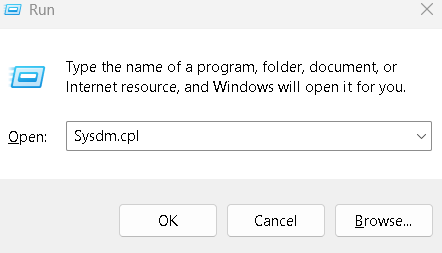
Step 1: Open Run command
- Type SYSDM.cpl
- Go to Advanced tab
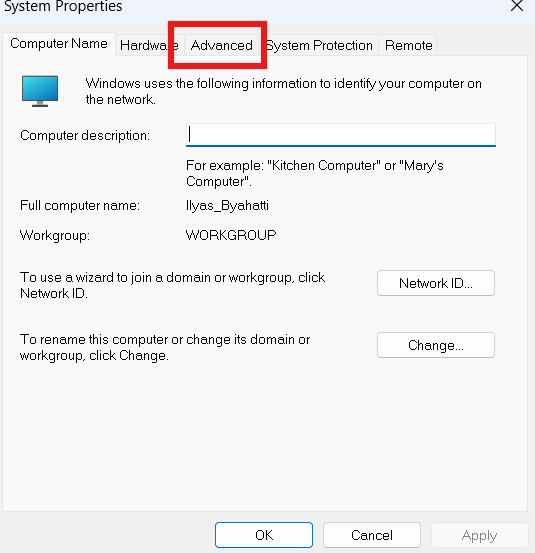
Step 2: Open Performance Settings
- Under Performance
- Click on Settings
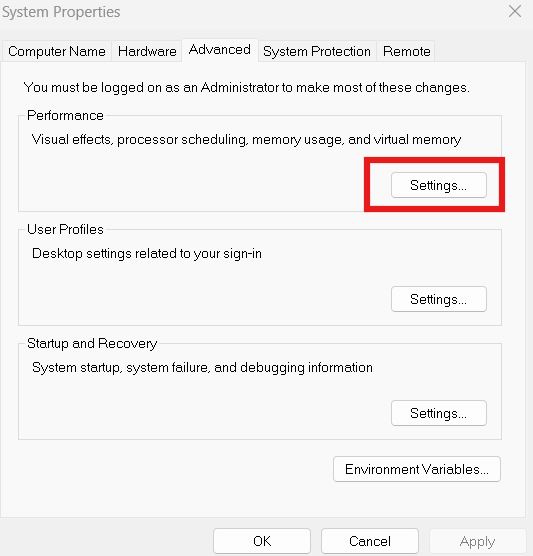
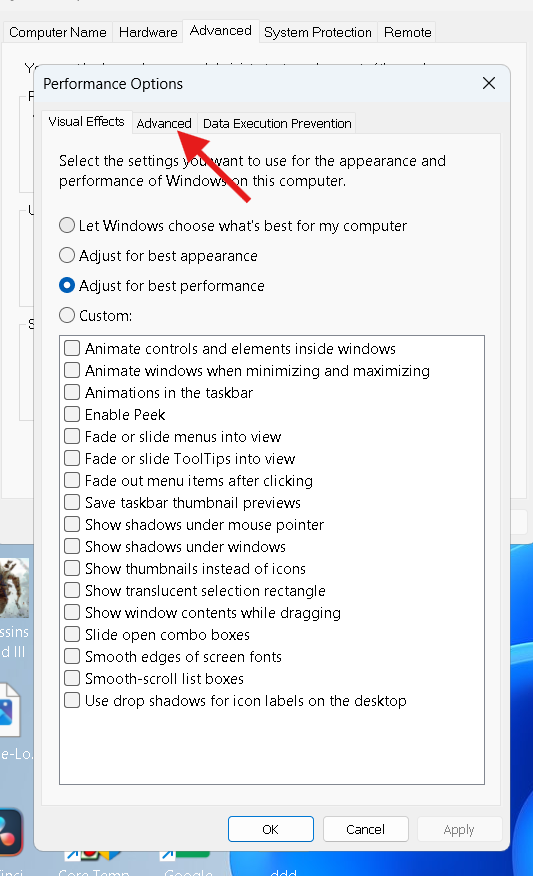
Step 3: Go to Advanced Tab
- Click Advanced
- Under Virtual Memory
- Click Change
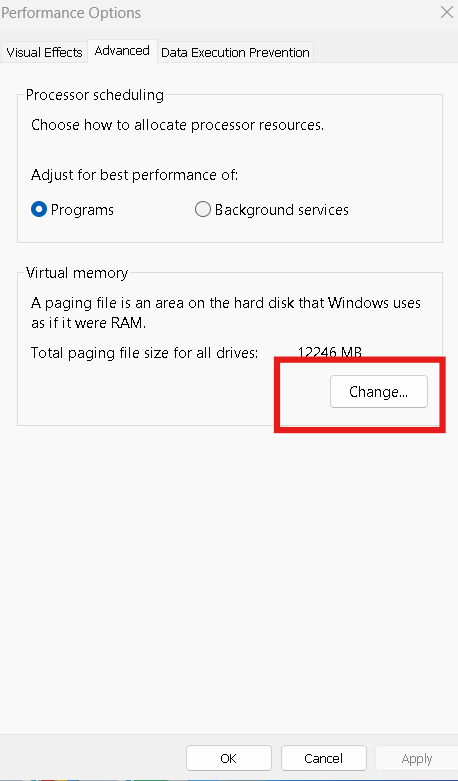
Step 4: Disable Automatic Management
Uncheck:
✔ Automatically manage paging file size
Step 5: Set Custom Size
Select your main drive and choose Custom Size.
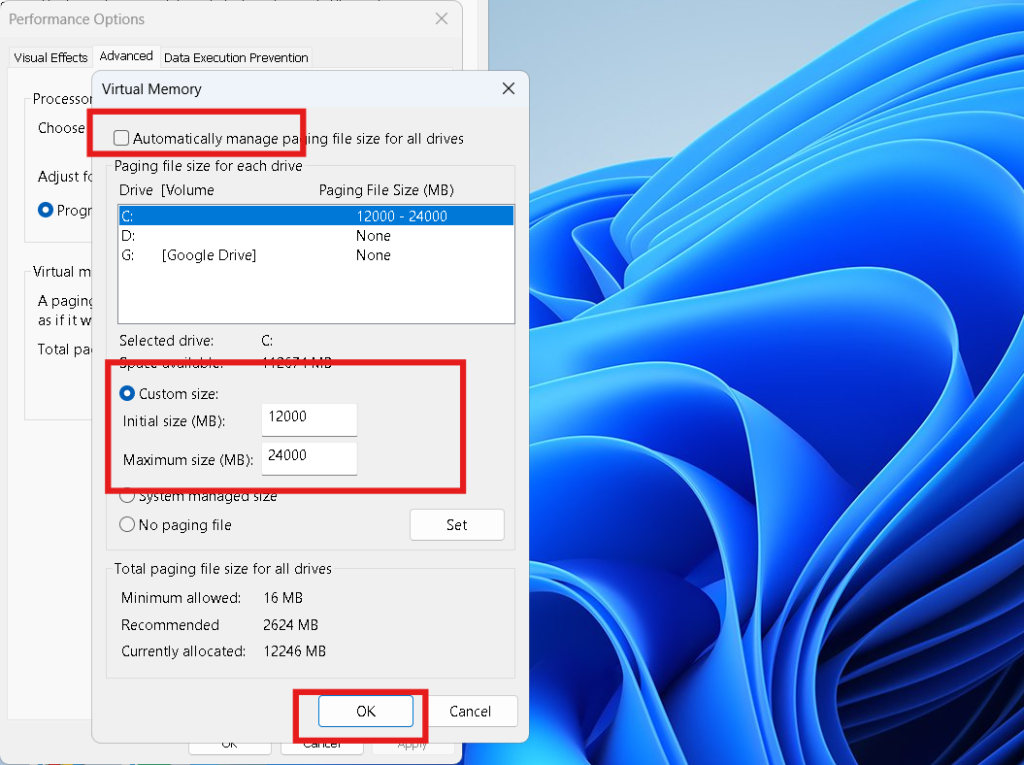
Step 6: Enter Recommended Values
General formula:
Initial Size = 1.5 × RAM
Maximum Size = 3 × RAM
Example for 8GB RAM:
- Initial = 12288 MB
- Maximum = 24576 MB
Click Set → OK → Restart PC.
This completes the process of how do I increase virtual memory safely.
Recommended Virtual Memory Size
If you are unsure how do I increase virtual memory correctly, follow these guidelines:
| RAM Installed | Recommended Virtual Memory |
|---|---|
| 4GB | 6000–12000 MB |
| 8GB | 12000–24000 MB |
| 16GB | Windows managed |
| 32GB | Automatic recommended |
Do not set extremely high values. It can slow down your disk.
Automatic vs Manual Virtual Memory
Many users ask whether they should manually configure settings after learning how do I increase virtual memory.
In most cases:
✔ Automatic management is safe
✔ Windows adjusts dynamically
✔ Manual is needed only if errors occur
If your system works fine, keep automatic mode enabled.
Automatic vs Manual Virtual Memory
Many users ask whether they should manually configure settings after learning how do I increase virtual memory.
In most cases:
✔ Automatic management is safe
✔ Windows adjusts dynamically
✔ Manual is needed only if errors occur
If your system works fine, keep automatic mode enabled.
SSD or HDD for Virtual Memory
If you are adjusting settings after searching how do I increase virtual memory, also consider drive type.
- SSD is much faster
- HDD is slower
Always keep paging file on SSD if available.
Does Increasing Virtual Memory Improve Speed
Increasing virtual memory improves stability, not true performance speed.
It helps:
- Prevent crashes
- Reduce freezing
- Handle multitasking better
But if you need real speed improvement, upgrading RAM is better.
When to Upgrade RAM Instead
If you constantly search how do I increase virtual memory and still experience slowdowns, your system may need more physical RAM.
Upgrade RAM if:
- You edit videos
- You play modern games
- You use heavy software
- You multitask heavily
Virtual memory is support, not replacement.
Final Thoughts
If you were asking, how do I increase virtual memory, now you understand the safest and most effective way to do it. Increasing virtual memory can stabilize your system, prevent crashes, and improve multitasking.
However, always use recommended values and avoid extreme settings. For long-term performance, consider upgrading RAM instead of relying only on paging file adjustments.
FAQs
How do I increase virtual memory safely?
Use Advanced System Settings and apply 1.5x to 3x RAM formula.
Use Advanced System Settings and apply 1.5x to 3x RAM formula.
No, normal usage does not significantly harm SSD.
Can virtual memory replace RAM?
Can virtual memory replace RAM?
Should I disable virtual memory?
Not recommended unless you have very high RAM.
How often should I adjust virtual memory?
How often should I adjust virtual memory?
You can check this too
DNS Server Not Responding on Windows PC Can Be Fixed Quickly
