Introduction
DNS server not responding on Windows PC is a common network issue that prevents you from accessing websites even when your internet connection appears active. You may see error messages in your browser stating that the DNS server is unavailable or not responding. This problem can be frustrating, especially when other devices on the same network are working normally.
The good news is that DNS-related problems are usually software-based and can be resolved without calling your internet service provider. In this complete guide, you will learn how to fix DNS server not responding on Windows PC using proven troubleshooting steps, built-in Windows tools, and safe configuration methods.
What Does DNS Server Not Responding on Windows PC Mean
When you see dns server not responding on windows pc, it means your system cannot translate website domain names into IP addresses. DNS stands for Domain Name System, and it acts like the phonebook of the internet.
Without a functioning DNS server:
- Websites will not load
- Browsers show connection errors
- Internet appears connected but unusable
DNS is essential for internet browsing.
Why DNS Server Not Responding on Windows PC Happens
Several factors can cause DNS server not responding on Windows PC:
- Corrupted DNS cache
- Incorrect network settings
- Outdated network drivers
- Router malfunction
- Malware interference
- ISP DNS outage
Understanding the cause helps apply the correct solution.
Quick Checks Before Advanced Fixes
Before deep troubleshooting, try these quick steps:
- Restart your PC
- Restart your router
- Disconnect VPN
- Disable proxy settings
- Check internet cable
Often, a simple reboot resolves the issue.
Restart Router and PC
Turn off your router for 5 minutes.
Restart your PC.
This refreshes network connections and can immediately fix DNS server not responding on Windows PC.
Flush DNS Cache
Corrupted DNS cache is a major cause.
Steps:
- Press Windows button
- Type CMD
- Run as administrator
- Type:
ipconfig /flushdns
- Press Enter
Restart PC afterward.
This clears stored DNS entries and refreshes domain resolution.
Reset Network Configuration
If flushing DNS does not work, reset the network stack.
In Command Prompt (Admin):
netsh int ip reset
Restart your computer.
This rebuilds Windows network configuration from scratch.
Sometimes ISP DNS servers fail. Switching to public DNS can fix DNS server not responding on Windows PC.
Steps:
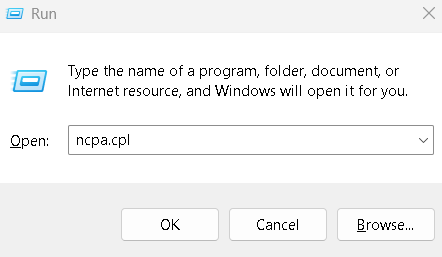
- Open Control Panel
- Network and Sharing Center
- Change Adapter Settings
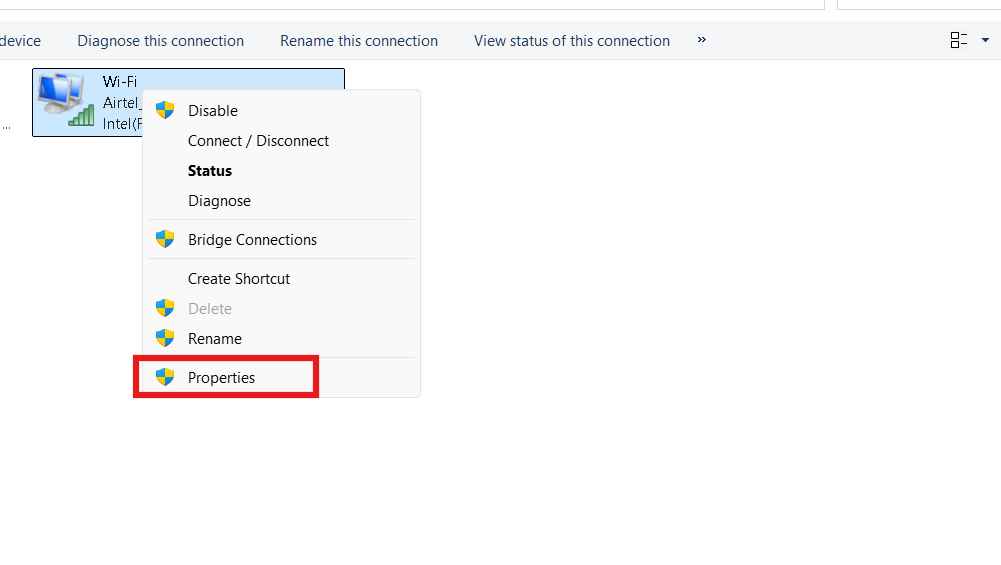
- Right-click your connection
- Select Properties
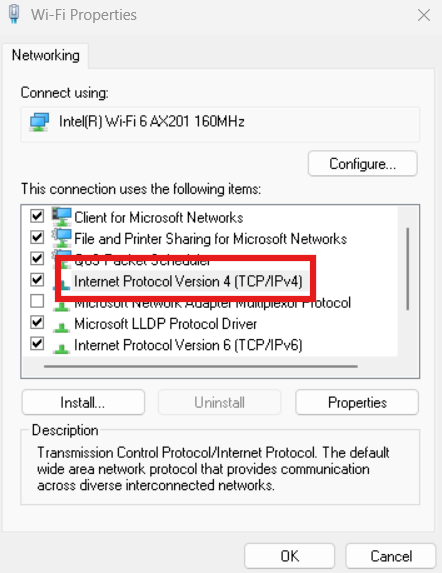
- Choose Internet Protocol Version 4 (TCP/IPv4)
- Enter DNS manually:
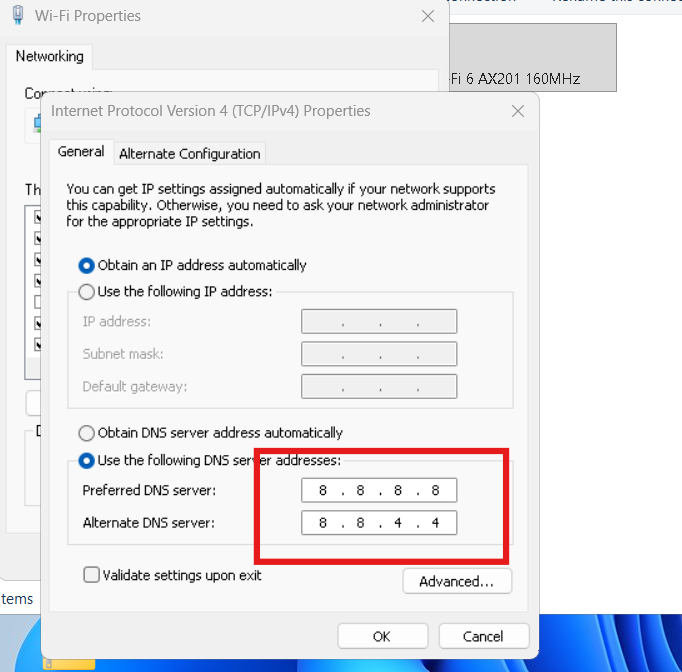
Primary: 8.8.8.8
Secondary: 8.8.4.4
These are Google Public DNS servers.
Official source:
https://developers.google.com/speed/public-dns
Update Network Drivers
Outdated drivers may block DNS communication.
Steps:
- Open Device Manager
- Expand Network Adapters
- Right-click adapter
- Select Update Driver
Updating drivers resolves compatibility issues.
Disable IPv6 Temporarily
Sometimes IPv6 conflicts cause DNS server not responding on Windows PC.
To disable:
- Go to Network Adapter Properties
- Uncheck Internet Protocol Version 6
- Restart PC
If issue resolves, keep IPv6 disabled.
Scan for Malware
Malware can alter DNS settings.
Run:
- Windows Security
- Full Scan
Or use trusted tools recommended by Microsoft:
https://support.microsoft.com
Advanced Troubleshooting
If DNS server not responding on Windows PC continues:
Use Network Troubleshooter
Settings → Network & Internet → Advanced Network Settings → Troubleshoot
Windows automatically detects configuration errors.
Reset Network Settings Completely
Settings → Network & Internet → Advanced Network Settings → Network Reset
This reinstalls network adapters and resets configurations.
Prevent Future DNS Issues
To avoid DNS server not responding on Windows PC:
- Keep drivers updated
- Avoid suspicious downloads
- Restart router weekly
- Use reliable DNS providers
- Keep Windows updated
Preventive maintenance reduces network failures.
Network Troubleshooting Guides
Speed Up Internet on Windows PC Using Simple Hidden Commands
Internet Speed Is Slow on Windows PC? Fix LAN Speed the Right Way
External Resources
DoFollow external resources:
- https://support.microsoft.com
- https://developers.google.com/speed/public-dns
- https://learn.microsoft.com/windows
These provide trusted documentation.
Final Thoughts
A dns server not responding on windows pc error does not mean your internet is permanently broken. In most cases, the issue is related to DNS cache corruption, incorrect settings, or temporary ISP problems.
By following the steps in this guide — from flushing DNS to resetting network settings — you can restore your internet connection quickly and safely.
If the problem persists even after all steps, contact your internet provider to check for DNS server outages.
FAQs
What causes DNS server not responding on Windows PC
Usually corrupted DNS cache, incorrect network configuration, or ISP DNS outage.
Is changing DNS to Google safe
Yes. Google Public DNS is safe and widely used.
Does flushing DNS delete my files
No. It only clears cached domain information.
Can malware cause DNS problems
Yes. Malware can modify DNS settings.
Does this issue happen on Windows 10 and Windows 11
Yes. DNS server not responding on Windows PC affects both versions.
