Introduction
Sigverif unsigned drivers are one of the most common hidden causes of Windows instability, random crashes, and blue screen errors. Many users install drivers without realizing that some of them are not digitally signed by Microsoft or a trusted publisher. These unsigned drivers may work initially but can later cause serious system issues.
Windows includes a built-in tool called Sigverif that helps identify unsigned or improperly signed drivers. Using this tool allows you to spot potentially risky software before it damages system stability. In this guide, you will learn how to use Sigverif step by step, what unsigned drivers are, and why checking them regularly is important for a healthy Windows PC.
Table of Contents
What Are Sigverif Unsigned Drivers
Sigverif unsigned drivers refer to device drivers installed on a Windows PC that do not have a valid digital signature. A digital signature confirms that the driver has been tested and verified by Microsoft or a trusted hardware vendor.
Unsigned drivers may:
- Bypass Windows security checks
- Cause system instability
- Trigger blue screen errors
- Create compatibility problems
Windows allows unsigned drivers in some cases, but they always carry higher risk.
Why Unsigned Drivers Are Risky
Unsigned drivers are risky because Windows cannot verify their authenticity or integrity. This means:
- The driver could be outdated
- The driver may be modified
- The driver might not be compatible with your Windows version
- The driver could contain malicious code
Running a sigverif unsigned drivers scan helps detect these risks early.
What Is Sigverif in Windows
Sigverif is short for File Signature Verification. It is a built-in Windows utility designed to scan system files and drivers for valid digital signatures.
The Sigverif tool:
- Scans installed drivers
- Verifies digital signatures
- Identifies unsigned or invalid drivers
- Helps diagnose stability issues
This tool is especially useful after installing new hardware or third-party software.
How Sigverif Unsigned Drivers Scan Works
When you run a sigverif unsigned drivers scan, Windows checks each driver against trusted digital certificates. If a driver lacks a valid signature, Sigverif flags it as potentially risky.
The scan does not delete or modify files. It only reports results so you can decide what action to take.
Step-by-Step Guide to Use Sigverif Unsigned Drivers Tool
This is the exact method you shared, explained clearly.
Step 1: Open Run Dialog
Press Windows + R
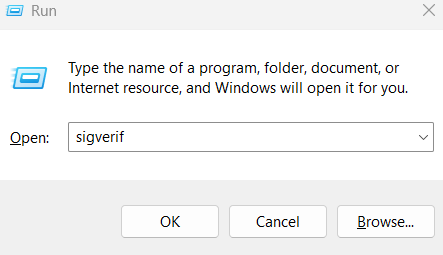
Step 2: Launch Sigverif
Type the following command and press Enter:
sigverif
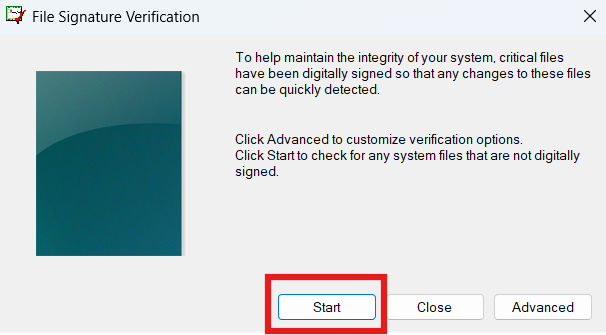
Step 3: Start the Scan
In the File Signature Verification window, click Start
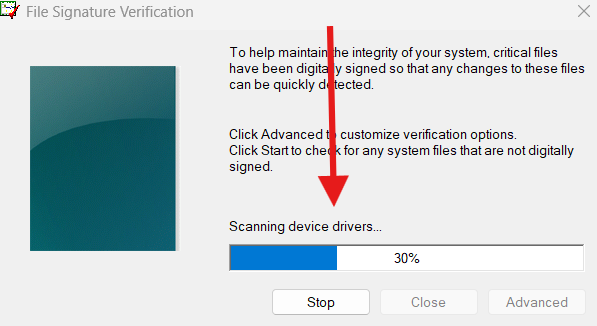
Step 4: Wait for the Scan
Windows will scan system drivers.
This process may take a few minutes.
Step 5: Review the Results
If sigverif unsigned drivers are found, they will be listed after the scan completes.
Understanding Sigverif Scan Results
After the scan:
- Signed drivers are considered safe
- Unsigned drivers are flagged for review
- File paths and names are displayed
Not every unsigned driver is dangerous, but each one should be investigated carefully.
What to Do If Sigverif Finds Unsigned Drivers
If sigverif unsigned drivers appear in the results:
- Check the driver source
- Visit the official hardware manufacturer website
- Update or reinstall the driver
- Remove the driver if it is not required
Avoid deleting drivers blindly, as this may break hardware functionality.
Common Causes of Unsigned Drivers
Unsigned drivers often come from:
- Old hardware devices
- Third-party driver installer tools
- Legacy software
- Beta or test drivers
- Manual driver installations
Running a sigverif unsigned drivers scan helps identify these hidden components.
When You Should Run Sigverif Unsigned Drivers Scan
You should run Sigverif when:
- Windows crashes frequently
- Blue screen errors appear
- New hardware was installed
- Drivers were updated manually
- System feels unstable
Regular checks improve long-term system reliability.
When You Should Run Sigverif Unsigned Drivers Scan
You should run Sigverif when:
- Windows crashes frequently
- Blue screen errors appear
- New hardware was installed
- Drivers were updated manually
- System feels unstable
Regular checks improve long-term system reliability.
Safety Tips While Managing Drivers
Follow these safety tips:
- Download drivers only from official sources
- Avoid driver update utilities from unknown vendors
- Create restore points before driver changes
- Keep Windows updated
Internal link suggestion:
Read Upgrade Installed Applications on Windows 11 With This Simple Guide
Internal Windows Troubleshooting Guides
Internal link suggestion:
Check How to Fix Blue Screen Errors on Windows
Internal link suggestion:
Read Windows System Stability Troubleshooting Guide
External Resources for Driver Security
DoFollow external resources for trusted information:
These sources explain Windows driver security and digital signatures in detail.
Final Thoughts
Running a sigverif unsigned drivers scan is one of the easiest ways to detect potentially risky or unstable software on a Windows PC. Unsigned drivers may work temporarily, but they often cause long-term system problems if ignored.
By using the built-in Sigverif tool, you gain visibility into hidden driver risks and can take corrective action before serious issues appear. Make it a habit to run this scan whenever you experience unexplained system instability.
FAQs
What are sigverif unsigned drivers
They are drivers without valid digital signatures detected by Windows.
Is sigverif safe to use
Yes. It is a built-in Windows tool and does not modify system files.
Does sigverif remove drivers automatically
No. It only reports unsigned drivers for review.
Can unsigned drivers cause blue screen errors
Yes. Unsigned or incompatible drivers are a common cause of BSOD errors.
Does sigverif work on Windows 10 and Windows 11
Yes. Sigverif works on both Windows versions.
