Introduction
PC freezed out problems are one of the most frustrating issues Windows users face. Your screen stops responding, apps hang, the mouse moves slowly or not at all, and even the shutdown button does nothing. This situation can happen suddenly while working, gaming, or browsing, and many users end up force shutting down the PC, risking data loss.
The good news is that when your PC freezed out and nothing responds, Windows still gives you safe recovery options. This guide explains how to fix a PC freezed out issue step by step using Task Manager and a built-in Command Prompt repair command. These methods are safe, effective, and trusted by professionals.
Table of Contents
What Does PC Freezed Out Mean
A PC freezed out condition means Windows is running but not responding to user input. Applications stop reacting, the taskbar may freeze, and clicks or keyboard input have no effect.
This is different from a complete crash or blue screen. In most cases, Windows is still active in the background and can be recovered without data loss.
Why PC Freezed Out Happens on Windows
A PC freezed out issue usually occurs due to:
- Windows Explorer crash
- Corrupted system files
- High memory or CPU usage
- Driver conflicts
- Sudden software errors
Understanding the cause helps apply the correct fix instead of force restarting the system.
First Thing to Try When PC Freezed Out
When your PC freezed out and no app responds, do not shut down immediately.
The fastest recovery method is using Task Manager. It works even when the desktop is unresponsive.
Restart Windows Explorer to Fix PC Freezed Out
This is the first and safest fix.
Step 1: Open Task Manager
Press Ctrl + Shift + Esc
Step 2: Locate Windows Explorer
Scroll down and find Windows Explorer
Step 3: Restart Explorer
Right-click Windows Explorer
Click Restart
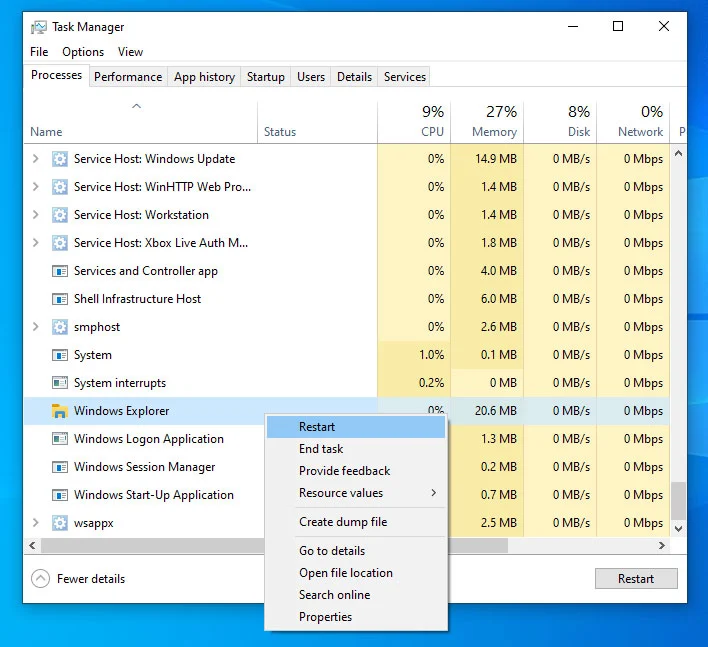
In many cases, the desktop refreshes instantly and the PC freezed out issue is resolved.
When Restarting Explorer Is Not Enough
Sometimes restarting Windows Explorer does not fix the issue. This usually means deeper system files are damaged or Windows processes are unstable.
In such cases, running a system repair command is the next step.
Step-by-Step CMD Fix for PC Freezed Out
If the PC freezed out issue continues, follow these steps carefully.
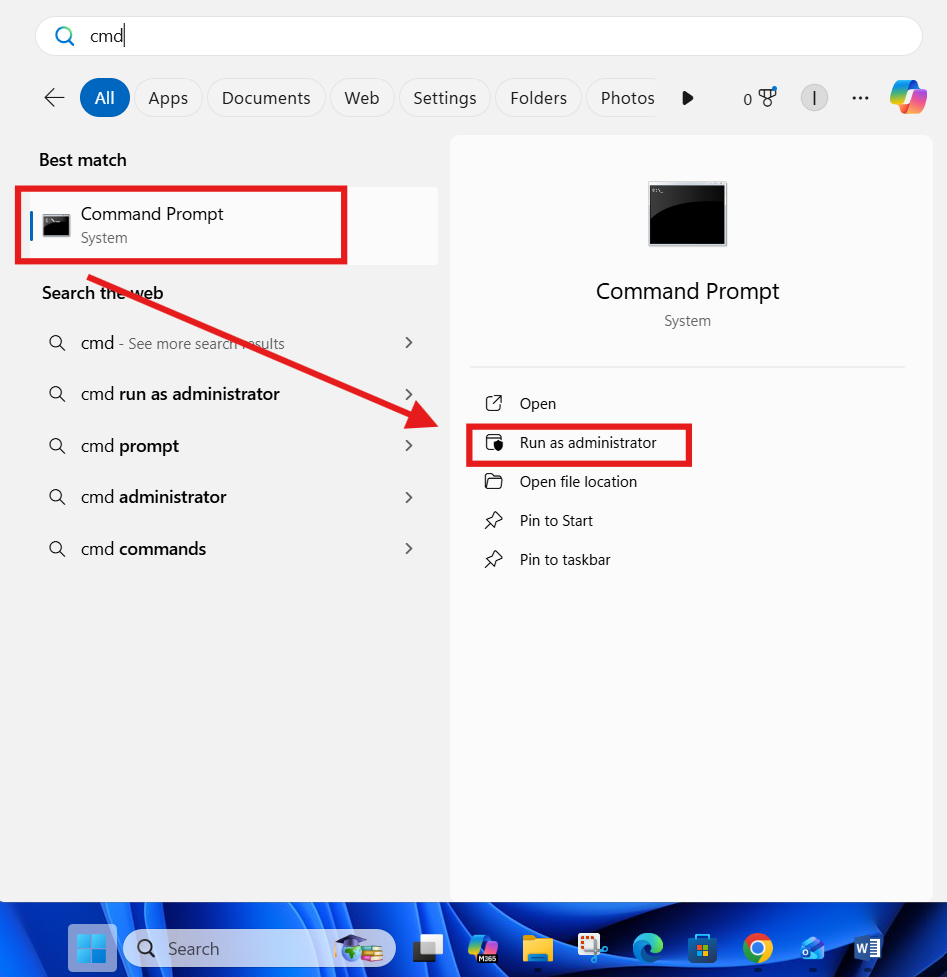
Step 1: Open Command Prompt as Administrator
Press Windows button
Type CMD
Right-click Command Prompt
Select Run as administrator
Step 2: Enter the Repair Command
Type the following command and press Enter:
DISM /Online /Cleanup-Image /RestoreHealth
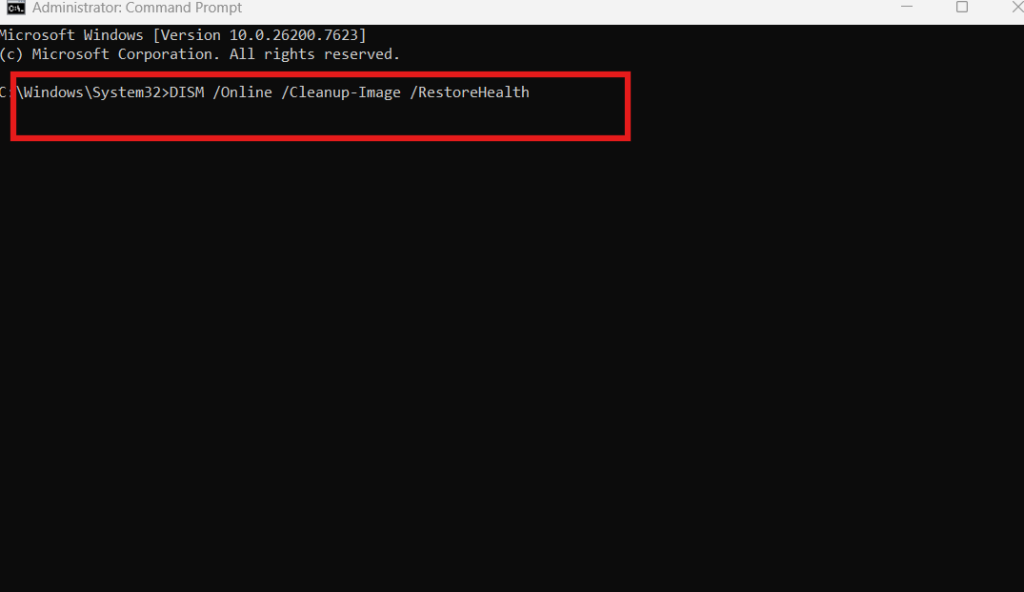
Step 3: Wait for the Process
The scan will take 5 to 10 minutes.
Do not close the window or interrupt the process.
This command scans and repairs corrupted Windows system files.
Understanding the System File Check Command
The DISM /Online /Cleanup-Image /RestoreHealth command:
- Scans protected Windows system files
- Repairs corrupted or missing files
- Restores system stability
- Fixes repeated PC freezed out issues
This is one of the most trusted Windows repair tools.
How Long the Repair Process Takes
The repair process usually takes:
- 5 minutes on fast SSD systems
- 10 minutes on HDD systems
Once completed, Windows shows a message confirming whether corrupted files were fixed.
What to Do After the Fix
After the scan finishes:
- Restart your PC
- Open apps normally
- Monitor system performance
In most cases, the PC freezed out issue does not return after this fix.
Common Mistakes During a PC Freezed Out Issue
Avoid these mistakes:
- Force shutting down repeatedly
- Ignoring Task Manager option
- Interrupting system scan
- Running multiple repair tools at once
These actions can worsen system stability.
How to Prevent PC Freezed Out Problems
To reduce future PC freezed out issues:
- Keep Windows updated
- Update device drivers
- Avoid installing unknown software
- Monitor startup programs
Internal link suggestion:
Read How to Boost PC Performance on Windows
Internal Windows Troubleshooting Guides
Internal link suggestion:
Check How to Fix Windows Not Responding Issues
Internal link suggestion:
Read Windows Command Prompt Repair Commands
External Resources for Windows Repair
DoFollow external resources for trusted guidance:
These sources provide official Windows troubleshooting documentation.
Final Thoughts
A PC freezed out situation does not always mean serious damage. In most cases, restarting Windows Explorer or running a simple system repair command restores normal operation without data loss.
Next time your PC freezed out and nothing responds, follow these steps calmly instead of force shutting down. These methods are safe, effective, and used daily by professionals.
FAQs
What should I do first when PC freezed out
Open Task Manager and restart Windows Explorer.
Is sfc /scannow safe to run
Yes. It is a built-in Windows repair command.
Will this fix all PC freezed out issues
It fixes most software-related freeze problems.
How often can I run sfc /scannow
You can run it whenever system issues appear.
Does this work on Windows 10 and Windows 11
Yes. The PC freezed out fix works on both versions.
You can check this
Speed Up Internet on Windows PC Using Simple Hidden Commands
