Introduction
Speed up internet on Windows PC is a common need for users who face slow browsing, delayed downloads, or unstable connections even with a good internet plan. In many cases, the issue is not your ISP but outdated network settings, corrupted DNS cache, or improper IP configuration stored inside Windows.
The good news is that Windows includes built-in commands that can refresh and optimize network behavior in seconds. You do not need paid software or technical tools. In this guide, you will learn how to speed up internet on Windows PC using three hidden Command Prompt commands that reset the network stack and clean DNS data safely.
Table of Contents
What Does Speed Up Internet on Windows PC Mean
To speed up internet on Windows PC means improving how quickly your system connects to websites, loads pages, resolves domain names, and communicates with servers. It does not change your internet plan speed, but it removes system-level bottlenecks that slow down connectivity.
Optimizing Windows network settings often results in:
- Faster page loading
- Reduced connection delays
- Stable browsing experience
- Better online gaming response
Why Internet Becomes Slow on Windows
Internet speed issues on Windows are often caused by:
- Corrupted DNS cache
- Old IP configuration
- Network stack errors
- Improper adapter settings
- Frequent network changes
Over time, Windows stores outdated network information that slows down connection requests. Running specific commands helps speed up internet on Windows PC by clearing and rebuilding these settings.
How Windows Network Cache Affects Speed
Windows uses DNS cache to remember website addresses. While this improves speed initially, corrupted or outdated DNS entries cause delays and loading errors.
When DNS cache becomes bloated:
- Websites take longer to load
- Connection attempts fail
- Browsing feels sluggish
Clearing DNS cache is a proven way to speed up internet on Windows PC.
Why CMD Commands Help Speed Up Internet on Windows PC
Command Prompt allows direct access to Windows networking components. The commands used in this guide:
- Reset network stack
- Clear DNS resolver cache
- Refresh IP configuration
These actions eliminate hidden network problems that graphical settings cannot fix.
Step-by-Step Guide to Speed Up Internet on Windows PC
This is the exact step-by-step method you shared, explained clearly.
Step 1: Open Command Prompt as Administrator
Press the Windows button.
Type CMD.
Right-click Command Prompt and choose Run as administrator.
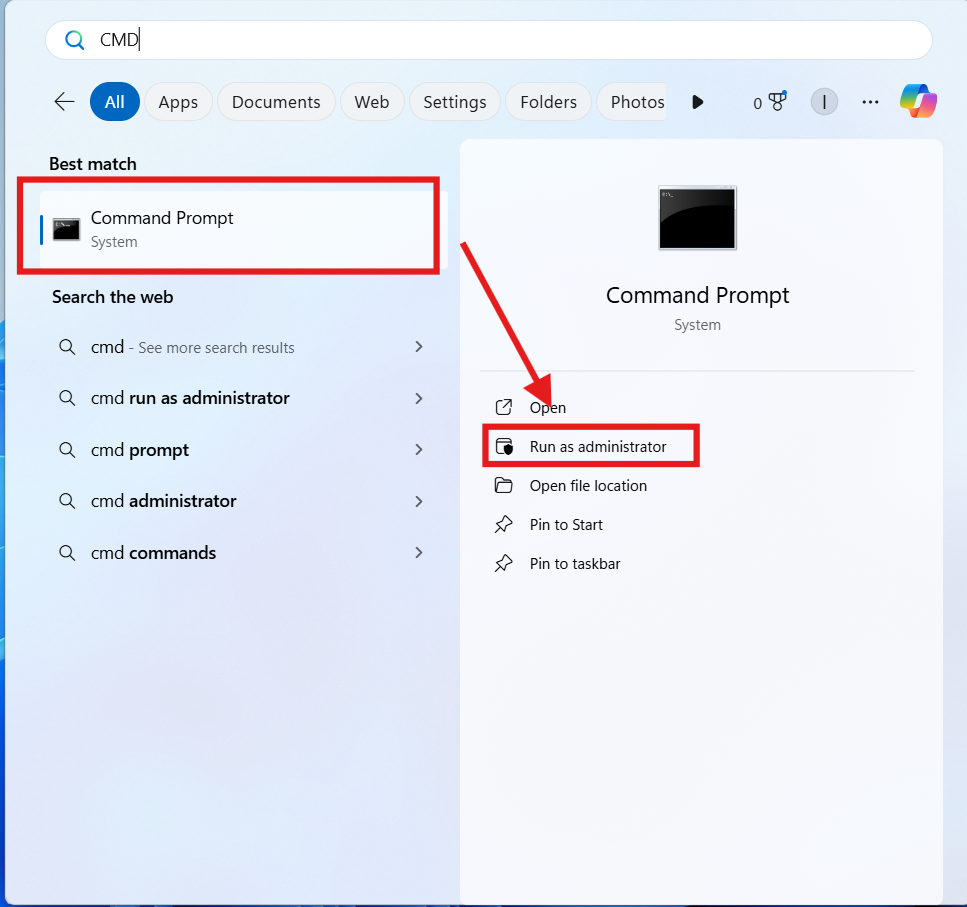
Administrator access is required to change network settings.
Step 2: Reset Network Stack
Type the following command and press Enter:
netsh int ip reset
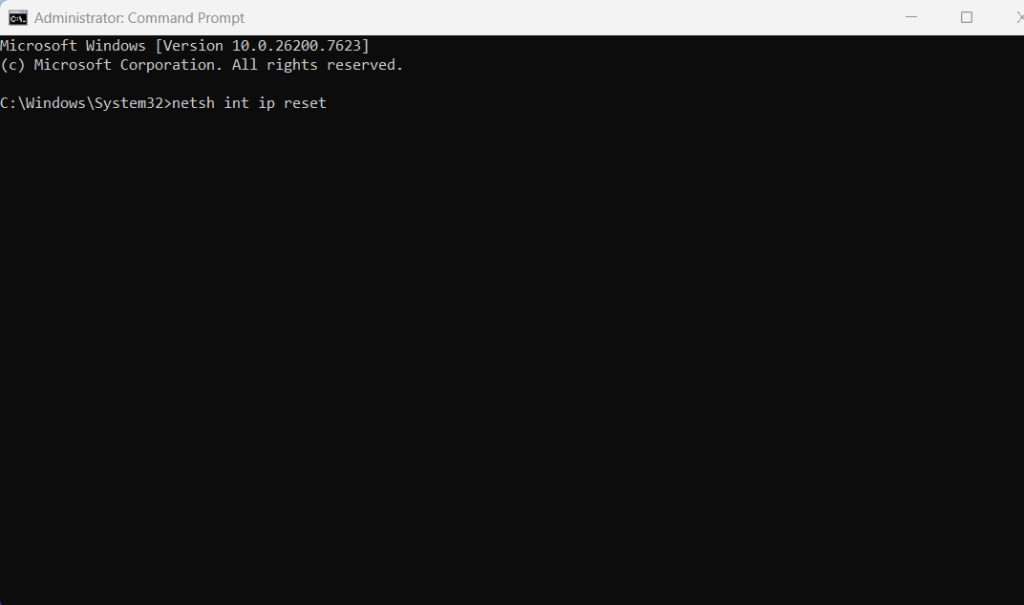
This command resets TCP/IP settings and removes corrupted network entries.
Step 3: Flush DNS Cache
Now type this command and press Enter:
ipconfig /flushdns
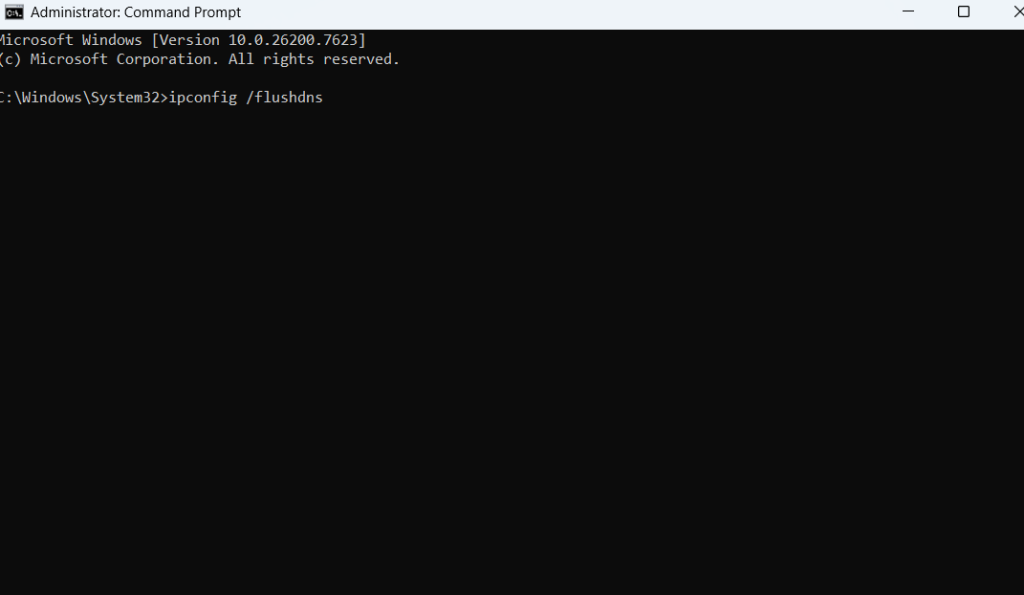
This clears stored DNS records and forces Windows to request fresh ones.
Step 4: Reset Network Stack Again
Type the command again and press Enter:
netsh int ip reset
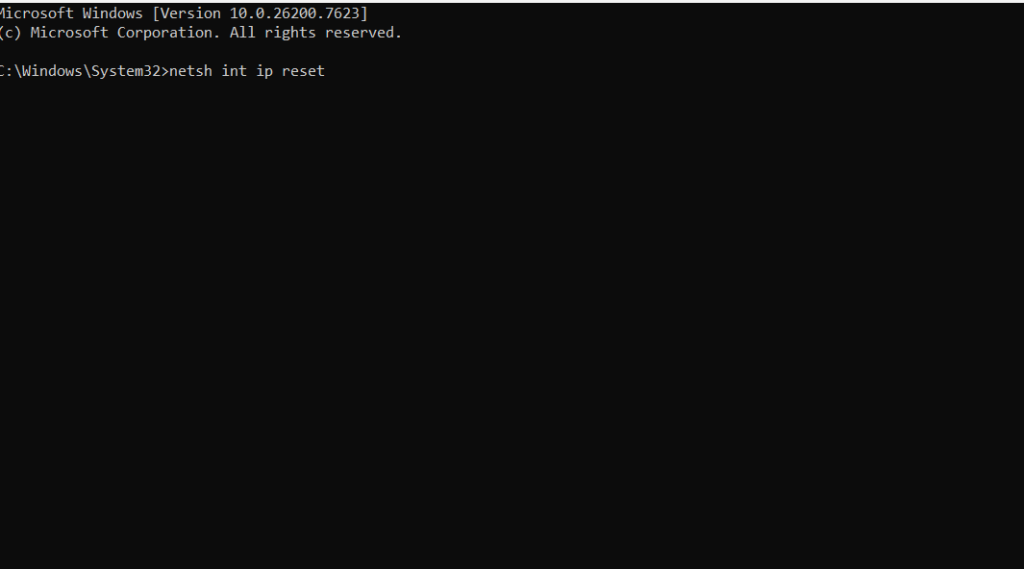
Running it again ensures a clean network reset.
Step 5: Restart the PC
Restart your system to apply all changes properly.
After restart, your internet connection will feel faster and more stable.
Understanding the Netsh Command
The netsh int ip reset command resets:
- TCP/IP stack
- Network adapter configuration
- IP routing information
This is one of the most effective ways to speed up internet on Windows PC when connectivity becomes unstable.
Understanding the Flush DNS Command
The ipconfig /flushdns command:
- Deletes cached DNS records
- Fixes wrong website redirections
- Improves website response time
DNS-related delays are one of the most common internet speed problems on Windows.
What Happens After Network Reset
After running these commands:
- Internet reconnects with fresh settings
- DNS lookups become faster
- Network errors reduce
- Browsing feels smoother
This process does not remove Wi-Fi passwords or personal data.
Who Should Use These Commands
You should use this method to speed up internet on Windows PC if:
- Websites load slowly
- Internet disconnects randomly
- DNS errors appear
- Online gaming lags
- Speed feels lower than expected
These commands are safe for home users and professionals.
Common Mistakes While Running CMD Commands
Avoid these mistakes:
- Not running CMD as administrator
- Typing commands incorrectly
- Skipping system restart
- Running commands repeatedly without restart
Following the steps correctly ensures maximum improvement.
Additional Tips to Speed Up Internet on Windows PC
Combine CMD commands with these tips:
- Restart router occasionally
- Disable unused network adapters
- Update network drivers
- Avoid VPNs when not needed
Internal link suggestion:
Read How to Boost PC Performance on Windows
Internal Windows Network Guides
Internal link suggestion:
Check How to Reset Network Settings on Windows PC
Internal link suggestion:
Read Windows Internet Troubleshooting Guide
External Resources for Internet Optimization
DoFollow external resources for trusted guidance:
These resources explain Windows networking behavior in detail.
Final Thoughts
If you want to speed up internet on Windows PC without installing software or changing ISP plans, these hidden CMD commands are the fastest solution. They clear outdated network data and rebuild the connection from scratch.
This method takes less than a minute, is safe, and often delivers instant improvement. Save these commands and use them whenever your internet feels slow.
FAQs
Can these commands really speed up internet on Windows PC
Yes. They remove corrupted network data and refresh DNS, which improves connectivity.
Is it safe to reset network using CMD
Yes. These are built-in Windows commands used by professionals.
Will this delete saved Wi-Fi passwords
No. Your Wi-Fi networks and passwords remain safe.
How often should I run these commands
Run them whenever you notice slow or unstable internet.
Do these commands work on Windows 10 and Windows 11
Yes. You can speed up internet on Windows PC for both versions.
You can this too
