Introduction
Enter BIOS without pressing any keys is something many Windows users want, especially when the traditional method just does not work. On modern systems, fast boot, SSDs, and quick startup often make it nearly impossible to hit Delete, F2, or F12 at the right moment. As a result, users miss the BIOS screen again and again.
The good news is that Windows provides a built-in way to enter BIOS without pressing any keys at startup. By creating a simple desktop shortcut, you can restart your PC and open BIOS directly, safely, and reliably. This guide explains the complete step-by-step process, why it works, and when this method is better than using keyboard shortcuts.
Table of Contents
What Does Enter BIOS Without Pressing Any Keys Mean
To enter BIOS without pressing any keys means accessing the system BIOS or UEFI firmware directly from within Windows, instead of relying on keyboard keys during system startup.
This method uses Windows advanced startup instructions to tell the system to boot straight into firmware settings. It removes timing issues and works consistently on modern PCs.
Why Traditional BIOS Keys Often Fail
On older systems, pressing Delete or F2 worked easily. On newer systems, several factors cause problems:
- Fast Boot enabled
- SSDs with instant startup
- Wireless keyboards loading late
- Missed timing window
- Manufacturer-specific key differences
Because of this, many users struggle to enter BIOS using keys. That is why learning how to enter BIOS without pressing any keys is so useful.
How Windows Allows You to Enter BIOS Without Pressing Any Keys
Windows includes an advanced restart feature that can instruct the firmware to open BIOS automatically. This feature is normally accessed through Settings, but it can also be triggered using a shortcut command.
By creating a shortcut that calls this restart instruction, you can enter BIOS without pressing any keys every time.
Benefits of Entering BIOS Without Pressing Any Keys
Using this method offers several advantages:
- Works every time
- No timing issues
- No need to remember BIOS keys
- Ideal for laptops and fast PCs
- Safe and official Windows method
For many users, this is the easiest way to enter BIOS without pressing any keys.
Step-by-Step Guide to Enter BIOS Without Pressing Any Keys
This is the exact step-by-step process you shared, explained clearly.
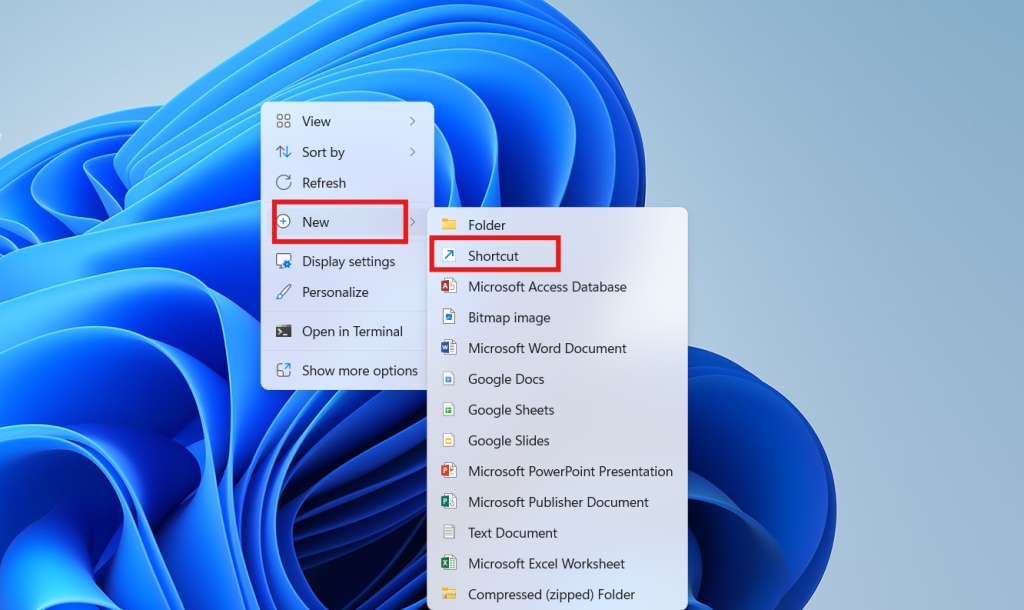
Step 1: Create a New Shortcut
Right-click on the desktop.
Go to New and select Shortcut.
Step 2: Enter the Command
In the location field, type the following command:
shutdown /r /fw /t 0
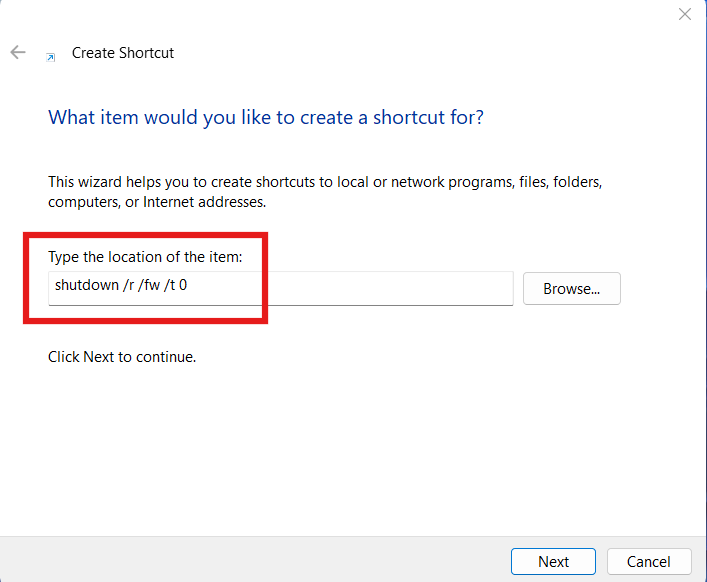
Click Next.
Step 3: Name the Shortcut
Name the shortcut BIOS or any name you prefer.
Click Finish.
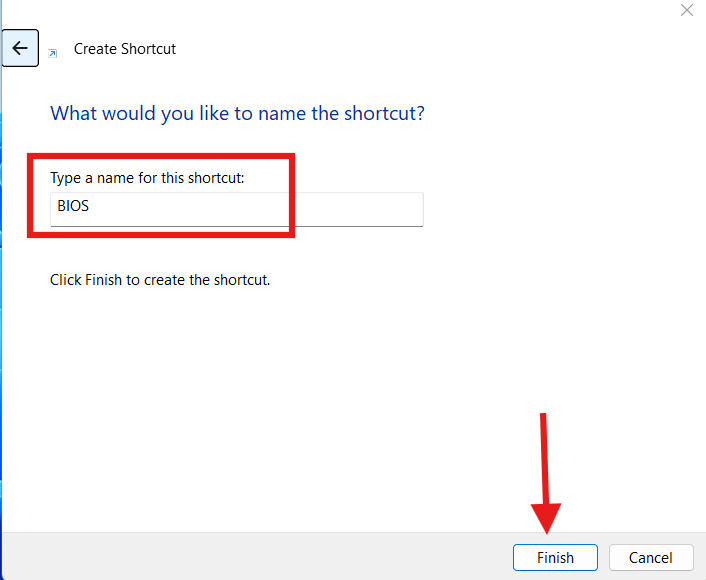
At this point, the shortcut to enter BIOS without pressing any keys is created.
Understanding the BIOS Shortcut Command
The command used in the shortcut has a specific purpose:
- shutdown: Initiates system shutdown or restart
- /r: Restarts the PC
- /fw: Opens firmware (BIOS or UEFI) on next boot
- /t 0: No delay before restart
This is why the shortcut reliably helps you enter BIOS without pressing any keys.
Setting Administrator Permissions for BIOS Shortcut
To ensure the shortcut works properly, it must run with administrator privileges.
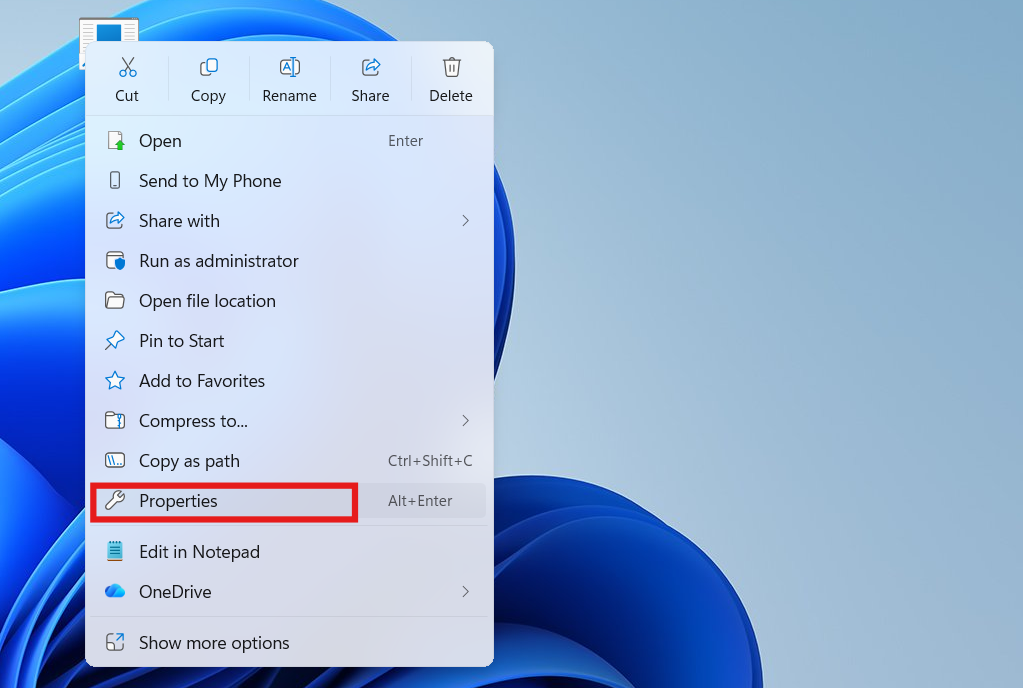
Step 1: Open Shortcut Properties
Right-click the BIOS shortcut and click Properties.
Step 2: Go to Advanced Settings
Click on Advanced.
Step 3: Enable Administrator Access
Check Run as administrator.
Click OK, then Apply, and OK again.
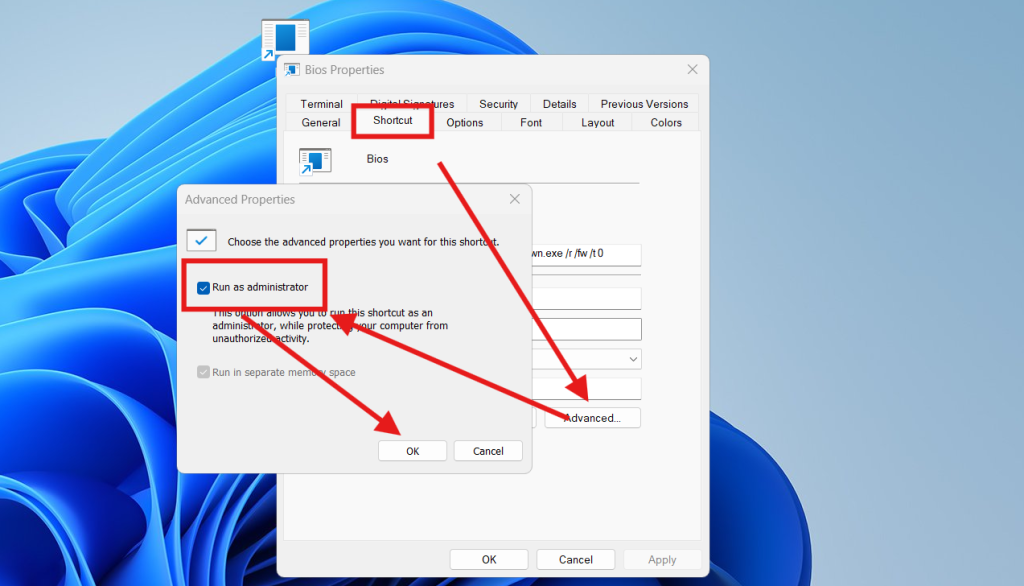
This step is critical. Without administrator permission, Windows may block the command.
How to Use the Shortcut to Enter BIOS Without Pressing Any Keys
Once everything is set:
- Double-click the BIOS shortcut
- Windows restarts automatically
- The system opens BIOS or UEFI settings
No keyboard keys are required during startup. This is the most reliable way to enter BIOS without pressing any keys.
When to Use This BIOS Access Method
You should use this method when:
- BIOS keys do not work
- Fast Boot is enabled
- You use a wireless keyboard
- You need frequent BIOS access
- You manage multiple PCs
For technicians and advanced users, this shortcut saves a lot of time.
Common Mistakes While Creating BIOS Shortcut
Avoid these common errors:
- Typing the command incorrectly
- Forgetting administrator permission
- Deleting the shortcut accidentally
- Expecting it to work on legacy-only systems
Correct setup ensures you can always enter BIOS without pressing any keys.
Safety Tips Before Entering BIOS
Before making changes in BIOS:
- Note current settings
- Avoid changing unknown options
- Do not modify voltage or clock values
- Exit without saving if unsure
Entering BIOS is safe. Problems only occur if incorrect settings are saved.
Internal Windows Troubleshooting Guides
BIOS access is often part of larger troubleshooting steps.
Internal link suggestion:
Read How to Fix Windows Boot Problems
Internal link suggestion:
Check Beginner Guide to Windows Advanced Startup Options
External Resources for BIOS and UEFI
DoFollow external resources for official documentation:
These resources explain BIOS, UEFI, and Windows startup behavior in detail.
Final Thoughts
Learning how to enter BIOS without pressing any keys is extremely useful on modern Windows PCs. With fast boot and SSDs, keyboard shortcuts are no longer reliable for many users.
By creating a simple desktop shortcut, you gain instant and consistent access to BIOS whenever needed. It is safe, official, and works on most modern systems. Once you start using this method, you will never struggle with BIOS keys again.
FAQs
Can I really enter BIOS without pressing any keys
Yes. Windows provides a firmware restart option that opens BIOS automatically.
Is this method safe to use
Yes. It uses a built-in Windows command and does not harm the system.
Does this work on Windows 10 and Windows 11
Yes. You can enter BIOS without pressing any keys on both versions.
Will this work on all PCs
It works on most modern UEFI-based systems.
Can I delete the shortcut later
Yes. Deleting the shortcut does not affect system behavior.
You check this too
Multi Boot Pendrive Makes OS Installation and Recovery Simple
