Introduction
Multi boot pendrive is one of the most useful tools every Windows user, technician, or IT professional should have. Instead of carrying multiple USB drives for different operating systems or recovery tools, a single multi boot pendrive can handle everything. From installing Windows to running Linux, recovery tools, or administrator reset utilities, one USB drive is enough.
If you often reinstall operating systems, troubleshoot computers, or help others fix PC issues, learning how to create a multi boot pendrive will save time and effort. This guide explains how to create a multi boot pendrive step by step using a trusted free tool, without complex commands or advanced technical skills.
Table of Contents
What Is a Multi Boot Pendrive
A multi boot pendrive is a USB drive that can boot multiple operating systems or tools from a single device. Instead of formatting the USB every time, you can store several ISO files together and choose what to boot when the PC starts.
With a properly created multi boot pendrive, you can:
Troubleshoot unbootable PCs
Install different versions of Windows
Run Linux live systems
Use recovery and repair tools
Reset administrator passwords
Why You Should Create a Multi Boot Pendrive
Creating a multi boot pendrive offers several advantages:
- No need for multiple USB drives
- Saves time during OS installation
- Easy switching between tools
- Ideal for technicians and students
- Perfect for emergency recovery
Once you create a multi boot pendrive, it becomes a master tool for PC maintenance and troubleshooting.
How Multi Boot Pendrive Works
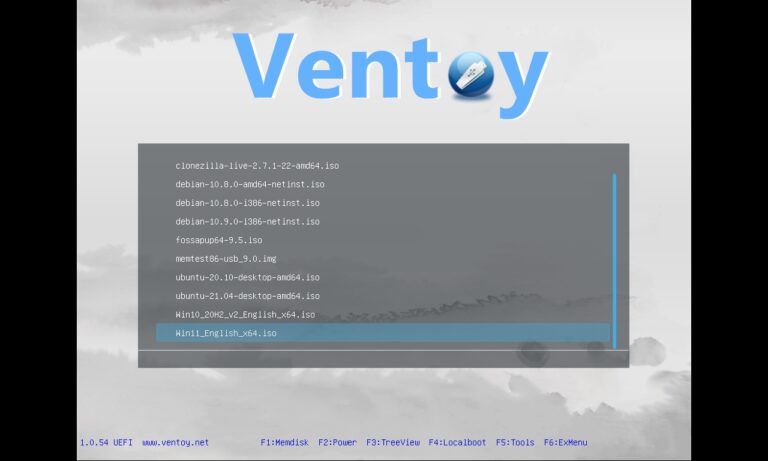
A multi boot pendrive uses a special bootloader that detects ISO files stored on the USB. When the PC boots from the USB, it shows a menu listing all available ISO files.
You simply select the required ISO file, and the system boots directly into that operating system or tool. This makes the multi boot pendrive extremely flexible and powerful.
Best Tool to Create Multi Boot Pendrive
The easiest and most reliable tool to create a multi boot pendrive is Ventoy.
Why Ventoy is recommended:
- Free and open-source
- Supports Windows, Linux, and recovery ISOs
- No need to format USB repeatedly
- Simple drag-and-drop ISO copying
- Works on most PCs and laptops
Ventoy simplifies the entire process of creating a multi boot pendrive.
Step-by-Step Guide to Create Multi Boot Pendrive
This is the exact step-by-step process you shared, explained clearly.
Step 1: Download Ventoy
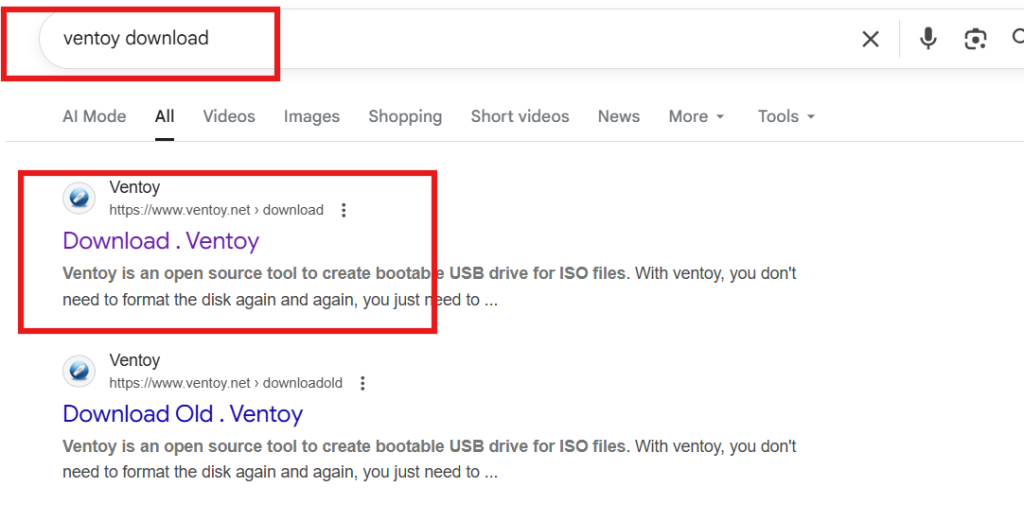
Go to Google and type Ventoy download.
Open the official Ventoy website and click on Download.
Step 2: Extract and Run Ventoy
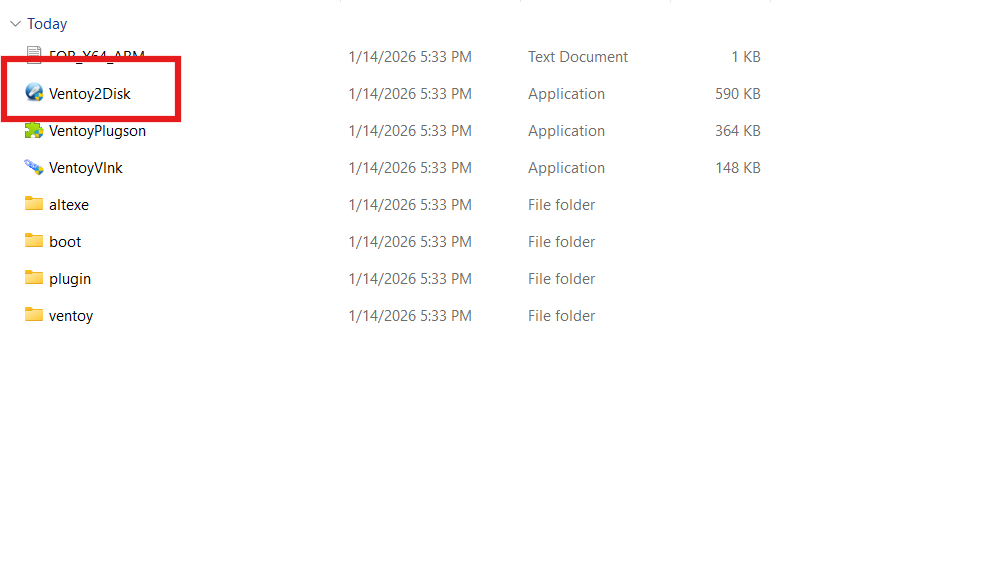
Once downloaded, extract the files and run the Ventoy installer.
Step 3: Connect Your Pendrive
Insert your USB pendrive into the PC.
Make sure there is no important data, as it will be formatted during installation.
Step 4: Install Ventoy on Pendrive
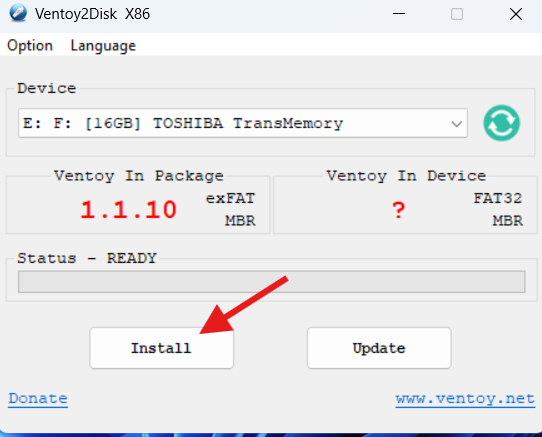
Select the correct USB drive in Ventoy and click Install.
Confirm the warnings to complete the setup.
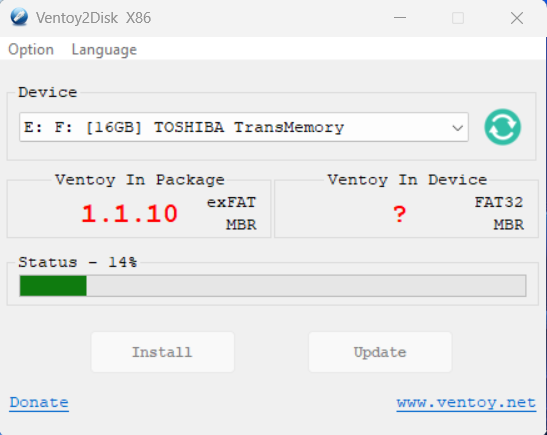
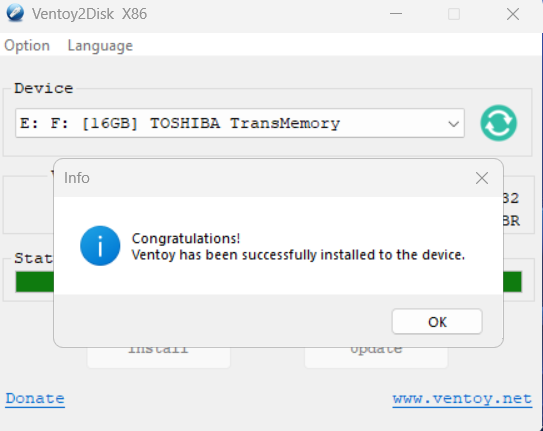
At this point, your multi boot pendrive structure is ready.
Copying ISO Files to Multi Boot Pendrive
After Ventoy installation:
- Open the USB drive
- Copy your OS installation ISO files
- Copy Linux ISO files if needed
- Copy Hiren’s Boot ISO or recovery tools
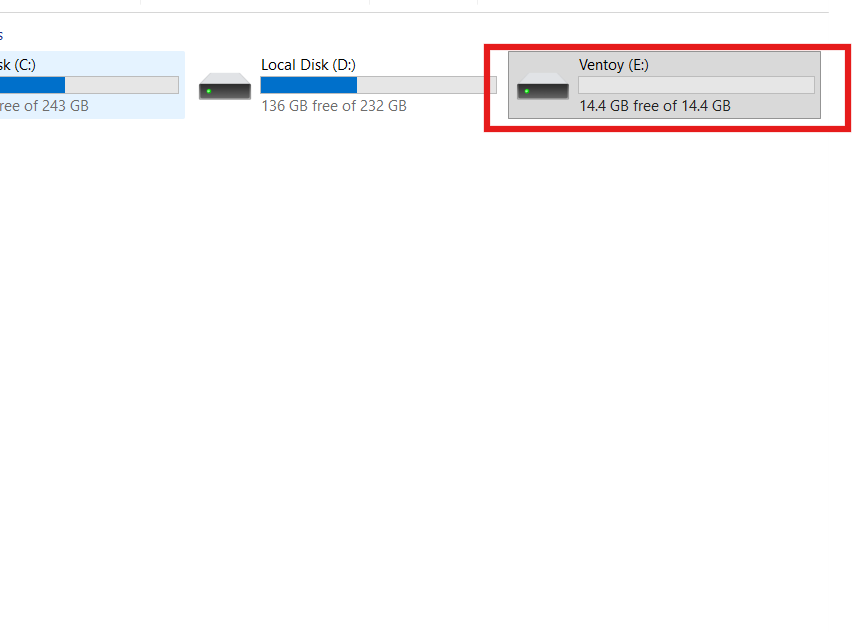
Simply paste the ISO files directly into the pendrive. No extra steps are required.
This drag-and-drop method is what makes a multi boot pendrive so easy to manage.
Booting From Multi Boot Pendrive
To use your multi boot pendrive:
Step 1: Restart the PC
Restart the computer where you want to use the USB.
Step 2: Open Boot Menu
Press F12 (or the boot key for your system).
Step 3: Select USB Device
Choose the USB pendrive from the boot menu.
Step 4: Choose Your Task
Ventoy will display a menu showing all ISO files.
Select the required OS or tool and press Enter.
Your selected ISO will boot instantly.
What You Can Do With a Multi Boot Pendrive
A single multi boot pendrive allows you to:
- Install Windows on multiple PCs
- Run Linux without installation
- Reset administrator passwords
- Repair boot errors
- Recover data from damaged systems
This makes the multi boot pendrive a complete master tool for PC maintenance.
Common Mistakes While Creating Multi Boot Pendrive
Avoid these common mistakes:
- Using corrupted ISO files
- Selecting the wrong USB drive during installation
- Removing USB during Ventoy installation
- Using unsupported or outdated ISOs
Following proper steps ensures your multi boot pendrive works smoothly.
Best Practices for Using Multi Boot Pendrive
To keep your multi boot pendrive reliable:
- Use a high-quality USB 3.0 pendrive
- Keep ISO files updated
- Safely eject the USB after use
- Label ISO files clearly
These practices improve compatibility and boot success.
Internal PC Troubleshooting Guides
A multi boot pendrive works best when combined with system knowledge.
Internal link suggestion:
Read How to Install Windows Using USB Drive
Internal link suggestion:
Check Basic PC Troubleshooting Guide for Beginners
External Resources for Bootable USB Tools
DoFollow external resources for trusted information:
These sources provide official documentation and usage guides.
Final Thoughts
A multi boot pendrive is one of the most powerful tools you can create for PC installation, recovery, and troubleshooting. With Ventoy, the process becomes simple and flexible, even for beginners.
Once you create a multi boot pendrive, you will never need separate USB drives again. It truly becomes a master pendrive for installing operating systems, resetting administrators, and fixing broken systems.
FAQs
What is a multi boot pendrive
A multi boot pendrive is a USB drive that can boot multiple ISO files for installation and recovery.
Is Ventoy safe to use
Yes. Ventoy is open-source and widely trusted by professionals.
Can I add multiple ISO files
Yes. You can copy and paste multiple ISO files into the master pendrive.
Do I need to format the pendrive again
No. After initial setup, you only copy ISO files.
Can I use master pendrive on any PC
Yes. It works on most modern BIOS and UEFI systems.
You check this too
