Introduction
How to fix Hardware and Devices issues on Windows 11 is one of the most searched troubleshooting topics today, especially after recent Windows updates. Many users experience problems with USB devices, keyboards, mice, audio devices, printers, or unknown hardware errors without knowing the real cause.
Windows 11 includes a hidden but powerful built-in diagnostic tool that most users never use. In this guide, you will learn how to fix Hardware and Devices issues on Windows 11 using a simple command that automatically detects and resolves common hardware problems.
This article is part of “This PC You Never Know – Part 5”, where we uncover hidden but extremely useful Windows tools.
Table of Contents
What Are Hardware and Devices Issues on Windows 11
Hardware and Devices issues occur when Windows fails to communicate properly with physical components connected to your system. These problems can be related to:
- Outdated or corrupted drivers
- Incorrect system settings
- Power management conflicts
- Windows update compatibility issues
- USB or peripheral detection failures
Understanding how to fix Hardware and Devices issues on Windows 11 helps you avoid unnecessary repairs or reinstallations.
Common Symptoms of Hardware and Devices Problems
If you are facing any of the following symptoms, you may need to fix Hardware and Devices issues on Windows 11:
- USB device not recognized
- Keyboard or mouse stops working randomly
- Audio device missing or not detected
- Printer not responding
- Device Manager showing warning icons
- Hardware working on another PC but not yours
Why Hardware Issues Occur in Windows 11
Windows 11 introduced several system-level changes that can impact hardware compatibility. Common reasons include:
- Driver mismatch after updates
- Corrupted registry entries
- Power optimization conflicts
- Disabled system services
- Incorrect device configuration
Knowing how to fix Hardware and Devices issues on Windows 11 allows you to address these problems without third-party software.
How to Fix Hardware and Devices Issues on Windows 11 (Step-by-Step Guide)
Follow these exact steps carefully.
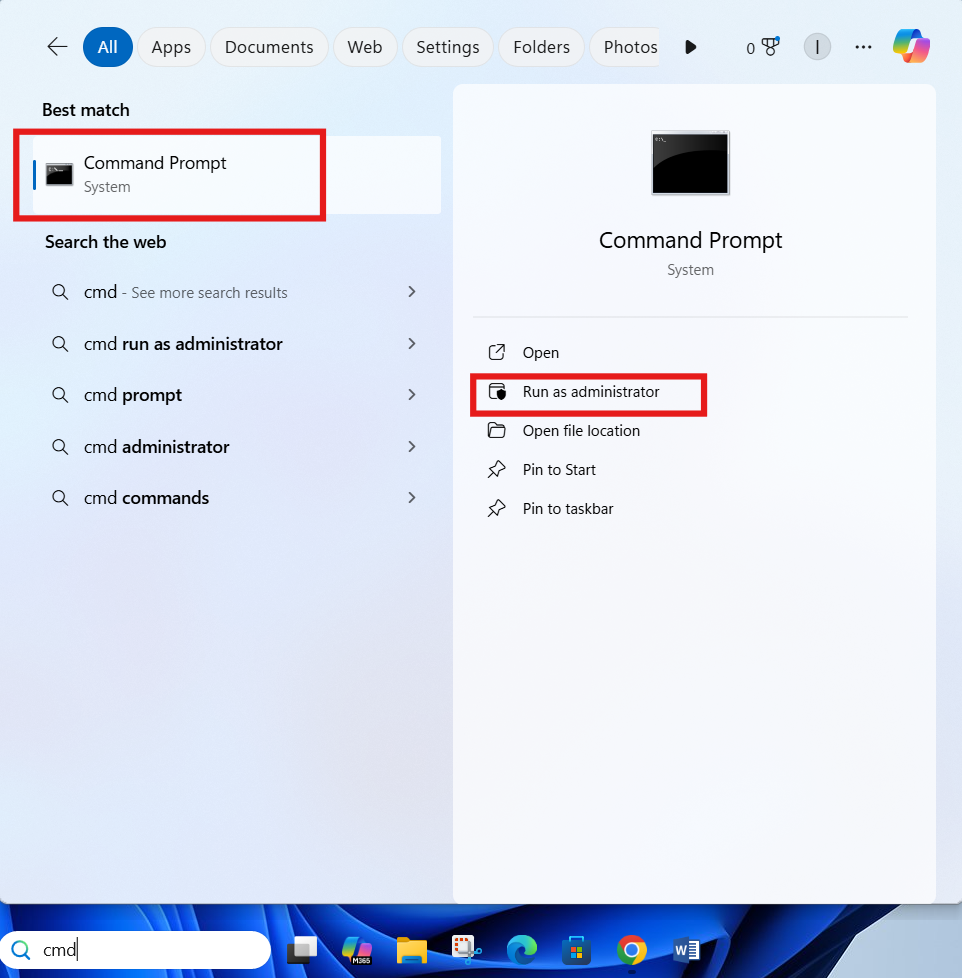
Step 1: Open Command Prompt as Administrator
- Press the Windows key
- Type CMD
- Right-click Command Prompt
- Select Run as administrator
Step 2: Run the Hardware Diagnostic Command
In the Command Prompt window, type the following command and press Enter:
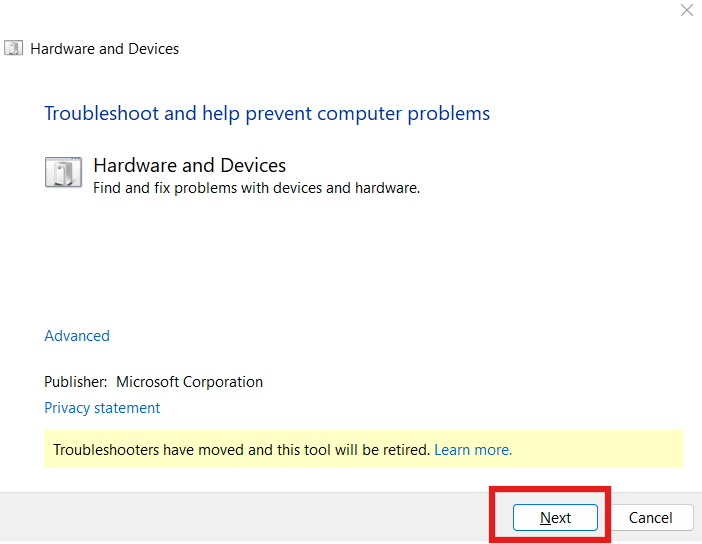
msdt.exe /id DeviceDiagnosticStep 3: Start Troubleshooting
- A Hardware and Devices Troubleshooter window will open
- Click Next
- The system will begin scanning for hardware-related issues
Step 4: Keep Internet Connected
Make sure your internet connection is active, because:
- Windows may download updated drivers
- Online fixes may be applied automatically
Step 5: Apply Fixes Automatically
Windows will automatically:
- Reset incorrect device settings
- Update or reinstall drivers
- Fix configuration conflicts
Once completed, restart your PC.
Understanding the msdt.exe /id DeviceDiagnostic Command
The msdt.exe tool is Microsoft’s built-in diagnostic engine. The DeviceDiagnostic parameter specifically targets:
- Hardware configuration issues
- Driver inconsistencies
- Device communication errors
This is one of the safest ways to fix Hardware and Devices issues on Windows 11 without risking system stability.
What This Troubleshooter Fixes Automatically
When you use this method to fix Hardware and Devices issues on Windows 11, it can resolve:
- USB detection problems
- Audio and microphone issues
- Printer and scanner errors
- Power management conflicts
- Legacy driver problems
Important Things to Check Before Running the Command
Before you fix Hardware and Devices issues on Windows 11, ensure:
- Windows is fully updated
- You are logged in as Administrator
- Internet connection is stable
- No third-party driver tools are running
Advanced Tips to Prevent Hardware Issues
To avoid repeating the same problems:
- Keep drivers updated only from official sources
- Avoid using cracked driver booster tools
- Disable unnecessary startup programs
- Create restore points regularly
- Use Windows Security instead of unknown antivirus tools
Internal and External Resources
Internal Links (Examples)
- Learn how to improve PC performance
- How to fix Windows boot issues
- How to check drivers on Windows PC
External DoFollow Resources
- Microsoft official troubleshooting guide:
https://support.microsoft.com - Windows hardware compatibility info:
https://learn.microsoft.com
Frequently Asked Questions (FAQs)
Q1. Is the msdt.exe DeviceDiagnostic command safe?
Yes, it is a built-in Microsoft tool and completely safe to use.
Q2. Does this method work on Windows 10?
Yes, but it is especially effective for Windows 11 hardware issues.
Q3. Will this delete my files?
No, it does not affect personal data.
Q4. Why doesn’t this troubleshooter appear in settings?
Microsoft hides it, but it is still fully functional via command line.
Q5. Should I restart after troubleshooting?
Yes, restarting ensures all fixes are applied correctly.
Final Thoughts
If you’re struggling with device errors, learning how to fix Hardware and Devices issues on Windows 11 can save you time, money, and frustration. This hidden command is one of the most powerful yet underused Windows tools.
Before reinstalling Windows or visiting a technician, always try this method first.
Video Guide
You can check this too
Make Taskbar Attractive on Windows PC for a Cleaner and Modern Look
