Introduction
Gaming performance is one of the most important concerns for PC gamers. Even systems with good hardware can struggle with lag, stuttering, or low frame rates if Windows settings are not configured correctly. Many gamers focus only on upgrading hardware, but Windows already includes powerful options that can significantly improve gaming performance without spending money.
In this guide, you will learn how to enhance gaming performance on a Windows PC using a simple built-in setting designed specifically for systems with a graphics card. This method takes less than a minute, requires no third-party software, and delivers noticeable improvements after a restart.
Table of Contents
What Gaming Performance Means on a Windows PC
Gaming performance refers to how smoothly games run on your system. This includes frame rate stability, loading times, responsiveness, and visual consistency. Good gaming performance means fewer stutters, higher FPS, and better overall gameplay experience.
Windows plays a major role in how your hardware resources are allocated during gaming sessions. Proper configuration allows the system to prioritize games over background processes.
Why Gaming Performance Drops on Windows
There are several reasons why gaming performance may decrease over time:
- Background services consuming system resources
- Improper graphics configuration
- Windows prioritizing non-gaming tasks
- Power management limitations
- Default settings not optimized for gaming
Even powerful GPUs can underperform if Windows does not prioritize gaming workloads correctly.
Role of Graphics Card in Gaming Performance
A dedicated graphics card is essential for high gaming performance. Windows gaming features such as graphics settings and Game Bar options only appear when a compatible GPU is detected.
If your system has a graphics card, Windows allows you to control how applications use GPU resources. Enabling the correct settings ensures that games receive maximum graphical priority.
Windows Gaming Settings That Affect Gaming Performance
Windows includes a dedicated Gaming section inside Settings. These options are designed to enhance gaming performance by optimizing system behavior during gameplay.
Key areas include:
- Game Bar
- Graphics settings
- GPU scheduling
- Game prioritization
Most users never explore these options, leaving gaming performance untapped.
Step-by-Step Guide to Enhance Gaming Performance
This is the exact step-by-step method you shared, explained clearly.
Step 1: Open Windows Settings
Press Windows + I
Step 2: Go to Gaming
Click on Gaming.
Note: This option appears only if your system has a supported graphics card.
Step 3: Open Game Bar
Click on Game Bar
Step 4: Go to Graphics Settings
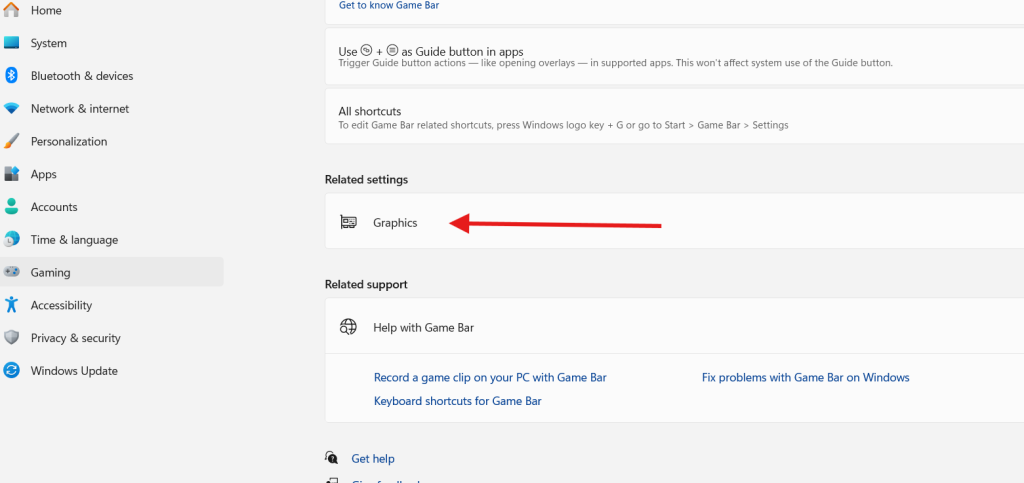
From the Gaming section, open Graphics settings
Step 5: Turn the Toggle On
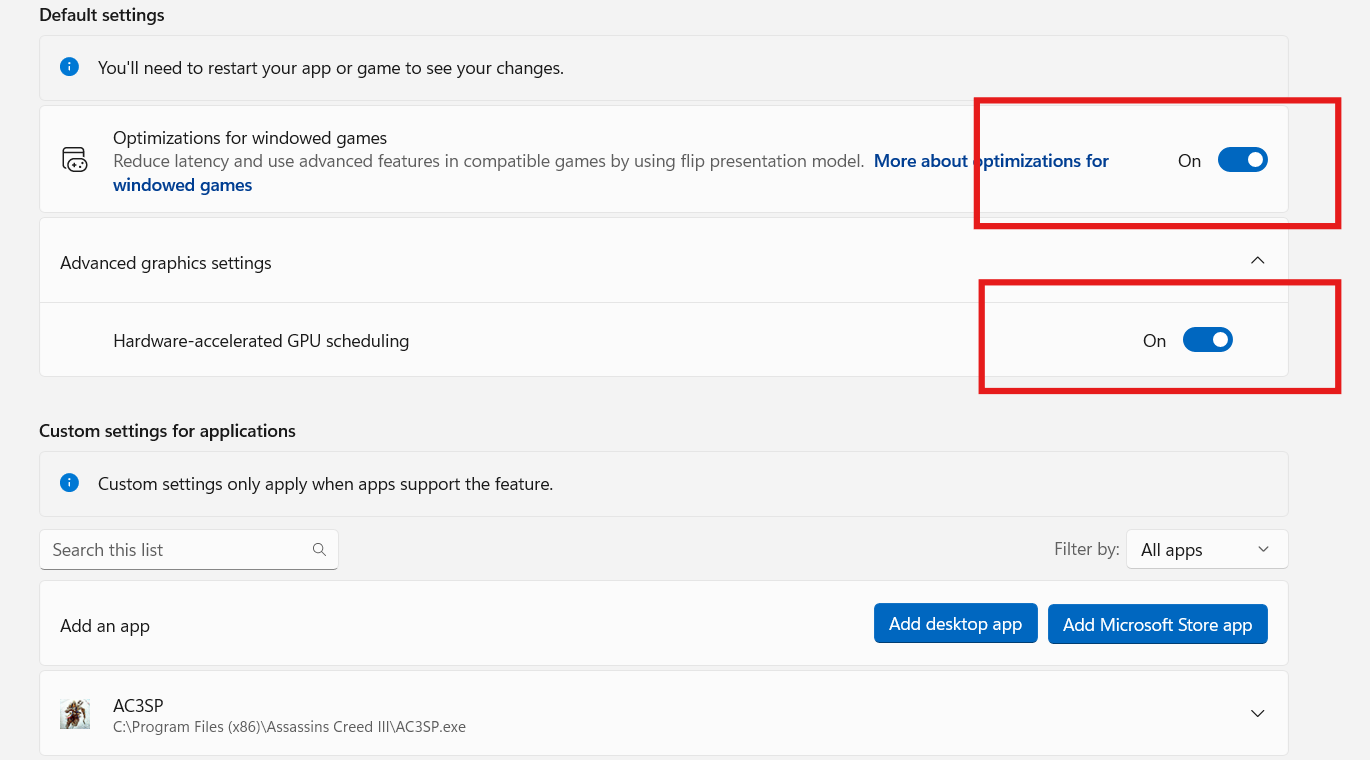
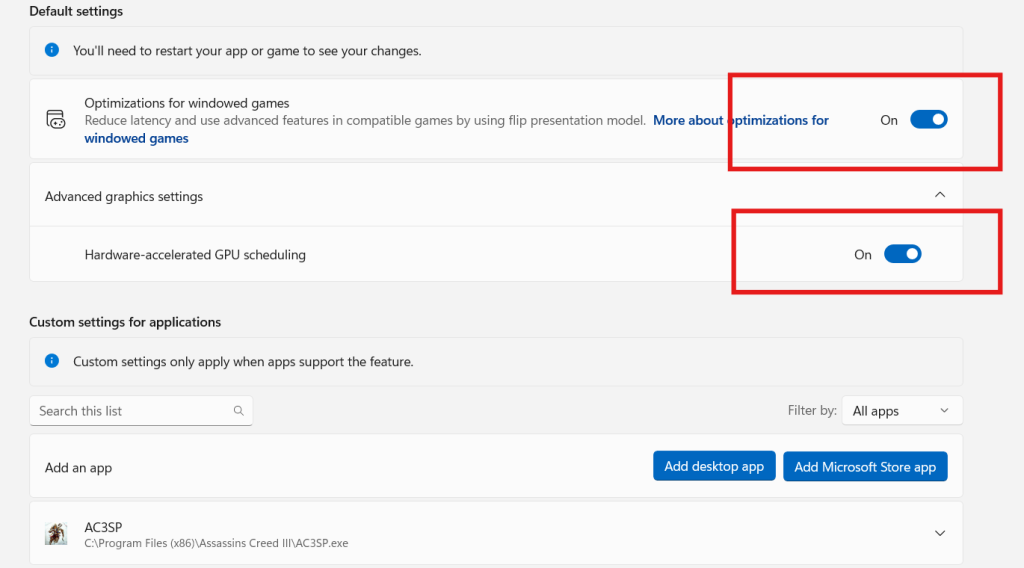
Enable the toggle that allows Windows to optimize graphics performance for games.
Step 6: Restart the PC
Restart your system to apply the changes.
After restarting, Windows prioritizes gaming workloads, resulting in improved gaming performance.
Understanding Graphics Settings in Windows
Graphics settings in Windows control how GPU resources are allocated. When enabled, Windows ensures games use high-performance GPU modes rather than power-saving modes.
This reduces:
- Frame drops
- Input lag
- Background GPU usage
As a result, gaming performance becomes more stable and consistent.
How This Setting Improves Gaming Performance
This gaming setting improves performance by:
- Giving games higher GPU priority
- Reducing background GPU interruptions
- Optimizing graphics scheduling
- Improving frame stability
While the improvement varies by system, most users notice smoother gameplay after enabling this option.
Who Should Enable This Gaming Performance Option
This setting is ideal for:
- PCs with dedicated graphics cards
- Gaming laptops
- Users experiencing low FPS
- Systems running modern games
If your PC uses only integrated graphics, this option may not appear.
Common Mistakes That Reduce Gaming Performance
Avoid these mistakes that hurt gaming performance:
- Leaving power mode on Balanced
- Running heavy background apps
- Using outdated graphics drivers
- Disabling gaming features unknowingly
Correcting these mistakes enhances the effect of Windows gaming settings.
Additional Tips to Improve Gaming Performance
To further improve gaming performance:
- Set Windows power mode to High Performance
- Update GPU drivers regularly
- Disable unnecessary startup programs
- Keep Windows updated
Internal link suggestion:
Read How to Boost PC Performance on Windows
Internal link suggestion:
Check Windows Graphics Optimization Guide
Internal Windows Optimization Links
Gaming performance improves when Windows is properly tuned.
Internal link suggestion:
See How to Disable Background Apps on Windows PC
External Resources for Gaming Performance
DoFollow external resources for official guidance:
These sources provide reliable information on Windows gaming and performance optimization.
Final Thoughts
Improving gaming performance does not always require expensive hardware upgrades. Windows includes powerful gaming features that, when enabled correctly, unlock better performance from your existing system.
This simple graphics setting takes less than a minute to enable and delivers smoother gameplay after a restart. If you want better FPS and stability, this is a setting you should turn on today.
FAQs
How does this setting improve gaming performance
It prioritizes GPU resources for games, reducing lag and frame drops.
Is this setting safe to enable
Yes. It is a built-in Windows feature designed for gaming systems.
Will this improve gaming performance on all PCs
It works best on systems with dedicated graphics cards.
Do I need to restart after enabling this
Yes. Restarting applies the gaming performance optimization.
Can this replace a hardware upgrade
It cannot replace hardware upgrades, but it can significantly improve existing gaming performance.
You check this too..
