Introduction
Check hard drive type is one of the first steps every Windows user should take when facing slow performance, long boot times, or poor system responsiveness. Many people upgrade RAM or reinstall Windows without realizing that the actual issue lies with the hard drive type installed in their PC.
Windows PCs commonly use either HDD or SSD storage. These two drive types behave very differently. By learning how to check hard drive type correctly, you can understand your system better and apply the right performance optimizations. This guide explains how to check hard drive type on a Windows PC using a simple built-in command, without installing any third-party tools.
Table of Contents
What Does Check Hard Drive Type Mean
To check hard drive type means identifying whether your Windows PC is using a traditional Hard Disk Drive (HDD) or a Solid State Drive (SSD). This information is critical because Windows handles HDD and SSD differently in terms of optimization, maintenance, and performance tuning.
Many Windows features like defragmentation, trimming, and caching depend on the detected hard drive type.
Why You Should Check Hard Drive Type on Windows
There are several practical reasons to check hard drive type:
- To confirm if your PC uses HDD or SSD
- To apply correct performance optimizations
- To decide whether an upgrade is needed
- To troubleshoot slow system performance
- To avoid damaging SSD with wrong maintenance
Without knowing the drive type, users often apply incorrect tweaks that reduce performance or lifespan.
Difference Between HDD and SSD
Before you check hard drive type, it helps to understand the basics.
HDD (Hard Disk Drive)
- Uses spinning disks
- Slower read and write speeds
- Cheaper storage
- Affected by fragmentation
SSD (Solid State Drive)
- No moving parts
- Much faster performance
- Better boot and app load times
- Uses TRIM instead of defragmentation
Windows treats these drives differently once it knows the hard drive type.
Built-in Windows Tool to Check Hard Drive Type
Windows includes a built-in utility called Optimize Drives, which automatically detects the hard drive type. This tool is accessed using the DFRGUI command.
The advantage of this method is:
- No software installation
- Accurate detection
- Works on all modern Windows versions
This makes it the safest way to check hard drive type.
Step-by-Step Guide to Check Hard Drive Type Using DFRGUI
This is the exact step-by-step method you shared, explained clearly.
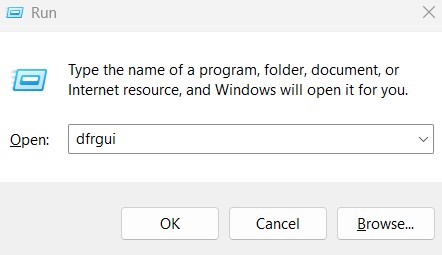
Step 1: Open Run Dialog
Press Windows + R
Step 2: Type the Command
Type the following command and press Enter:
dfrgui
Step 3: View Drive Information
The Optimize Drives window opens and displays all connected drives.
Step 4: Check Media Type Column
Look at the Media type column. It will clearly show:
- Solid State Drive (SSD)
- Hard Disk Drive (HDD)
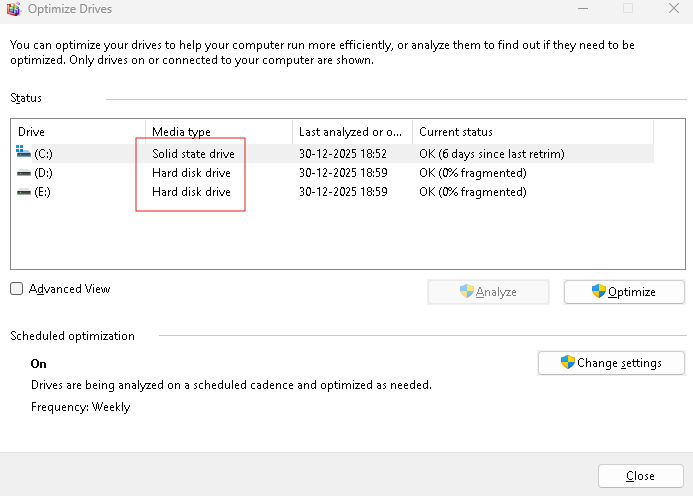
This confirms the hard drive type on your Windows PC.
How to Identify Multiple Drives on One PC
Many modern PCs use more than one drive.
For example:
- One SSD for Windows
- One HDD for storage
When you check hard drive type using DFRGUI, each drive is listed separately. This helps you identify which drive is SSD and which is HDD, just like in your case where one drive was SSD and the other was HDD.
What to Do After You Check Hard Drive Type
Once you check hard drive type, take the correct action:
- If SSD: Ensure TRIM is enabled
- If HDD: Allow scheduled defragmentation
- Move Windows to SSD if possible
- Store large files on HDD
This simple knowledge can significantly improve system performance.
Common Issues Related to Wrong Drive Optimization
If users do not check hard drive type, they often face issues like:
- SSD being defragmented unnecessarily
- HDD not optimized properly
- Slow boot times
- Reduced SSD lifespan
Windows usually handles this automatically, but manual verification is always recommended.
Performance Tips Based on Hard Drive Type
For SSD Users
- Keep at least 20% free space
- Avoid third-party defrag tools
- Enable Storage Sense
For HDD Users
- Defragment regularly
- Avoid running OS on very old HDDs
- Consider SSD upgrade
Internal link suggestion:
Read How to Speed Up Windows PC Without Upgrading Hardware
Internal Windows Settings Linked to Drive Type
Hard drive type impacts:
- Windows boot speed
- Virtual memory performance
- Update installation speed
- File indexing
Internal link suggestion:
Check Windows Performance Optimization Settings Explained
External Resources for Storage Knowledge
DoFollow external resources for deeper learning:
These sources provide trusted information on Windows storage management.
Final Thoughts
Knowing how to check hard drive type on a Windows PC is essential for maintaining performance and system health. The DFRGUI command provides a quick and accurate way to identify whether your PC uses SSD, HDD, or both.
Before making upgrades or applying performance tweaks, always check hard drive type first. This small step helps you make smarter decisions and avoid unnecessary problems.
FAQs
How do I check hard drive type on Windows PC
You can check hard drive type by pressing Windows + R, typing dfrgui, and checking the Media Type column.
Is DFRGUI safe to use
Yes. It is a built-in Windows tool and completely safe.
Can a PC have both SSD and HDD
Yes. Many PCs use SSD for Windows and HDD for storage.
Does checking hard drive type affect data
No. Checking hard drive type does not modify or delete any data.
Why is checking hard drive type important
It helps apply correct optimizations and improve system performance.
You check this
del /q/f/s %temp% command fixes slow Windows PC performance
PC Host Name on Windows Helps Identify and Manage Your Computer Easily
