Introduction
PC host name is one of the most basic yet important settings on a Windows computer. A PC host name is the unique name assigned to your computer so it can be identified on a network, by other devices, and by system services. Many users ignore the PC host name until they face issues with networking, file sharing, or system identification.
If you are using a Windows PC at home, in an office, or in a lab environment, setting a proper PC host name helps avoid confusion and makes device management easier. This article explains what a PC host name is, why it is important, and how to add or change a PC host name on Windows using a simple built-in method.
Table of Contents
What Is PC Host Name
A PC host name is the name that identifies your computer on a network. It is used by Windows, routers, servers, and other devices to recognize your PC. Every Windows system has a default PC host name, usually generated during installation.
The PC host name is different from:
- User account name
- Microsoft account name
- Device model name
It is specifically meant for network and system-level identification.
Why PC Host Name Is Important
The PC host name plays a key role in several areas:
- Identifying your computer on a local network
- File and printer sharing
- Remote desktop connections
- Network troubleshooting
- System administration
Without a clear PC host name, managing multiple devices becomes confusing, especially in office or classroom environments.
How PC Host Name Works in Windows
Windows uses the PC host name internally and externally. Internally, it helps the operating system identify the machine. Externally, it allows routers, servers, and other PCs to communicate with your system.
When you connect to Wi-Fi or Ethernet, your PC host name is broadcast to the network. This allows network administrators to track and manage connected devices easily.
Step-by-Step Guide to Add PC Host Name on Windows
This is the exact step-by-step method you shared, explained in a simple way.
Step 1: Open Run Dialog
Press Windows + R
Step 2: Open System Properties
Type the following command and press Enter:
sysdm.cpl
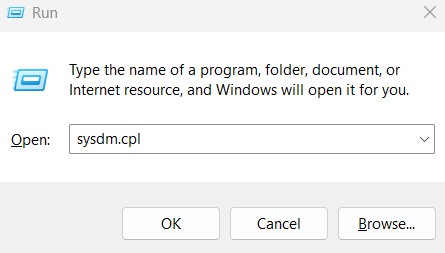
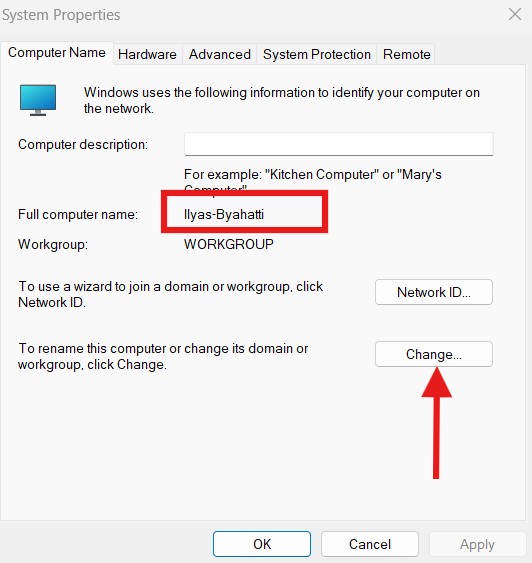
Step 3: Go to Computer Name Settings
In the System Properties window, click on the Computer Name tab.
Step 4: Click on Change
Click the Change button.
Step 5: Enter the PC Host Name
Type your desired PC host name in the Computer Name field.
Step 6: Apply and Restart
Click OK, then restart your PC to apply the new PC host name.
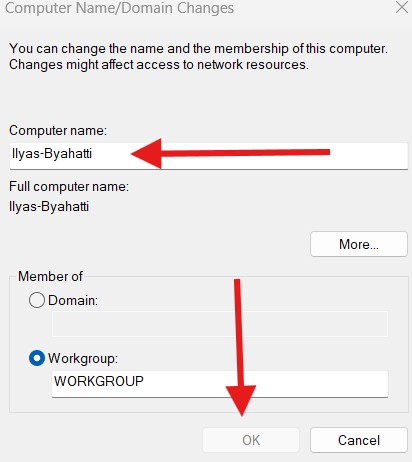
Once restarted, your Windows PC will use the new host name across the system.
Understanding PC Host Name Rules
When setting a PC host name, keep these rules in mind:
- Maximum 15 characters
- No spaces
- No special characters like @, #, $
- Use letters, numbers, and hyphens
- Must be unique on the network
Following these rules ensures your PC host name works correctly across all Windows services.
PC Host Name for Home Users
For home users, a simple PC host name is enough. Examples include:
- LivingRoomPC
- IlyasLaptop
- HomeDesktop
A clear PC host name helps identify devices on Wi-Fi routers and during troubleshooting.
PC Host Name for Office and Network Environments
In offices, PC host name structure is very important.
Common formats include:
- HR-PC-01
- SALES-LAPTOP-02
- IT-DESKTOP-05
A well-planned PC host name system helps IT teams manage hundreds of devices easily.
Common Issues Related to PC Host Name
If a PC host name is not set properly, you may face:
- Network discovery issues
- File sharing problems
- Remote access failures
- Duplicate device names on the network
Changing the PC host name often resolves these issues quickly.
Best Practices for Setting PC Host Name
To avoid future problems:
- Set PC host name immediately after Windows installation
- Use a consistent naming pattern
- Avoid changing PC host name frequently
- Restart the system after every change
Internal link suggestion:
Read Windows Networking Basics for Beginners
Internal System Settings Related to PC Host Name
PC host name works closely with:
- Network adapter settings
- DNS configuration
- Workgroup or domain settings
Internal link suggestion:
Check How to Configure Network Settings on Windows PC
External Resources for Windows Networking
DoFollow external resources for official guidance:
These sources provide trusted documentation on Windows system and network management.
Final Thoughts
The PC host name is a small setting that creates a big difference in how your Windows computer is identified and managed. Whether you are a home user or a professional, setting a proper PC host name helps keep your system organized and network-friendly.
Using the sysdm.cpl method is quick, safe, and effective. If you have never customized your PC host name, now is the perfect time to do it.
FAQs
What is a PC host name
A PC host name is the unique name used to identify a Windows computer on a network.
Is PC host name same as computer name
Yes. In Windows, PC host name and computer name refer to the same setting.
Can I change PC host name anytime
Yes. You can change the PC host name anytime, but a restart is required.
Does changing PC host name affect files
No. Changing PC host name does not affect files or installed applications.
Why should I customize PC host name
Custom PC host name improves network identification, troubleshooting, and device management.
You can this too
