Introduction
Activate administrator account in Windows 11 is a common requirement for users who need full system control. Many advanced tasks in Windows, such as managing system files, fixing permission errors, installing certain applications, or troubleshooting deep system issues, require administrator-level access.
Although most Windows users log in with an account that has administrative privileges, Windows 11 also includes a hidden built-in Administrator account. This account is disabled by default for security reasons, but when enabled correctly, it becomes a powerful troubleshooting and management tool.
In this guide, you will learn how to activate administrator account in Windows 11 using a safe, built-in method exactly based on your step-by-step script, with expert explanations, best practices, and FAQs.
Table of Contents
What Is the Administrator Account in Windows 11
The administrator account in Windows 11 is a built-in system account with unrestricted access to the operating system. Unlike regular user accounts, this account:
- Bypasses User Account Control (UAC) prompts
- Has full access to system files and registry
- Can manage all user accounts
- Can install or remove any software
This account is different from a normal user account with admin privileges. When you activate administrator account in Windows 11, you gain the highest level of system access available.
Why the Administrator Account Is Disabled by Default
Microsoft disables the built-in administrator account by default to protect users from:
- Accidental system damage
- Malware gaining full control
- Unauthorized access
- Unintended changes to critical files
According to Microsoft security guidelines, enabling this account should be done only when necessary and disabled afterward (DoFollow):
https://learn.microsoft.com/en-us/windows/security/application-security/application-control/user-account-control/
When You Should Activate Administrator Account in Windows 11
You may need to activate administrator account in Windows 11 when:
- Facing repeated “Access Denied” errors
- Fixing corrupted user profiles
- Managing local users and groups
- Troubleshooting software installation issues
- Performing advanced system recovery
- Repairing Windows permissions
For everyday use, this account is not recommended, but for troubleshooting, it can be extremely helpful.
How to Activate Administrator Account in Windows 11 (Step-By-Step Guide)
Below is your script expanded into a clear and beginner-friendly walkthrough.
Step 1: Press Windows + X, Then Press G
- Press Windows + X on your keyboard
- From the power menu, press G
This opens Computer Management, which includes advanced system tools.
Step 2: Go to Local Users and Groups
- In Computer Management
- Expand Local Users and Groups
- Click on Users
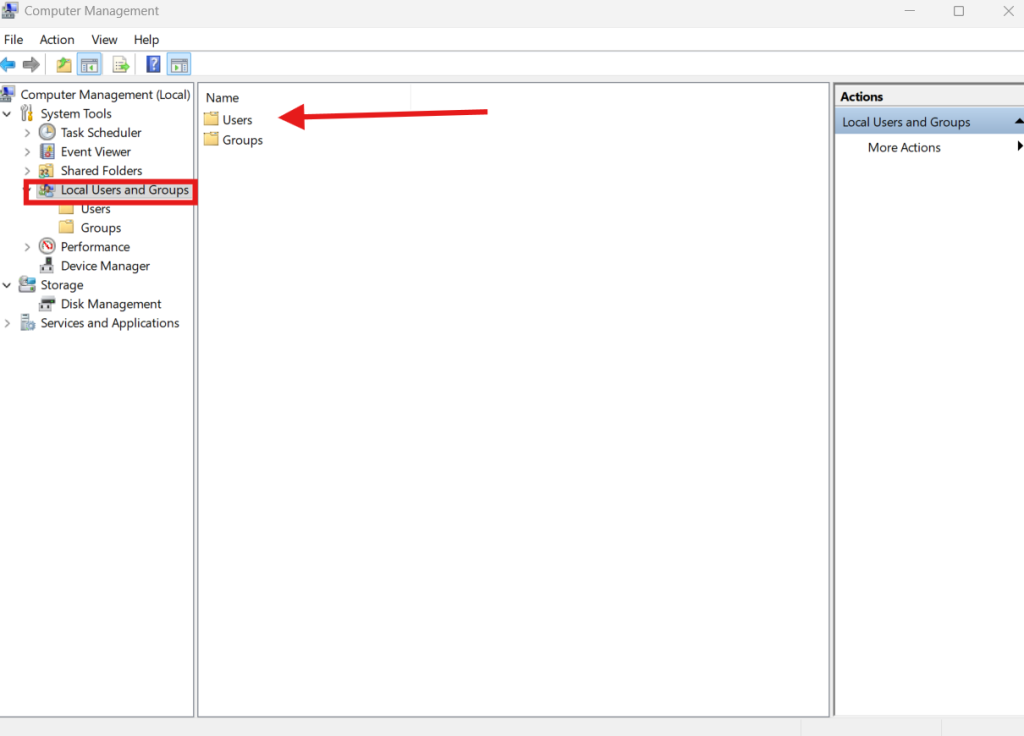
This section lists all local user accounts on your Windows PC.
Step 3: Double-Click on Users
Inside the Users folder, you will see:
- Administrator
- Guest
- Your regular user account
The Administrator account is the built-in account that is disabled by default.
Step 4: Right-Click on Administrator Account
- Right-click on Administrator
- Click Properties
This opens the configuration window for the built-in administrator account.
Step 5: Uncheck “Account Is Disabled”
- In the Administrator Properties window
- Uncheck Account is disabled
- Click Apply
- Click OK
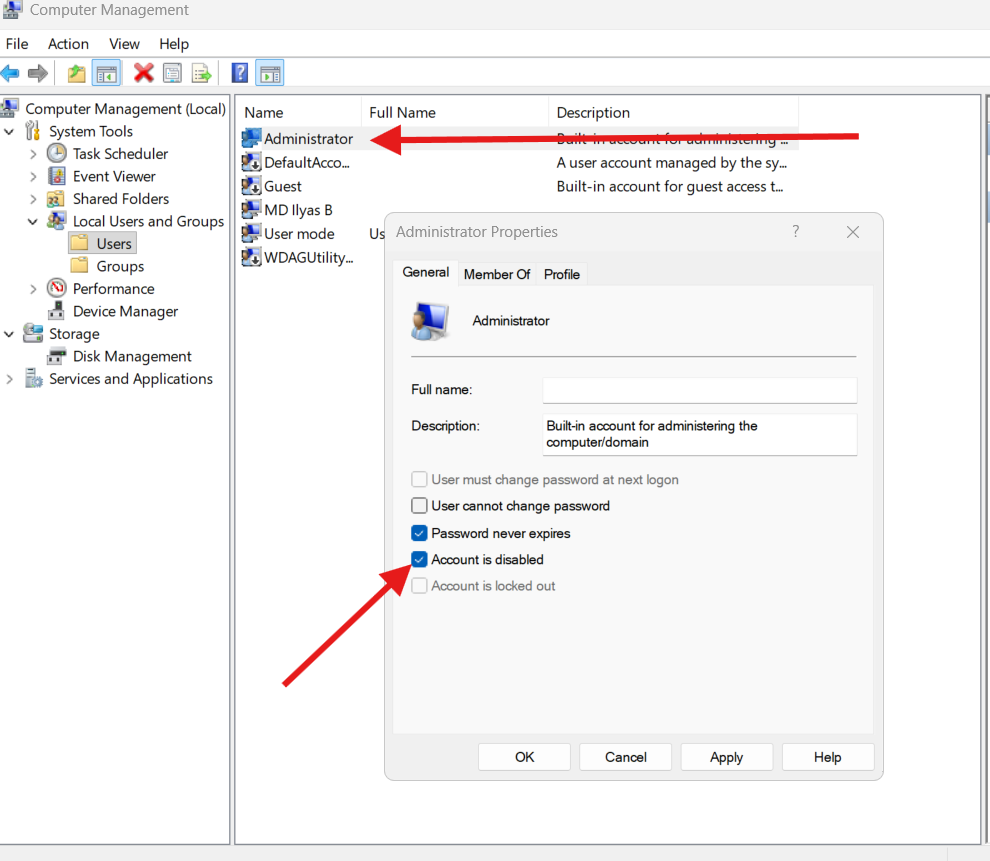
At this point, you have successfully taken the first step to activate administrator account in Windows 11.
Step 6: Set a Password for Administrator Account
For security reasons, you must set a password.
- Right-click on Administrator again
- Click Set Password
- Read the warning message and continue
- Enter your desired strong password
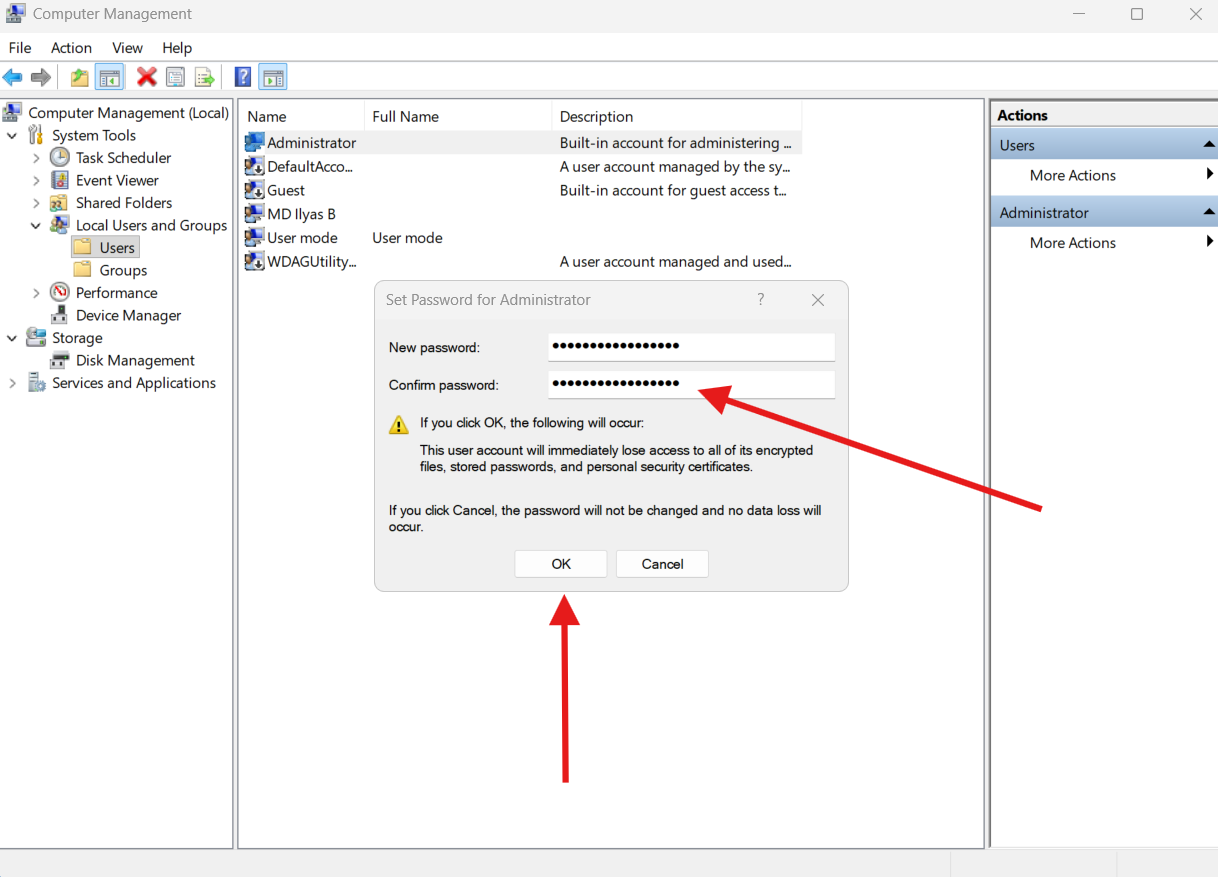
- Click OK
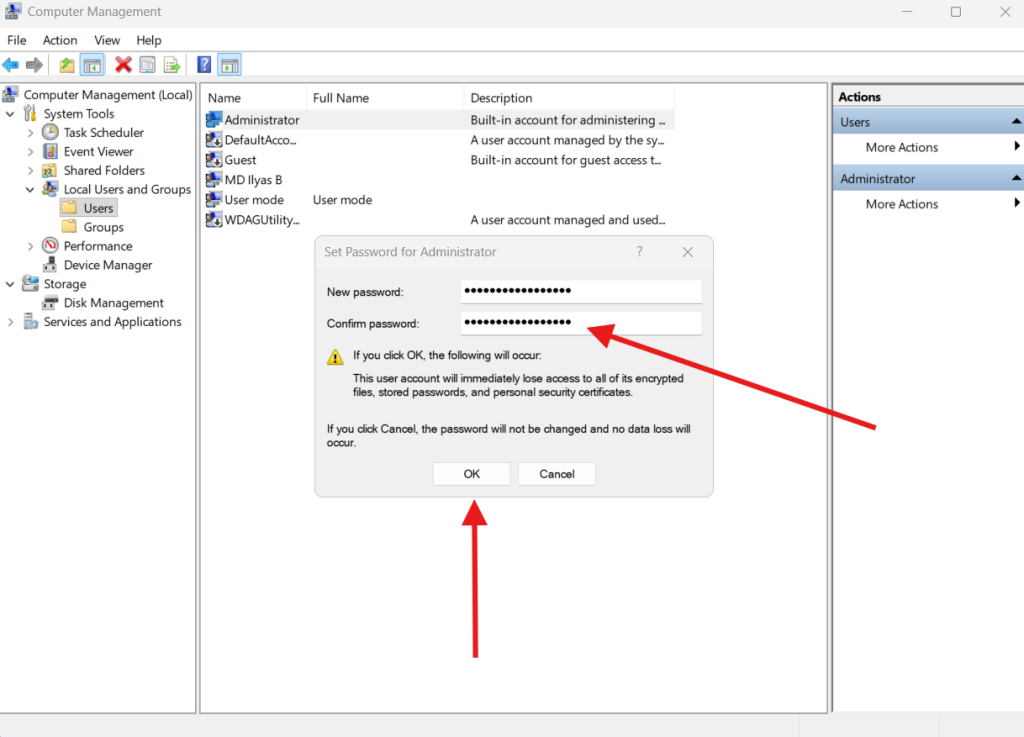
Your administrator account is now active and secured.
Step 7: Sign In to the Administrator Account
- Log out of your current account
- On the login screen, select Administrator
- Enter the password you created
You are now logged in with full system privileges.
🎉 You have successfully learned how to activate administrator account in Windows 11.
Why Setting a Password Is Critical
Never leave the administrator account without a password. An unsecured admin account can:
- Allow unauthorized access
- Expose sensitive data
- Increase malware risk
Microsoft strongly recommends strong passwords for admin accounts (DoFollow):
https://support.microsoft.com/windows/password-security
Important Security Considerations
When you activate administrator account in Windows 11, keep these best practices in mind:
- Use it only when necessary
- Do not browse the internet using this account
- Disable it after troubleshooting
- Never share the password
- Avoid installing unknown software
This account is powerful, but misuse can harm system stability.
How to Disable Administrator Account Again
After finishing your task:
- Go back to Local Users and Groups → Users
- Right-click Administrator
- Click Properties
- Check Account is disabled
- Click Apply → OK
This returns your system to a safer state.
Video Guide:
FAQs – Activate Administrator Account in Windows 11
Is it safe to activate administrator account in Windows 11?
Yes, if used temporarily and disabled afterward.
Does this replace my normal user account?
No. It is a separate built-in account.
Can malware use the administrator account?
Yes, if left enabled and unsecured.
Will this work on Windows 11 Home?
Local Users and Groups is available mainly on Pro and higher editions.
Can I activate administrator account using CMD?
Yes, but Computer Management is safer for beginners.
Should I use this account daily?
No. It is meant only for troubleshooting.
You can check this too for your PC
Internet Speed Is Slow on Windows PC? Fix LAN Speed the Right Way
