Introduction
Internet speed is slow — few things are more frustrating than paying for a high-speed broadband connection and still struggling with buffering, slow downloads, or lag during work and online meetings. Many Windows users immediately blame their ISP, router, or cable provider, but in reality, the issue often lies inside Windows network settings.
When using a LAN (Ethernet) connection, Windows may not always negotiate the correct speed with your router or switch. Incorrect speed and duplex settings, outdated buffer configurations, or default power-saving options can severely limit performance.
In this guide, you’ll learn a simple, built-in, step-by-step method to fix the problem when internet speed is slow on a Windows PC using LAN. This solution requires no third-party software and works on both Windows 10 and Windows 11.
Table of Contents
Why Internet Speed Is Slow on LAN Connections
If your internet speed is slow even on a wired connection, common causes include:
- Incorrect Speed & Duplex negotiation
- Network adapter stuck at lower Mbps
- Buffer size limitations
- Power-saving features throttling Ethernet
- Outdated network drivers
- Router and PC mismatch
LAN connections should always outperform Wi-Fi. If they don’t, something is misconfigured.
How Windows Manages Ethernet Performance
Windows communicates with your router using:
- Network Interface Card (NIC) drivers
- Auto-negotiation for speed and duplex
- Buffer management for data packets
Auto-negotiation usually works well, but in many real-world networks, it fails or locks the connection at a lower speed. Manually tuning these settings often fixes cases where internet speed is slow.
Internet Speed Is Slow – LAN Speed Fix (Step-by-Step Guide)
Below is your script expanded into a detailed and beginner-friendly walkthrough.
Step 1: Press Windows + R
- Press Windows + R
- The Run dialog box opens
This shortcut gives quick access to network settings.
Step 2: Type ncpa.cpl and Hit Enter
- In the Run box, type ncpa.cpl
- Press Enter
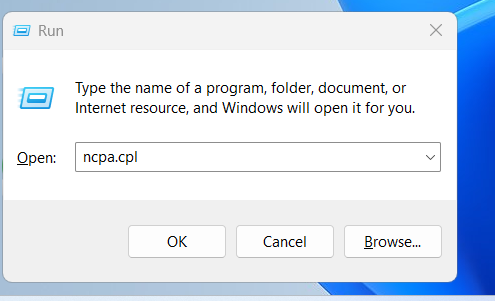
This opens Network Connections, where all adapters are listed.
This step is essential when troubleshooting internet speed is slow issues.
Step 3: Right-Click on LAN (Ethernet) Icon
- Locate Ethernet or Local Area Connection
- Right-click on it
- Select Properties
This opens the LAN adapter configuration.
Step 4: Click on Configure
- In Ethernet Properties, click Configure
- The Network Adapter Properties window opens
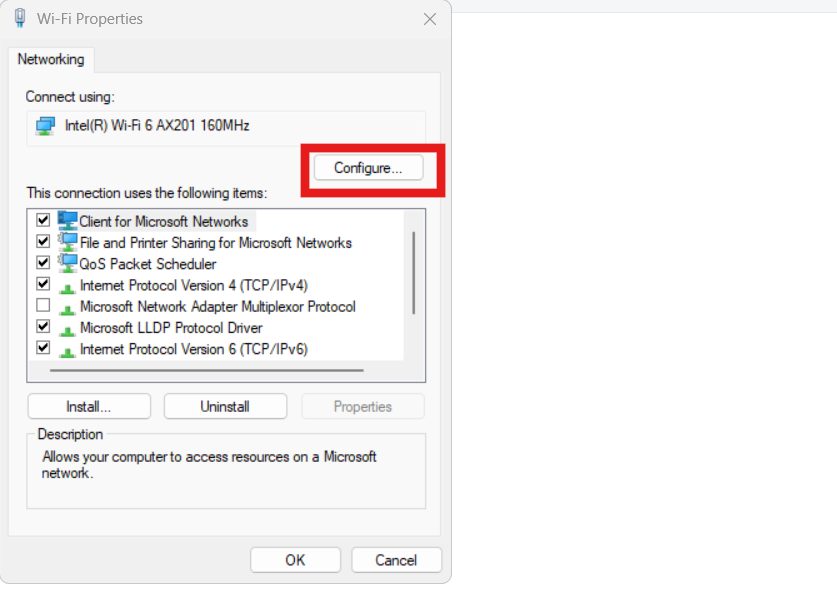
This window controls hardware-level performance settings.
Step 5: Go to the Advanced Tab
- Click on the Advanced tab
- You will see multiple network performance options
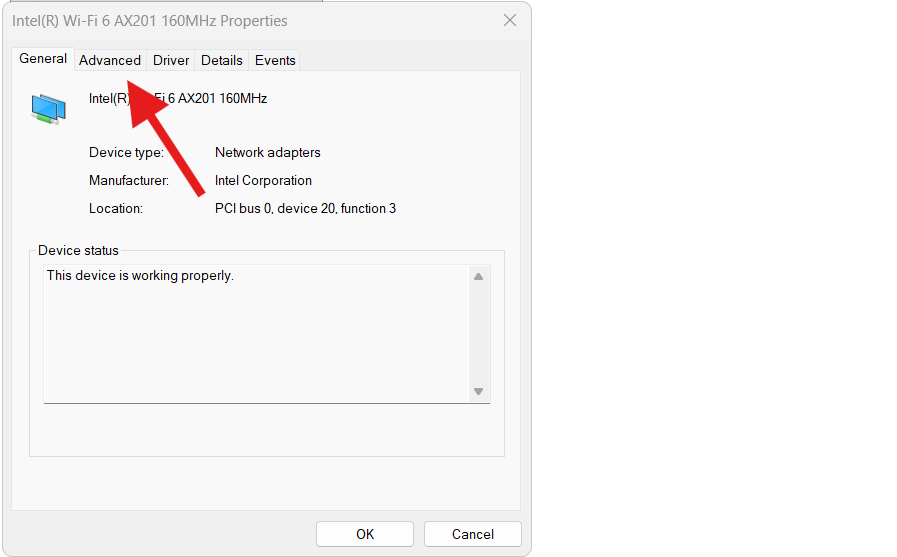
These advanced settings directly impact throughput and latency.
Step 6: Set Speed and Duplex to the Highest Value
- Find Speed & Duplex
- Change the value to the highest available option
- Example: 1.0 Gbps Full Duplex
- Click Apply
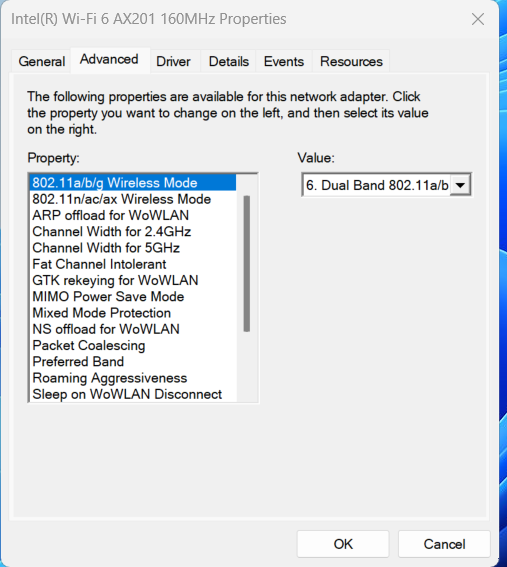
This forces Windows to use the maximum supported LAN speed.
Many users instantly fix the issue where internet speed is slow after this step.
Step 7: Increase Transmit Buffers
- In the same Advanced tab
- Find Transmit Buffers
- Set the value to double or the highest available number
- Click OK
Transmit buffers control how much data can be queued for sending. Increasing them improves performance during downloads and uploads.
Step 8: Restart or Reconnect
After applying the changes:
- Disable and re-enable the Ethernet adapter
OR - Restart the PC
Now test your connection speed again.
🎉 In most cases, this resolves the problem when internet speed is slow on LAN.
Why These Settings Improve LAN Speed
Manually setting Speed & Duplex and adjusting buffers works because:
- Prevents auto-negotiation errors
- Eliminates half-duplex bottlenecks
- Allows higher packet throughput
- Reduces dropped packets
- Improves consistency during heavy usage
This is especially effective on older routers, managed switches, and ISP-provided equipment.
Additional Tips If Internet Speed Is Slow
If the issue persists, try these expert-level checks.
1. Update Network Drivers
Outdated drivers can cap speed.
- Intel drivers: https://www.intel.com/download-center
- Realtek drivers: https://www.realtek.com/en/downloads
2. Check Ethernet Cable
Use at least:
- Cat5e for Gigabit
- Cat6 or higher for best stability
3. Disable Power Saving for Ethernet
Device Manager → Network Adapter → Power Management → Uncheck power saving.
4. Restart Router and Modem
Clears negotiation issues and cached errors.
5. Free Up System Resources
System lag can reduce throughput.
Internal link: /fix-slow-windows-pc
6. Clear Network Bottlenecks
Background downloads and malware affect speed.
Internal link: /fix-virus-issue-on-windows-pc
FAQs – Internet Speed Is Slow
Why is my LAN slower than Wi-Fi?
Usually due to incorrect Speed & Duplex settings or bad cables.
Is forcing speed and duplex safe?
Yes, as long as you select a supported value.
What if my LAN disconnects after changing settings?
Revert to Auto Negotiation.
Does this work on Windows 11 and Windows 10?
Yes, the steps are identical.
Will this increase upload speed too?
Yes, especially with higher transmit buffers.
Should I do this on laptops?
Yes, if you use Ethernet adapters or docking stations.
