Introduction
Find my Wi-Fi password is one of the most searched phrases by Windows users, and for good reason. We connect our laptops to Wi-Fi once and then completely forget the password. Days or months later, when a friend asks for the password or you want to connect a new phone, TV, or another laptop, the password is nowhere to be found.
The good news is that Windows stores your Wi-Fi password securely, and you can view it anytime using built-in system tools. You do not need third-party software, hacking tools, or technical expertise.
In this complete guide, you will learn exactly how to find my Wi-Fi password on a Windows PC using a simple step-by-step method that works on Windows 10 and Windows 11.
Table of Contents
Why People Forget Wi-Fi Passwords
Most users forget their Wi-Fi password because:
- The password is entered only once
- Devices auto-connect afterward
- Routers use long, complex passwords
- Passwords are changed rarely
- ISPs provide random characters
This leads to frustration when you suddenly need the password again. Knowing how to find my Wi-Fi password saves time and avoids unnecessary router resets.
How Windows Stores Wi-Fi Passwords
Windows securely stores Wi-Fi credentials in the system profile once you connect to a network. These credentials can be viewed by an administrator account on the same PC.
Important points:
- You must be connected to the Wi-Fi network at least once
- You must have admin access
- The password is encrypted and safe
Microsoft officially explains Wi-Fi profile storage here (DoFollow):
https://learn.microsoft.com/en-us/windows/security/
Find My Wi-Fi Password on Windows PC (Step-by-Step Guide)
This section expands your script into a clear and beginner-friendly walkthrough.
Step 1: Press Windows + R
- Press Windows + R
- The Run dialog box opens
This shortcut helps you quickly access advanced network settings.
Step 2: Type NCPA.cpl and Hit Enter
- In the Run box, type NCPA.cpl
- Press Enter
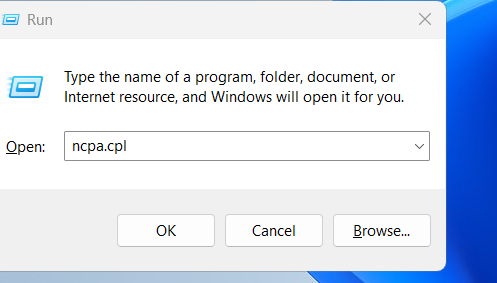
This opens the Network Connections window, where all network adapters are listed.
This step is essential to find my Wi-Fi password.
Step 3: Right-Click on Wireless Internet (Wi-Fi)
- Locate Wi-Fi or Wireless Network Connection
- Right-click on it
- Select Status
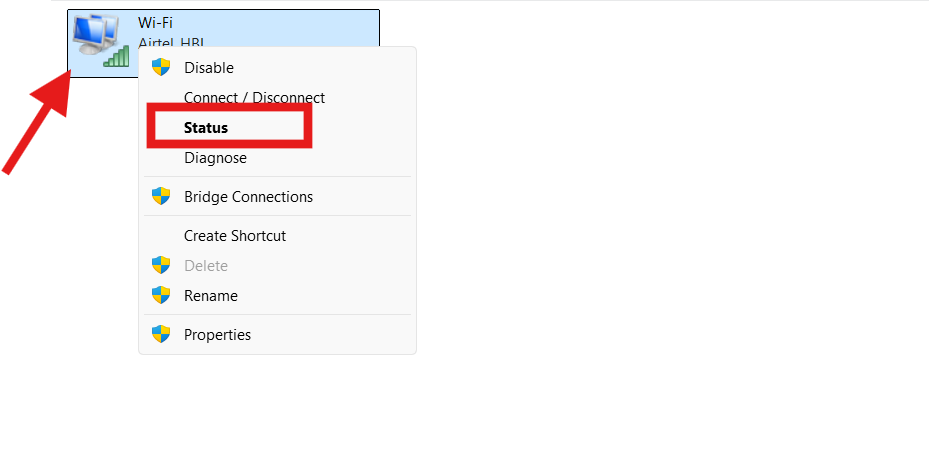
The status window shows connection details.
Step 4: Click on Wireless Properties
Inside Wi-Fi Status:
- Click Wireless Properties
- A new window opens with connection settings
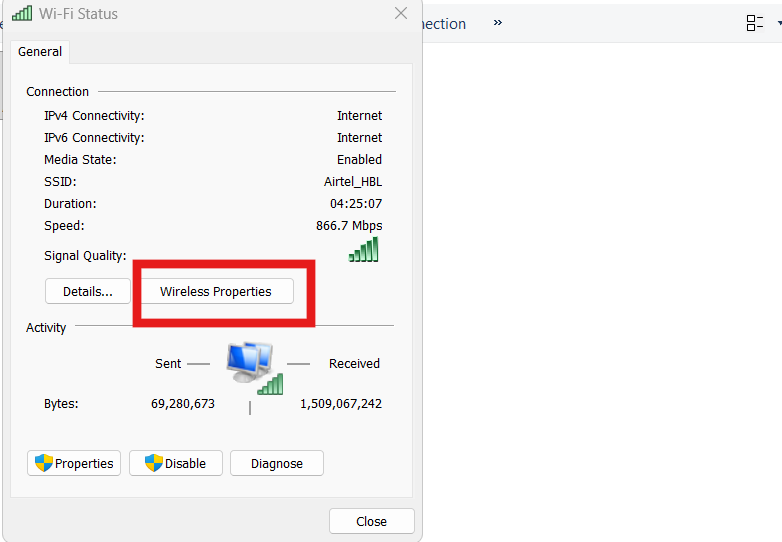
This is where Windows hides your saved Wi-Fi password.
Step 5: Go to the Security Tab
- Click on the Security tab
- You will see a field called Network security key
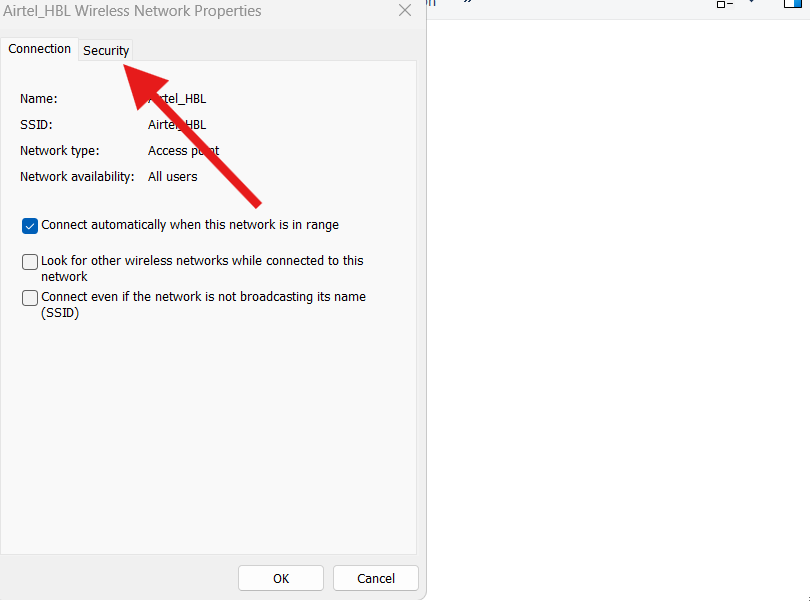
The password is hidden by default for security reasons.
Step 6: Check “Show Characters”
- Check the box Show characters
- Your Wi-Fi password will appear instantly
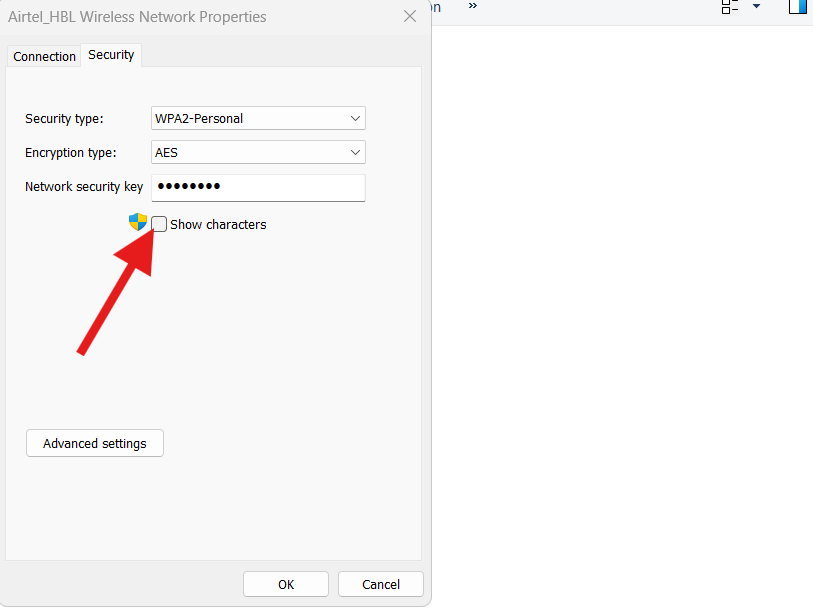
🎉 You have successfully learned how to find my Wi-Fi password on a Windows PC.
You can now share it, save it, or use it on another device.
Alternative Ways to Find My Wi-Fi Password
Using Command Prompt
If you prefer commands:
- Open CMD as Administrator
- Type:
netsh wlan show profile
- Identify your Wi-Fi name
- Then type:
netsh wlan show profile name="WiFiName" key=clear
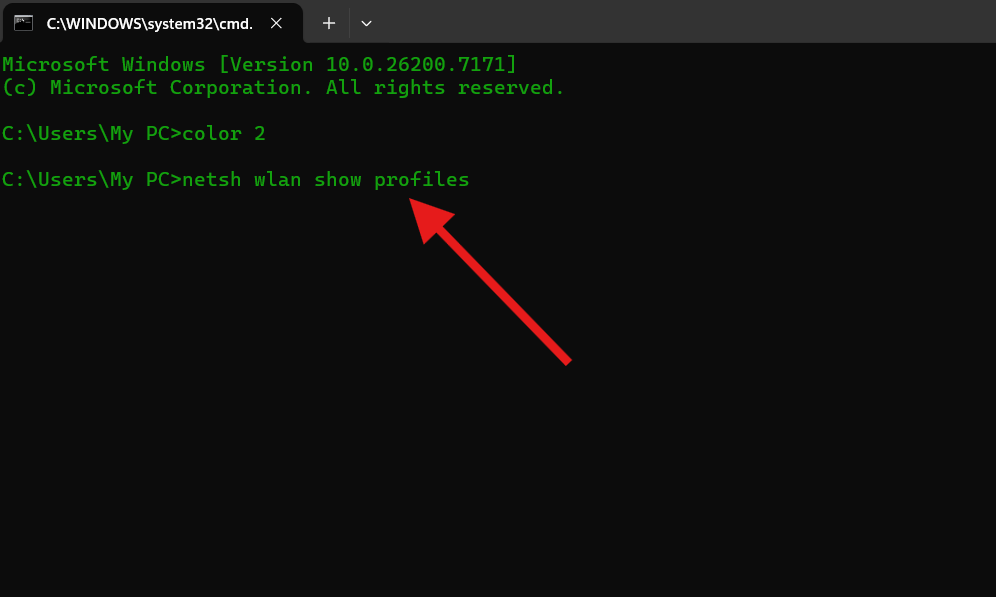
This method is recommended for advanced users.
Microsoft documents this here (DoFollow):
https://learn.microsoft.com/en-us/windows-server/administration/windows-commands/netsh
From Router Admin Panel
You can also find the password by logging into your router:
- Usually
192.168.1.1or192.168.0.1 - Login credentials are printed on the router
Common Mistakes to Avoid
- Trying to view password without admin rights
- Looking for the password while disconnected
- Using third-party password cracking tools
- Resetting the router unnecessarily
- Sharing password publicly
Always use official Windows methods to find my Wi-Fi password safely.
Security Tips After Finding Wi-Fi Password
Once you find my Wi-Fi password, consider these steps:
- Change weak passwords
- Use WPA2 or WPA3 encryption
- Do not share passwords publicly
- Save passwords in a secure password manager
- Rename SSID if it reveals personal info
Router security guidance (DoFollow):
https://www.cisa.gov/news-events/news/securing-wireless-networks
FAQs – Find My Wi-Fi Password
Can I find my Wi-Fi password without admin access?
No. Administrator permission is required.
Does this work on Windows 11 and Windows 10?
Yes. The steps are identical.
Will this show passwords for networks I am not connected to?
Only networks that were previously connected.
Is it safe to show Wi-Fi password?
Yes, if done on your own PC.
What if I forgot router login credentials?
Check the router label or contact your ISP.
Can malware steal Wi-Fi passwords?
Yes. Always keep Windows security updated.
You can check this too:
Increase File Transfer Speed on Windows 11 PC With This Simple Guide
Fix Desktop Icons Not Working: Simple Steps to Restore Your Windows Desktop
