Introduction
If you’re trying to 5x your laptop performance on Windows 11, you’re about to learn one of the most underrated performance hacks built right into Windows. Many users struggle with slow laptops, lag during multitasking, delayed app launches, and poor overall responsiveness. The problem often isn’t RAM or processor—it’s the default visual effects configuration that drains system resources.
Windows 11 prioritizes appearance over speed. While the animations and effects look nice, they can slow down your laptop—especially older or low-spec models. Your script highlights a powerful performance method that disables unnecessary visual features and frees system resources instantly.
This article expands your step-by-step script into a complete, beginner-friendly guide to 5x your laptop performance on Windows 11, complete with images, explanations, FAQs, and best practices.
Table of Contents
Why Windows 11 Feels Slow
Windows 11 is visually appealing, but those effects come at a cost. Performance issues often occur because:
- Too many animations
- Transparency effects
- UI transitions
- Shadows under windows
- Smooth scrolling and fade effects
These features consume RAM and CPU cycles. When disabled, Windows prioritizes raw performance, making applications load faster and improving overall responsiveness. This is the core method to 5x your laptop performance on Windows 11 without adding hardware or installing external apps.
How to 5X Your Laptop Performance on Windows 11 (Step-by-Step Guide)
Let’s break down your script in detail.
Step 1: Press Windows + R
- Press Windows + R
- The Run dialog box opens
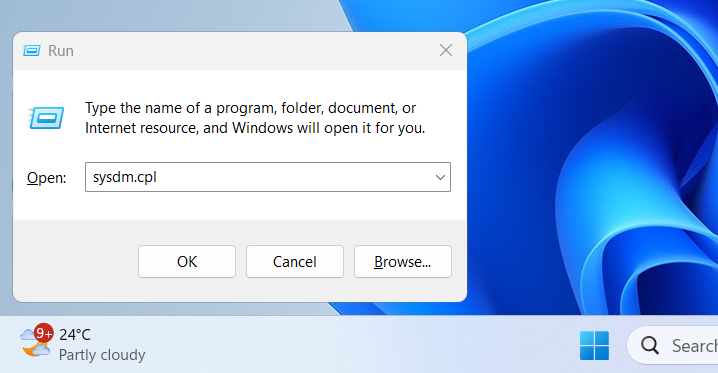
- This is the quickest way to access advanced Windows settings
Step 2: Type sysdm.cpl and Hit Enter
In the Run box, type:
sysdm.cpl
Hit Enter, and the System Properties window will open.
This is where you can control performance, system protection, advanced configurations, and device settings.
Step 3: Click on the Advanced Tab
Inside System Properties:
- Select the Advanced tab
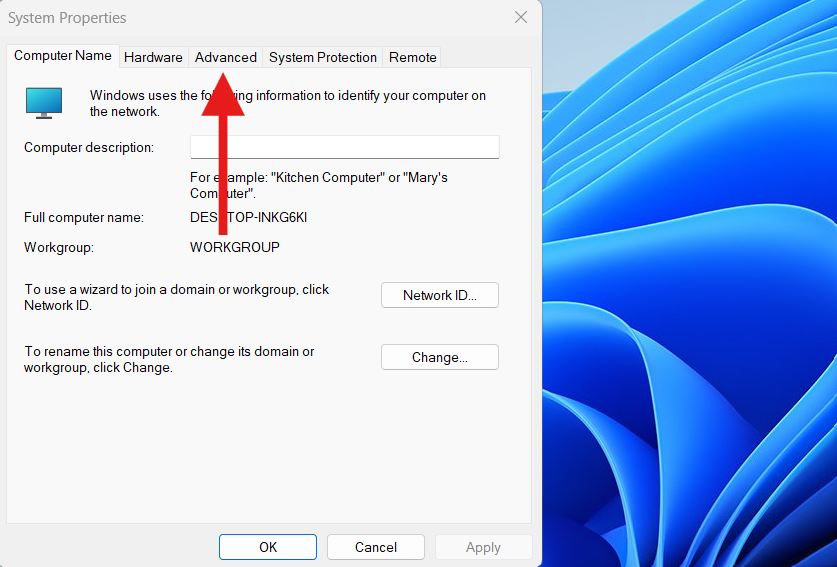
- Look under the Performance section
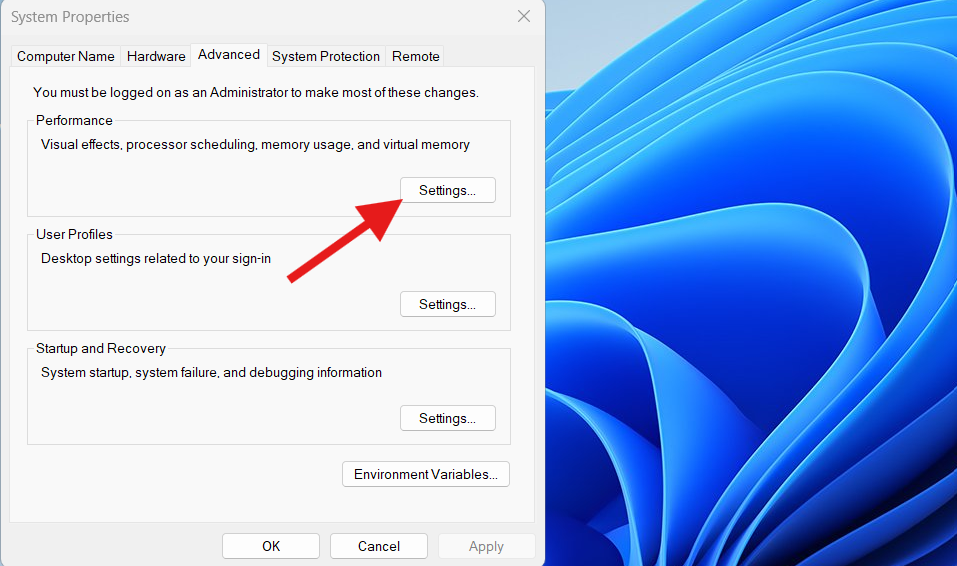
- Click Settings
This section controls how Windows manages visual effects and system resources.
Step 4: Click on Adjust for Best Performance
Inside the Performance Options window:
- Choose Adjust for best performance
This disables all intensive visual features that slow down your laptop. Instantly, Windows becomes faster and more responsive.
If your system is older or has limited RAM, this change alone may significantly 5x your laptop performance on Windows 11.
Step 5: Check Mark the Essential Visual Boxes
Even after choosing Adjust for best performance, you should enable a few essential visual options so Windows doesn’t feel too plain or difficult to use.
Recommended boxes to enable:
- Smooth edges of screen fonts
- Show thumbnails instead of icons
- Show window contents while dragging
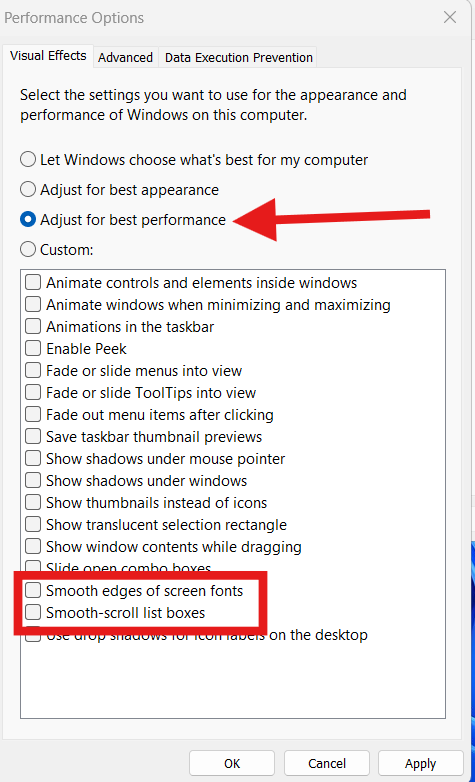
These settings maintain usability without slowing your system down.
Step 6: Click OK to Apply Changes
- Click Apply
- Click OK
- Close all windows
Your laptop will now use fewer system resources, resulting in:
- Faster app loading
- Snappier navigation
- Reduced lag
- Better multitasking performance
- Improved battery life on laptops
Restart your PC for maximum effect.
You’ve now successfully applied the best method to 5x your laptop performance on Windows 11.
Why This Method Boosts Performance
Visual processing consumes:
- RAM
- CPU time
- GPU acceleration
When you disable them:
- More memory becomes available
- System response improves
- CPU load decreases
- Background processes run smoothly
- Windows becomes lighter and faster
Additional Ways to Boost Windows 11 Performance
If you want even more speed, combine the above steps with these tips.
1. Disable Startup Programs
Go to Task Manager → Startup → Disable unnecessary apps.
This reduces boot time.
2. Turn Off Background Apps
Settings → Apps → Installed apps → Advanced options → Background permissions → Never.
3. Use Storage Sense
Settings → System → Storage → Storage Sense
This cleans temporary files automatically.
4. Update Drivers
Outdated drivers slow performance.
Intel Drivers: https://www.intel.com/download-center
NVIDIA Drivers: https://www.nvidia.com/Download
AMD Drivers: https://www.amd.com/en/support
5. Uninstall Bloatware
Remove apps you don’t use.
6. Use Winget to Upgrade All Apps
See internal guide:
➡ /upgrade-installed-applications-on-windows-11
7. Free Up C Drive Space
A full drive slows everything.
➡ /free-up-c-drive-space
8. Fix Laptop Overheating
Heat reduces performance drastically.
➡ /fix-laptop-overheating
Video Guide:
FAQs About How to 5X Your Laptop Performance on Windows 11
Is disabling visual effects safe?
Yes. These settings only change appearance, not core functionality.
Will this affect gaming performance?
Yes—positively. More RAM and CPU are freed for games.
Will this make Windows look old?
Slightly, but enabling the recommended checkboxes keeps it visually usable.
Can this help low-end laptops?
Definitely. Low RAM systems benefit the most.
Do I need to restart after applying changes?
Not required but recommended.
Does this improve battery life?
Yes. With less processing load, battery drain decreases.
You can this Too:
