Why Fingerprint Login Helps You Stay Secure
Before you setup fingerprint password on Windows, it helps to understand why this method is so effective. Fingerprint login:
- Adds a biometric layer of security
- Eliminates password fatigue
- Speeds up sign-in time
- Prevents unauthorized access
- Helps users who forget passwords often
- Works even if your hands are slightly wet or oily (depending on the sensor)
If you want speed + protection, fingerprint login is ideal.
Requirements to Setup Fingerprint Password on Windows
Not every laptop comes with a fingerprint reader. Before proceeding, ensure:
- Your laptop has a built-in fingerprint sensor
- You’re using Windows 10 or Windows 11
- Windows Hello is supported by your device
- You have administrator access
- A PIN is already set up (Windows requires this as backup security)
If everything checks out, you’re ready to setup fingerprint password on Windows.
How to Setup Fingerprint Password on Windows (Full Guide)
Below is the expanded article version of your reel script.
1. Press Windows + I to Open Settings
Press Windows + I.
This is the shortcut for opening Settings instantly.
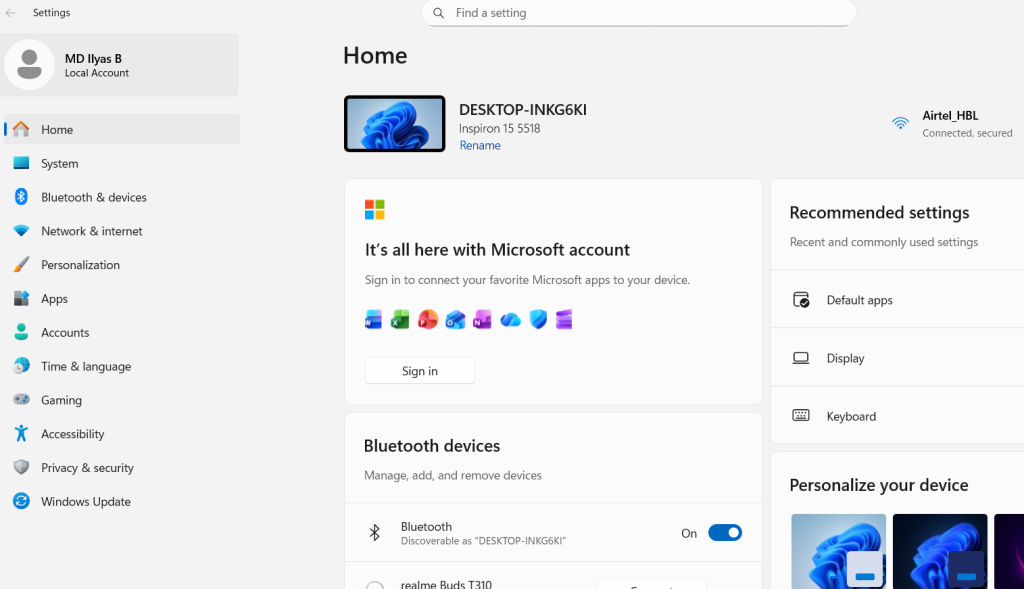
2. Go to “Accounts”
Inside Settings, click on Accounts.
This section handles all login, identity, and user profile features.
3. Choose “Sign-in Options”
Click Sign-in Options to access Windows Hello settings.
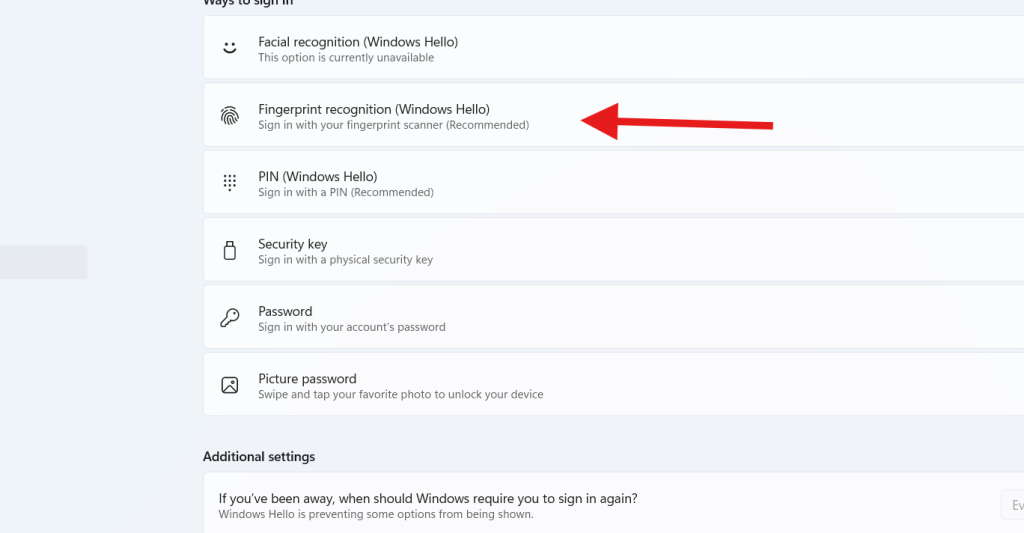
Here, you’ll see options for:
- Fingerprint recognition
- Facial recognition
- PIN
- Password
- Security keys
Fingerprint recognition is the one we need.
4. Click on “Fingerprint Recognition (Windows Hello)”
Under Sign-in options, find:
Fingerprint Recognition (Windows Hello)
Click Set Up.
This opens the Windows Hello fingerprint configuration window.
5. Click “Get Started”
When the setup window appears:
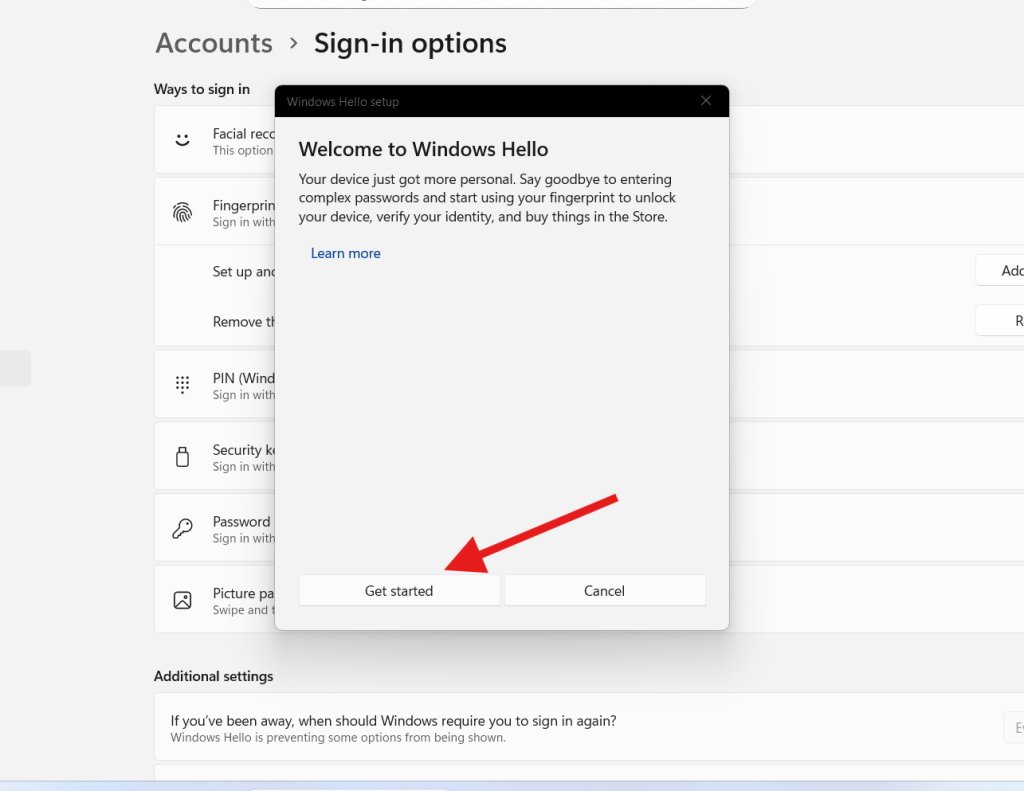
Click Get Started.
You may be asked to enter your PIN for verification.
This ensures no one else can set up a fingerprint without your permission.
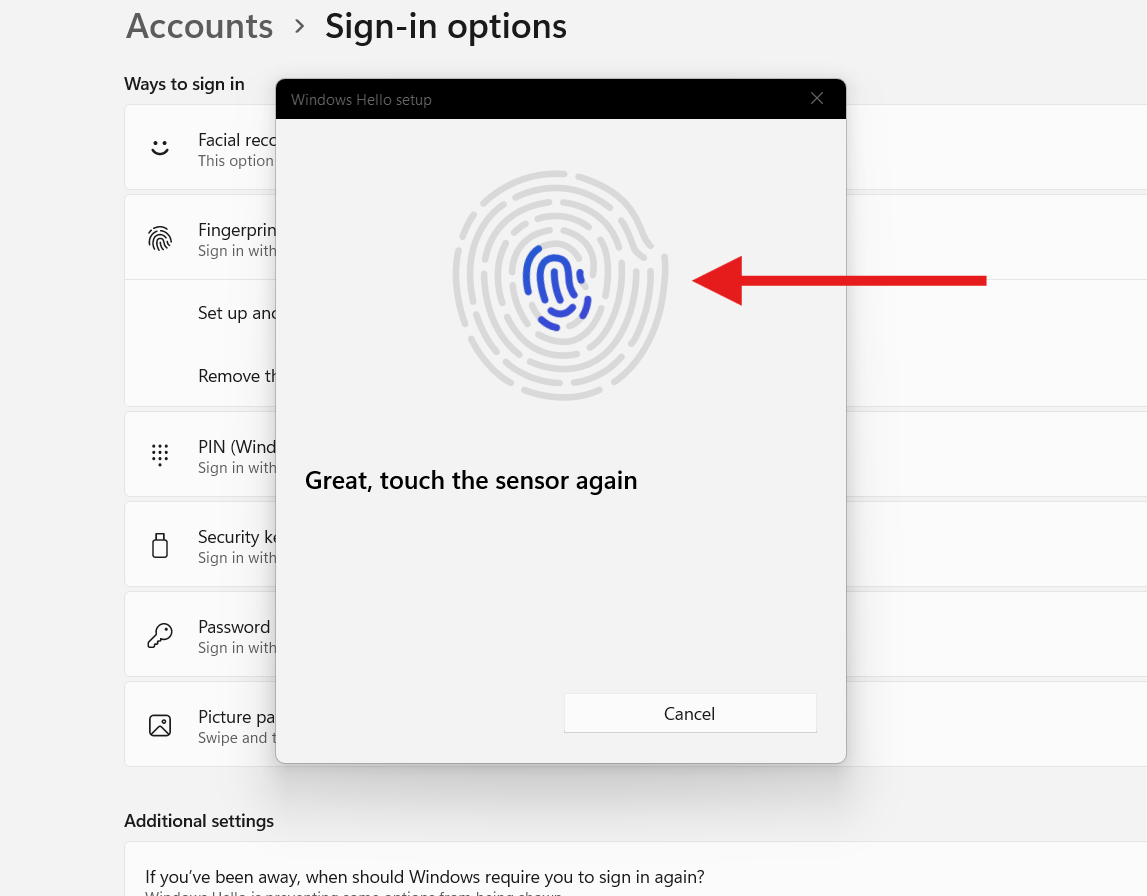
6. Touch the Fingerprint Sensor
Follow the on-screen instructions:
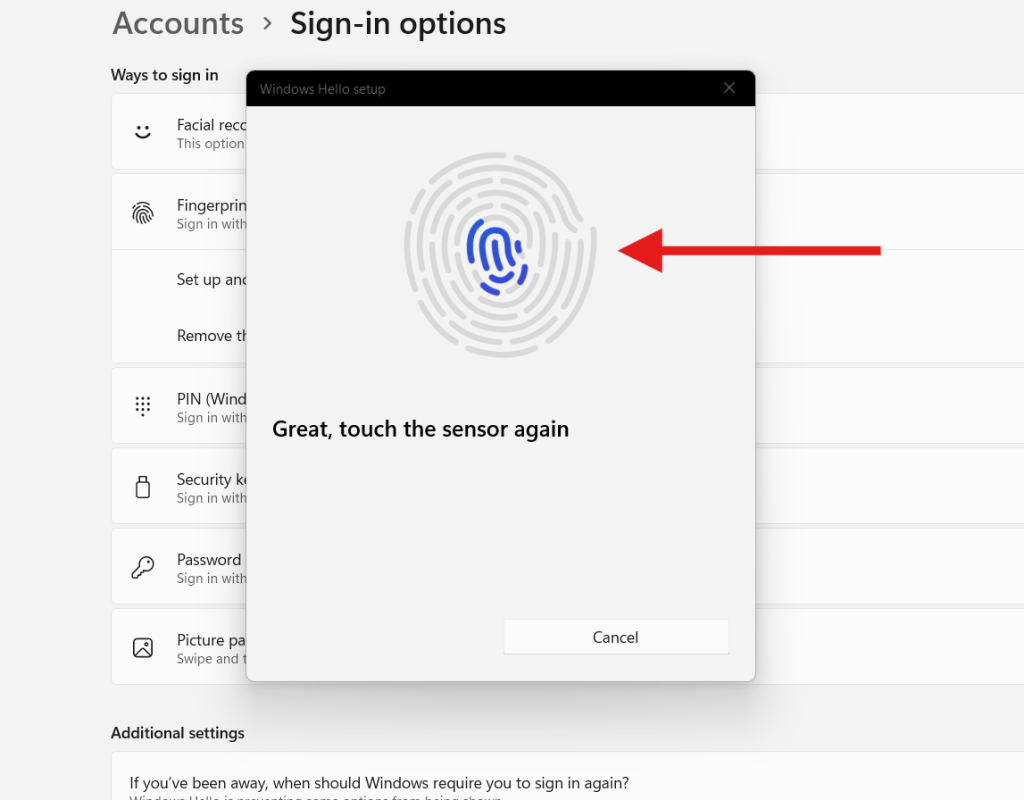
- Touch the sensor
- Lift your finger
- Touch again
- Repeat until the progress bar completes
Make sure to:
- Use the pad of your finger
- Adjust your finger angle slightly
- Keep the sensor clean
Windows needs several angles to ensure accurate recognition, especially when unlocking quickly
7. Touch the Left and Right Sides of Your Finger
After the initial scan, Windows asks you to scan the edges.
This captures full fingerprint data so you can unlock your laptop from different angles.
Continue tapping:
- Left edges
- Right edges
- Tip of the finger (optional)
Once Windows completes the scan, you’ll see a success message.
8. Set or Confirm Your PIN
Microsoft requires a PIN as a backup authentication option.
- If you already have a PIN → Windows will confirm it
- If you don’t have one → You must create it now
Choose a secure PIN that’s easy for you to remember.
9. Unlock Your Laptop Using Your Finger
You’re done!
You can now unlock your PC simply by touching the sensor.
No more typing passwords, no more delays—just a quick tap.
Fingerprint login is one of the fastest ways to sign in, especially when multitasking during work or study sessions.
Troubleshooting: What If Fingerprint Setup Doesn’t Work?
If you can’t setup fingerprint password on Windows, here are quick fixes:
1. Update fingerprint drivers
Go to:
Device Manager → Biometric Devices → Update driver
2. Clean the fingerprint sensor
Dust, oil, sweat, and lotion reduce accuracy.
3. Remove old fingerprint data
Sign-in Options → Fingerprint → Remove → Set up again
4. Use a different finger
Some fingers scan better than others.
5. Restart your PC
Simple but effective.
6. Update Windows
Outdated builds sometimes disable Windows Hello features.
DoFollow: https://www.microsoft.com/software-download/windows11
FAQs About How to Setup Fingerprint Password on Windows
Does every laptop support fingerprint login?
No. Only laptops with fingerprint sensors can use this feature.
Can I register multiple fingers?
Yes. Windows lets you add several fingerprints for convenience.
What if my fingerprint doesn’t register?
Try cleaning your finger and the sensor, or use a different finger.
Is a fingerprint safer than a password?
Yes. Fingerprints are unique and harder to steal than passwords.
Can I still log in without fingerprint?
Yes. You can use your PIN or password anytime.
Does fingerprint login work after reboot?
Yes, Windows Hello works from the lock screen immediately
Check this out
Windows Keyboard Shortcuts Ultimate Guide for Faster Productivity
