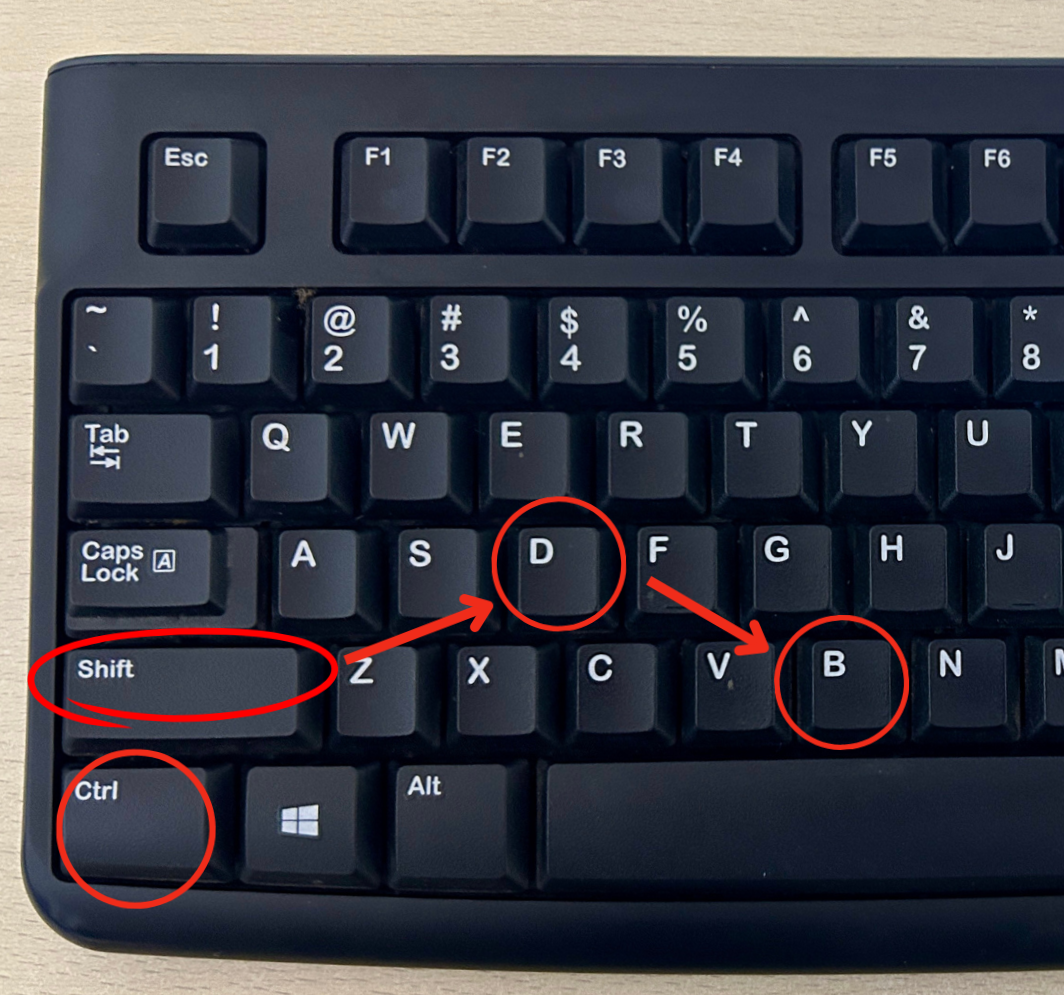
Introduction
If you want to master windows keyboard shortcuts, you’re in the right place. Keyboard shortcuts save time, improve workflow, reduce mouse usage, and make you far more efficient on any Windows PC. Whether you’re a student, working professional, gamer, or creator, knowing the best windows keyboard shortcuts transforms how fast you move through tasks.
In this guide, you’ll find 100 essential shortcuts grouped into categories, explained in simple terms so you can actually use them. These shortcuts work on Windows 10 and Windows 11.
Table of Contents
Why Windows Keyboard Shortcuts Matter
Using windows keyboard shortcuts can boost productivity by 30–50%. Instead of clicking through menus, you can execute tasks instantly. Shortcuts help you:
- Switch apps faster
- Manage windows more easily
- Navigate without touching the mouse
- Multi-task efficiently
- Reduce repetitive strain
Microsoft also encourages learning shortcuts for accessibility and speed (DoFollow):
https://support.microsoft.com/windows
100 Windows Keyboard Shortcuts With Details
Below are 100 essential windows keyboard shortcuts, broken into categories.
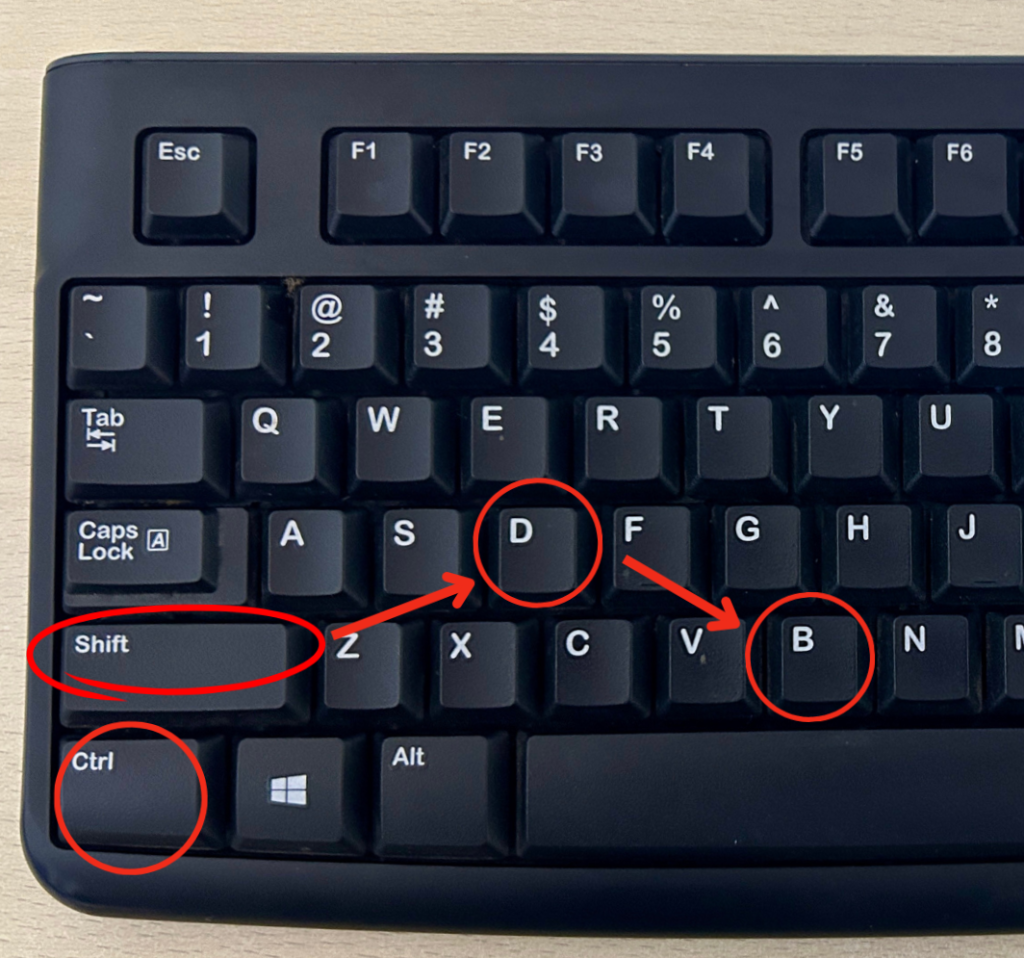
Basic Windows Keyboard Shortcuts
- Ctrl + C – Copy
- Ctrl + V – Paste
- Ctrl + X – Cut
- Ctrl + Z – Undo
- Ctrl + Y – Redo
- Ctrl + A – Select all
- Ctrl + S – Save
- Ctrl + P – Print
- Alt + Tab – Switch apps
- Alt + F4 – Close current window
File Explorer Keyboard Shortcuts
- Windows + E – Open File Explorer
- Alt + Up Arrow – Go up one folder
- Ctrl + Shift + N – Create a new folder
- F2 – Rename selected file
- Shift + Delete – Permanently delete file
- Alt + P – Show preview pane
- Ctrl + Shift + E – Expand all folders
- F5 – Refresh window
- Ctrl + Mouse Scroll – Resize file thumbnails
- Alt + Left Arrow – Back
Windows System Keyboard Shortcuts
- Windows + I – Open Settings
- Windows + L – Lock your PC
- Windows + D – Show desktop
- Windows + R – Open Run
- Windows + S – Open Search
- Windows + M – Minimize all windows
- Windows + Shift + M – Restore minimized windows
- Windows + A – Open Quick Settings / Action Center
- Windows + U – Open Accessibility options
- Windows + Pause – Open System Properties
Taskbar Keyboard Shortcuts
- Windows + 1-9 – Open pinned apps
- Shift + Click Taskbar App – Open new window
- Ctrl + Shift + Click App – Run as Administrator
- Alt + Shift + Number – Open jump list
- Windows + T – Cycle through taskbar apps
- Windows + B – Focus the system tray
Virtual Desktop Keyboard Shortcuts
- Windows + Tab – Open Task View
- Windows + Ctrl + D – Create new virtual desktop
- Windows + Ctrl + Left/Right – Switch desktops
- Windows + Ctrl + F4 – Close current virtual desktop
Screenshot Keyboard Shortcuts
- Windows + PrtScn – Save full screenshot
- PrtScn – Copy screenshot to clipboard
- Alt + PrtScn – Screenshot active window
- Windows + Shift + S – Open Snipping Tool overlay
- Windows + G – Open Xbox Game Bar for screenshots
Browser Keyboard Shortcuts
- Ctrl + T – Open new tab
- Ctrl + Shift + T – Reopen closed tab
- Ctrl + W – Close tab
- Ctrl + Shift + W – Close window
- Ctrl + Tab – Switch tabs
- Ctrl + L – Highlight address bar
- Ctrl + J – Open downloads
- Ctrl + H – Open history
- Ctrl + D – Bookmark page
- Ctrl + Shift + Delete – Clear browsing data
Window Management Keyboard Shortcuts
- Windows + Left Arrow – Snap window left
- Windows + Right Arrow – Snap window right
- Windows + Up Arrow – Maximize
- Windows + Down Arrow – Minimize
- Windows + Shift + Left/Right – Move window between monitors
- Windows + Home – Minimize all except active window
- Windows + Space – Switch keyboard language
Advanced Productivity Keyboard Shortcuts
- Ctrl + Shift + Esc – Open Task Manager
- Windows + X – Open Quick Access menu
- Windows + K – Open Cast menu
- Windows + V – Open Clipboard History
- Windows + H – Activate Voice Typing
- Windows + . – Emoji Panel
- Ctrl + Shift + Esc – Open Task Manager instantly
- Windows + Shift + S – Custom screenshot mode
- Windows + W – Open Widgets (Windows 11)
- Windows + P – Choose display mode
- Ctrl + Alt + Delete – Security screen
- Windows + F – Send Feedback to Microsoft
- Alt + Enter – File properties
Developer & Power User Shortcuts
- Windows + R → cmd – Quick Command Prompt
- Windows + R → powershell – Open PowerShell
- Ctrl + Shift + Enter – Run as administrator
- Windows + D – Show desktop instantly
- Windows + + – Magnifier zoom in
- Windows + – – Magnifier zoom out
- Windows + Ctrl + Enter – Toggle Narrator
- Ctrl + Shift + F – Search in system logs
- Alt + Shift + Tab – Switch windows backward
- Windows + Break – System information
Microsoft Office Keyboard Shortcuts
- Ctrl + N – New document
- Ctrl + B – Bold
- Ctrl + I – Italic
- Ctrl + U – Underline
- Ctrl + F – Find
- Ctrl + H – Replace
- Ctrl + K – Insert link
- Ctrl + Shift + L – Bullet list
- Ctrl + Shift + > – Increase font size
- Ctrl + Shift + < – Decrease font size
Miscellaneous Shortcuts Everyone Should Know
- Shift + F10 – Right-click menu
- Alt + Space – Window menu
- Ctrl + Alt + Arrow Keys – Rotate screen (on supported GPUs)
- Windows + Shift + M – Restore minimized windows
- Windows + O – Lock screen rotation
These 100 windows keyboard shortcuts will dramatically improve your daily workflow.
Video Link
FAQs About Windows Keyboard Shortcuts
Do windows keyboard shortcuts work the same on Windows 10 and Windows 11?
Most shortcuts are identical across both versions.
How can I remember so many shortcuts?
Start with the most common ones (Ctrl+C, Ctrl+V, Windows+E). Practice makes them automatic.
Are these shortcuts safe to use?
Yes. They are built-in Windows features.
Will keyboard shortcuts speed up my PC?
Not directly, but they speed up how you use the PC.
Can I customize shortcuts?
Some apps allow custom shortcuts, especially Windows PowerToys.
You can this also..
Fix PC Program Files or Disk Issue Easily With This Simple Guide
Download EBook