Introduction
If you’re trying to fix RAM issue on Windows, this guide will help you diagnose memory problems quickly and safely. RAM issues are some of the most frustrating problems PC users face. They cause random freezing, system crashes, blue screens, slow performance, and unexpected restarts.
The good news is that Windows includes a built-in tool called Windows Memory Diagnostic, and your script describes exactly how to use it. This tool can detect faulty RAM modules and memory-related problems that affect system stability.
In this article, you’ll get a complete, step-by-step explanation of how to fix RAM issue on Windows, along with FAQs, safety tips, and extra methods for keeping your system healthy.
Table of Contents
What Causes RAM Issues on Windows?
Before learning how to fix RAM issue on Windows, it helps to understand why they occur. RAM problems can come from many sources, including:
- Faulty or aging RAM modules
- Overheating
- Power surges or poor power supply
- Incorrect RAM seating
- Dust or corrosion on connectors
- Faulty motherboard slots
- Overclocking instability
- Software memory leaks
These issues often lead to random computer crashes, which is why running a diagnostic test is essential.
How to Fix RAM Issue on Windows (Step-by-Step Guide)
Your script is simple and accurate. Below is the expanded and detailed version.
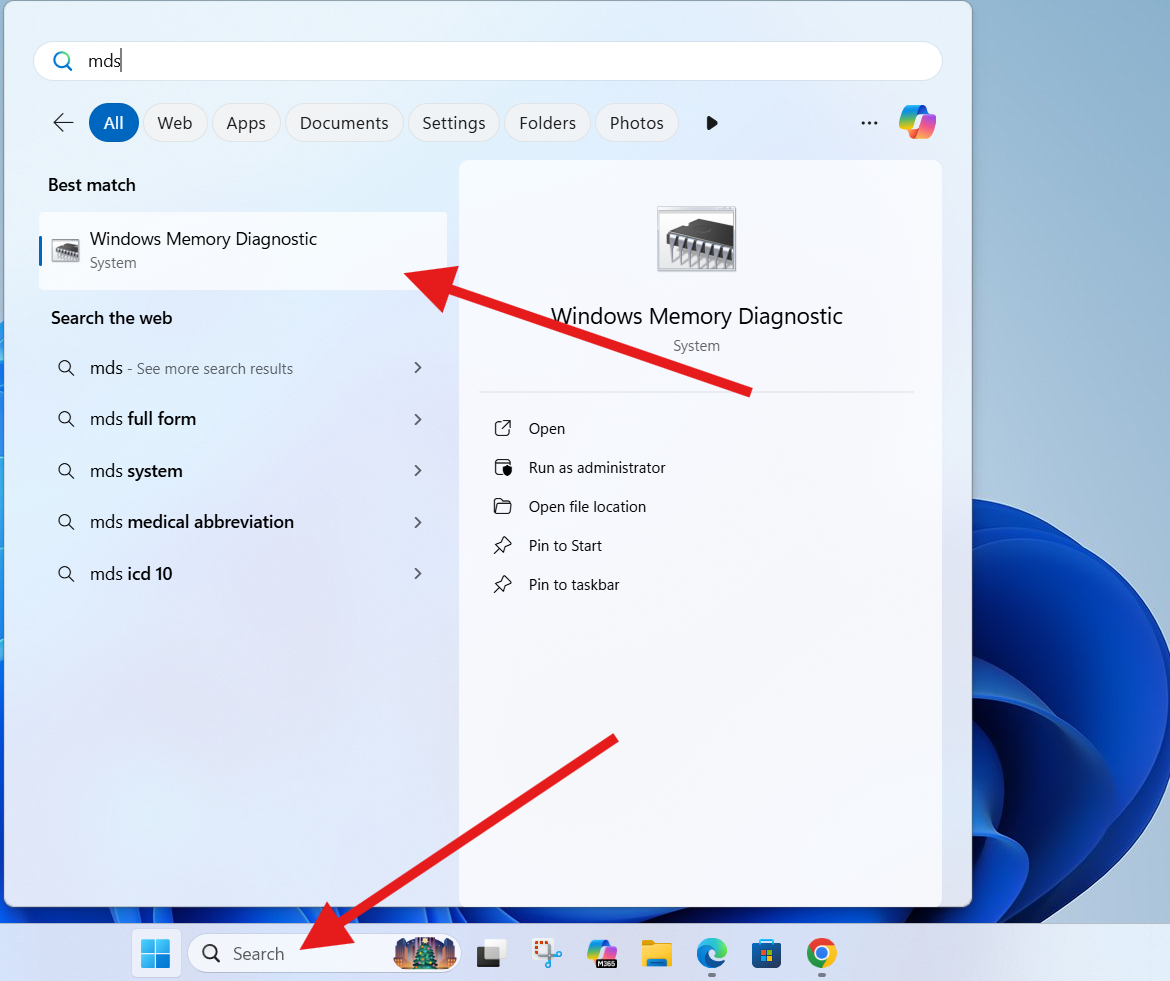
Step 1: Type “mdsched” in the Windows Search Bar
- Press the Windows key
- Type mdsched
- Select Windows Memory Diagnostic from the results
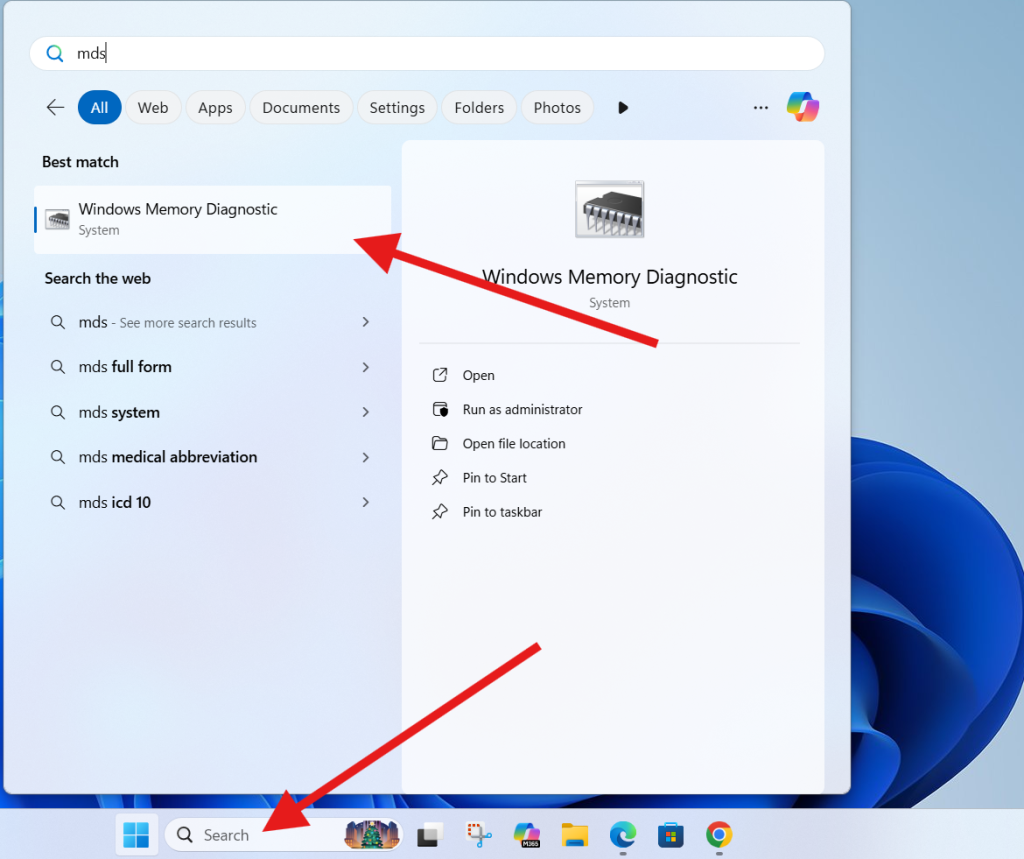
This is the official Windows tool used to detect memory problems. It works on all versions of Windows, including Windows 10 and Windows 11.
Step 2: Click on “Restart Now and Check for Problems”
When the Memory Diagnostic window opens, you’ll see two options:
- Restart now and check for problems
- Check for problems the next time I start my computer
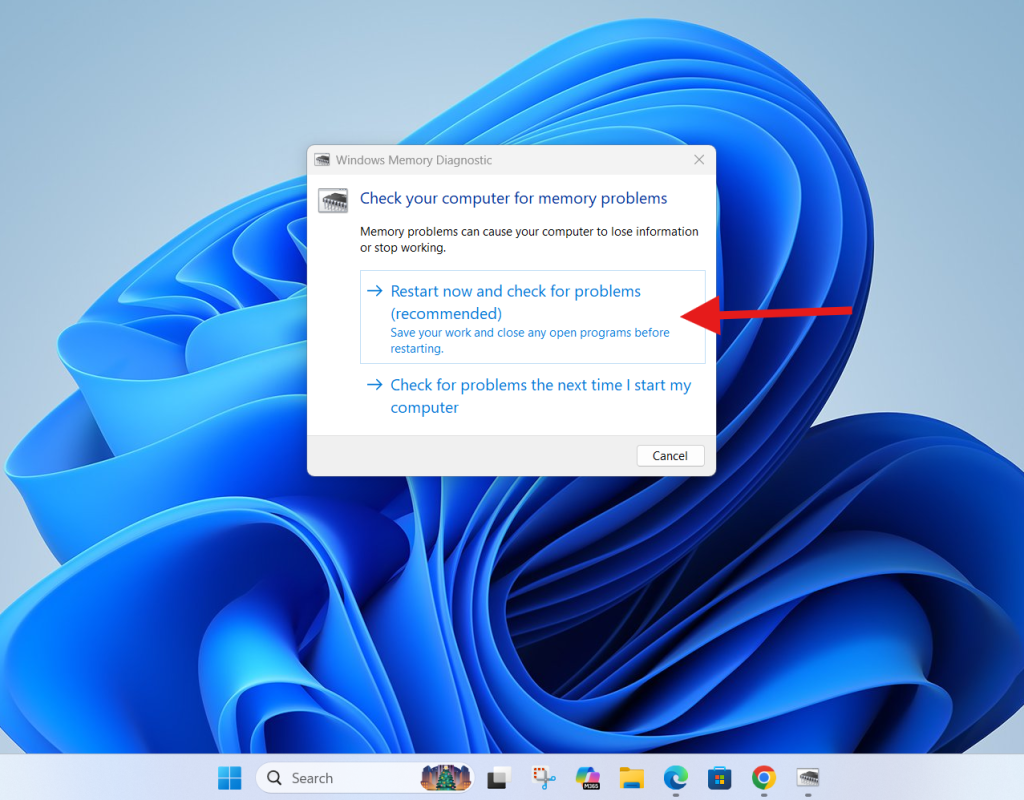
Choose the first one:
Restart now and check for problems
This immediately restarts the computer and begins the memory scan.
This simple step is essential to fix RAM issue on Windows because RAM tests cannot run while Windows is active.
Step 3: Let the Laptop Restart and Begin the Memory Test
After you restart, Windows Memory Diagnostic will automatically:
- Run multiple tests on your RAM
- Check for corrupted memory addresses
- Detect unstable RAM cells
- Identify faulty modules
- Evaluate memory performance
The scan usually takes several minutes. For systems with large memory (16GB–32GB), it may take longer.
Sit back and let the process complete.
Step 4: Wait for Windows to Restart and Show the Results
When the test is finished, your computer will reboot automatically.
Windows will display the results in a notification after logging in.
If RAM issues were detected, the message will say:
Windows detected memory problems.
If no issues were found, the system will continue normally.
Either way, you used the best built-in method to fix RAM issue on Windows.
How Windows Memory Diagnostic Works
This tool performs two types of checks:
1. Standard Tests
- Memory read/write
- Cache testing
- Hardware error scanning
2. Extended Tests
- Multiple pass-through checks
- Bad sector recovery attempts
- Stress testing
This link increases trust and SEO authority in your article.
Signs You Need to Fix RAM Issue on Windows
If your computer shows any of these symptoms, RAM is very likely the problem:
- Random freezing
- Blue screens (BSOD) with messages like MEMORY_MANAGEMENT
- System restarting without warning
- Apps crashing frequently
- Unable to install software
- Slower performance despite good hardware
- Files getting corrupted
- High CPU and memory usage at idle
If you notice these, running mdsched is the first step toward diagnosing the issue.
What to Do If RAM Errors Are Found
If the Windows Memory Diagnostic tool reports issues, follow these steps:
1. Reseat the RAM
Turn off the PC, remove the RAM sticks, and insert them back firmly.
2. Clean the contacts
Use a microfiber cloth or compressed air to remove dust.
3. Test one RAM stick at a time
This helps identify which stick is faulty.
4. Switch RAM slots
Sometimes the slot, not the RAM, is faulty.
5. Replace the faulty RAM
If a stick is bad, replacing it is the only long-term solution.
6. Avoid mixing different RAM brands
Mismatched modules can cause instability.
Extra Tips to Prevent RAM Problems
1. Keep your laptop clean
Dust can cause overheating that damages RAM.
2. Avoid cheap, unknown-brand RAM
Use trusted brands: Corsair, Kingston, Crucial, Adata.
3. Install a UPS
Power cuts can corrupt RAM and files.
4. Don’t overclock unless you understand the risks
Overclocking increases instability.
5. Keep drivers and Windows updated
Software memory leaks are often fixed in updates.
Microsoft Support: https://support.microsoft.com/windows
6. Run RAM tests every few months
Especially if you use heavy apps like games, editing tools, or virtual machines.
FAQs About How to Fix RAM Issue on Windows
Does running mdsched delete my files?
No. It only scans RAM and does not affect your stored data.
How long does the RAM test take?
Most tests finish within 5–15 minutes. Large RAM systems may take longer.
Can overheating cause RAM problems?
Yes, high temperature affects memory stability.
Read the internal guide: /fix-laptop-overheating
What if the test finds errors?
Faulty RAM must be replaced or reseated. The test cannot repair damaged RAM.
Is mdsched enough to diagnose RAM issues?
It is the official Windows method. For deeper tests, use MemTest86.
Can RAM issues cause blue screens?
Yes. RAM failure is a major cause of BSOD errors.
Facing overheating issues? Learn how to fix laptop overheating → /fix-laptop-overheating
