Introduction
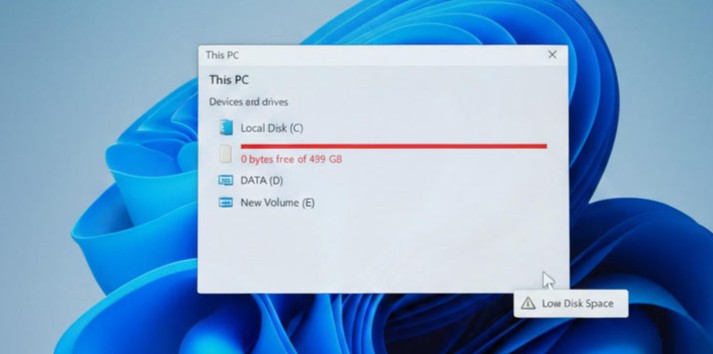
If you’re trying to free up C drive space, you’re not alone. Many Windows users run out of storage because temporary files, cached data, old apps, and hidden system files pile up over time. Low disk space can slow down your PC, cause update failures, and affect overall performance.
This guide gives you a clear, step-by-step method to free up C drive space safely using built-in Windows tools. Each step is easy, beginner-friendly, and takes only a few minutes.
Table of Contents
Why Freeing Up C Drive Space Matters
When the C drive becomes full, Windows struggles to store temporary files and system data. This leads to:
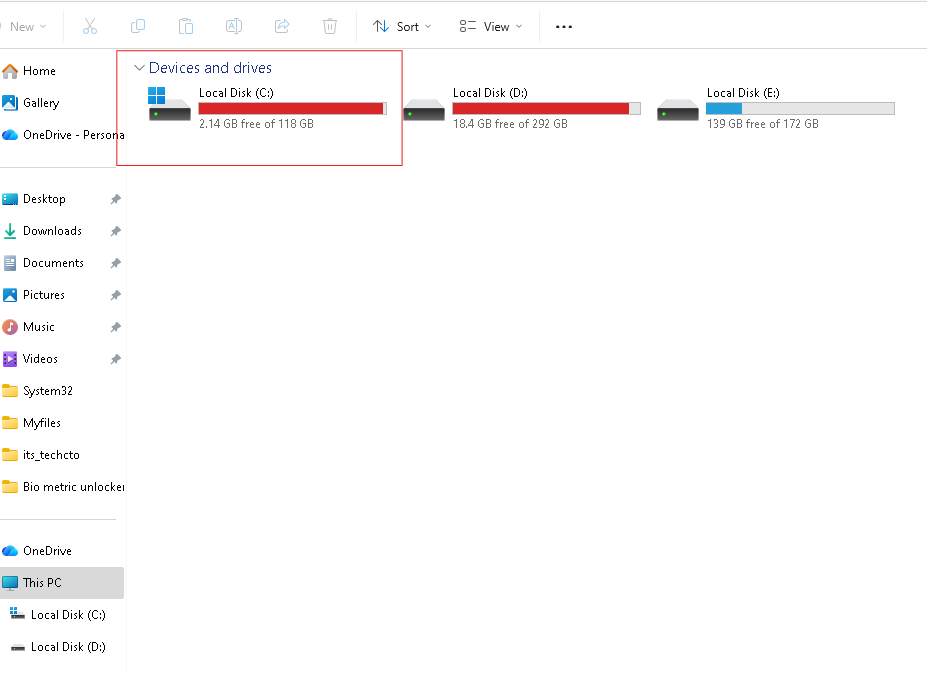
- Slow system performance
- Longer boot times
- Failed Windows updates
- App crashes
- Low storage warnings
Following the steps below will help you free up C drive space safely and instantly.
How to Free Up C Drive Space (Step-by-Step Guide)
1. Go to Settings
- Press Windows + I
- This opens the main Windows Settings panel
This is the starting point for cleaning junk, removing apps, and controlling storage.
2. Open System Settings
- Inside Settings, click on System
- This section handles display, notifications, storage, and power management
From here, you’ll access Storage to begin the cleanup.
3. Go to Storage
- Click Storage in the left panel
- Windows will start analyzing your drive usage
- Wait for it to load categories like Temporary Files, Apps, System Files, etc.
4. Clean Temporary Files
Temporary files consume a surprising amount of space. Windows lets you clear them safely.
- Click Temporary files
- Check mark all available options
- Delivery Optimization Files
- Temporary Windows installation files
- Downloaded files
- Windows upgrade files
- Recycle Bin
- Temporary Internet Files
- Click Remove files
These files are safe to delete and instantly help free up C drive space.
5. Remove Unwanted Apps
Apps you no longer use take up valuable storage.
- Go back to Settings
- Click on Apps
- Select Installed apps
- Sort by “Size” to find the biggest apps
- Click Uninstall on apps you don’t need
Removing a few large apps can free several gigabytes instantly.
6. Clear the Prefetch Folder (Advanced but Safe)
The Prefetch folder stores cached data that helps apps load faster. Over time, it fills with outdated files.
- Press Windows + R
- Type prefetch
- Hit Enter
- If a permission prompt appears, click Continue
- Select all files (Ctrl + A)
- Press Delete
This safely deletes old cache files and helps you free up C drive space.
7. Restart Your PC
Restarting helps Windows rebuild clean cache files and refresh system storage.
After restart, open File Explorer, check your C drive, and you’ll notice increased free space.
Extra Tips to Free Up C Drive Space Regularly
These tips help prevent storage problems in the future:
Enable Storage Sense
Windows can automatically delete temporary files for you.
- Open Settings → System → Storage
- Enable Storage Sense
- Set it to run monthly or weekly
Move files to another drive or cloud
Large files like videos, installers, photos should be stored in:
- D drive
- External HDD or SSD
- OneDrive (DoFollow: https://www.microsoft.com/microsoft-365/onedrive)
- Google Drive (DoFollow: https://drive.google.com)
Empty recycle bin regularly
Many users forget that deleted files still occupy space until permanently removed.
Common Mistakes to Avoid When Cleaning C Drive
✔ Don’t delete system files you don’t recognize
✔ Don’t remove apps required for graphics, Wi-Fi, or device drivers
✔ Don’t delete Windows folder or Program Files
✔ Don’t use random “PC cleaner” apps from untrusted websites
Stick to the built-in Windows tools shown in this guide.
FAQs About How to Free Up C Drive Space
Is it safe to delete temporary files?
Yes. Temporary files are automatically generated and safe to remove. Windows recommends deleting them regularly.
Can I delete the Prefetch folder?
You shouldn’t delete the folder itself, but deleting the files inside it is safe. Windows rebuilds it on reboot.
How often should I free up C drive space?
Once a month is ideal. Heavy users (gaming, video editing) should clean storage weekly
Does uninstalling apps improve performance?
Yes. Removing heavy apps reduces storage pressure and can improve system responsiveness.
Why is my C drive full even after cleanup?
Reasons include:
System Restore using large space
Windows update cache
Too many large files in Downloads
Cloud sync duplication
If needed, you can use Disk Cleanup → System Files for deeper cleaning.
Also Checkout this
Fix Laptop Overheating Easily With This Simple Step-By-Step Guide

2 thoughts on “How to Free Up C Drive Space Quickly: A Simple and Effective Guide”