Introduction
If you need to fix desktop icons not working, this guide walks you through quick, safe, and tested fixes that get icons responding again in minutes. The fastest fix is restarting Windows Explorer, but I’ll also show troubleshooting steps if the problem keeps coming back — rebuilding the icon cache, repairing system files, and preventing the issue in future.
Follow the step-by-step instructions below and you’ll have your desktop usable again without reinstalling Windows.
Table of Contents
Why desktop icons stop working
There are several common reasons your icons may be unresponsive:
- Windows Explorer (the shell that draws the desktop) is hung or crashed.
- Corrupted icon cache or thumbnails.
- A background process or app interfering with Explorer.
- Corrupted system files or profile settings.
- Malware or a buggy update.
If you want to fix desktop icons not working quickly, start with the easiest solution — restarting Explorer — and move down this checklist only if the issue persists.
Quick fix — restart Windows Explorer (fast)
This is the fastest way to fix desktop icons not working.
- Press Ctrl + Shift + Esc to open Task Manager.
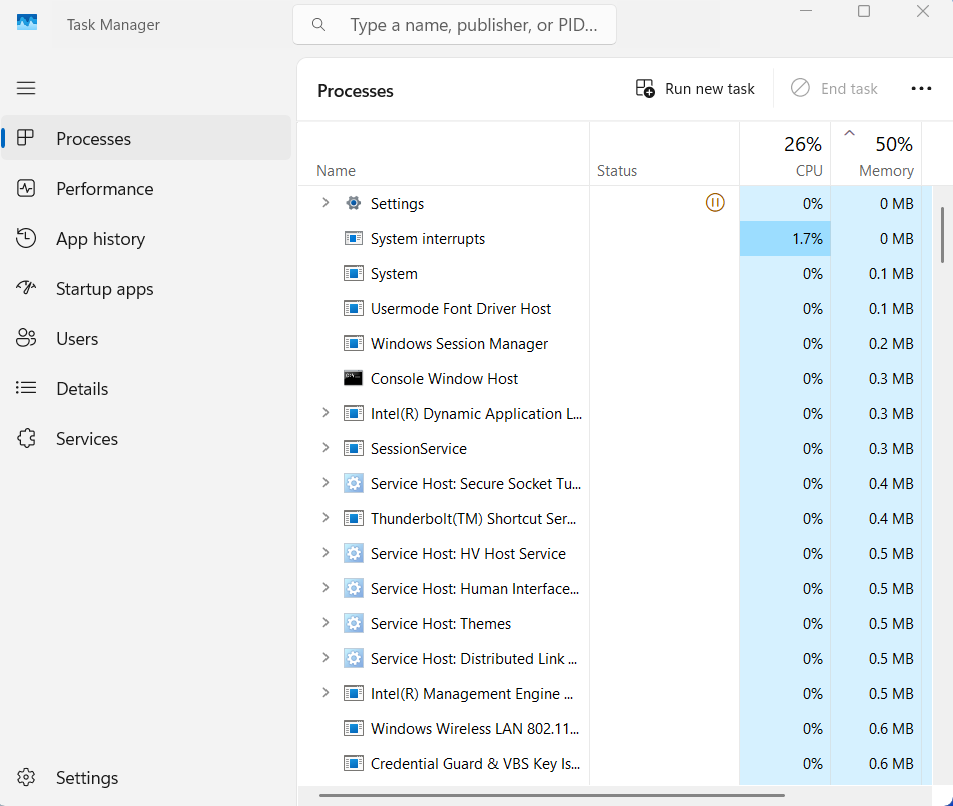
- In Task Manager, find Windows Explorer under the Processes tab.
- Right-click Windows Explorer → choose Restart.
- Wait a few seconds while the task bar and desktop refresh.
- Check your desktop — icons should respond now.
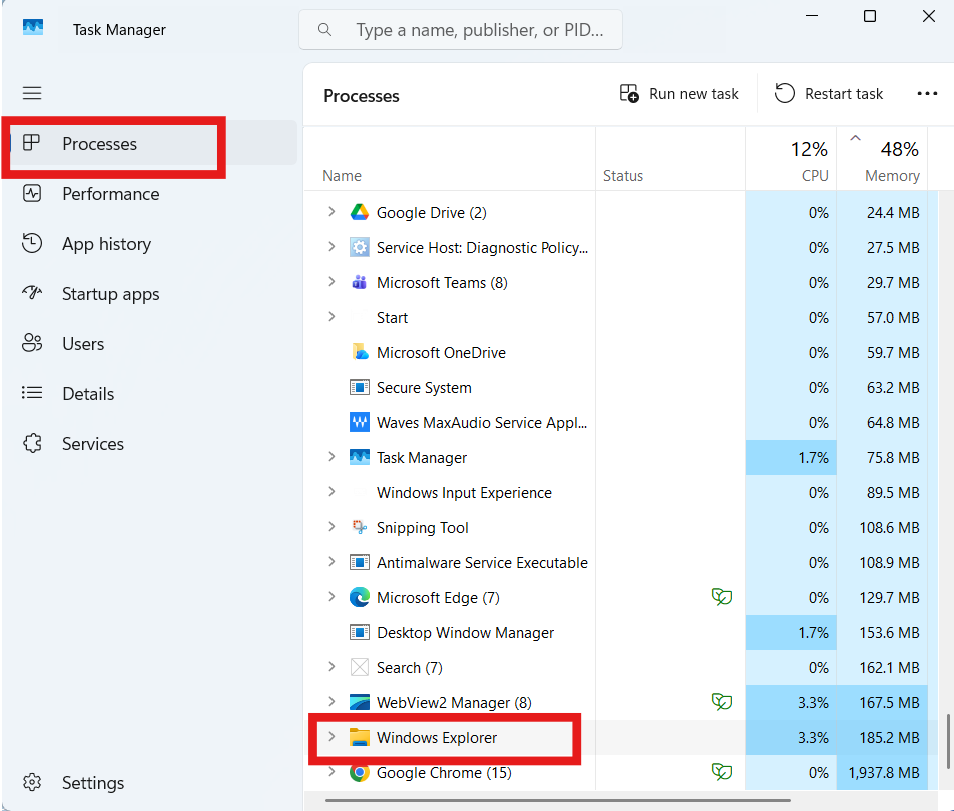
Restarting Explorer forces Windows to redraw the desktop and reattach icon handlers, which fixes the majority of icon problems immediately.
Image suggestion: screenshot of Task Manager with Windows Explorer highlighted.
Alt text: fix desktop icons not working — restart windows explorer
If the quick fix fails — follow-up troubleshooting
If restarting Explorer didn’t help, try these safe, progressively deeper fixes.
Rebuild the icon cache
A corrupted icon cache often causes icons to disappear or become unclickable.
- Open File Explorer → View → Options → View tab → show hidden files.
- Navigate to:
C:\Users\<YourUser>\AppData\Local - Delete files named
IconCache.dband theMicrosoft\Windows\Explorericon cache files (e.g.,*.db). - Restart the computer or restart Explorer (see earlier).
Rebuilding the cache forces Windows to recreate clean icon thumbnails and usually resolves display glitches.
Check desktop icon settings
- Right-click the desktop → View → make sure Show desktop icons is checked.
- Right-click desktop → Personalize → Themes → Desktop icon settings — confirm icons are enabled.
Sometimes a simple setting toggle restores functionality.
Repair system files (SFC + DISM)
Corrupted system files can break shell behavior. Run the built-in repair tools:
- Press Windows, type cmd, right-click Command Prompt → Run as administrator.
- Run:
sfc /scannow DISM /Online /Cleanup-Image /RestoreHealth - When complete, restart and check if icons work.
These commands repair core Windows components that affect Explorer and desktop icons.
Check file associations and permissions
If shortcuts (.lnk files) refuse to open, verify the .lnk association:
- Open Registry Editor only if comfortable, or use a trusted repair tool. Mistakes can cause system issues — back up the registry first.
- Check that your user account has full control over the Desktop folder:
C:\Users\<YourUser>\Desktop.
Scan for malware
Malicious software can hijack Explorer or disable desktop functionality.
- Run a full scan with Windows Security (Windows Defender) or a reputable antivirus.
- For stubborn infections, use Microsoft’s Malicious Software Removal Tool (MRT) or a rescue USB scan.
Advanced fixes for persistent problems
If the previous steps didn’t fix desktop icons not working, try these:
Create a new user profile
Sometimes profile corruption prevents desktop elements from working. Create a temporary user and see if icons behave correctly there. If they do, migrate files to the new profile.
Update or rollback graphics drivers
Graphics driver bugs can affect the desktop shell:
- Update to the latest driver from the GPU vendor (Intel, NVIDIA, AMD).
DO follow : https://www.nvidia.com/en-in/
- On recent driver updates that introduced the bug, try rolling back the driver.
Restore or reset Windows
As a last resort:
- Use System Restore to go back to a point before the issue started.
- Consider an in-place repair (Windows 10/11 installation media) that keeps files and apps but repairs Windows.
Do follow : https://support.microsoft.com/en-us/windows/reset-your-pc-
Prevention tips
Keep desktop icons stable with these habits:
- Keep Windows and drivers up to date.
- Avoid installing unknown shell utilities that modify Explorer.
- Keep enough free space on C: (Windows needs room for caches).
- Run periodic system file checks and disk health checks (
chkdsk /f). - Use a good antivirus and avoid pirated software.
Internal links to add: /fix-slow-windows-pc, /free-up-c-drive-space, /fix-windows-update-errors.
FAQs — (Quick answers to common questions)
Q: My icons are visible but clicking does nothing. Will restarting Explorer help?
A: Yes — restarting Windows Explorer usually restores click behavior by reloading the shell.
Q: Will deleting the icon cache remove my shortcuts?
A: No. Deleting the icon cache only removes the thumbnail files Windows rebuilds, not the shortcuts themselves.
Q: Can corrupted user profiles cause this?
A: Yes. If one user profile is broken, creating a new user often fixes the issue.
Q: Is it safe to restart Explorer from Task Manager?
A: Absolutely. It’s the recommended, safe first step to resolve desktop and taskbar issues.
Q: How often should I run SFC/DISM?
A: Run them if you notice system instability or after suspecting a corrupted update — or as part of periodic maintenance.
Q: Could a recent Windows update cause icons to stop working?
A: Occasionally. In that case, use System Restore or check for a patch from Microsoft.
You can check this too..
Enhance Your Laptop Speaker Sound Like Dolby With This Simple Guide
