Introduction
If you want to enhance laptop speaker sound like Dolby, you don’t necessarily need external speakers, expensive headphones, or paid sound-enhancement software. Many Windows laptops already have hidden audio capabilities that are not configured for maximum quality by default.
Low volume, flat sound, weak bass, or unclear vocals are common complaints among Windows users. In most cases, this happens because the speaker output format is set to a lower audio quality. By changing one simple setting inside Windows Sound Properties, you can significantly improve loudness, clarity, and overall audio depth.
This article expands your step-by-step script into a complete, beginner-friendly guide to enhance laptop speaker sound like Dolby, using only built-in Windows settings.
Table of Contents
Why Laptop Speaker Sound Feels Weak
Most laptop speakers are capable of producing decent sound, but the experience feels poor because of:
- Low default audio bit depth
- Conservative sample rate settings
- Power-saving audio configurations
- Disabled enhancements
- Outdated audio drivers
Manufacturers often set lower values to avoid distortion and save battery. However, Windows allows you to manually increase output quality. Once configured properly, you can enhance laptop speaker sound like Dolby without installing anything.
How Windows Controls Speaker Audio Quality
Windows uses two main parameters to control sound output:
- Bit depth (audio precision)
- Sample rate (audio clarity and frequency response)
Higher values mean:
- Better sound clarity
- Louder output
- Improved bass and treble separation
- Reduced distortion
These settings are hidden inside classic Sound Control Panel, accessible using a simple Run command.
How to Enhance Laptop Speaker Sound Like Dolby (Step-By-Step Guide)
Your script is accurate. Below is the expanded, detailed version.
Step 1: Press Windows + R
- Press Windows + R on your keyboard
- The Run dialog box will open
This shortcut allows you to access advanced Windows settings quickly.
Step 2: Type mmsys.cpl and Hit Enter
- In the Run box, type mmsys.cpl
- Press Enter
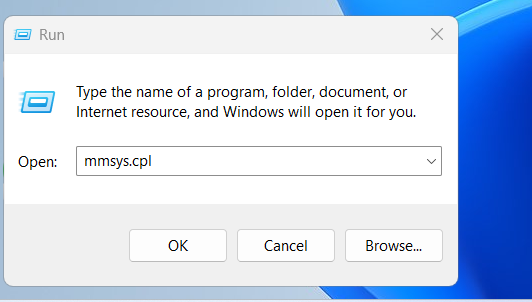
This opens the classic Sound settings window.
This panel controls all playback and recording devices on your PC and is essential to enhance laptop speaker sound like Dolby.
Step 3: Double-Click on Speakers
- Under the Playback tab
- Find Speakers (default device)
- Double-click on it
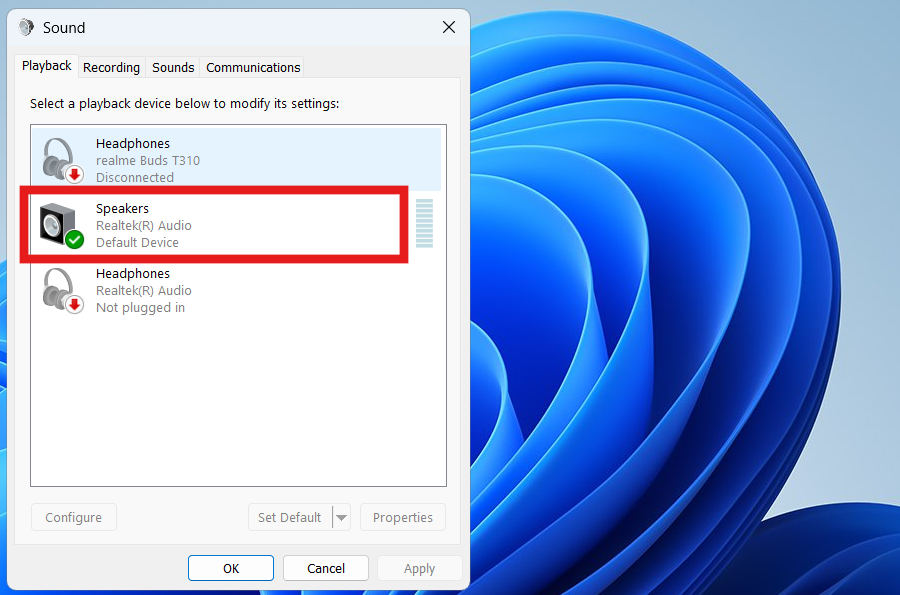
This opens Speaker Properties, where audio output quality can be modified.
Step 4: Go to the Advanced Tab
Inside Speaker Properties:
- Click on the Advanced tab
- Look for Default Format
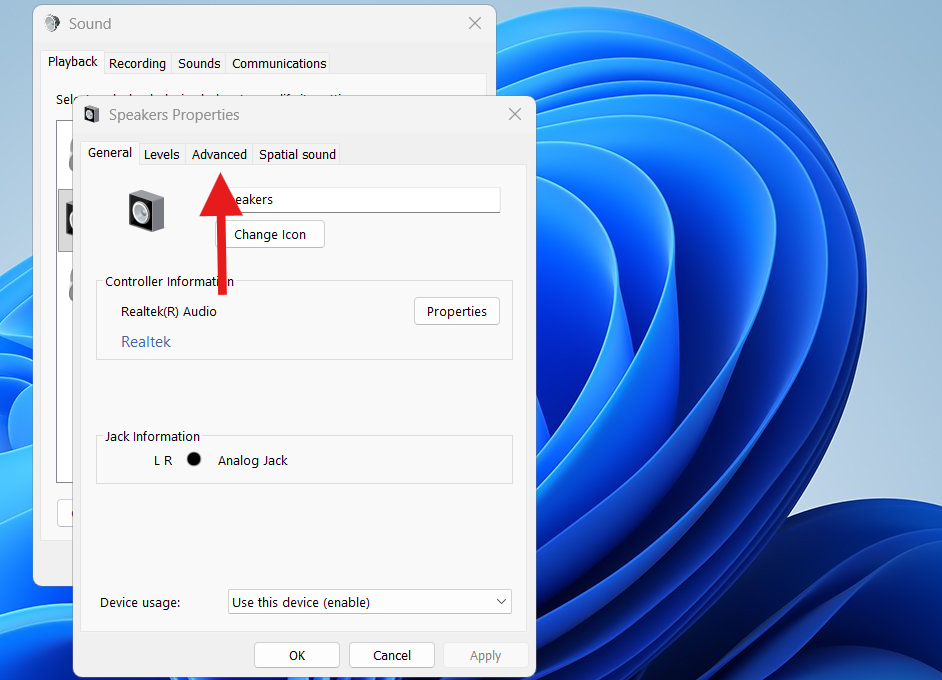
This section controls how Windows sends sound to your speakers.
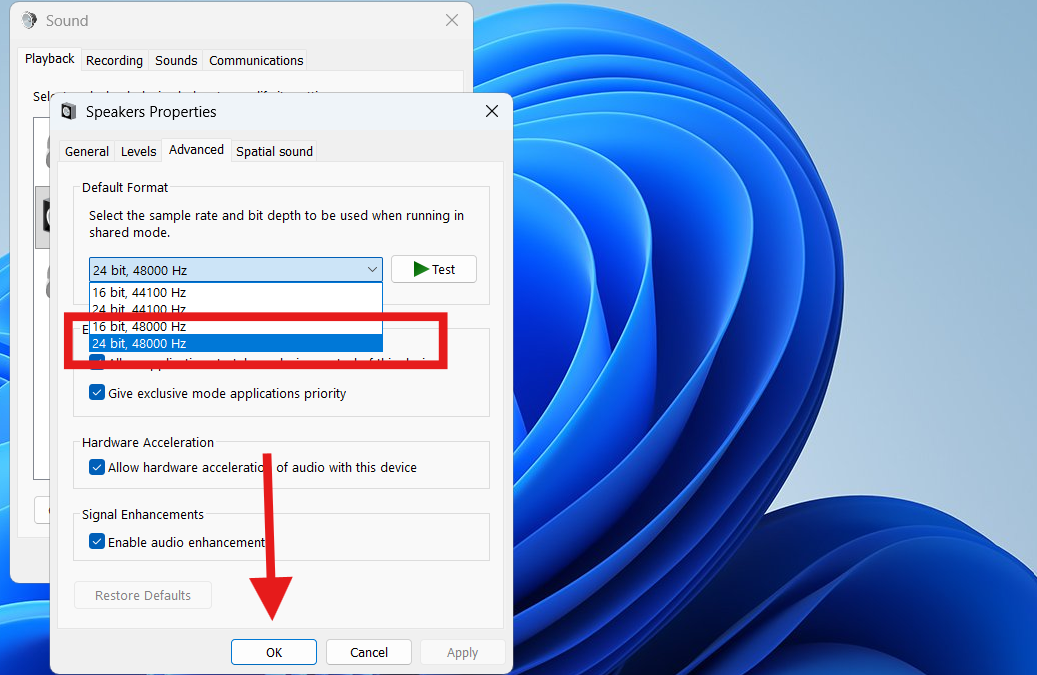
Step 5: Set the Highest Bit Value
- Open the Default Format dropdown
- Select the highest available option
- Example: 24-bit, 48000 Hz (Studio Quality)
- Click Apply
- Click OK
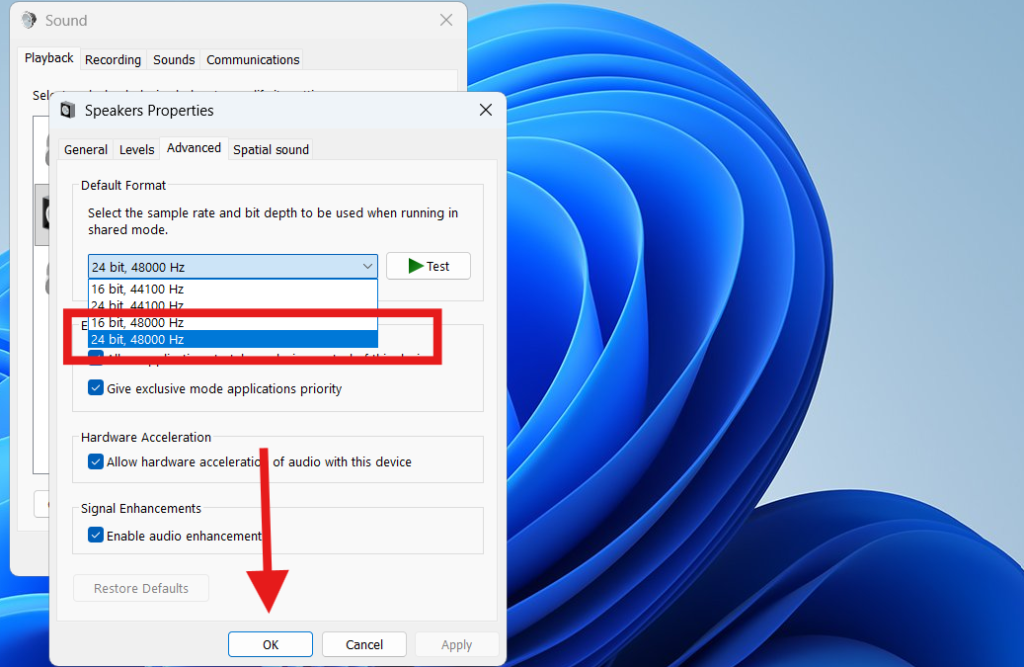
This single change dramatically improves loudness, depth, and clarity. Many users instantly notice richer audio and stronger volume.
This is the most effective way to enhance laptop speaker sound like Dolby using native Windows features.
Step 6: Test the Sound
- Play music or a video
- Increase volume gradually
- Notice improved:
- Loudness
- Clarity
- Bass presence
- Vocal sharpness
Your laptop speakers now sound fuller and more immersive.
Why Higher Bit Value Improves Sound Quality
Higher bit depth allows Windows to process audio with more precision. Benefits include:
- Reduced compression artifacts
- Cleaner sound output
- Better handling of high and low frequencies
- Improved dynamic range
Microsoft explains audio format handling here (DoFollow):
https://learn.microsoft.com/en-us/windows-hardware/drivers/audio/audio-formats
This technical improvement makes laptop speakers feel closer to Dolby-like sound output.
Additional Tips to Enhance Laptop Speaker Sound Like Dolby
To get even better results, combine the above steps with these tips.
1. Enable Audio Enhancements (If Available)
Speaker Properties → Enhancements
Enable options like:
- Loudness Equalization
- Bass Boost
Availability depends on your audio driver.
2. Update Audio Drivers
Outdated drivers limit sound quality.
3. Clean Speaker Grills
Dust blocks sound output. Use a soft brush or compressed air.
4. Place Laptop on a Hard Surface
Soft surfaces absorb sound and reduce volume.
5. Disable Sound Limiting Apps
Some OEM apps cap volume for safety.
6. Fix Overall System Performance
Lag can affect audio playback.
Internal link: /fix-slow-windows-pc
7. Free Up System Storage
Low disk space impacts audio buffering.
Internal link: /free-up-c-drive-space
FAQs About How to Enhance Laptop Speaker Sound Like Dolby
Is increasing bit depth safe?
Yes. It does not damage speakers.
Will this harm my laptop speakers?
No. Windows limits output to safe levels.
Why don’t I see very high options?
Your sound card may have limited support.
Does this work on Windows 10?
Yes. The steps are identical.
Is Dolby software required?
No. This method uses built-in Windows audio processing.
Will this improve Bluetooth speaker sound?
It mainly affects internal speakers and wired devices.
You can this too
