Introduction
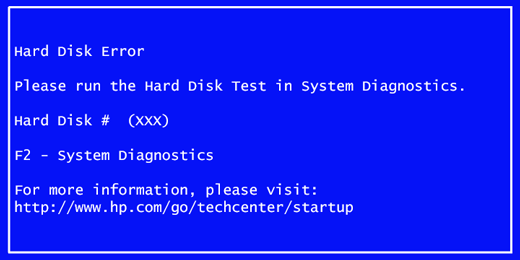
Hard drive failure warning messages can be alarming, especially when they appear suddenly during startup or while working. Windows may show alerts about disk errors, SMART warnings, or system messages indicating that your hard drive is at risk. Many users panic and think the drive is completely dead, but that is not always the case.
In many situations, a hard drive failure warning is caused by file system errors, bad sectors, or improper shutdowns. Windows includes a powerful built-in repair tool that can scan the drive, fix logical errors, and recover readable data. This guide explains how to respond correctly to a hard drive failure warning using the CHKDSK command, step by step, before the problem gets worse.
Table of Contents
What Is a Hard Drive Failure Warning
A hard drive failure warning is an alert generated by Windows when it detects potential problems with your storage device. These warnings often indicate file system corruption, unreadable sectors, or early signs of disk degradation.
This warning does not always mean the hard drive has completely failed. In many cases, the issue is logical rather than physical and can be repaired if addressed quickly.
Why Hard Drive Failure Warning Appears on Windows
Windows may show a hard drive failure warning due to:
- Improper shutdowns or power loss
- File system corruption
- Bad sectors on the disk
- Long-term disk usage
- Sudden system crashes
These issues build up over time and eventually trigger disk health alerts.
Should You Ignore a Hard Drive Failure Warning
Ignoring a hard drive failure warning is risky.
If left unattended:
- Files may become inaccessible
- Windows may fail to boot
- Data loss can occur
- Disk damage may worsen
The moment you see a hard drive failure warning, you should act immediately to scan and repair the disk.
Built-in Windows Tool to Fix Hard Drive Issues
Windows includes a powerful disk-checking utility called CHKDSK. This tool scans the drive for errors, repairs file system issues, and attempts to recover readable data from damaged sectors.
CHKDSK is one of the most reliable ways to address a hard drive failure warning without using third-party software.
Step-by-Step Guide to Fix Hard Drive Failure Warning
This is the exact step-by-step method you shared, explained clearly.
Step 1: Open Command Prompt as Administrator
Press the Windows button
Type CMD
Right-click Command Prompt
Select Run as administrator
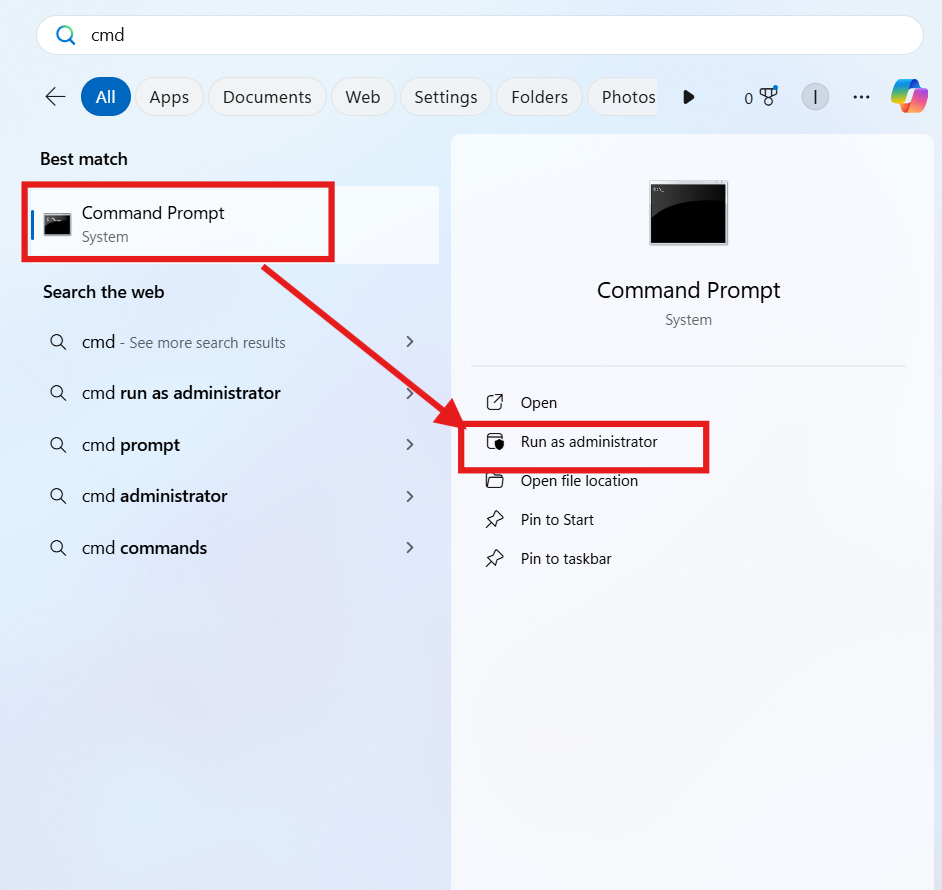
Administrator permission is required to repair disk errors.
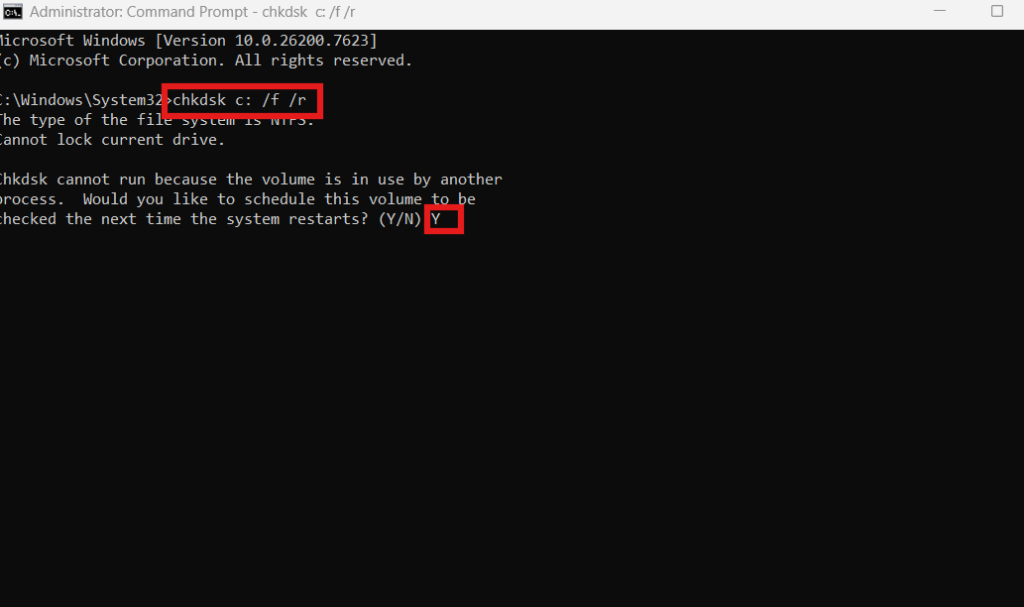
Step 2: Run the Disk Repair Command
Type the following command and press Enter:
chkdsk c: /f /r
This command targets the main system drive. Replace c: if Windows is installed on a different drive.
Step 3: Confirm the Scan
Windows will ask to schedule the scan on the next restart.
Press Y and hit Enter.
Step 4: Restart the PC
Restart your computer.
The disk scan will begin automatically before Windows loads.
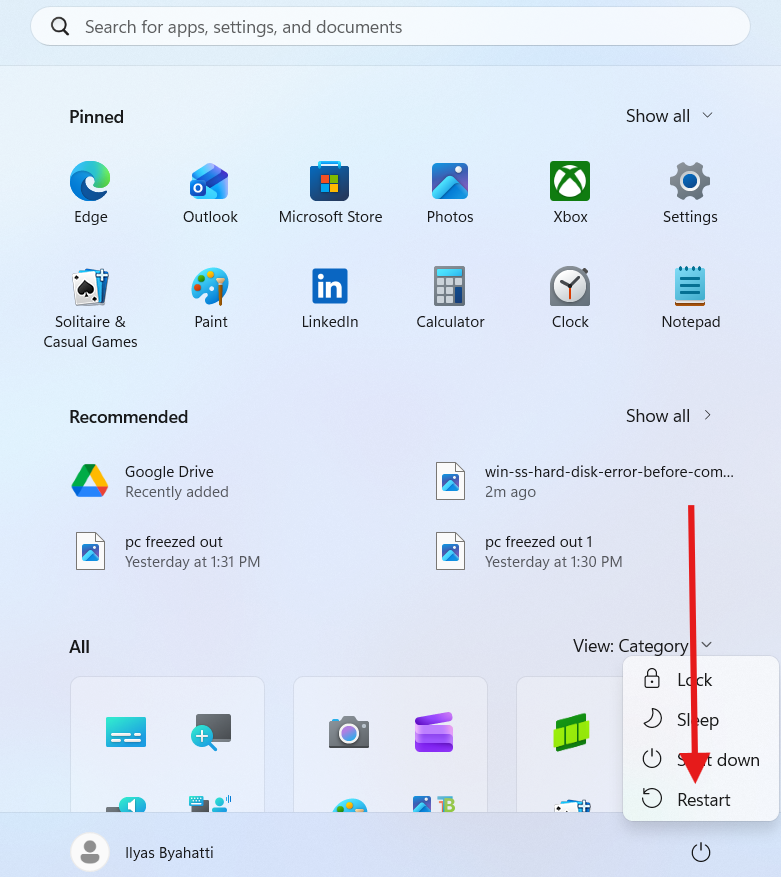
This process addresses the hard drive failure warning at system level.
Understanding the CHKDSK Command
The command used to fix hard drive failure warning includes important parameters:
- chkdsk: Checks disk integrity
- c:: Target drive
- /f: Fixes file system errors
- /r: Locates bad sectors and recovers readable data
Together, these options perform a deep disk scan and repair.
What Happens During Disk Repair
During the scan, Windows will:
- Check file system structure
- Repair directory errors
- Identify bad sectors
- Move recoverable data
- Mark damaged sectors as unusable
This process helps stabilize the drive and reduce future errors.
How Long the Repair Process Takes
The CHKDSK scan usually takes:
- 10 minutes on small or healthy drives
- 15 minutes or more on large or damaged drives
Do not interrupt the scan. Interrupting can worsen disk damage.
What to Do After the Scan Completes
Once the scan finishes:
- Windows will boot normally
- Use the system as usual
- Monitor for repeated warnings
If the hard drive failure warning does not return, the issue was likely resolved.
Common Mistakes When Fixing Disk Errors
Avoid these mistakes:
- Force shutting down during CHKDSK
- Running multiple disk tools at once
- Ignoring repeated warnings
- Delaying backups
Correct handling prevents data loss.
How to Prevent Hard Drive Failure Warning
To reduce future hard drive failure warning issues:
- Shut down Windows properly
- Avoid sudden power cuts
- Keep sufficient free disk space
- Run disk checks periodically
Internal link suggestion:
Read How to Free Up Disk Space on Windows PC
Internal Windows Maintenance Guides
Internal link suggestion:
Check PC Freezed Out Issue on Windows PC Can Be Fixed Quickly
Internal link suggestion:
Read Make Taskbar Attractive on Windows PC for a Cleaner and Modern Look
External Resources for Disk Health
DoFollow external resources for trusted guidance:
These sources provide official Windows disk management documentation.
Final Thoughts
A hard drive failure warning does not always mean your drive is beyond repair. In many cases, it is Windows alerting you early so you can take action. Running the CHKDSK command promptly can fix errors, stabilize the disk, and help you avoid serious data loss.
If the warning appears again after repair, back up your data immediately and consider replacing the drive. Early action makes all the difference.
FAQs
What does hard drive failure warning mean
It indicates Windows detected disk errors or potential drive issues.
Is chkdsk c: /f /r safe to run
Yes. It is a built-in Windows repair command and safe when not interrupted.
Will this command delete my data
No. It attempts to recover readable data and fix errors.
How often should I run CHKDSK
Run it when warnings appear or during regular system maintenance.
Does this work on Windows 10 and Windows 11
Yes. This method works on both Windows versions.
