Introduction
Copy command is one of the most reliable and underrated tools available on every Windows PC. When you try to move or copy very large files using File Explorer, the process often fails due to interruptions, slow response, or unknown errors. This is where the copy command becomes extremely useful.
Using the copy command from Command Prompt allows you to copy huge files smoothly from one drive to another, including external drives like pen drives and external hard disks. This guide explains how to use the copy command step by step, why it works better for large files, and how it improves reliability during file transfers.
Table of Contents
What Is Copy Command
The copy command is a built-in Windows Command Prompt command used to copy one or more files from a source location to a destination location. It has been part of Windows for decades and is trusted for its simplicity and stability.
Unlike graphical tools, the copy command runs at the system level and avoids unnecessary background processes. This makes it ideal when working with large files that require consistent data transfer.
Why Copy Command Is Useful for Huge Files
Large files such as ISO images, videos, backups, and installers often exceed several gigabytes. File Explorer sometimes struggles with such files due to caching and interface limitations.
The copy command helps by:
- Reducing interface-related crashes
- Maintaining stable file transfer
- Avoiding unnecessary UI overhead
- Handling large file sizes more reliably
For users who frequently handle big files, the copy command is a dependable solution.
How Copy Command Works on Windows
The copy command reads data directly from the source file and writes it to the destination location. It does not rely on graphical elements, which reduces interruptions.
When you use the copy command, Windows focuses entirely on the file transfer process, making it efficient and predictable even for huge files.
Step-by-Step Guide to Use Copy Command for Large Files
This is the exact step-by-step method you shared, explained clearly.
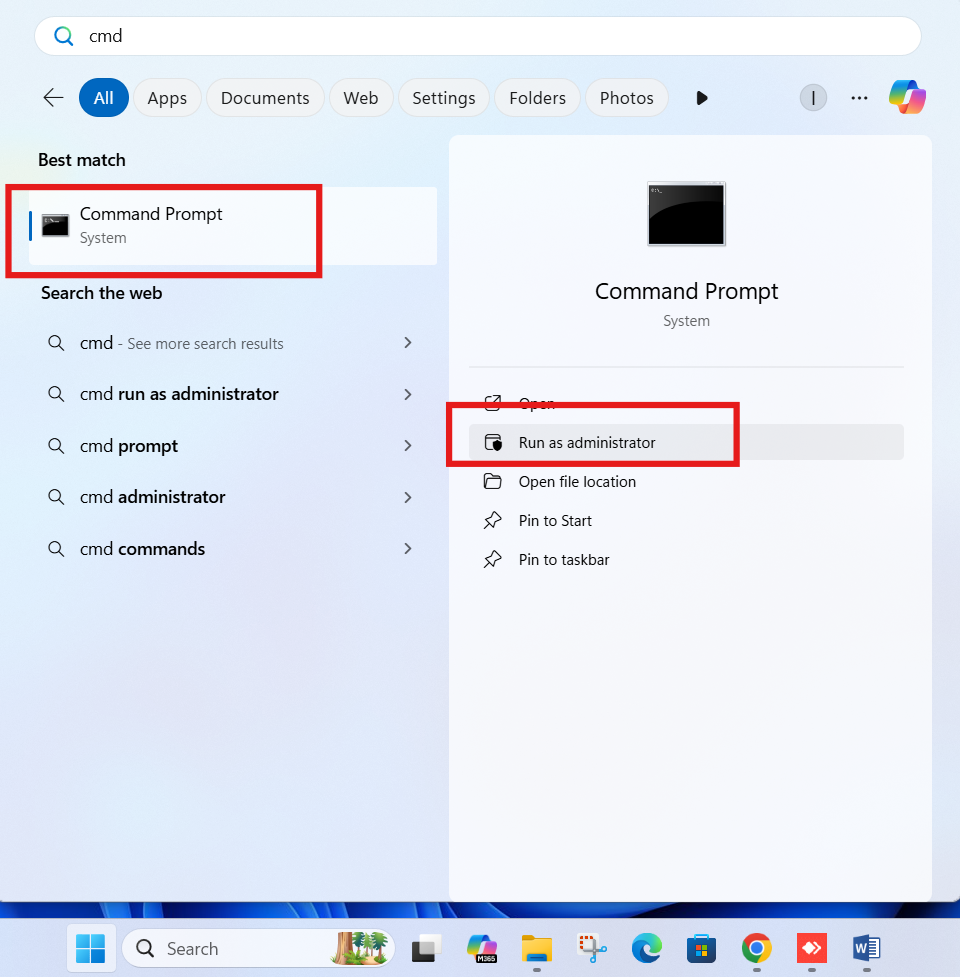
Step 1: Open Start Menu
Press the Windows button
Step 2: Open Command Prompt as Administrator
Type CMD, then right-click Command Prompt and select Run as administrator
Step 3: Use the Copy Command
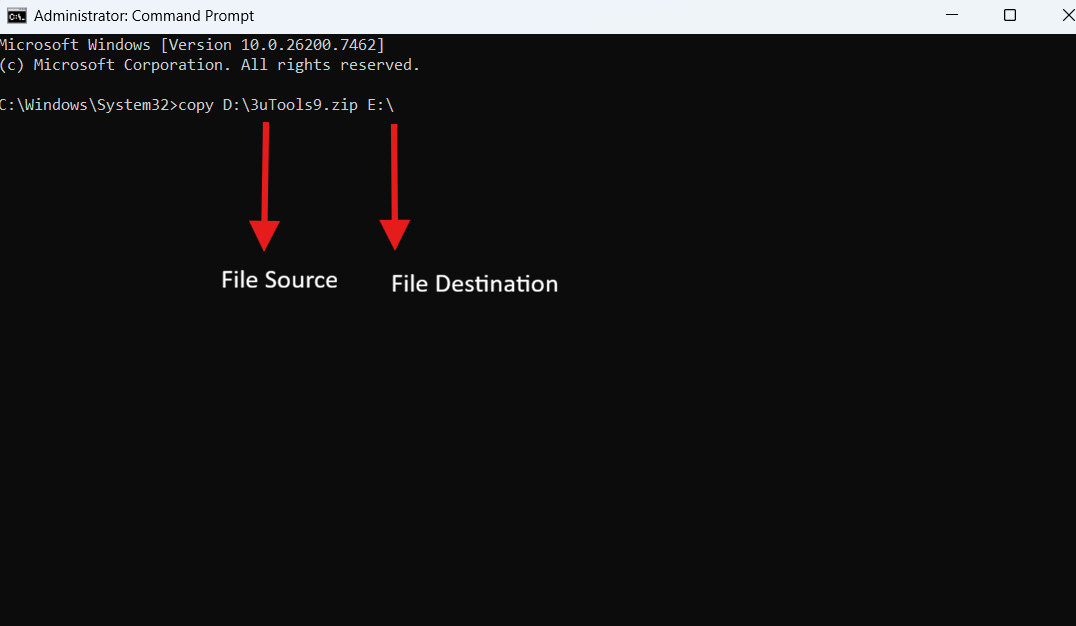
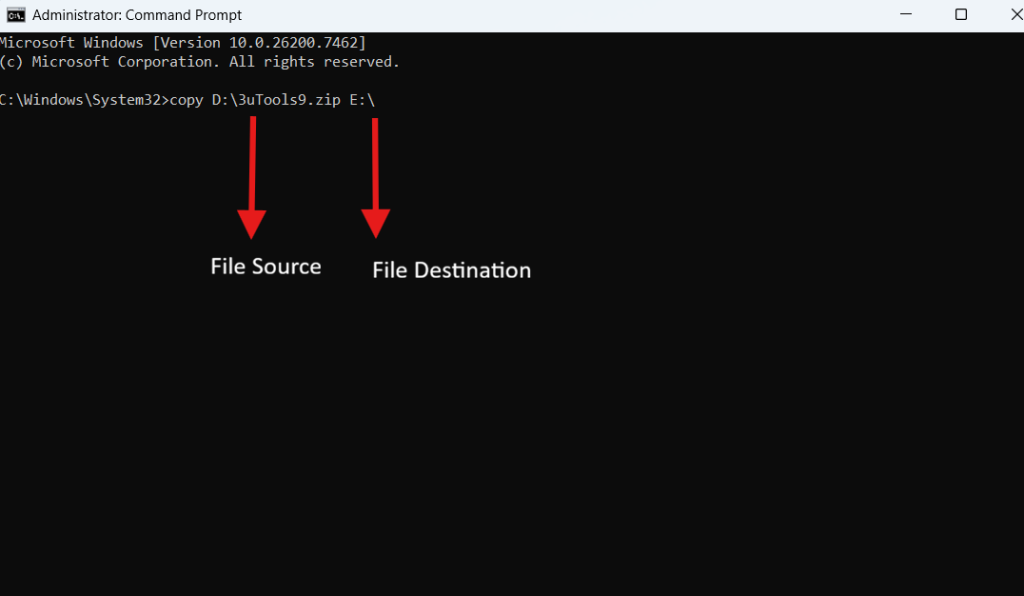
Type the following structure:
copy source destination
Step 4: Example Command
If your file is located in D drive and you want to copy it to a pen drive (E drive), use:
copy D:\bigfile.iso E:\
Step 5: Press Enter
Hit Enter and wait for the process to complete. Once finished, the file is successfully copied.
Using the copy command this way ensures smooth large file transfers.
Understanding Copy Command Syntax
Let’s break down the copy command:
- copy: Command to duplicate files
- source: Location of the original file
- destination: Location where the file will be copied
You must ensure:
- Correct drive letters
- Proper file names
- Sufficient space on destination drive
Example of Copy Command for External Drives
The copy command works perfectly with:
- Pen drives
- External hard drives
- Network drives
As long as Windows assigns a drive letter, the copy command can access it. This makes it ideal for transferring large files between internal and external storage devices.
Benefits of Using Copy Command
Using the copy command offers several advantages:
- Stable large file transfer
- Faster execution for big files
- No freezing or lag
- Works even when File Explorer fails
- Built-in and secure
For professionals, the copy command is often the first choice.
Common Mistakes While Using Copy Command
Avoid these common errors:
- Forgetting drive letters
- Missing file extensions
- Not running CMD as administrator
- Copying to a full destination drive
Correcting these small mistakes ensures smooth operation of the copy command.
Copy Command vs File Explorer
| Feature | Copy Command | File Explorer |
|---|---|---|
| Large file stability | High | Medium |
| UI dependency | None | High |
| Error handling | Simple | Complex |
| Speed consistency | Better | Variable |
For huge files, the copy command clearly performs better.
Best Practices for Copying Huge Files
To get the best results:
- Close unnecessary applications
- Ensure destination drive has enough space
- Use USB 3.0 or higher for external drives
- Avoid interrupting the process
Following these steps improves reliability when using the copy command.
Internal Windows File Management Tips
Combining file management practices improves efficiency.
Internal link suggestion:
Read How to Free Up Disk Space on Windows PC
Internal link suggestion:
Check Windows Command Prompt Basics for Beginners
External Resources for Windows Commands
DoFollow external resources for deeper understanding:
These sources provide official and trusted Windows documentation.
Final Thoughts
The copy command is a simple yet powerful way to handle huge file transfers on a Windows PC. When File Explorer struggles or fails, this command delivers consistent and reliable results.
If you regularly work with large files, learning and using the copy command can save time, prevent errors, and reduce frustration. It is a small skill with big benefits.
FAQs
What is copy command used for
The copy command is used to copy files from one location to another using Command Prompt.
Is copy command safe for large files
Yes. The copy command is safe and reliable for transferring large files.
Do I need administrator access for copy command
Administrator access is recommended, especially when copying files between drives.
Can copy command copy folders
No. The copy command is mainly for files. For folders, use xcopy or robocopy.
Why use copy command instead of File Explorer
The copy command offers better stability and fewer interruptions for huge files.
You can check this too..
Boost PC Performance on Windows PC With a Simple System Command
