Introduction
driverquery command is one of the most useful built-in Windows tools for checking installed device drivers on your PC. If your system is slow, showing errors, or hardware is not working properly, outdated or faulty drivers are often the real reason behind the problem.
Most users rely on Device Manager or third-party tools, but professionals prefer command-line methods because they are fast, accurate, and reliable. This article explains how the driverquery command works, how to use it step by step, and why it is extremely helpful for troubleshooting Windows PCs.
Table of Contents
What Is DriverQuery Command
The driverquery command is a built-in Windows Command Prompt utility that displays a complete list of installed device drivers on your system. It shows important details such as driver name, module type, link date, and current status.
This command is especially useful for IT professionals, system administrators, and advanced users who want quick insight into driver health without opening multiple system tools.
Why Checking Drivers Is Important on Windows
Drivers act as a bridge between hardware and the operating system. If a driver is missing, corrupted, or outdated, your system may experience:
- Hardware not detected
- Blue screen errors
- Slow performance
- System crashes
- Network or sound issues
Using the driverquery command helps identify driver-related problems early before they affect system stability.
Where DriverQuery Command Is Used
The driverquery command is commonly used in:
- System diagnostics
- IT support troubleshooting
- Performance analysis
- Driver audits
- Malware investigation
Unlike graphical tools, this command gives raw, system-level information that is hard to manipulate or hide.
Step-by-Step Guide to Use DriverQuery Command
This is the exact step-by-step method you shared, explained clearly.
Step 1: Open the Power Menu
Press Windows + X
Step 2: Open Command Prompt as Admin
Press A to open Command Prompt (Admin) or Windows Terminal (Admin)
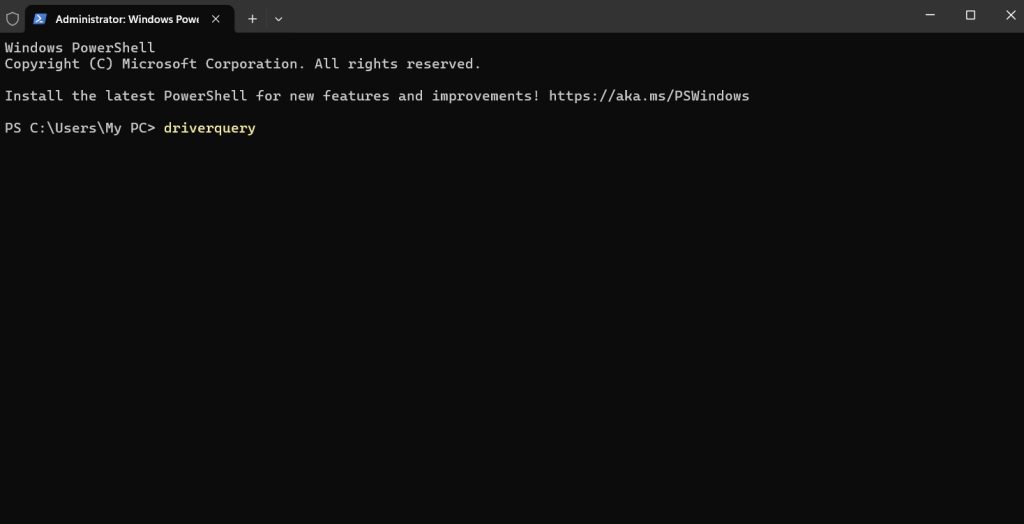
Step 3: Type the Command
Type the following command and press Enter:
driverquery
Step 4: View Installed Drivers
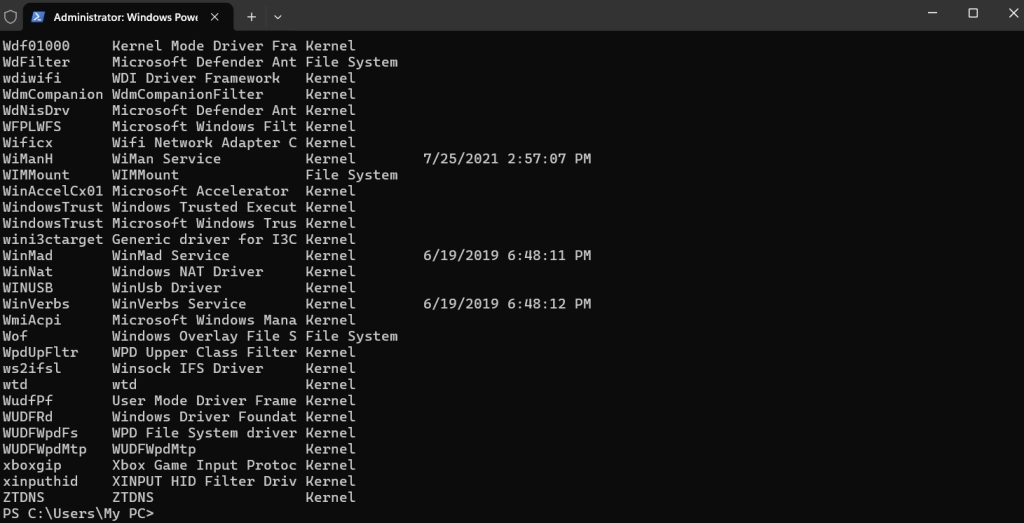
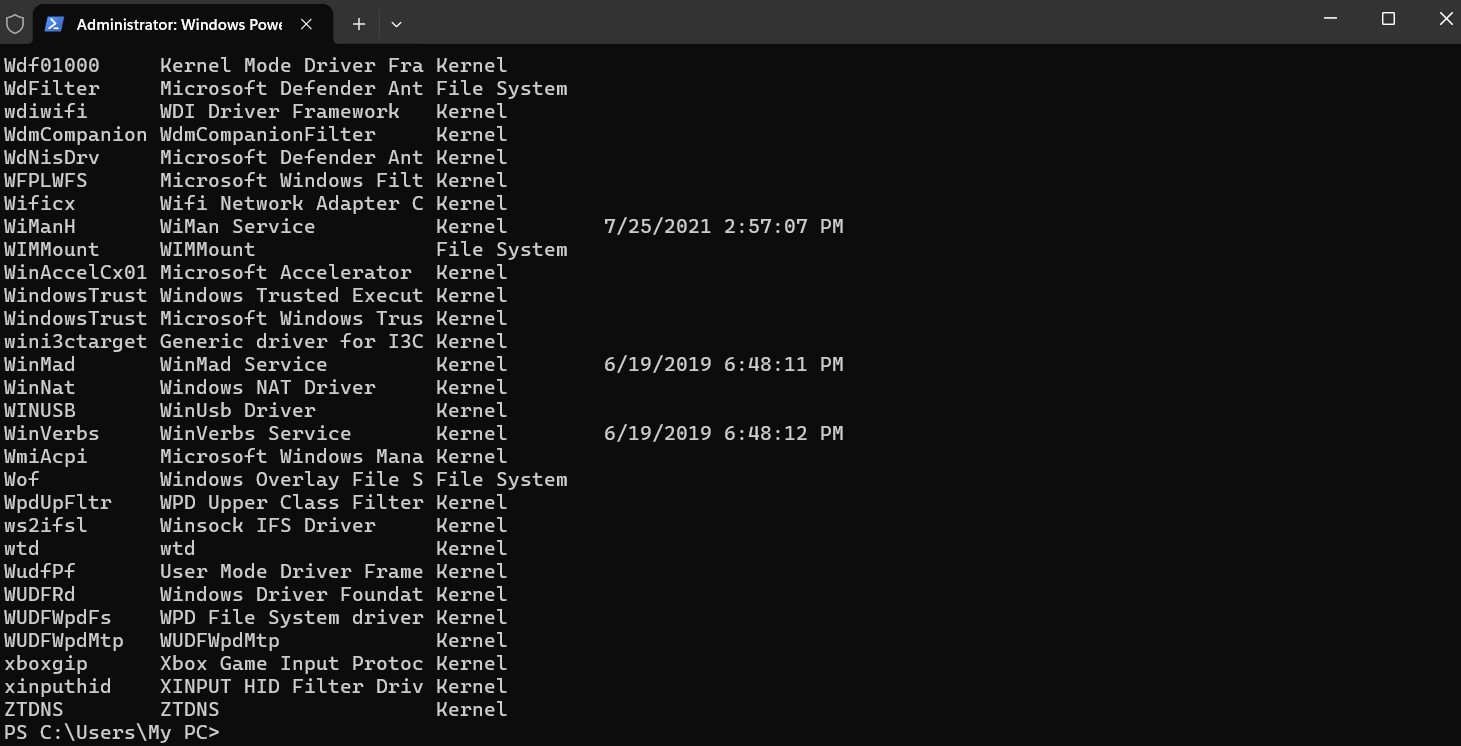
The screen will display a list of all installed drivers on your Windows PC.
This simple driverquery command instantly shows driver information without any additional software.
Understanding DriverQuery Command Output
When you run the driverquery command, you will see multiple columns.
Key columns include:
- Module Name: Driver file name
- Display Name: Friendly driver name
- Driver Type: Kernel or file system
- Link Date: Driver installation or build date
This information helps identify outdated or suspicious drivers.
DriverQuery Command for Troubleshooting
The driverquery command is especially powerful during troubleshooting.
It helps you:
- Detect outdated drivers
- Identify drivers loaded during startup
- Find unsigned or old drivers
- Cross-check drivers after Windows updates
Many blue screen and hardware issues are resolved simply by identifying problematic drivers using this command.
When You Should Use DriverQuery Command
Use the driverquery command when:
- Your PC crashes frequently
- Hardware is not functioning properly
- You suspect driver conflicts
- You want to audit system drivers
- You are preparing for a Windows upgrade
This command is safe and does not modify system settings.
Advanced Usage of DriverQuery Command
Advanced users can extend the driverquery command for better results.
Examples:
driverquery /v
Shows detailed driver information.
driverquery /fo table
Displays output in a readable table format.
driverquery /fo csv
Exports driver data for reports.
Internal link suggestion:
Read How to Use CMD Commands for Windows Troubleshooting
Common Driver Problems Identified Using DriverQuery Command
Using the driverquery command, you can identify:
- Drivers with very old link dates
- Drivers loaded from unknown sources
- Drivers causing boot delays
- Duplicate or unused drivers
Once identified, you can safely update or remove them using official sources.
Driver Maintenance Best Practices
To keep your system stable:
- Regularly check drivers using driverquery command
- Download drivers only from official manufacturer websites
- Avoid unnecessary driver update tools
- Update drivers after major Windows updates
Internal link suggestion:
Check Windows PC Maintenance Checklist for Professionals
External Resources for Driver Management
DoFollow external resources for learning and updates:
These resources provide official and trusted information related to Windows drivers and system management.
Final Thoughts
The driverquery command is a simple yet powerful Windows utility that helps you check installed drivers quickly and accurately. Whether you are troubleshooting system issues or performing routine maintenance, this command saves time and provides reliable insights.
Instead of guessing or installing third-party tools, start with the driverquery command. It is built into Windows, safe to use, and trusted by professionals.
FAQs
What is the use of driverquery command
The driverquery command displays a list of installed device drivers on a Windows PC.
Is driverquery command safe to use
Yes. It is a built-in Windows command and does not make any system changes.
Can driverquery command fix driver issues
It does not fix issues directly but helps identify problematic drivers.
Do I need admin access to run driverquery command
Yes. Running it as administrator provides complete driver details.
How often should I check drivers using driverquery command
Check drivers during performance issues, system crashes, or after major updates.
You can this..
