Introduction
If you’re looking to speed up internet WiFi on Windows, this guide will walk you through a fast and effective method many users don’t know about. Weak WiFi speeds, random drops, buffering, and slow downloads are some of the most common issues Windows users face. Sometimes the problem isn’t the router or the internet provider—it’s hidden WiFi adapter settings inside Windows.
Your script outlines the exact steps needed to optimize these settings. This article expands that script into a complete, beginner-friendly tutorial so you can boost your WiFi performance instantly.
Let’s go through the steps that will help you speed up internet WiFi on Windows safely and quickly.
Table of Contents
Why Your WiFi Slows Down on Windows
Many things can affect WiFi performance:
- Power-saving settings that limit network strength
- Low transmit power from your WiFi adapter
- Background applications using bandwidth
- Outdated WiFi drivers
- Router interference
- Adapter-level advanced features like ARP Offload or NS Offload
These offload features may save battery, but they also cause inconsistent speeds. Disabling them is one of the best ways to speed up internet WiFi on Windows.
How to Speed Up Internet WiFi on Windows (Step-by-Step Guide)
Your script is accurate. Below is the expanded article version.
Step 1: Press Windows + R
- Press Windows + R on your keyboard
- The Run dialog box will appear
- This is a fast way to access hidden Windows settings
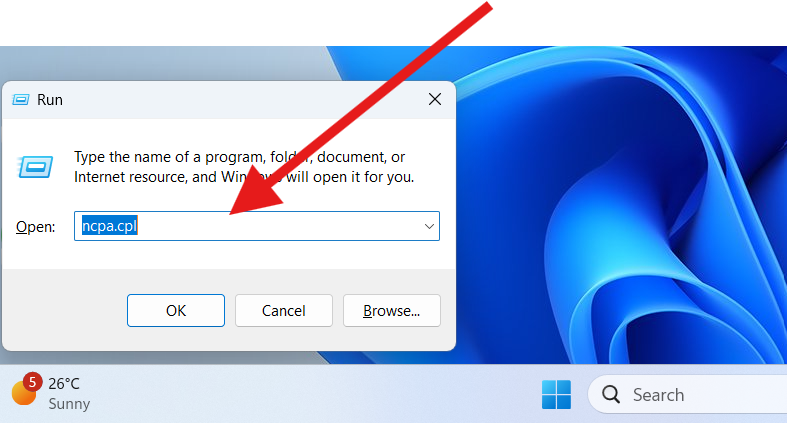
Step 2: Type NCPA.cpl and Hit Enter
- In the Run box, type NCPA.cpl
- Press Enter
- This opens Network Connections, where all network adapters are listed
This is the primary control panel window you need to speed up internet WiFi on Windows.
Step 3: Right-Click on WiFi and Go to Properties
- Find your WiFi adapter
- Right-click on it
- Select Properties
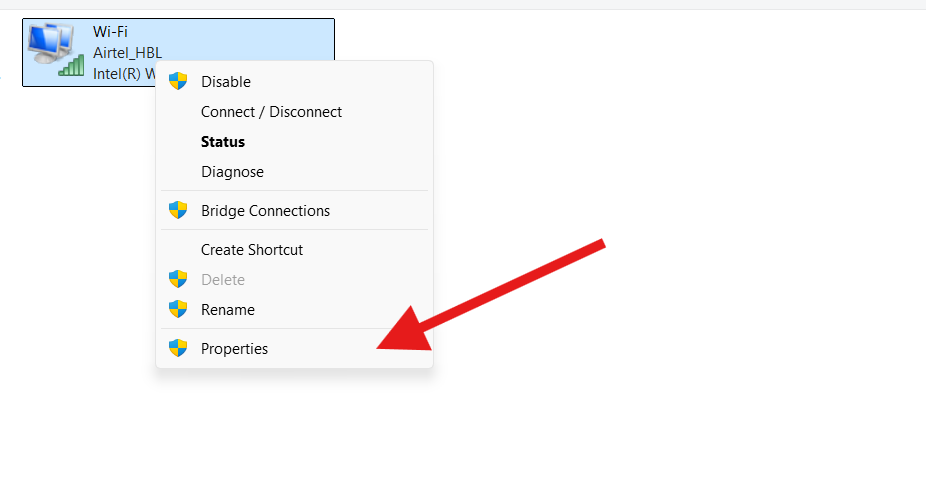
This opens the WiFi adapter settings where we can adjust advanced performance options.
Step 4: Click on Configure
Inside WiFi Properties:
- Click Configure
- A new window will appear with multiple tabs
- Go to the Advanced tab
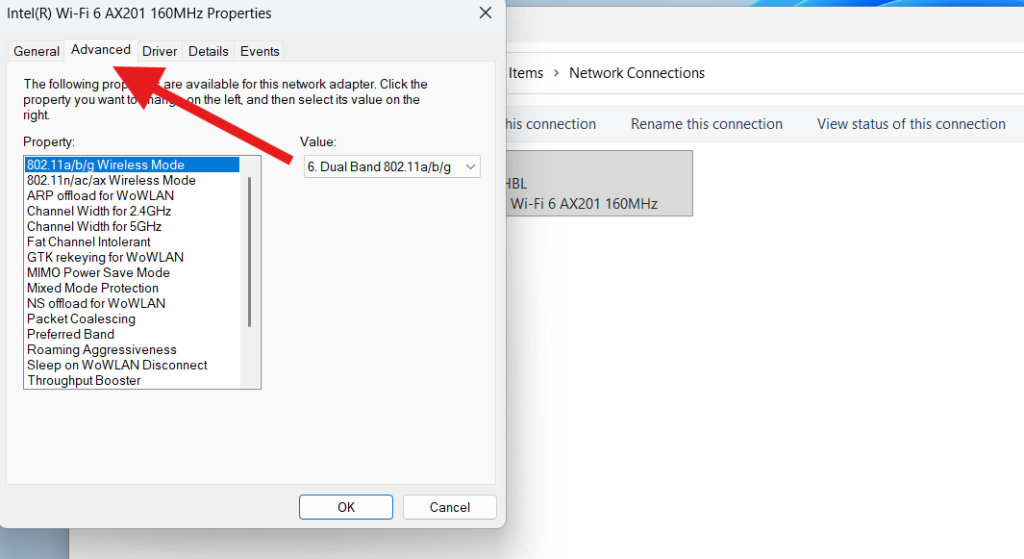
This tab holds the key settings to speed up internet WiFi on Windows.
Step 5: Select ARP Offload and Disable It
In the Advanced tab:
- Scroll through the list of properties
- Find ARP Offload
- Select it
- Change the value to Disabled
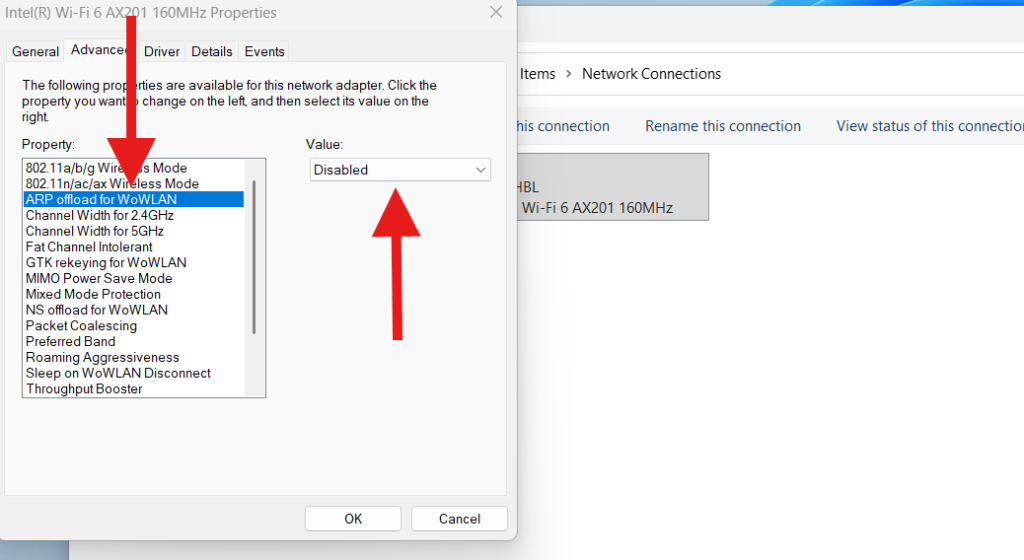
ARP Offload sometimes causes delays when your network adapter tries to handle ARP requests in low-power situations. Disabling it ensures consistent speed.
Step 6: Click on NS Offload and Disable It
- Find NS Offload in the list
- Select it
- Change the value to Disabled
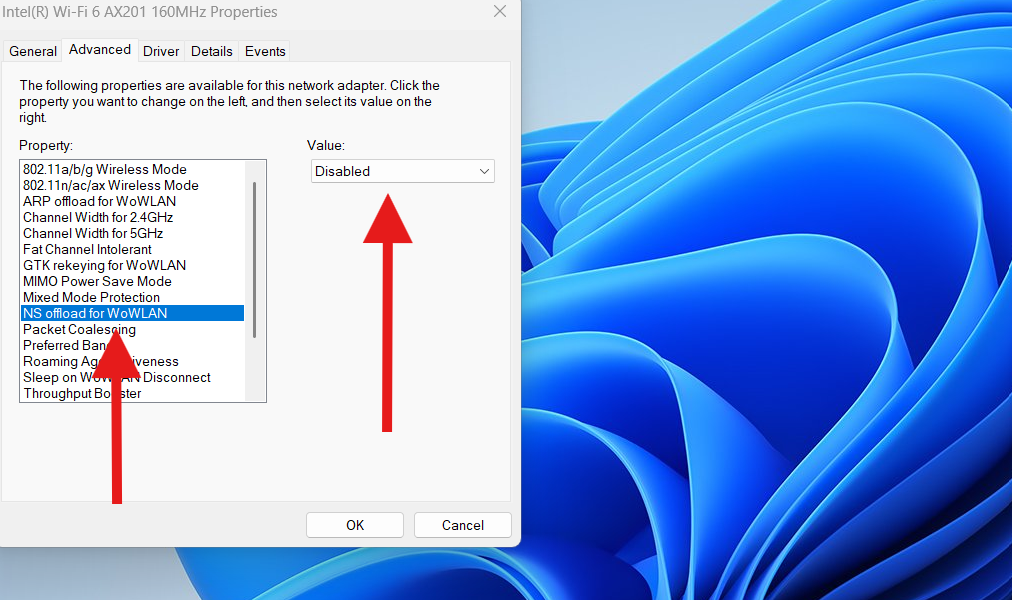
This option offloads neighbor discovery operations. Turning it off improves reliability and can reduce packet loss.
Step 7: Choose Sleep on WLAN and Disable It
- Look for Sleep on WLAN
- Select it
- Set it to Disabled
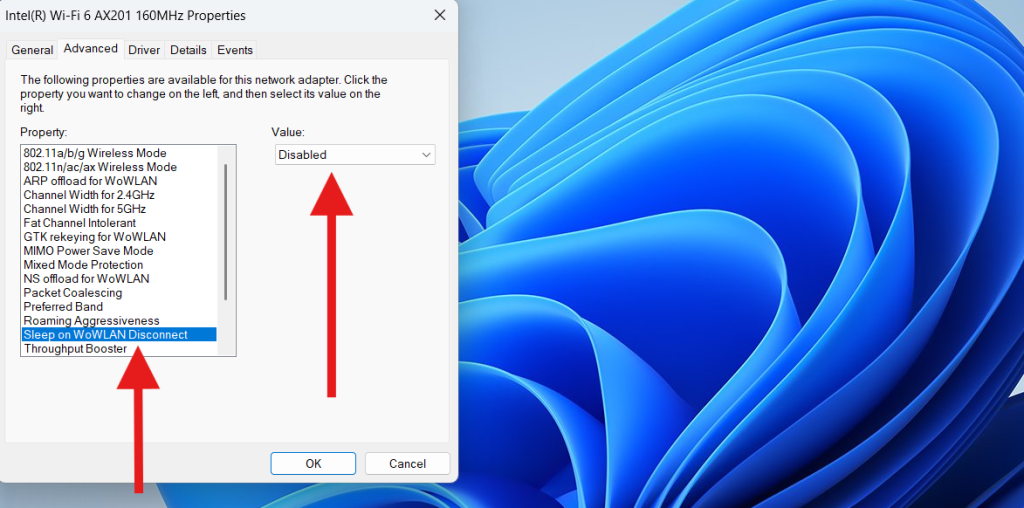
This feature allows your adapter to enter sleep mode while connected to WiFi—terrible for performance. Disabling it guarantees stronger connectivity.
Step 8: Click on Transmit Power and Set Highest Value
- Find Transmit Power
- Select it
- Change the value to Highest
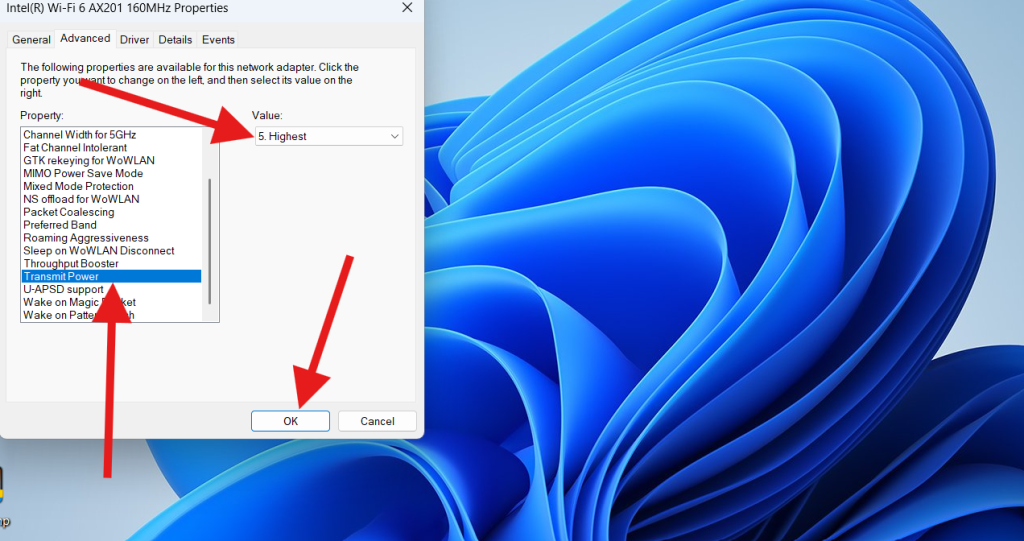
This adjustment alone can significantly speed up internet WiFi on Windows. Higher transmit power improves:
- Signal strength
- Download/upload speed
- Stability
- Range
Step 9: Click OK and Restart the PC
- Click OK
- Restart your computer
After rebooting, your WiFi adapter will apply the new high-performance settings.
Most users notice immediate improvements. Your PC now delivers stronger WiFi performance without additional software or router changes.
Why These WiFi Settings Improve Speed
Disabling ARP Offload, NS Offload, and WLAN sleep mode removes power-saving restrictions from your WiFi adapter. Setting transmit power to maximum boosts your signal strength.
These changes improve:
- Connection stability
- Bandwidth throughput
- Latency
- Streaming quality
- Gaming ping
- Download and upload speeds
Microsoft documents WiFi adapter power settings here (DoFollow):
https://learn.microsoft.com/en-us/windows-hardware/drivers/network/power-management
Extra Tips to Speed Up Internet WiFi on Windows
1. Update your WiFi drivers
Outdated drivers cause poor speeds.
Intel WiFi drivers: https://www.intel.com/content/www/us/en/download-center/home.html
2. Change your router channel
Interference from neighbors slows connections.
3. Move closer to the router
Signal weakens with distance and walls.
4. Use the 5GHz band
Faster and more reliable than 2.4GHz.
5. Disable background apps
Task Manager → Startup → Disable unwanted apps.
6. Reset network settings
Settings → Network & Internet → Advanced → Reset network.
These additional improvements help maintain long-term WiFi performance.
FAQs About How to Speed Up Internet WiFi on Windows
Is it safe to disable ARP and NS Offload?
Yes. These features are mostly for battery saving and do not affect system stability.
Will increasing transmit power drain my battery?
On laptops, it may use slightly more power, but performance improves significantly.
Do I need to restart after making changes?
Yes. Settings are not applied until you restart.
Will this fix slow internet caused by my ISP?
No. This only fixes PC-side issues, not bandwidth limitations.
Why is Sleep on WLAN bad for performance?
It forces the WiFi adapter into low-power mode, causing drops and slow speeds.
Can these settings help with gaming lag?
Yes — reducing offload features and boosting transmit power lowers latency.
You can this also…
Windows Keyboard Shortcuts Ultimate Guide for Faster Productivity
