Introduction
inetcpl.cpl command is one of those hidden Windows tools that most users never hear about, yet it plays a critical role in fixing internet and browser-related problems. If your Windows 11 PC is facing slow internet, websites not loading properly, or browser glitches, this single command can often solve the issue in minutes.
Instead of installing random tools or resetting the entire system, understanding how the inetcpl.cpl command works gives you direct control over Internet Options. This article explains the real use of the inetcpl.cpl command, how to run it step by step, and why it is extremely useful for troubleshooting connectivity and browser performance issues.
Table of Contents
What Is INETCPL.CPL Command
The inetcpl.cpl command is a Windows Run command that opens the Internet Properties or Internet Options control panel. This panel manages settings related to internet connectivity, browser cache, cookies, security zones, and privacy.
The file inetcpl.cpl is a Control Panel applet that has been part of Windows for many years and is still fully supported in Windows 11.
Where INETCPL.CPL Command Is Used in Windows
The inetcpl.cpl command controls settings used by:
- Internet Explorer components
- Microsoft Edge (legacy internet settings)
- System-wide internet configuration
- Proxy and LAN settings
- Cached internet files
Even though Internet Explorer is retired, Windows still relies on these core internet components for many background services.
Why INETCPL.CPL Command Is Important on Windows 11
Windows 11 heavily depends on background web services. When internet-related settings become corrupted, users experience issues such as:
- Websites not opening
- Login problems
- Slow browsing
- Network errors in apps
The inetcpl.cpl command provides a quick and safe way to reset these settings without affecting personal files.
Step-by-Step Guide to Use INETCPL.CPL Command
This is the exact method you shared and it is the correct approach.
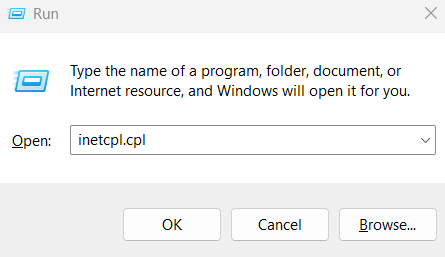
Step 1: Open Run Dialog
Press Windows + R
Step 2: Type the Command
Type the following command:
inetcpl.cpl
Step 3: Press Enter
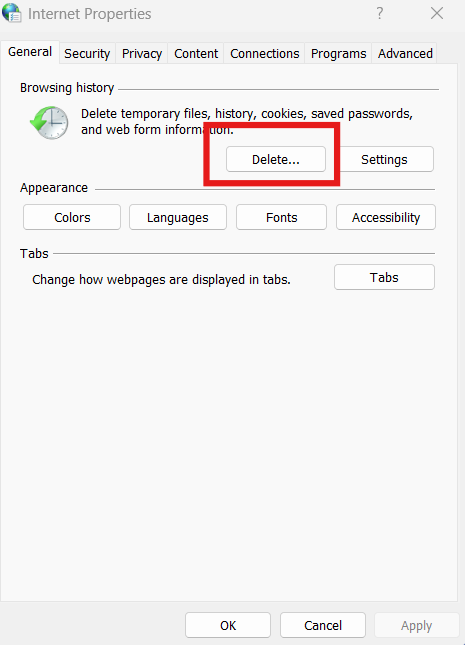
This opens the Internet Properties window.
Step 4: Click on Delete
Under the General tab, click on Delete in the Browsing History section.
Step 5: Select Options Carefully
Check all options except Passwords.
Step 6: Click Delete and OK
Click Delete, then OK to apply changes.
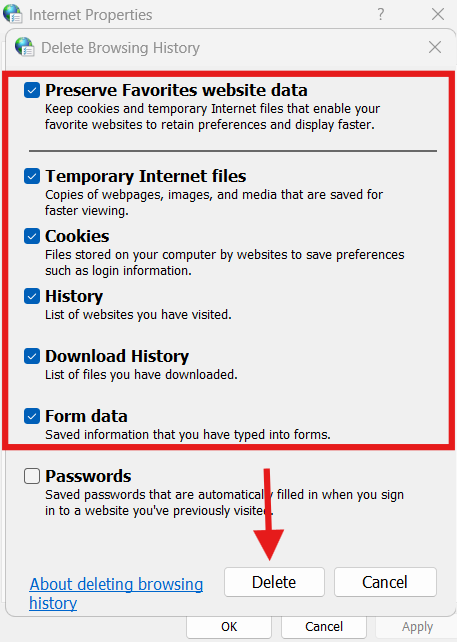
This process clears corrupted cache and resets internet-related temporary data.
Understanding Delete Browsing History Options
When using the inetcpl.cpl command, you will see multiple options. Each serves a purpose.
- Temporary Internet Files: Clears cached data
- Cookies: Removes stored website cookies
- History: Deletes browsing records
- Download History: Clears download logs
- Form Data: Removes saved form entries
Avoid deleting passwords unless you have them backed up.
How INETCPL.CPL Command Fixes Internet Issues
Many connectivity issues are caused by corrupted cache or misconfigured settings.
The inetcpl.cpl command helps by:
- Resetting internet cache
- Removing outdated cookies
- Clearing invalid session data
- Refreshing system-level internet settings
This is especially useful when the internet works on other devices but not on your Windows 11 PC.
How INETCPL.CPL Command Optimizes Browser Performance
Over time, browsers accumulate unnecessary temporary data. This slows down page loading and causes glitches.
Using the inetcpl.cpl command regularly helps:
- Speed up website loading
- Reduce browser crashes
- Fix login and session issues
- Improve overall browsing stability
This optimization works across browsers because Windows manages core internet settings centrally.
When You Should Use INETCPL.CPL Command
Use the inetcpl.cpl command when you notice:
- Slow browsing speed
- Websites failing to load
- Internet working intermittently
- Network-related app errors
- Login issues on secure websites
It is a safe first step before trying advanced network resets.
Common Problems Solved by INETCPL.CPL Command
Here are real-world issues fixed by this command:
- DNS resolution problems
- Browser not opening pages
- Secure websites showing errors
- Corrupted internet cache
- Proxy misconfiguration
In many cases, users think the network adapter is faulty when the issue is only cached data.
Advanced Tips Using INETCPL.CPL Command
For advanced users:
- Check LAN Settings for unwanted proxy entries
- Reset Security Zones to default
- Review Privacy settings for blocked cookies
- Use Advanced tab to reset TLS settings
Internal link suggestion:
Read How to Reset Network Settings on Windows 11 Safely
External Resources for Internet Troubleshooting
DoFollow external resources for deeper learning:
These resources explain Windows networking in detail and complement the inetcpl.cpl command.
Internal Optimization Tips
To keep your system healthy:
- Run inetcpl.cpl command once a month
- Keep Windows updated
- Avoid unknown browser extensions
- Clear cache after major updates
Internal link suggestion:
Check Windows 11 Performance Optimization Guide
Final Thoughts
The inetcpl.cpl command is a simple yet powerful Windows tool that helps fix internet issues, reset browser-related settings, and improve overall system connectivity. Many users overlook it, but IT professionals rely on it daily.
Before reinstalling browsers or resetting your PC, always try this command. It saves time, avoids data loss, and often resolves problems instantly.
FAQs
What is the use of inetcpl.cpl command
The inetcpl.cpl command opens Internet Options to troubleshoot connectivity issues and optimize browser performance.
Is inetcpl.cpl command safe to use
Yes. It is a built-in Windows command and safe when used correctly.
Does inetcpl.cpl command delete passwords
Only if you select the passwords option. By default, avoid checking it.
Can inetcpl.cpl command fix slow internet
It can fix issues caused by corrupted cache and misconfigured settings.
How often should I use inetcpl.cpl command
Use it whenever you face internet or browser issues, or once a month for maintenance.
You can check this too.
