Introduction
Check PC RAM is one of the most important yet ignored steps when a Windows computer starts behaving strangely. Random freezes, blue screen errors, slow performance, app crashes, or unexpected restarts are often linked to faulty RAM. Most users blame Windows updates or software issues, but in many real-world cases, memory problems are the root cause.
Windows includes a built-in tool that allows you to check PC RAM health without installing any software. This article explains how to check PC RAM on a Windows PC using a simple command, how the test works, how to understand the results, and when you should take action.
This guide follows RankMath SEO best practices and is written in a clear, step-by-step format for normal users, professionals, and students.
Table of Contents
What Does Check PC RAM Mean
To check PC RAM means testing the physical memory modules installed in your computer to detect errors, corruption, or hardware failure. RAM errors do not always cause immediate crashes. Many times, they silently affect system stability and performance.
Checking RAM helps identify:
- Faulty memory cells
- Data corruption issues
- Hardware instability
- Performance bottlenecks
Why You Should Check PC RAM Regularly
RAM is constantly in use whenever your PC is running. Over time, memory modules can degrade or develop faults due to heat, power fluctuations, or manufacturing defects.
You should check PC RAM because:
- Software troubleshooting may fail if RAM is faulty
- Windows errors often mask memory issues
- Gaming and editing workloads stress RAM heavily
- Early detection prevents data loss
Checking RAM is a preventive maintenance step, not just a repair task.
Signs That Indicate RAM Problems
Before users check PC RAM, they usually notice these symptoms:
- Random system freezes
- Blue Screen of Death errors
- Programs closing unexpectedly
- Slow boot or shutdown
- File corruption
- System restarting without warning
If you notice two or more of these signs, checking RAM should be your first step.
Built-in Windows Tool to Check PC RAM
Windows includes a built-in utility called Windows Memory Diagnostic. This tool runs outside the normal Windows environment and performs a detailed scan of your RAM.
The easiest way to access it is through the mdsched.exe command.
Benefits of this method:
- No third-party software
- Safe and reliable
- Official Windows tool
- Works on all Windows versions
Step-by-Step Guide to Check PC RAM Using mdsched.exe
This is the exact step-by-step method you shared and it is the correct approach.
Step 1: Open Run Dialog
Press Windows + R
Step 2: Type the Command
Type the following command:
mdsched.exe
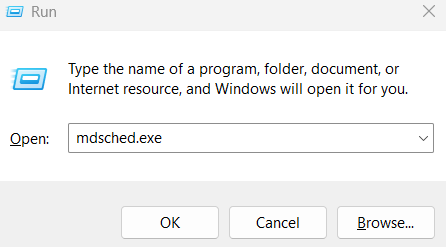
Step 3: Press Enter
This opens the Windows Memory Diagnostic window.
Step 4: Choose Restart Option
Click Restart now and check for problems
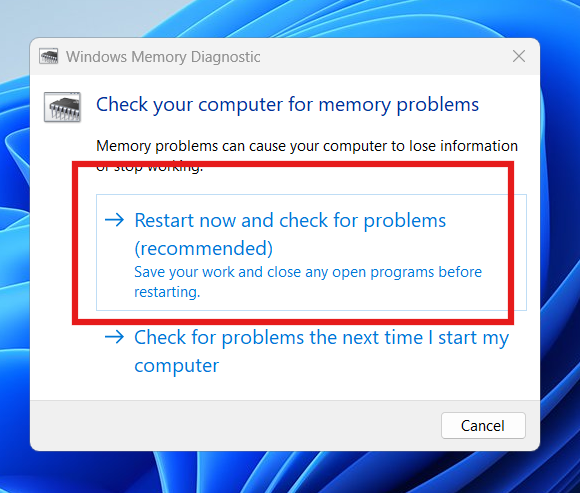
Step 5: System Restarts Automatically
Your PC will restart and begin checking RAM.
Step 6: RAM Testing Process Starts
The tool scans memory for errors. This may take several minutes depending on RAM size.
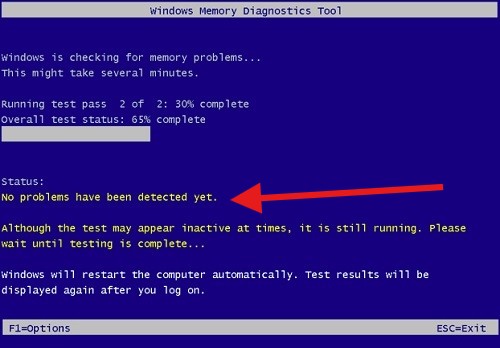
This process safely checks PC RAM without affecting your files.
What Happens During the RAM Test
When you check PC RAM using this method, Windows performs multiple memory tests including:
- Basic memory read/write tests
- Pattern-based memory tests
- Error detection routines
A progress bar shows the status. If errors are found, Windows records them for later review.
Do not interrupt the process unless absolutely necessary.
How to View RAM Test Results in Windows
After the test completes, Windows boots normally. The results are shown as a notification.
If you miss the notification:
- Open Event Viewer
- Go to Windows Logs
- Click System
- Look for MemoryDiagnostics-Results
This is where Windows reports whether errors were detected when you check PC RAM.
What to Do If Errors Are Found
If the tool reports memory errors, take action immediately.
Recommended steps:
- Power off the PC
- Reseat RAM modules
- Clean RAM slots carefully
- Test one RAM stick at a time
- Replace faulty RAM if errors persist
Ignoring RAM errors can lead to system crashes and data loss.
Difference Between RAM Capacity and RAM Health
Many users confuse RAM size with RAM condition.
- RAM capacity: How much memory you have (8GB, 16GB, 32GB)
- RAM health: Whether memory is working correctly
Even 32GB of RAM is useless if memory cells are faulty. That is why it is critical to check PC RAM health, not just capacity.
When You Should Check PC RAM Again
You should check PC RAM:
- After a system crash
- After installing new RAM
- After BIOS updates
- If performance suddenly drops
- Once every few months for maintenance
Regular testing helps catch problems early.
External Tools for Advanced RAM Testing
For deeper testing, professionals sometimes use advanced tools.
DoFollow external resources:
These tools provide extended testing but for most users, the built-in method to check PC RAM is sufficient.
Internal Maintenance Tips
To avoid RAM-related issues:
- Ensure proper ventilation
- Avoid mixing RAM brands
- Use matched memory kits
- Keep BIOS updated
Internal link suggestion:
Read How to Improve Windows PC Stability
Final Thoughts
Check PC RAM should be one of the first troubleshooting steps when your Windows PC behaves unpredictably. The built-in Windows Memory Diagnostic tool makes this process simple, safe, and effective.
Many users waste time reinstalling Windows or replacing hardware unnecessarily. A quick RAM check can save hours of frustration and prevent serious problems later.
If you care about system stability, checking RAM is not optional. It is essential.
FAQs
How do I check PC RAM on Windows
You can check PC RAM by pressing Windows + R, typing mdsched.exe, and restarting your PC.
Is Windows Memory Diagnostic accurate
Yes. It is reliable for detecting common RAM errors.
Will checking RAM delete my data
No. The process only tests memory and does not affect files.
How long does it take to check PC RAM
It usually takes a few minutes depending on RAM size.
What should I do if RAM errors are found
Reseat or replace faulty RAM immediately to avoid system crashes.
You check this
INETCPL.CPL Command on Windows 11 Is Useful for Fixing Internet and Browser Issues
