
Introduction
Windows command prompt reagentc is a powerful but lesser-known Windows utility that helps manage the Windows Recovery Environment (WinRE). Many users face system crashes, boot failures, or troubleshooting issues without realizing that their recovery environment may be disabled.
The reagentc command allows you to check whether the Windows Recovery Environment is active and helps you enable it when needed. This built-in command is extremely useful for troubleshooting system failures and recovering Windows without reinstalling the operating system.
In this detailed guide, you will learn how the Windows command prompt reagentc tool works, how to check recovery status, and how to enable Windows Recovery Environment safely.
Table of Contents
What Is Windows Command Prompt Reagentc
The Windows command prompt reagentc tool is a command-line utility used to configure and manage the Windows Recovery Environment (WinRE).
WinRE is the built-in troubleshooting platform used to repair Windows when problems occur.
It provides tools such as:
- Startup Repair
- System Restore
- Command Prompt recovery
- System Image Recovery
- Advanced troubleshooting
According to official Microsoft documentation (DoFollow):
https://learn.microsoft.com/windows-hardware/manufacture/desktop/reagentc-command-line-options
The reagentc tool allows administrators and advanced users to control recovery settings directly through Command Prompt.
Why Windows Recovery Environment Matters
Before learning how to use Windows command prompt reagentc, it is important to understand the importance of WinRE.
The Windows Recovery Environment allows users to recover a system that cannot boot properly.
Without WinRE enabled, troubleshooting options become limited.
For example, when Windows fails to start, recovery options help you:
- Fix corrupted boot files
- Restore system settings
- Repair startup errors
- Reset Windows safely
This makes reagentc one of the most valuable hidden Windows tools.
How to Check Windows Command Prompt Reagentc Status
Follow these simple steps.
Step 1: Open Command Prompt as Administrator
- Press the Windows button
- Type CMD
- Right-click Command Prompt
- Select Run as administrator
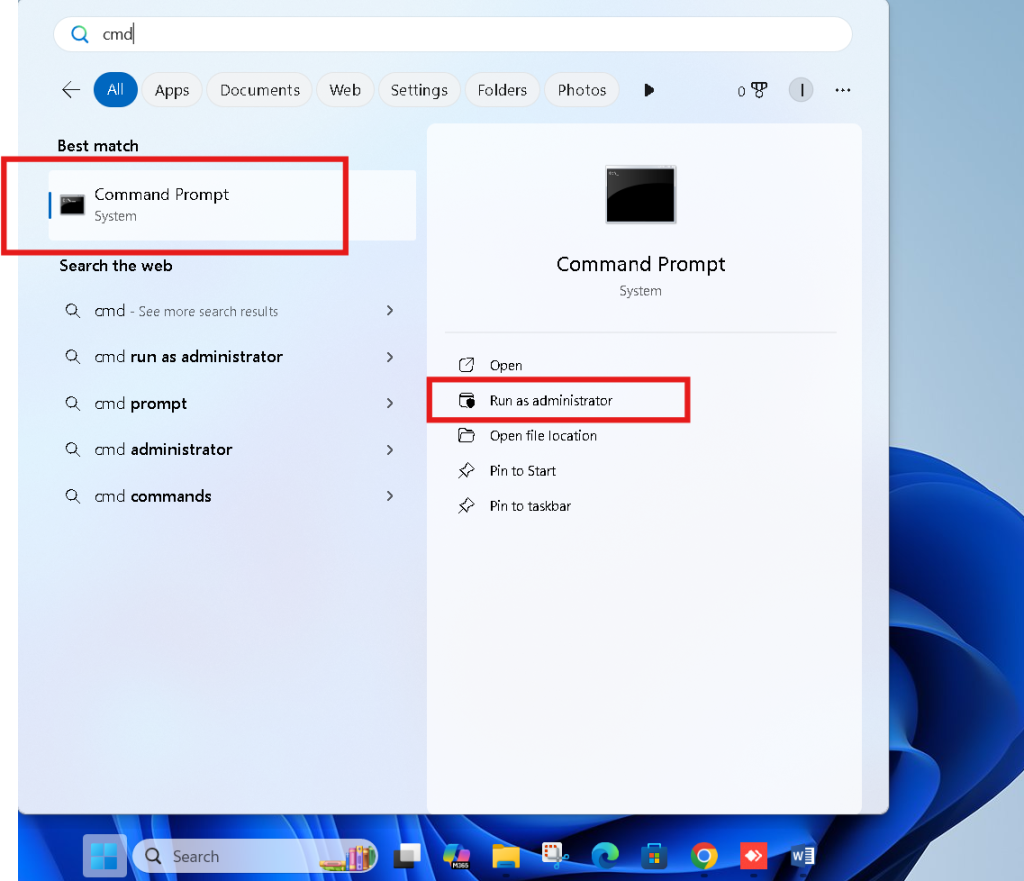
Administrative permission is required to use reagentc commands.
Step 2: Run the Reagentc Status Command
Type the following command:
reagentc /info
Press Enter.
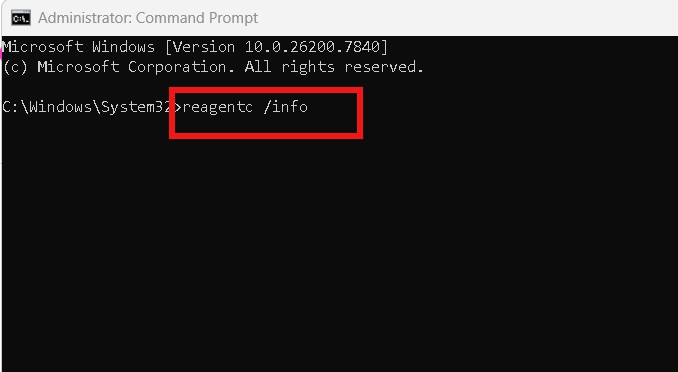
This command displays the configuration details of Windows Recovery Environment.
Step 3: Check Windows RE Status
Look for this line in the results:
Windows RE status
It will show either:
- Enabled
- Disabled
If the status shows enabled, the recovery environment is active.
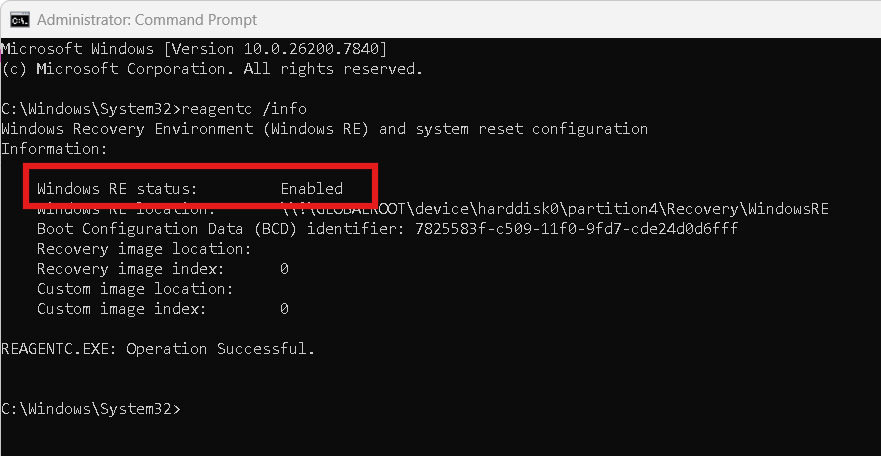
If it shows disabled, you should enable it.
Enabling Windows Recovery Environment Using Reagentc
If the Windows command prompt reagentc tool shows that WinRE is disabled, you can enable it easily.
Step 1: Open Command Prompt as Administrator
Repeat the same process:
Windows → Search CMD → Run as administrator.
Step 2: Enable Recovery Environment
Type the following command:
reagentc /enable
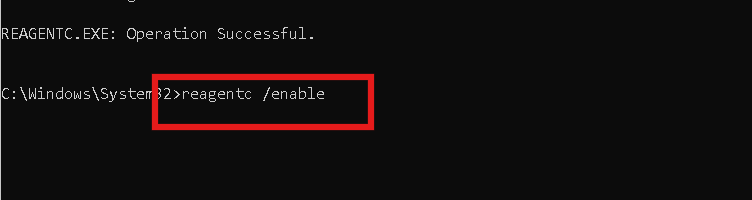
Press Enter.
Windows will activate the recovery environment automatically.
Step 3: Confirm the Status
Run the command again:
reagentc /info
Now you should see:
Windows RE status: Enabled
Your system recovery environment is now ready to use.
Understanding Reagentc Command Output
When running Windows command prompt reagentc /info, you will see multiple details.
Typical output includes:
- Windows RE status
- Recovery location
- Boot configuration data identifier
- Recovery image location
These details confirm whether the recovery environment is correctly configured.
If any configuration is missing, troubleshooting may be required.
When the Recovery Environment Is Disabled
Sometimes Windows updates, disk changes, or system corruption can disable WinRE.
When Windows command prompt reagentc shows disabled status, it means:
- Recovery tools will not appear during boot troubleshooting
- Startup repair may fail
- Advanced recovery options may be unavailable
Enabling reagentc ensures the system can recover from boot problems.
Additional Recovery Troubleshooting Tips
If enabling reagentc does not fix recovery issues, try these solutions.
Run System File Checker
Open Command Prompt and type:
sfc /scannow
This command repairs corrupted Windows system files.
Run DISM Repair Command
Another helpful command is:
DISM /Online /Cleanup-Image /RestoreHealth
DISM repairs Windows image corruption that may affect recovery tools.
Preventing Recovery Issues in Windows
To avoid problems related to Windows command prompt reagentc and WinRE:
- Keep Windows updated
- Avoid deleting recovery partitions
- Do not use risky disk partition tools
- Maintain regular system backups
Maintaining recovery functionality ensures your PC can recover from critical failures.
You Can Check These
If you want to expand your Windows troubleshooting knowledge, explore these guides:
👉 Windows 11 Slow Boot Problem and How to Fix It Without Reinstalling
👉 How to Check PC Performance Score and Know If Your System Is Slow or Powerful
These resources help you master advanced system troubleshooting.
When You Should Use Windows Command Prompt Reagentc
You should check the reagentc tool in situations like:
- Windows fails to boot
- Recovery options missing
- Startup repair not working
- Preparing system recovery configuration
Understanding how to use Windows command prompt reagentc gives you control over Windows recovery tools.
Final Thoughts
The Windows command prompt reagentc utility is one of the most useful hidden commands in Windows. It allows users to verify and enable the Windows Recovery Environment, ensuring that troubleshooting tools are available when problems occur.
By simply running:
reagentc /info
you can verify whether your system recovery environment is active.
If the status shows disabled, enabling it with:
reagentc /enable
restores recovery functionality instantly.
Learning these commands gives you greater control over your system and helps prevent serious troubleshooting issues in the future.
FAQs
What does Windows command prompt reagentc do?
It manages the Windows Recovery Environment configuration.
Is reagentc safe to use?
Yes. It is an official Microsoft command-line tool.
What happens if WinRE is disabled?
You may lose access to advanced troubleshooting tools during boot problems.
How do I enable Windows Recovery Environment?
Open Command Prompt as Administrator and run:
reagentc /enable
Do I need to reinstall Windows if WinRE is disabled?
No. You can simply enable it using reagentc command.
