Introduction
Windows 11 Slow Boot Problem is one of the most frustrating issues users face today. You press the power button, and instead of getting instant access to your desktop, you wait. And wait. Sometimes for minutes.
Slow startup does not always mean your PC is old. In many cases, the issue is caused by software configuration, startup overload, outdated drivers, or storage problems.
In this complete guide, you will learn practical and tested solutions to fix slow boot in Windows 11 without formatting or reinstalling your system.
Table of Contents
Why Windows 11 Boots Slowly
Before fixing the Windows 11 Slow Boot Problem, understand the causes:
- Too many startup programs
- Hard disk instead of SSD
- Corrupted system files
- Outdated drivers
- Malware infection
- Background services overload
According to official Microsoft documentation (DoFollow):
https://support.microsoft.com
Startup performance depends heavily on storage speed and startup configuration.
Windows 11 Slow Boot Problem Basic Checks
Before advanced fixes:
- Restart your PC once
- Disconnect external USB devices
- Check Windows updates
- Ensure enough free disk space
Sometimes, temporary glitches cause boot delays.
Disable Startup Programs to Fix Windows 11 Slow Boot Problem
Too many startup apps slow down boot time.
Steps:
- Press Ctrl + Shift + Esc
- Open Task Manager
- Go to Startup tab
- Disable unnecessary programs
Disable apps with high startup impact.
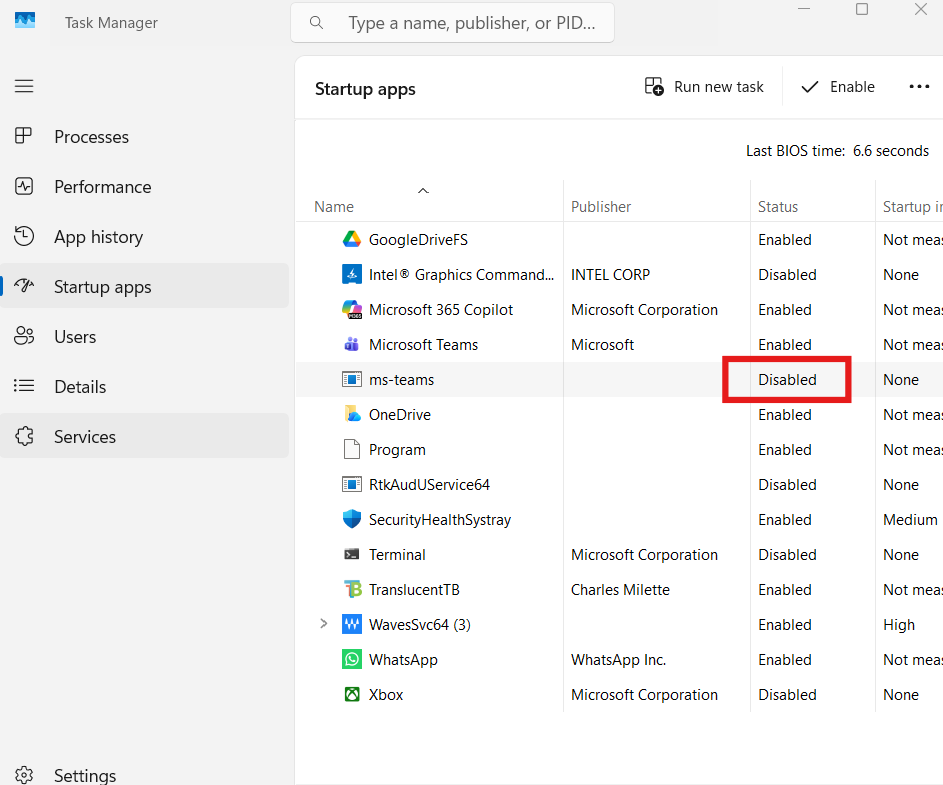
This alone can significantly reduce boot time.
Enable Fast Startup
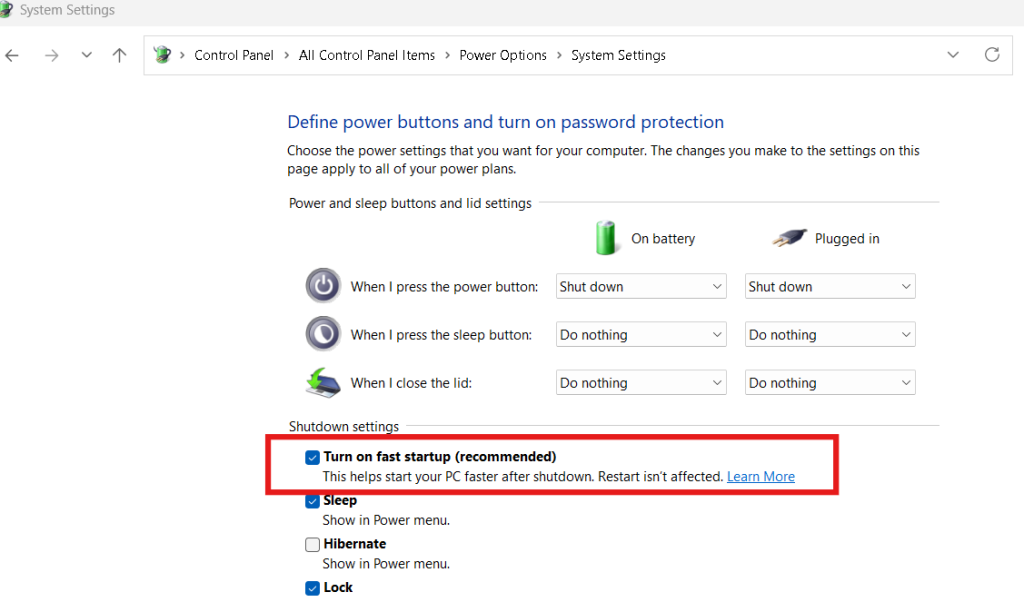
Fast Startup combines shutdown and hibernation features.
Steps:
- Press Windows + R
- Type control
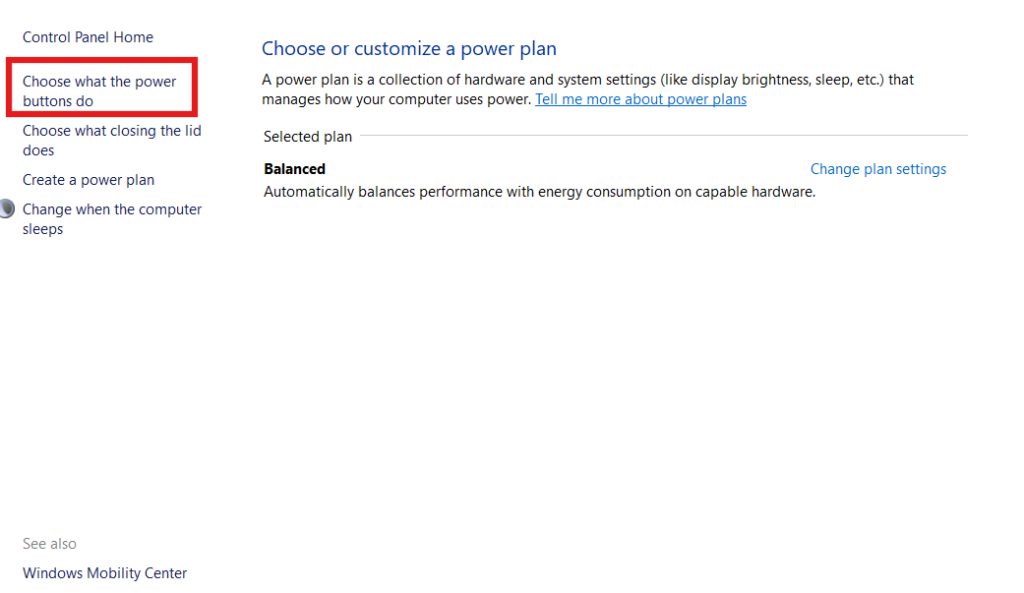
- Go to Power Options
- Click “Choose what the power buttons do”
- Enable Turn on fast startup
Official power management documentation (DoFollow):
https://learn.microsoft.com/windows-hardware
This improves startup speed instantly.
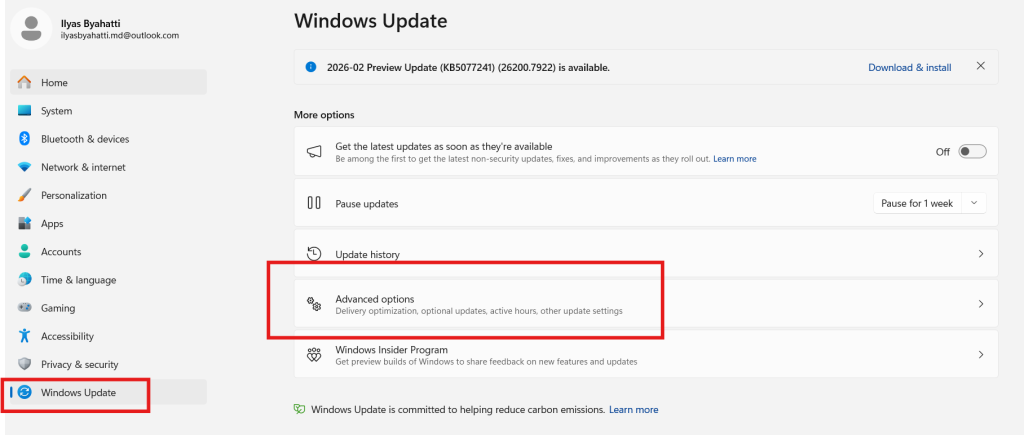
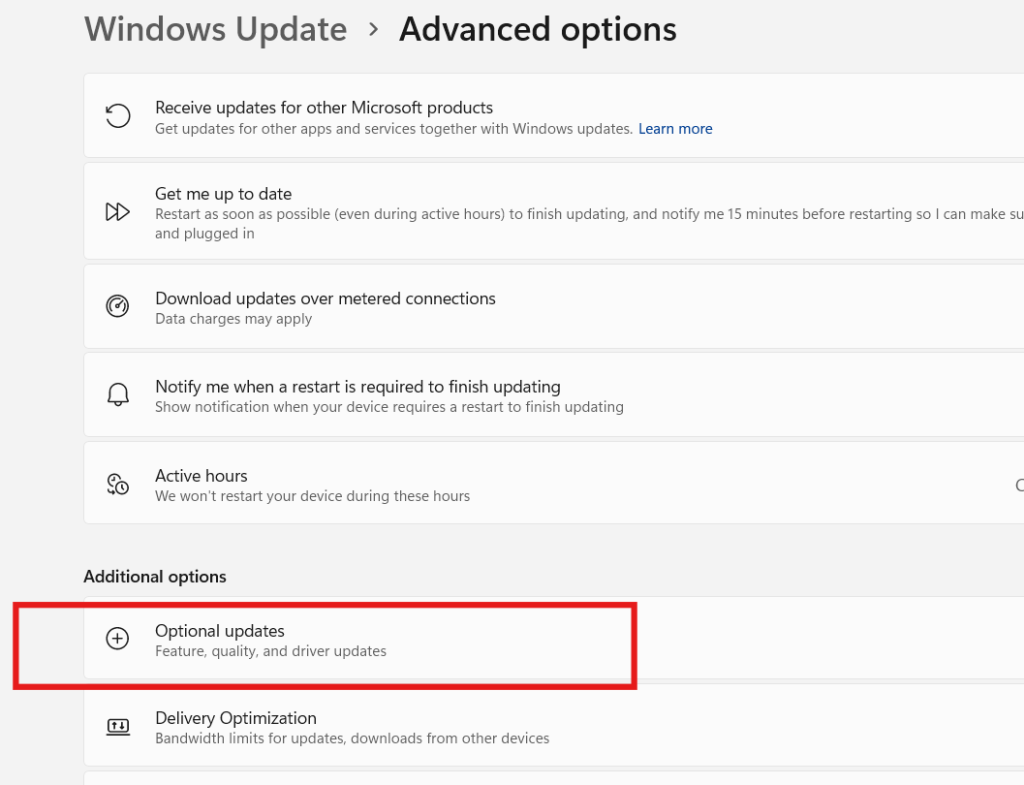
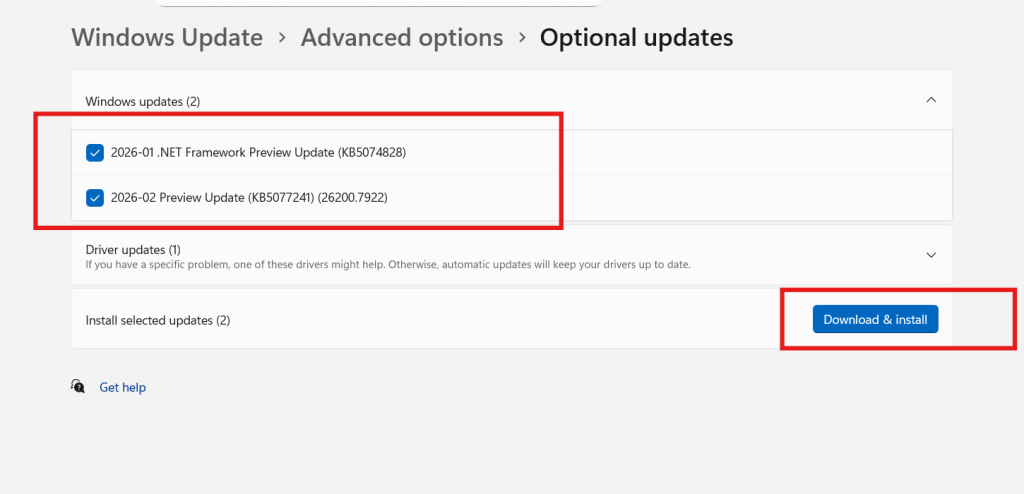
Update Windows and Drivers
Outdated drivers can cause Windows 11 Slow Boot Problem.
Update Windows:
Settings → Windows Update → Check for updates
Update Drivers:
- Press Windows + X
- Open Device Manager
- Update critical drivers
Intel driver support (DoFollow):
https://www.intel.com
Keeping drivers updated improves boot stability.
Check Disk Health
Slow HDD is the most common reason for startup delay.
If disk health is low or if you are using HDD, consider upgrading to SSD.
SSD dramatically reduces boot time from minutes to seconds.
Disable Unnecessary Services
Too many background services delay boot.
Steps:
- Press Windows + R
- Type msconfig
- Go to Services
- Hide Microsoft services
- Disable unnecessary third-party services
Restart your PC and check performance.
Scan for Malware
Malware loads at startup and slows down the system.
Run Windows Security full scan:
Settings → Privacy & Security → Windows Security
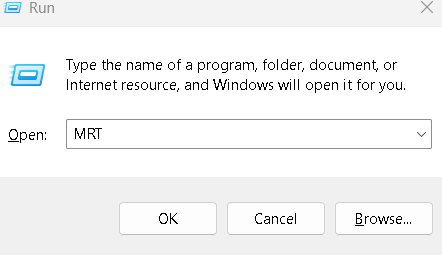
Malware removal can solve hidden Windows 11 Slow Boot Problem.
Upgrade to SSD
If your PC still uses HDD, upgrading to SSD is the best solution.
SSD benefits:
- Faster boot
- Faster file access
- Better overall performance
This is the most impactful hardware upgrade.
Adjust Power Settings
Switch to High Performance mode:
- Open Control Panel
- Go to Power Options
- Select High Performance
Balanced mode sometimes delays startup processes.
Reset Virtual Memory
Improper paging settings affect boot.
Steps:
- Search Advanced System Settings
- Click Performance Settings
- Go to Advanced
- Set Virtual Memory to “System Managed”
Restart system.
Perform System File Repair
Corrupted system files cause Windows 11 Slow Boot Problem.
Open Command Prompt as Administrator and run:
sfc /scannow
Then run:
DISM /Online /Cleanup-Image /RestoreHealth
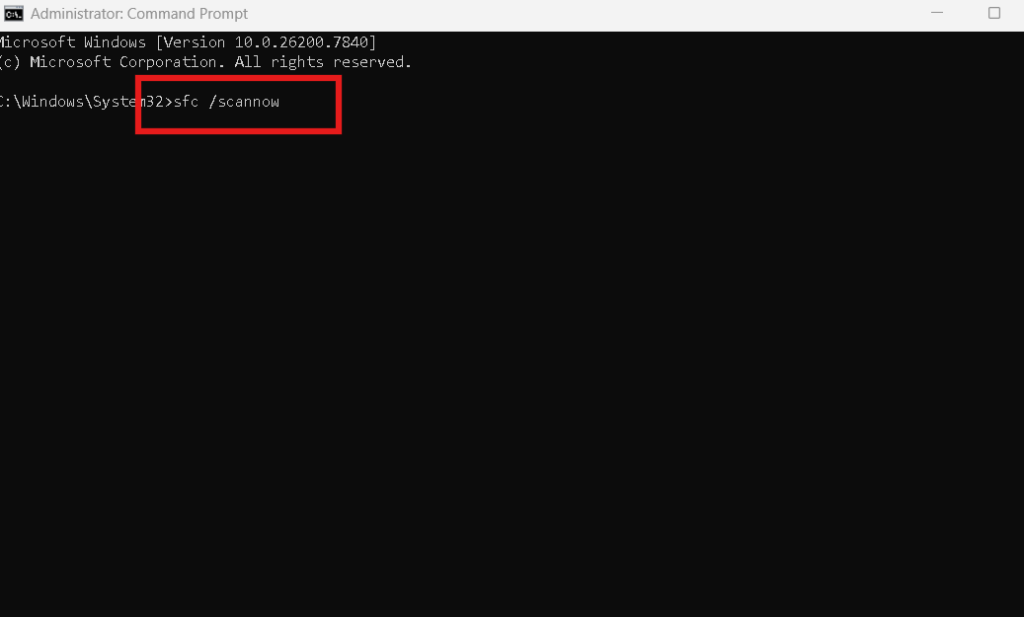
These commands repair system corruption.
Signs Windows 11 Slow Boot Problem Is Fixed
After applying solutions:
- Desktop loads within seconds
- No long spinning dots
- Startup apps open smoothly
- System responsive immediately
If boot time drops below 20 seconds (SSD systems), issue is resolved.
Prevent Future Windows 11 Slow Boot Problem
To avoid slow boot again:
- Keep startup apps minimal
- Use SSD instead of HDD
- Clean temp files regularly
- Avoid random optimization software
- Keep Windows updated
Regular maintenance prevents long-term performance issues.
You Can Check These Too
If you want deeper system knowledge:
👉 How to Check PC Performance Score and Know If Your System Is Slow or Powerful
👉 Bluetooth Is Not Working on Laptop and How to Fix It 60 seconds
These resources will help you master PC performance.
Final Thoughts
Windows 11 Slow Boot Problem does not mean your system is dead or outdated. In most cases, simple configuration changes fix the issue.
Start with:
- Disabling startup apps
- Enabling Fast Startup
- Updating drivers
- Checking disk health
If necessary, upgrade to SSD for dramatic improvement.
With proper maintenance, Windows 11 boots quickly and runs smoothly.
FAQs
1. Why is my Windows 11 taking long to start?
Usually because of startup programs, slow HDD, or outdated drivers.
2. Does SSD fix Windows 11 Slow Boot Problem?
Yes. SSD significantly reduces startup time.
3. Is Fast Startup safe?
Yes. It is a built-in Windows feature designed to improve boot speed.
4. Can malware cause slow boot?
Yes. Malware often loads during startup and delays boot process.
5. Should I reinstall Windows to fix slow boot?
Not immediately. Try software optimization and SSD upgrade first.
