Windows 11 File Explorer Crashing Fix
Windows 11 File Explorer Crashing Fix is something many users search for when their system suddenly becomes unstable. File Explorer is the backbone of Windows navigation. When it crashes repeatedly, your productivity drops instantly.
If you are facing File Explorer freezing, restarting, or not responding in Windows 11, this guide will walk you through safe and effective solutions. These steps are beginner-friendly and tested in real troubleshooting scenarios.
Table of Contents
Why File Explorer Crashes in Windows 11
Before applying the Windows 11 File Explorer Crashing Fix, it is important to understand why the issue happens.
Common reasons include:
- Corrupted cache files
- Damaged registry entries
- Third-party extensions
- Corrupt user profile
- Windows update conflicts
File Explorer issues are often caused by corrupted history or registry bag entries.
Understanding the cause helps you apply the right solution.
Windows 11 File Explorer Crashing Fix Using Control Panel
This is the safest and first method you should try.
Step 1: Open Control Panel
- Press Windows button
- Type Control Panel
- Open it
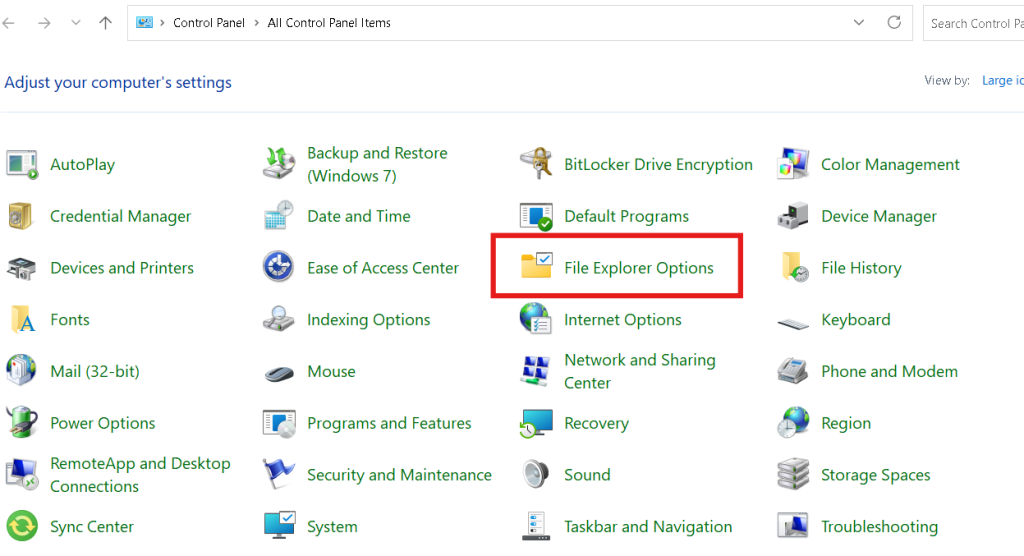
Step 2: Open File Explorer Options
- Search for File Explorer Options
- Click to open
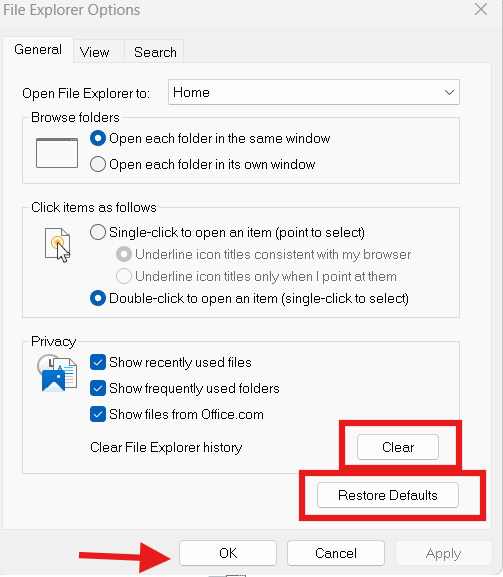
Step 3: Clear File Explorer History
Inside the General tab:
- Click Clear
- Then click Restore Defaults
- Click OK
Clearing history removes corrupted cached entries that may be causing File Explorer to crash.
This simple Windows 11 File Explorer Crashing Fix works in many cases.
Windows 11 File Explorer Crashing Fix Using Registry Editor
⚠ Important: Always create a restore point before editing the registry.
Official Microsoft registry guidance (DoFollow):
https://learn.microsoft.com
Now let’s proceed carefully.
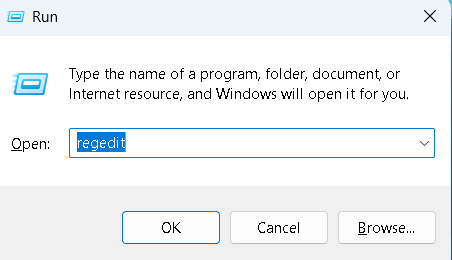
Step 1: Open Registry Editor
- Press Windows + R
- Type regedit
- Press Enter
Step 2: Navigate to This Path
Go to:
HKEY_CURRENT_USER
   → Software
      → Classes
         → Local Settings
            → Software
               → Microsoft
                  → Windows
                     → Shell
Step 3: Delete BagMRU and Bags
Inside the Shell folder:
- Right-click BagMRU
- Delete it
- Right-click Bags
- Delete it
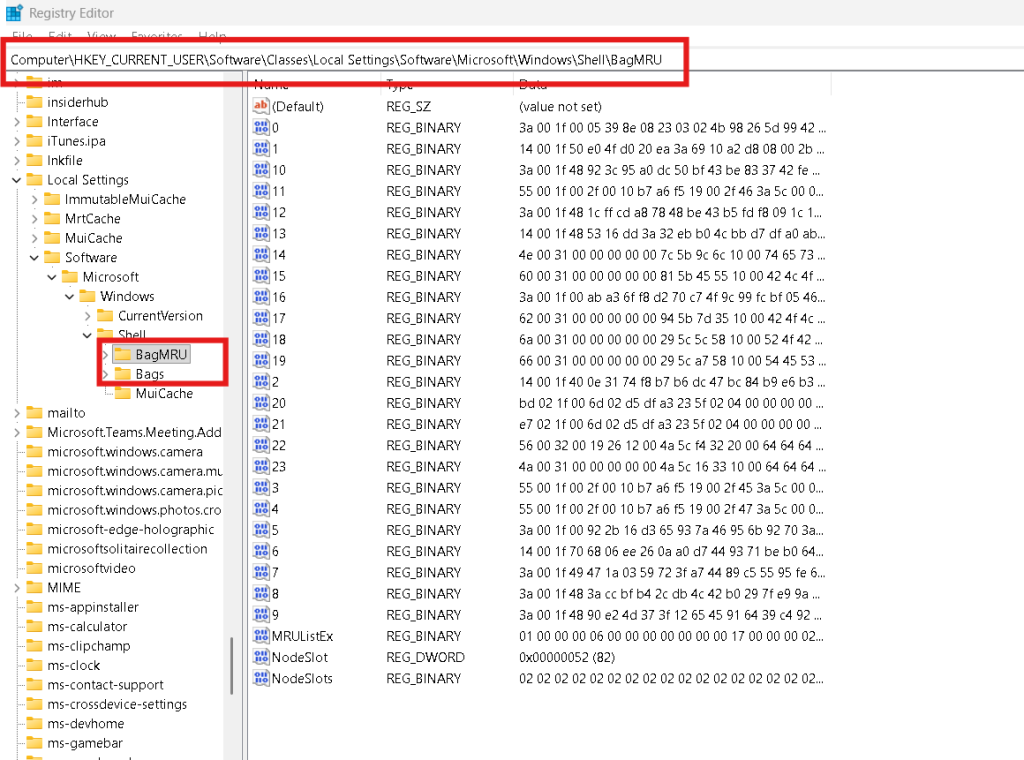
These folders store folder view settings. Corruption here often causes Explorer crashes.
Step 4: Restart the PC
Restart your computer.
After reboot, Windows automatically recreates fresh BagMRU and Bags folders.
This Windows 11 File Explorer Crashing Fix resets folder view corruption completely.
Additional Windows 11 File Explorer Crashing Fix Methods
If the above methods do not fully solve the problem, try these additional steps.
1. Run System File Checker
Open Command Prompt as Administrator and type:
sfc /scannow
This scans and repairs corrupted system files.
2. Run DISM Command
DISM /Online /Cleanup-Image /RestoreHealth
This repairs Windows image corruption.
3. Disable Third-Party Extensions
Sometimes third-party shell extensions cause File Explorer to crash.
Disable non-Microsoft extensions and test again.
Preventive Measures After Applying Windows 11 File Explorer Crashing Fix
To avoid future crashes:
- Keep Windows updated
- Avoid installing unnecessary customization tools
- Clean temp files regularly
- Do not force shutdown frequently
- Use genuine antivirus software
Regular maintenance reduces the need for repeated Windows 11 File Explorer Crashing Fix steps.
Signs the Windows 11 File Explorer Crashing Fix Worked
After applying the fix:
- File Explorer opens smoothly
- No automatic restart of explorer.exe
- No freezing when right-clicking
- Folder navigation is stable
- System performance improves
If crashes stop after registry cleanup, it confirms BagMRU corruption was the root cause.
Common Mistakes to Avoid
- Deleting wrong registry keys
- Skipping system restart
- Ignoring Windows updates
- Installing random cleaner software
- Not creating restore point
Always follow steps carefully.
Final Thoughts
File Explorer crashing in Windows 11 can be frustrating, especially if you rely on your PC for work or study. Fortunately, the Windows 11 File Explorer Crashing Fix methods shared in this guide are simple and effective.
Start with clearing File Explorer history. If needed, carefully reset BagMRU and Bags entries in the registry. In most cases, this resolves the issue permanently.
Consistent maintenance keeps your system stable and reduces future crashes.
FAQs
1. Why does File Explorer keep crashing in Windows 11?
Usually due to corrupted cache, damaged registry bag entries, or third-party shell extensions.
2. Is it safe to delete BagMRU and Bags?
Yes, Windows automatically recreates them after restart.
3. Will this Windows 11 File Explorer Crashing Fix delete my files?
No. It only resets folder view settings, not personal data.
4. Should I reinstall Windows if Explorer keeps crashing?
Not immediately. Try Control Panel reset, registry cleanup, SFC, and DISM first.
5. Can antivirus software cause File Explorer crash?
Yes, poorly configured or outdated antivirus tools can interfere with system processes.
If you follow this guide step by step, your Windows 11 File Explorer Crashing Fix should resolve the issue and restore smooth system performance.
You Can Check These Too
How to Check Second Hand Laptop Before Buying and Avoid Regret
Laptop Not Detecting WiFi Network Windows 10 Is Fixable
How Do I Increase Virtual Memory in Windows PC Without Causing Problems
