Introduction
Make old laptops fast again is a goal for millions of users who feel their system has become slow, laggy, and frustrating over time. Many people assume an old laptop must be replaced, but in reality, most performance issues are caused by software clutter, background processes, and unoptimized settings.
With the right approach, you can make old laptops fast again using simple tricks that require no technical expertise and no money. This guide shares practical, proven methods that IT professionals use to restore speed, improve responsiveness, and extend the life of aging laptops.
Table of Contents
Why Old Laptops Become Slow
Before trying to make old laptops fast again, it helps to understand why they slow down.
Common reasons include:
- Too many startup programs
- Background apps running constantly
- Low free disk space
- Outdated drivers
- Accumulated temporary files
Over time, Windows collects unnecessary data that slows system response.
Can You Really Make Old Laptops Fast Again
Yes, in most cases you can make old laptops fast again without replacing hardware.
If your laptop:
- Boots slowly
- Freezes during basic tasks
- Lags while browsing
- Takes time to open apps
Then software optimization alone can deliver noticeable improvements.
Restart and Reset Basic Performance
The simplest step is often overlooked.
Restarting clears:
- Memory cache
- Hung background processes
- Temporary system states
Regular restarts help make old laptops fast again by refreshing system resources.
Disable Startup Programs to Make Old Laptops Fast Again
Startup apps are one of the biggest reasons old laptops feel slow.
How to disable startup apps:
- Press Ctrl + Shift + Esc
- Open Startup tab
- Disable apps you don’t need at boot
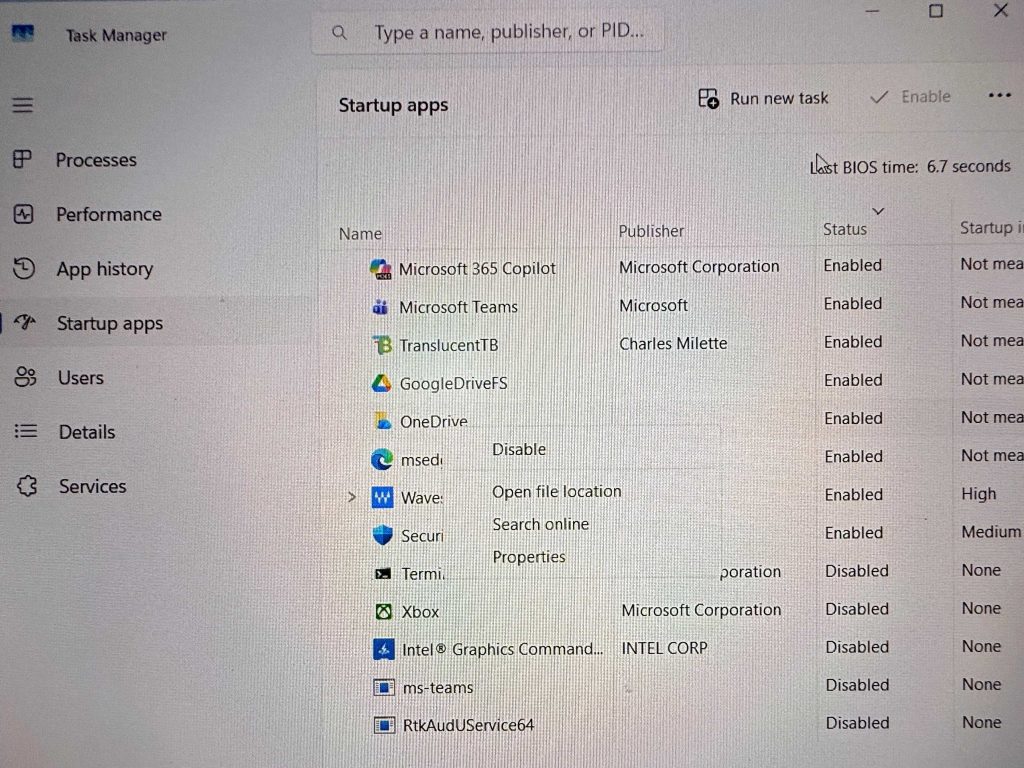
Reducing startup load helps make old laptops fast again instantly.
Clean Temporary Files Safely
Temporary files build up silently and consume storage.
How to clean safely:
- Press Windows + R
- Type %temp%
- Delete unnecessary files
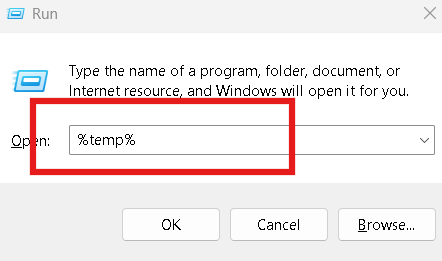
Removing junk data frees disk space and helps make old laptops fast again.
Adjust Visual Effects for Better Speed
Windows animations look nice but consume resources.
Steps:
- Open System Properties
- Go to Performance Settings
- Choose Adjust for best performance
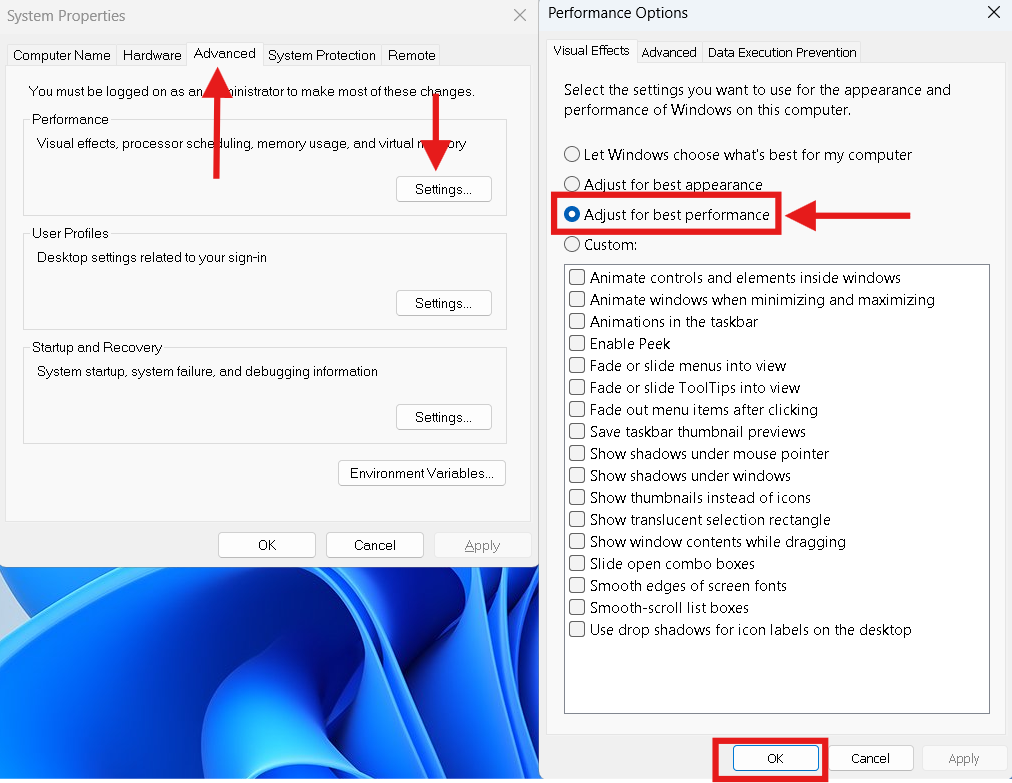
Disabling visual effects significantly helps make old laptops fast again on low-end systems.
Update Windows and Drivers
Outdated software causes inefficiency.
Updating:
- Fixes performance bugs
- Improves hardware compatibility
- Enhances security
Keeping the system updated helps make old laptops fast again in the long run.
Use Built-in Performance Troubleshooting Tools
Windows includes tools that automatically fix common problems.
Helpful tools:
- Performance Troubleshooter
- Disk Cleanup
- Storage Sense
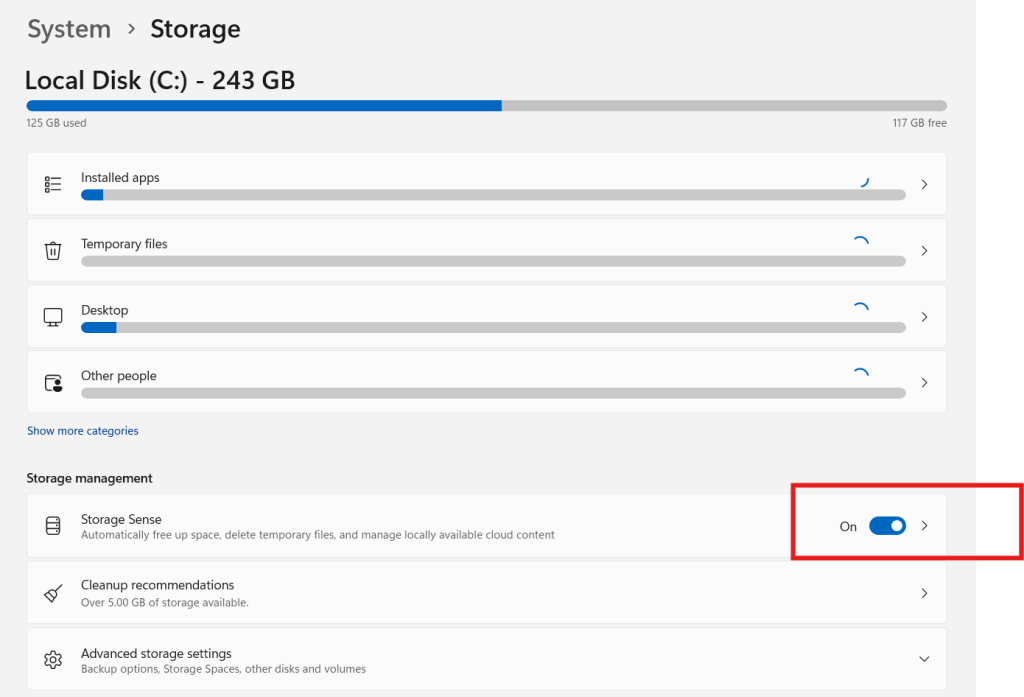
Using built-in tools regularly supports efforts to make old laptops fast again.
Free Storage Space to Improve Speed
Low disk space slows Windows dramatically.
Tips:
- Delete unused programs
- Remove large unused files
- Move data to external storage
At least 20% free space is recommended to make old laptops fast again.
Optimize Power Settings
Many laptops run in power-saving mode by default.
Change power plan:
- Open Power Options
- Select High Performance
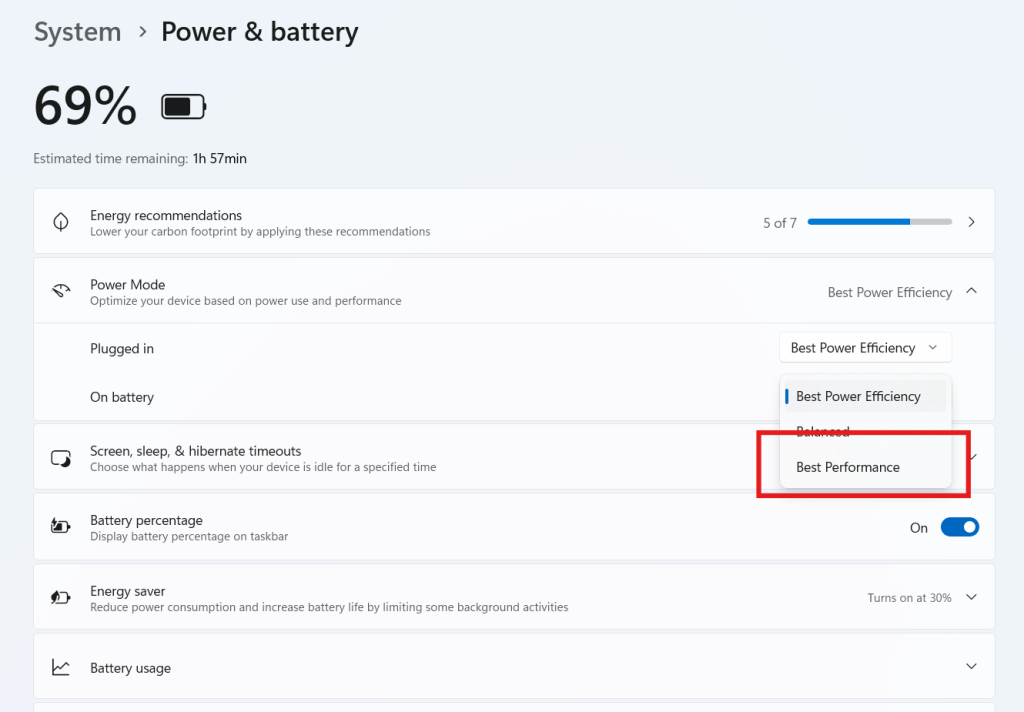
This allows the system to use full CPU power and helps make old laptops fast again.
Prevent Future Slowdowns
Once you make old laptops fast again, maintain performance by:
- Avoiding unnecessary software installs
- Running cleanup monthly
- Updating drivers regularly
- Monitoring startup apps
Maintenance keeps performance stable over time.
Internal Performance Guides
Internal link suggestion:
Free Alternatives of MS Office That Save Money and Work Smoothly
Internal link suggestion:
Sigverif Finds Unsigned Drivers in Windows and Prevents System Problems
External Optimization Resources
DoFollow external resources for trusted guidance:
These sources provide official Windows optimization documentation.
Final Thoughts
You do not need a new device to make old laptops fast again. Most slowdowns are caused by software issues that build up gradually. With a few smart adjustments and regular maintenance, even an old laptop can feel responsive and usable again.
Apply these simple tricks step by step, and you will notice smoother performance, faster boot times, and less frustration in daily use.
FAQs
Can I really make old laptops fast again without upgrading hardware
Yes. Software optimization alone fixes most performance problems.
How often should I clean temporary files
Once every month is enough for most users.
Will disabling startup apps break programs
No. Apps will still open normally when needed.
Does updating Windows slow old laptops
No. Updates usually improve performance and stability.
How long does it take to see improvement
Most users notice results immediately after applying these steps.
