Introduction
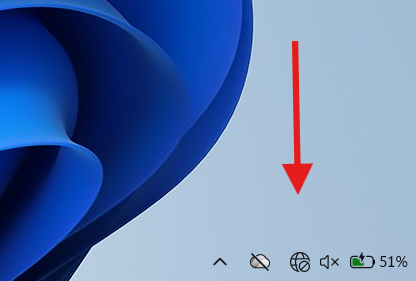
Laptop not detecting WiFi network Windows 10 is a common issue that can stop your work instantly. Your router may be working, other devices may connect normally, but your laptop simply refuses to show available wireless networks.
This problem usually happens due to driver issues, disabled WiFi adapters, incorrect network settings, Windows updates, or hardware faults. The good news is that most cases of laptop not detecting WiFi network Windows 10 can be resolved without replacing hardware.
In this complete troubleshooting guide, you will learn safe, practical methods to restore your WiFi connection step by step.
Table of Contents
Why Laptop Not Detecting WiFi Network Windows 10 Happens
If your laptop is not detecting WiFi network Windows 10, the cause is usually one of the following:
- Disabled wireless adapter
- Corrupted or outdated WiFi driver
- Network services stopped
- Windows update conflict
- Router frequency mismatch
- Hardware malfunction
Understanding the cause helps you apply the correct fix instead of guessing.
Quick Checks Before Advanced Fixes
Before deep troubleshooting, try these:
- Restart your laptop
- Restart your router
- Move closer to router
- Check if WiFi works on other devices
- Turn WiFi off and on
Sometimes, simple steps solve the issue immediately.
Enable WiFi Adapter
Many times, laptop not detecting WiFi network Windows 10 happens because the adapter is disabled.
Steps:
- Press Windows + R
- Type
ncpa.cpl - Press Enter
- Check if WiFi adapter is disabled
- Right-click → Enable
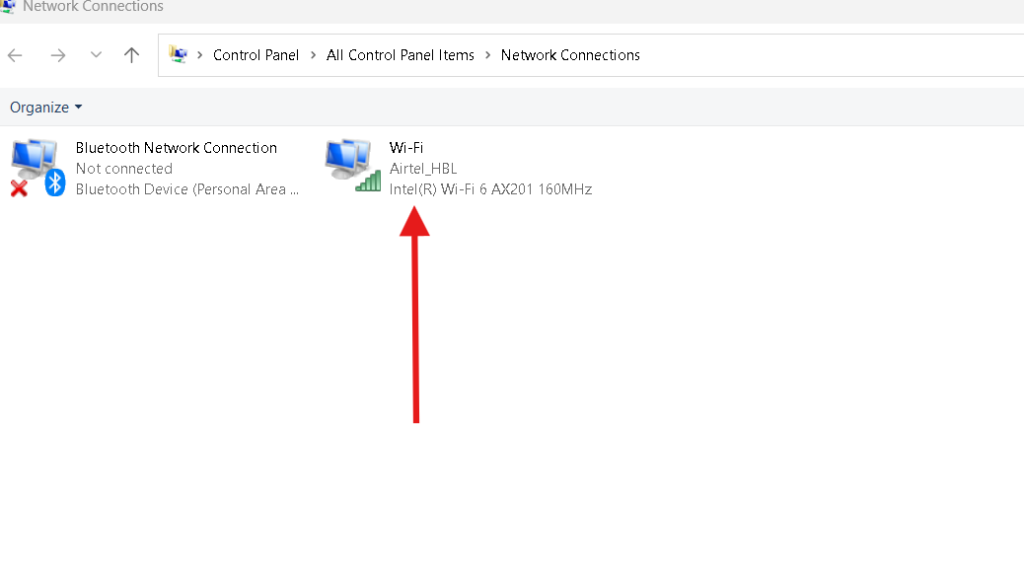
If the adapter was disabled, this restores connectivity instantly.
Update or Reinstall WiFi Driver
Driver corruption is a major reason for laptop not detecting WiFi network Windows 10.
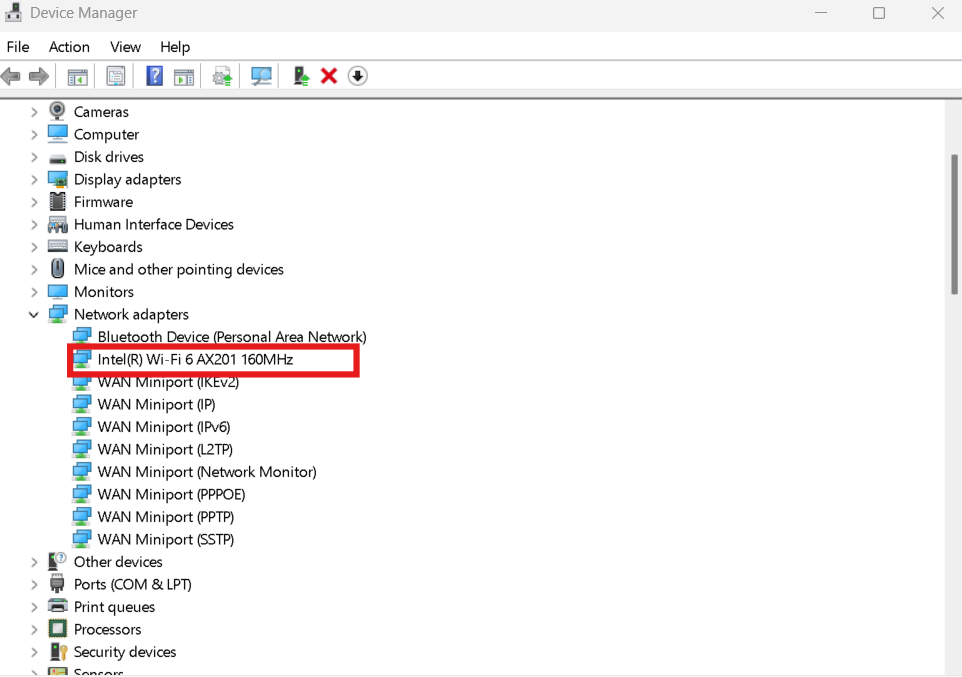
Update Driver:
- Press Windows + X
- Open Device Manager
- Expand Network Adapters
- Right-click WiFi adapter
- Click Update Driver
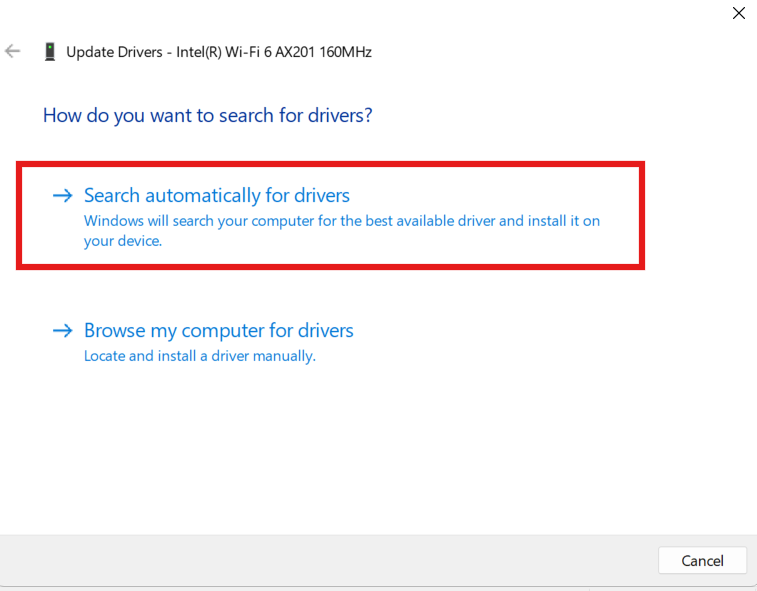
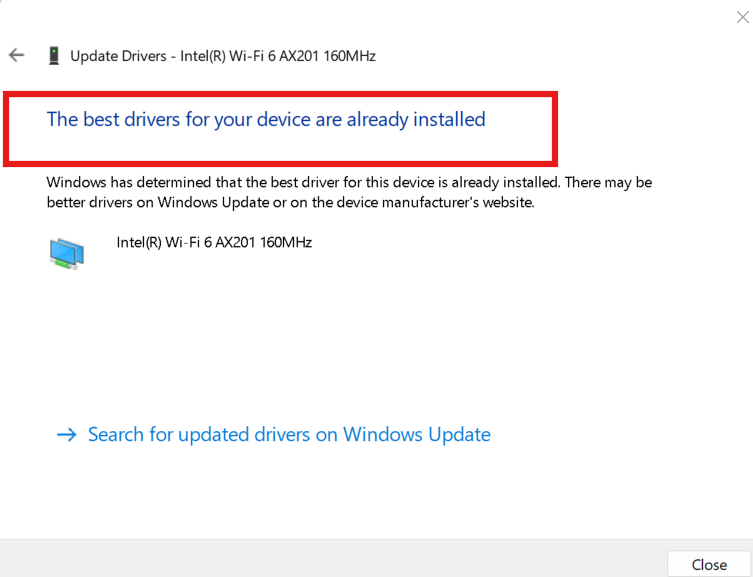
If updating does not work:
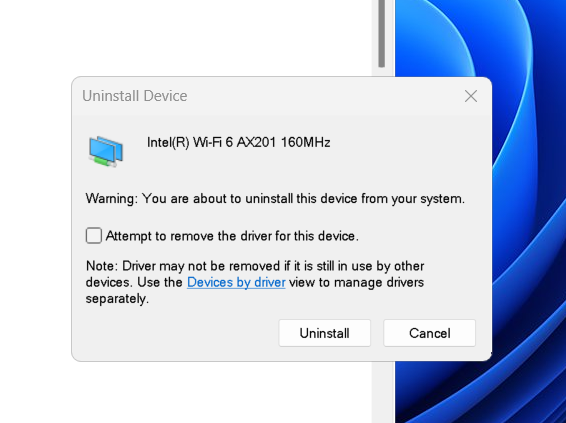
Reinstall Driver:
- Right-click adapter
- Select Uninstall
- Restart laptop
Windows will automatically reinstall the driver.
Official driver support:
https://support.microsoft.com
Run Network Troubleshooter
Windows includes a built-in troubleshooter.
Steps:
- Settings
- Update & Security
- Troubleshoot
- Additional troubleshooters
- Internet Connections
This tool automatically detects common network errors.
Reset Network Settings
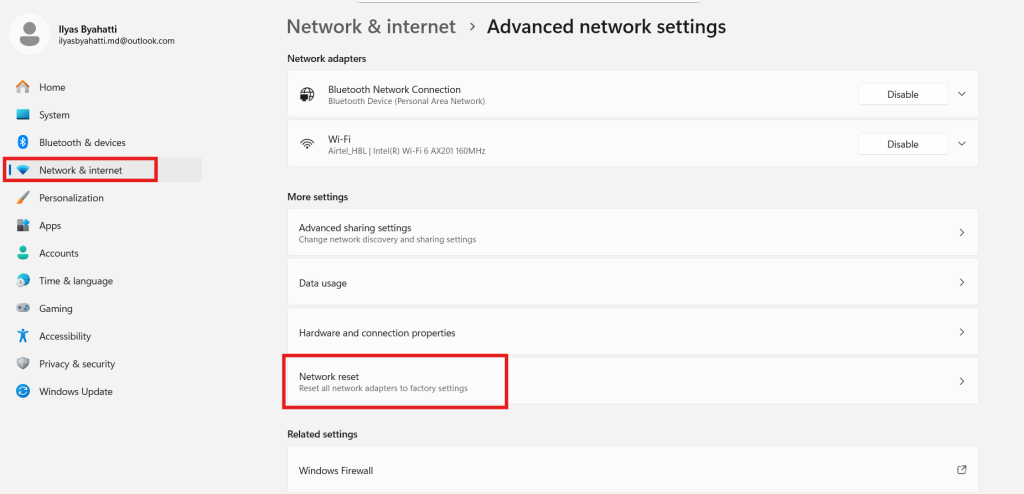
If the issue persists, reset network completely.
Method:
Settings → Network & Internet → Status → Network Reset
Restart PC.
Network reset reinstalls adapters and restores default configuration.
Check WLAN AutoConfig Service
If WiFi networks are not appearing, this service may be stopped.
Steps:
- Press Windows + R
- Type
services.msc - Find WLAN AutoConfig
- Ensure Startup Type is Automatic
- Click Start if stopped
This service manages wireless network detection.
Disable Airplane Mode
Sometimes airplane mode is enabled accidentally.
- Press Windows + A
- Check if Airplane Mode is on
- Turn it off
Also verify WiFi toggle is enabled.
BIOS and Hardware Check
If laptop not detecting WiFi network Windows 10 continues after all fixes:
- Enter BIOS
- Check if Wireless is enabled
- Verify WiFi card is detected
If WiFi does not appear even in BIOS, hardware issue may exist.
When to Replace WiFi Card
Consider hardware replacement if:
- WiFi adapter not visible in Device Manager
- No driver installs successfully
- BIOS does not detect wireless device
USB WiFi adapters are affordable and easy alternatives.
Prevent Future WiFi Problems
To avoid laptop not detecting WiFi network Windows 10 in future:
- Keep drivers updated
- Avoid forced shutdown
- Maintain Windows updates
- Use official drivers
- Restart router weekly
Preventive maintenance ensures stable connectivity.
You Check These Guides Too
How Do I Increase Virtual Memory in Windows PC Without Causing Problems
DNS Server Not Responding on Windows PC Can Be Fixed Quickly
21 Ultimate Guide to Fix Windows PC Problems
Windows 11 Black Screen After Update – Step-by-Step Fix That Works
Microsoft Resources
These sources provide official Windows network troubleshooting steps.
Final Thoughts
If your laptop not detecting WiFi network Windows 10, do not panic. In most cases, the problem is software-related and can be fixed within minutes.
Start with basic checks. Move to driver repair and network reset. Only consider hardware replacement as a last option.
Following this structured troubleshooting process will restore your WiFi safely and effectively.
FAQs
Why is my laptop not detecting WiFi network Windows 10?
Usually due to disabled adapter, outdated driver, or stopped WLAN service.
Can Windows update cause WiFi issues?
Yes, sometimes updates conflict with older drivers.
Is network reset safe?
Yes. It restores default settings without deleting personal files.
How do I know if my WiFi card is damaged?
If it does not appear in Device Manager or BIOS.
Should I reinstall Windows to fix WiFi?
Only if all other solutions fail.
