Introduction
If you’re trying to fix PC program files or disk issue, you’re doing the right thing. Disk errors are some of the most common problems Windows users face. These errors can slow your computer, cause apps to crash, trigger blue screens, and even damage important files. Fortunately, Windows includes a built-in tool called CHKDSK that checks your disk for errors and repairs them automatically.
This guide expands your step-by-step script into a complete, beginner-friendly tutorial that explains why the issue happens, what the fixes do, and how to run the CHKDSK command safely. Whether you’re a student, working professional, or gamer, this process will help you fix PC program files or disk issue efficiently.
Table of Contents
What Causes Disk Errors in Windows?
Before you run repairs, it helps to understand why disk issues happen. Some of the most common reasons include:
- Improper shutdowns
- Power cuts or forced restarts
- Bad sectors forming on the disk
- Malware or corrupted apps
- Old hard drives with mechanical wear
- Damaged program files
- Full storage or constant read/write pressure
If left unchecked, these can slow down performance and affect programs. That’s why learning how to fix PC program files or disk issue is important for long-term system health.
How to Fix PC Program Files or Disk Issue (Step-by-Step Guide)
Your script is simple and powerful. Below is the detailed article version.
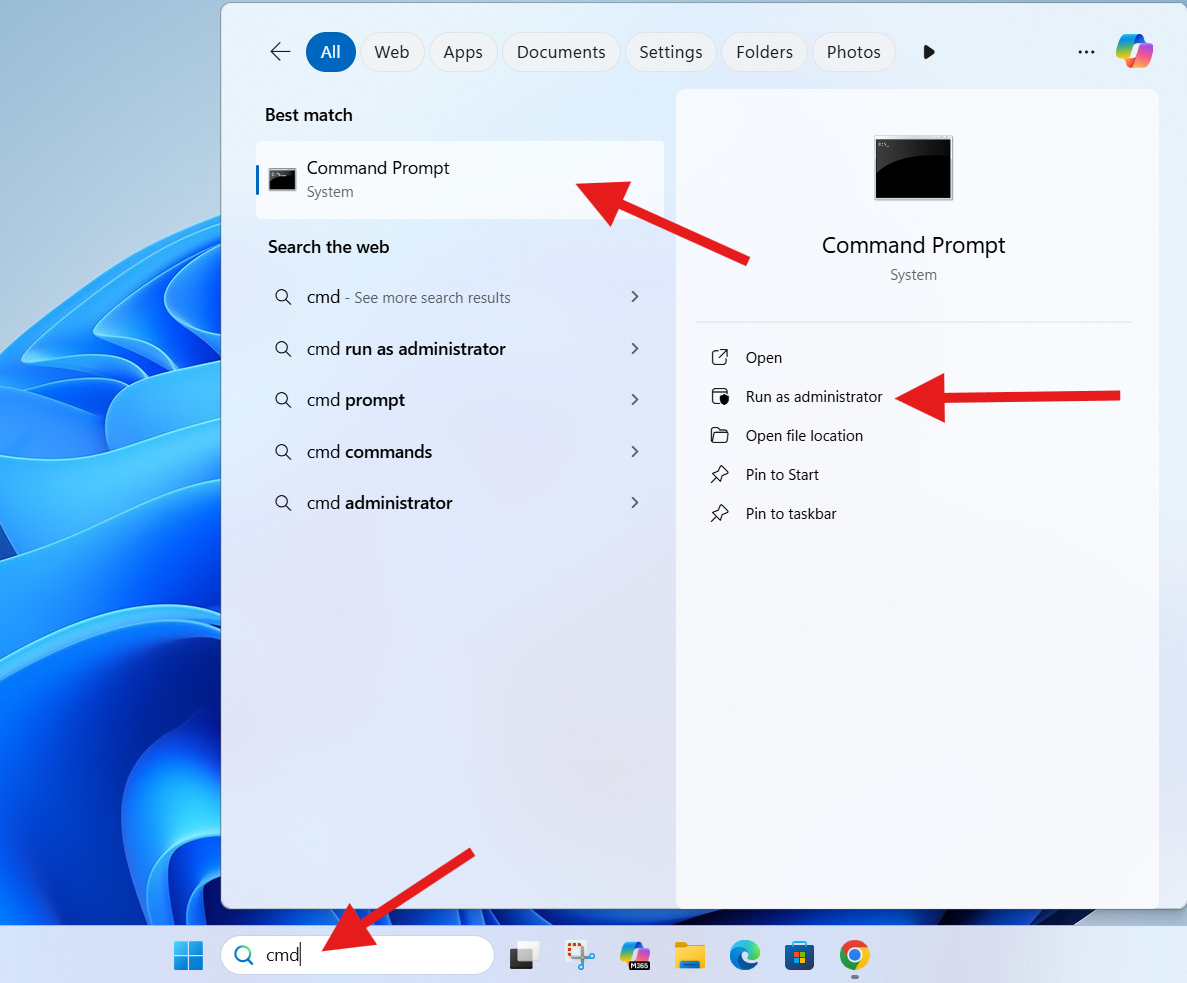
Step 1: Press the Windows Button and Type “CMD”
- Click the Start button
- Type CMD in the search bar
- Right-click on Command Prompt
- Select Run as administrator
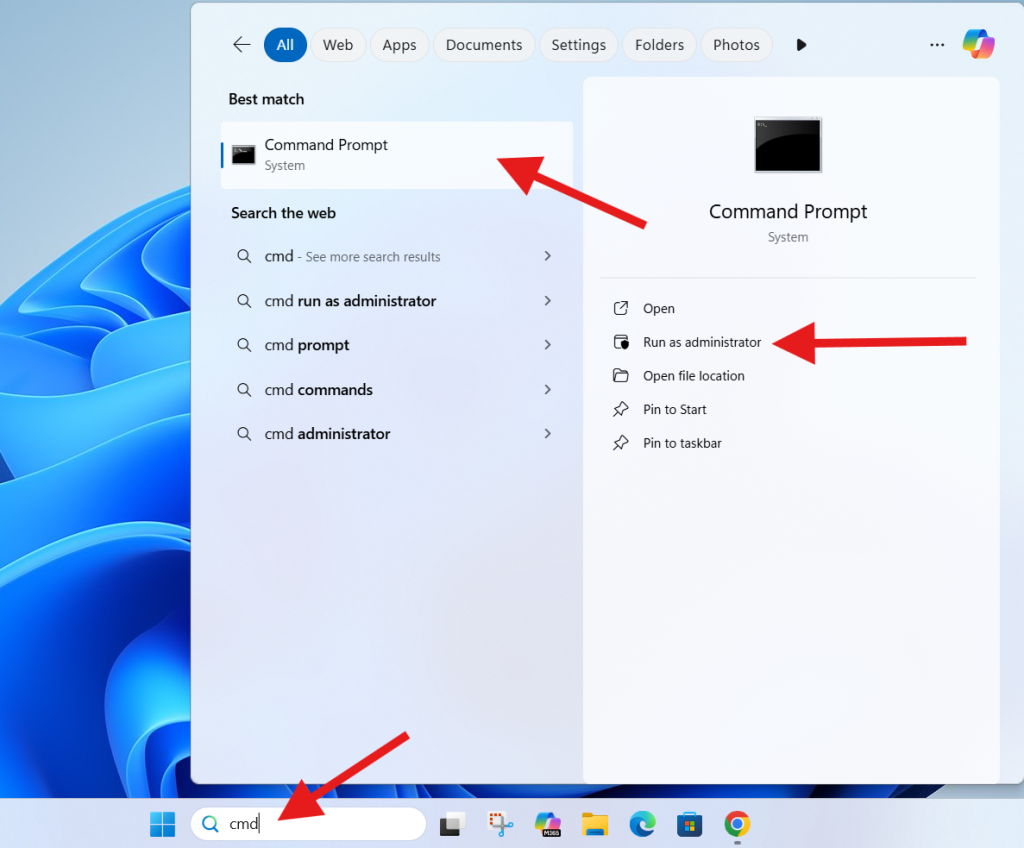
Running CMD as admin is important because CHKDSK needs elevated permission to scan and repair system files.
Step 2: Type the CHKDSK Repair Command
Inside Command Prompt, type the following command:
chkdsk /f /r
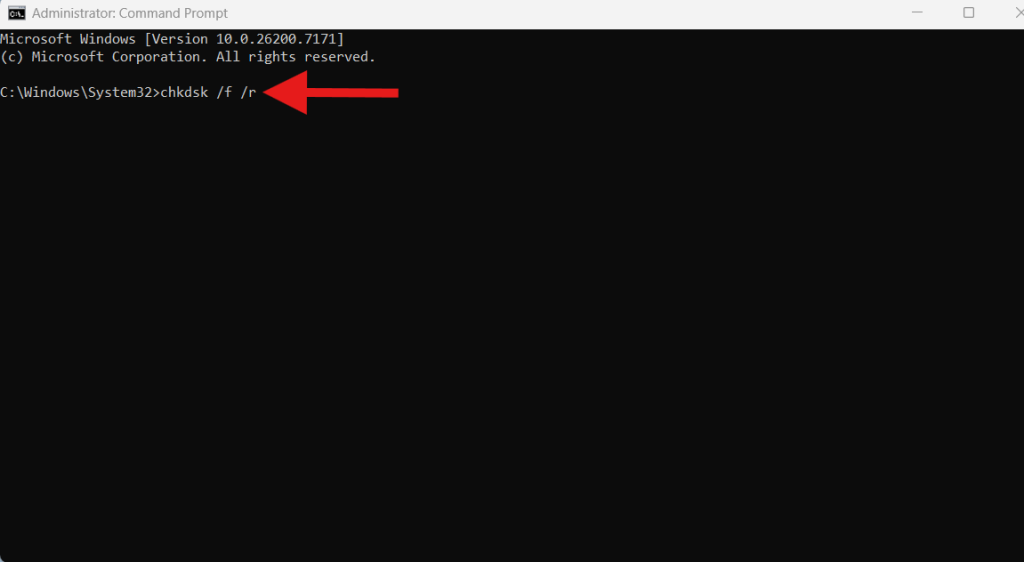
Then press Enter.
This command is the core of this guide and will help fix PC program files or disk issue automatically.
Here’s what the parameters mean:
- /f → fixes errors detected on the disk
- /r → locates bad sectors and recovers readable data
This makes it a powerful solution for slow PCs, corrupted files, and startup errors.
Step 3: Press Y to Confirm the Scan
Since the C drive is in use while your PC is running, CHKDSK cannot repair system files immediately.
Windows will show this message:
Would you like to schedule this volume to be checked the next time the system restarts? (Y/N)
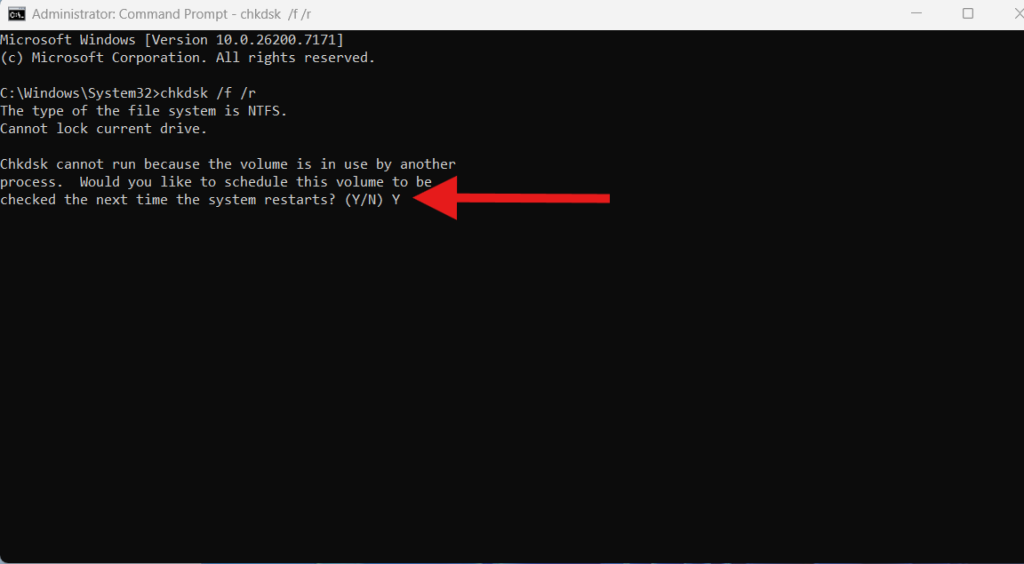
Press Y and hit Enter.
This schedules the scan for the next reboot.
Step 4: Restart the PC
- Close all apps
- Restart your computer
On reboot, Windows will begin scanning and repairing your disk.
The process includes:
- Checking file system integrity
- Repairing errors
- Recovering broken data
- Fixing bad sectors
- Optimizing the disk
This is the simplest and safest way to fix PC program files or disk issue on any Windows PC.
What CHKDSK /f /r Actually Does
Understanding the command gives your article depth and better search value.
CHKDSK /f
Fixes logical file system errors such as:
- File corruption
- Folder path errors
- Broken program files
- Indexing errors
CHKDSK /r
Locates bad physical sectors on the disk and attempts to recover data.
This is crucial for older HDDs that develop bad sectors over time.
Microsoft’s official documentation explains CHKDSK here (DoFollow):
https://learn.microsoft.com/en-us/windows-server/administration/windows-commands/chkdsk
This link builds authority for your article.
Signs You Have Disk Errors
You likely need to fix PC program files or disk issue if you notice:
- Slow loading times
- Frequent app crashes
- Blue screen errors
- Corrupted program data
- Missing files
- Clicking noises (HDD only)
- Windows freezing or restarting randomly
- Programs taking too long to open
Running CHKDSK can repair many of these before they become serious problems.
Extra Tips to Avoid Disk Issues in the Future
1. Avoid hard shutdowns
Always shut down the PC properly.
2. Keep your storage below 80% full
Windows performs better with free space.
3. Use SSD if possible
SSDs are faster and more reliable than HDDs.
4. Scan for malware
Virus infections corrupt program files easily.
5. Run CHKDSK once every few months
Regular maintenance prevents major problems.
6. Back up important files
A disk failure could cause permanent data loss.
FAQs About How to Fix PC Program Files or Disk Issue
Is the CHKDSK command safe to use?
Yes. It is a built-in Windows tool designed to detect and repair disk issues safely.
How long does CHKDSK take?
It can take from 5 minutes to several hours depending on disk size and number of errors.
Should I use CHKDSK on SSDs?
Yes — it checks the file system but does not harm SSD hardware.
What happens if I interrupt CHKDSK?
It may cause more corruption. Always let the scan finish.
My PC is still slow after running CHKDSK. What now?
You might need cleanup steps. Try my internal guide on improving performance.
➡ /fix-slow-windows-pc
Does CHKDSK delete files?
It does not delete files intentionally, but corrupted data may be repaired or moved.
Facing overheating issues? Learn how to fix laptop overheating → /fix-laptop-overheating
