Introduction
If you’re trying to fix laptop overheating, you’re not alone. Overheating is one of the most common problems students, professionals, and gamers face. A hot laptop slows down performance, reduces battery life, crashes apps, and in some cases, shuts down suddenly to prevent internal damage.
The good news is that you can fix laptop overheating with a few simple, safe, and effective steps. In this guide, you’ll learn exactly what to do, why it works, and how to prevent overheating permanently.
Table of Contents
Why Laptops Overheat
Laptops overheat when heat builds up faster than the cooling system can remove it. This usually happens because of:
- Dust blocking the vents
- High CPU or GPU usage
- Using the laptop on a soft surface
- Failing fans
- Dried thermal paste
- Poor airflow design
Ignoring overheating can damage your motherboard, SSD, battery, and internal circuits. That is why learning how to fix laptop overheating early can save you both money and frustration.
3. Put laptop on a flat, hard surface. Elevate rear slightly or use a passive stand. Avoid beds and cushions.
4. Power off and unplug the laptop. Use compressed air and short bursts through intake and exhaust vents. Do not spin the fan with air for long. How-to guides recommend short bursts to dislodge dust safely.
5. Reboot and monitor temps with a simple tool (HWMonitor or Core Temp). If temps remain high, switch power plan to Balanced or Power Saver.
If the laptop is old and thermal paste is dried or fans are failing, schedule professional servicing.
Step-By-Step Guide to Fix Laptop Overheating
This guide uses simple steps anyone can follow. No advanced skills required.
1. Press Ctrl + Shift + Esc to Check CPU and GPU Usage
- Press Ctrl + Shift + Esc
- Task Manager will open instantly
- Go to the Performance tab
- Look at CPU and GPU usage
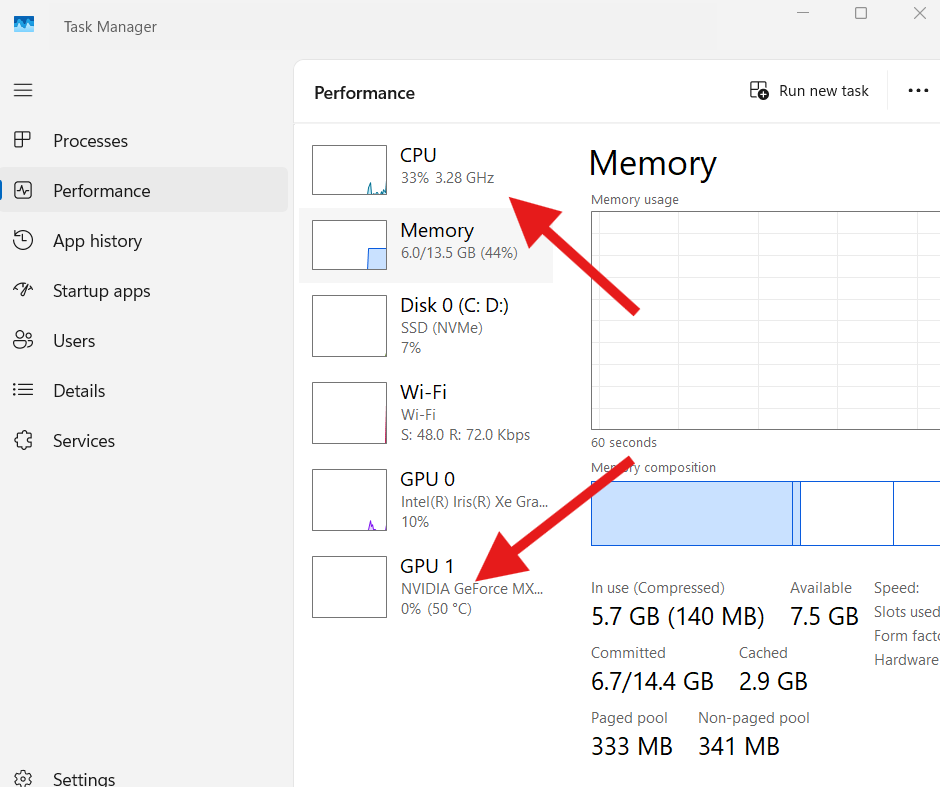
If usage is too high (80–100%), your laptop heats up rapidly.
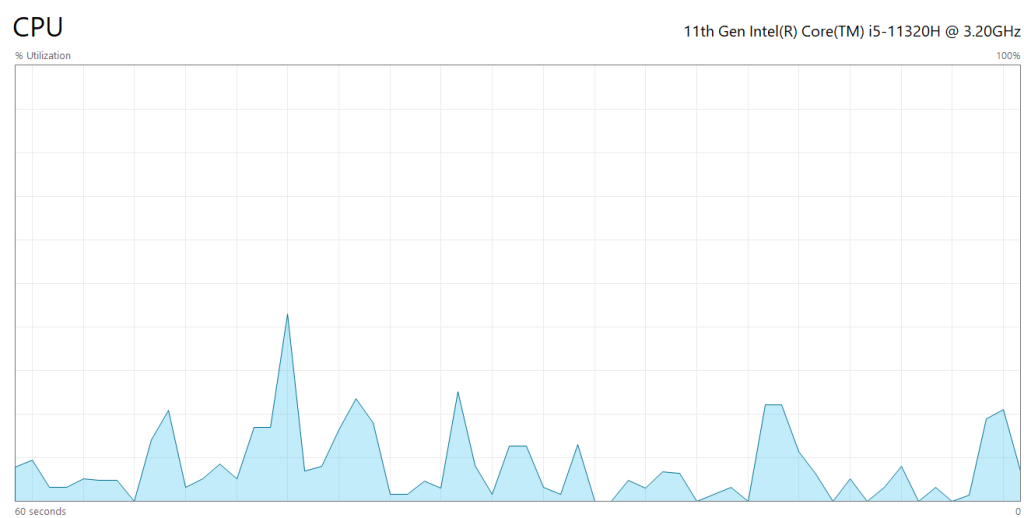
High usage usually happens because of:
- Browser tabs with heavy websites
- Video editing or gaming apps
- Background updates
- Hidden apps running in the background
- Malware or viruses
Monitoring these numbers is the first step to fix laptop overheating because it helps you identify what’s causing the heat.
2. Close Heavy Apps
Once you identify heavy apps:
- Go to the Processes tab
- Sort by CPU or GPU
- Select the heavy app
- Click End Task
Be careful not to close system apps like:
Windows processes, system interrupts, service hosts.
Closing unnecessary apps instantly reduces the load and helps fix laptop overheating quickly.
3. Improve Airflow (Simple but Highly Effective)
Poor airflow is one of the biggest reasons laptops get hot.
Follow these simple rules:
- Use your laptop on a flat, hard surface
- Never use it on beds, pillows, blankets, or laps
- Elevate the rear slightly using a laptop stand
- Keep the room cool whenever possible
- Consider a cooling pad with fans for long sessions
This alone can reduce temperatures by 5–15°C depending on your laptop model.
4. Clean Vents With Compressed Air (Safe Method)
Dust buildup inside the vents blocks airflow. This is the most common reason for overheating.
Here’s the safe way to clean your vents:
- Power off the laptop
- Disconnect the charger
- Use a can of compressed air
- Spray in short bursts into intake and exhaust vents
- Do NOT spin the fan aggressively — this can damage the bearings
- Repeat until dust stops coming out
Short bursts prevent fan damage and are recommended by multiple laptop maintenance guides, including this one:
Cleaning vents is the most effective way to fix laptop overheating without opening the laptop.
5. Reboot and Monitor Temperatures
After cleaning and closing apps:
- Restart your laptop
- Install a temperature monitoring tool such as:
- HWMonitor (DoFollow: https://www.cpuid.com/softwares/hwmonitor.html)
- Core Temp (DoFollow: https://www.alcpu.com/CoreTemp/)
- Check whether temperatures remain high
- If idle temperatures are above 70°C, you likely have deeper issues
- Switch to Balanced or Power Saver mode to reduce heat generation
Elevated temps after cleaning often mean aging hardware or failing thermal materials.
When You Should Seek Professional Help
You can do many things on your own, but some overheating issues need expert service.
Seek help if:
- Fans make grinding noises
- Laptop shuts down even when idle
- Temperatures stay above 85–90°C
- Laptop is more than 3–4 years old
- Thermal paste hasn’t been replaced in years
- You are not comfortable opening the laptop
Old laptops often need:
- New thermal paste
- Fan replacement
- Deep internal dust cleaning
- Cooling system maintenance
Proper servicing can dramatically fix laptop overheating if internal components are worn out.
How to Prevent Laptop Overheating in the Future
Once your laptop is working smoothly, follow these tips to avoid overheating again:
1. Clean your vents every 30–60 days
Dust accumulates fast, especially in humid or dusty environments.
2. Avoid keeping the laptop on fabric surfaces
Soft surfaces block airflow and trap heat.
3. Use a cooling pad for gaming and editing
Cooling pads reduce temperature during heavy workloads.
4. Keep your software updated
Outdated drivers can cause CPU spikes, increasing heat.
5. Don’t block side or bottom vents
Keep your laptop area clutter-free.
6. Limit background apps
Apps like Chrome, Discord, Steam, and OneDrive can use CPU in the background.
Following these small habits helps maintain performance and fix laptop overheating permanently.
FAQs About How to Fix Laptop Overheating
Can overheating damage the laptop permanently?
Yes. Extreme heat damages the motherboard, battery, SSD, and other internal components.
How do I know if my laptop is overheating?
Signs include: loud fans, slow performance, hot keyboard, thermal throttling, or sudden shutdown.
Is it safe to clean laptop vents with compressed air?
Yes, as long as you use short bursts and avoid spinning the fan aggressively.
What temperature is considered too high?
Anything above 85°C during normal tasks is a warning sign. Above 95°C is dangerous
Can overheating slow down my laptop?
Absolutely. When the laptop gets hot, the CPU and GPU reduce speed to cool down. This is called thermal throttling.
Should I replace thermal paste myself?
If you are experienced, yes. If not, let a technician do it to avoid damage.
You can this too
How to Free Up C Drive Space Quickly: A Simple and Effective Guide

Thanks