Introduction
If you’re trying to boost gaming performance on Windows, you’re not alone. Whether you play competitive shooters, open-world titles, or casual games, Windows PCs sometimes struggle to deliver smooth and consistent performance. The good news is that Windows includes built-in graphics optimization settings that many users don’t know about. Turning them on can instantly improve frame rates, reduce stuttering, and make your games feel far more responsive.
Table of Contents
Why Gaming Performance Drops on Windows PCs
PCs lose gaming performance over time for several reasons:
- Windows background processes
- Poor graphics optimization
- Outdated OS settings
- Running games in inefficient display modes
- Low priority assigned to GPU
- Not using hardware acceleration
- Inconsistent system configuration
Windows quietly added graphics optimization features that dramatically improve how games render, especially in windowed and borderless modes. Turning them on is one of the easiest ways to boost gaming performance on Windows instantly.
Step-By-Step Guide to Boost Gaming Performance on Windows
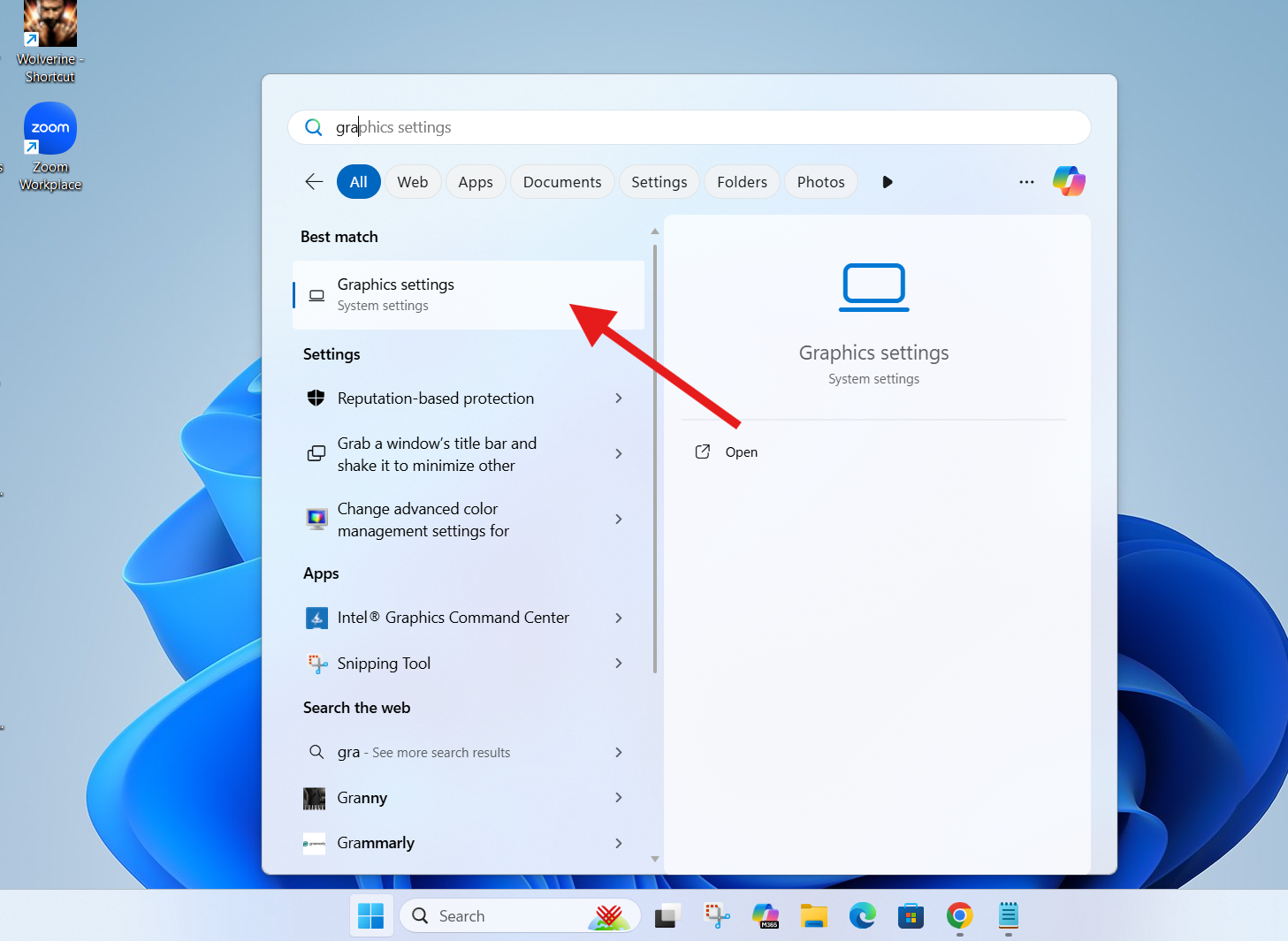
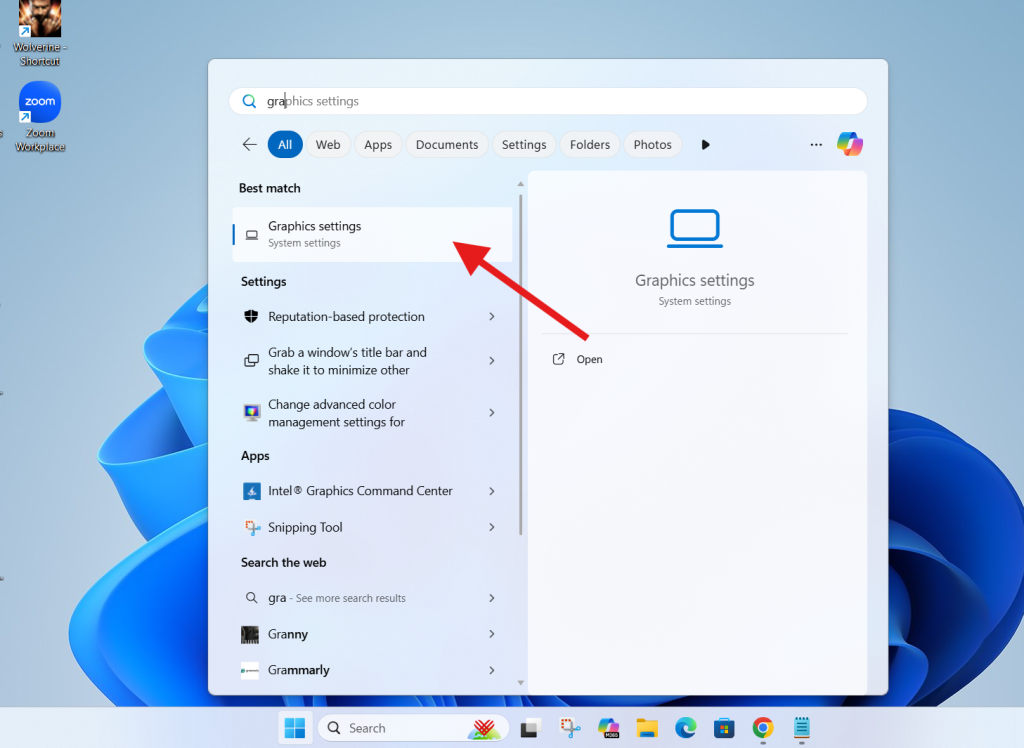
1. Type “Graphics Settings” in the Windows Search Bar
- Click the Search icon or press Windows + S
- Type Graphics Settings
3. Turn these toggle on
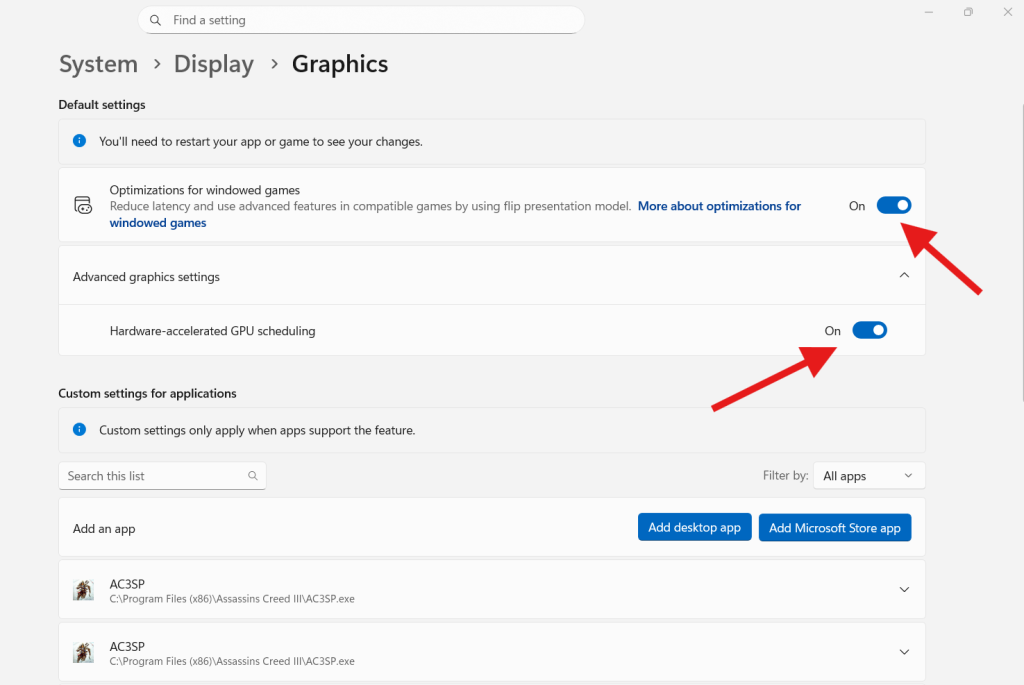
This is where Windows stores its gaming-related performance options.
Look at this optimization windowed games
2. Enable the Optimization for Windowed Games Feature
Once the Graphics Settings window opens, you’ll see a section called “Optimizations for windowed games.”
- Locate this section
- Turn ON the toggle switch
This feature optimizes how games render in windowed and borderless fullscreen modes using technologies like:
- Flip model presentation
- Variable Refresh Rate (VRR)
- Lower latency rendering
If you play games like Valorant, Fortnite, GTA V, Apex Legends, PUBG, or any title in windowed mode, this setting can smoothly boost gaming performance on Windows.
3. Click on Advanced Graphics Settings
Below the windowed optimization option, you’ll see another section called Advanced Graphics Settings.
- Click on Advanced Graphics Settings
- You will be taken to an extended menu with additional performance toggles
This section includes deeper GPU-related optimizations.
4. Enable the Second Performance Toggle
Inside Advanced Graphics Settings:
- Find the toggle labeled related to Hardware-accelerated GPU scheduling
- Turn ON the toggle
- Restart your PC if prompted
Hardware-accelerated GPU scheduling allows the GPU to manage its own memory instead of relying on the CPU. This reduces latency, smooths gameplay, and improves FPS in most modern games.
Microsoft officially confirms that GPU scheduling can improve performance depending on GPU and game design.
Enabling these two toggles together gives you the best chance to boost gaming performance on Windows without installing anything extra.
5. Test Your Game Performance
Now open your game and check:
- FPS (Frames Per Second)
- Smoothness
- Input latency
- Stuttering
- Loading times
You should instantly notice improvements, especially if you previously played games in windowed or borderless fullscreen mode.
If you’re a competitive gamer, this tweak creates a smoother, faster response experience.
Extra Tips to Boost Gaming Performance on Windows
These aren’t required for the main script, but adding them gives your article depth and SEO value.
1. Update your GPU drivers
NVIDIA, AMD, and Intel release optimizations for new games regularly.
- NVIDIA Drivers: https://www.nvidia.com/Download/index.aspx
- AMD Drivers: https://www.amd.com/en/support
- Intel Drivers: https://www.intel.com/content/www/us/en/download-center/home.html
2. Enable Game Mode
- Search Game Mode
- Turn it ON
This prioritizes game performance and reduces background tasks.
3. Reduce background apps
- Press Ctrl + Shift + Esc
- Check the Startup tab
- Disable unwanted startup apps
4. Update Windows
Windows updates often include performance improvements.
5. Use a cooling pad (for laptops)
High temperatures reduce FPS. Maintaining lower temps boosts game performance.
Common Mistakes to Avoid
- Turning on GPU scheduling on unsupported or very old GPUs
- Running heavy apps while gaming
- Using outdated graphics drivers
- Playing in windowed mode without enabling the optimization toggle
- Ignoring thermal issues
Fixing these mistakes can significantly boost gaming performance on Windows.
FAQs About How to Boost Gaming Performance on Windows
Does enabling windowed game optimization improve FPS?
Yes. It reduces latency and improves rendering efficiency in many games.
Is Hardware-accelerated GPU scheduling safe?
Yes. It is an official Windows feature that offloads work from the CPU.
Will these settings improve performance on low-end PCs?
Absolutely. Low-end and mid-range GPUs benefit the most.
Does this work for all games?
It works for most modern games and some older ones that use DirectX.
Do I need to restart after enabling GPU scheduling?
Yes, restarting ensures the change is applied properly.
Now You Check Out this too
How to Free Up C Drive Space Quickly: A Simple and Effective Guide

1 thought on “Boost Gaming Performance on Windows PC With This Simple Guide”