Introduction
Windows 11 security update issues are more common than most users realize. Many people see error messages, failed installations, endless “pending restart” notifications, or security patches that simply refuse to install. This is not just frustrating, it can also leave your system exposed to vulnerabilities, malware, and performance problems.
Microsoft releases Windows 11 security updates regularly to fix bugs, close security loopholes, and improve system stability. When these updates fail, it usually happens because optional updates, driver patches, or background services are incomplete.
In this guide, you will learn a safe, built-in, step-by-step method to complete a stuck or failed windows 11 security update using Windows Settings, exactly as outlined in your script, but expanded with expert explanations and best practices.
Table of Contents
Why Windows 11 Security Updates Fail
Before fixing a windows 11 security update, it helps to understand why it fails in the first place.
Common reasons include:
- Pending optional or driver updates
- Incomplete previous updates
- Background services not refreshed
- Restart not performed after updates
- Low disk space
- Corrupted update cache
Windows often queues security patches but cannot complete them until all dependent updates are installed.
Why Windows 11 Security Update Is Critical
A windows 11 security update is not just another system patch. It protects your PC from:
- Zero-day vulnerabilities
- Ransomware attacks
- Network exploits
- Browser and driver security flaws
- Data leaks
Microsoft strongly recommends keeping security updates current. You can verify this from official documentation (DoFollow):
https://learn.microsoft.com/en-us/windows/deployment/update/windows-update-security
Skipping security updates can leave even a fast PC vulnerable.
Windows 11 Security Update Fix (Step-By-Step Guide)
This section expands your script into a detailed, beginner-friendly walkthrough.
Step 1: Press Windows + I
- Press Windows + I
- The Settings window opens
This is the main control center for Windows 11 updates.
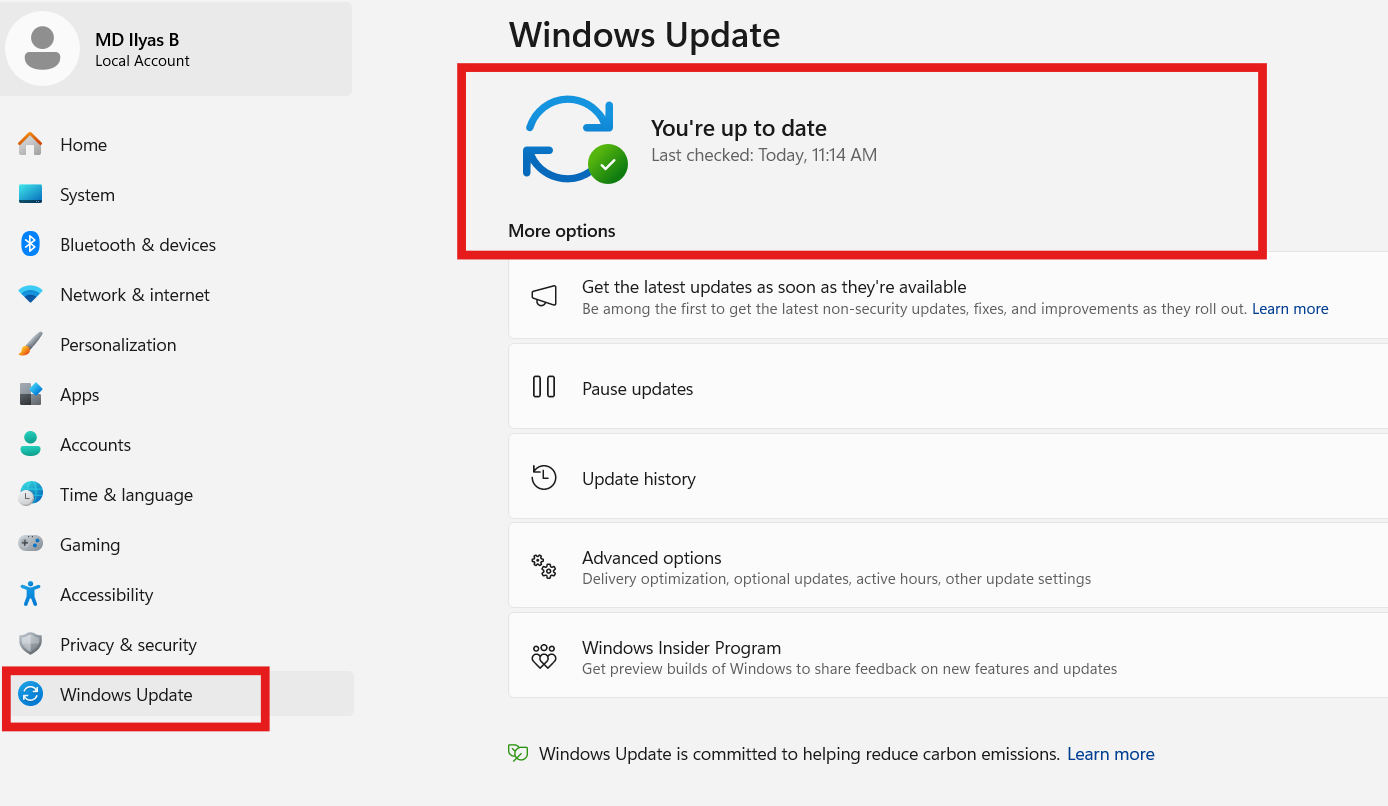
Step 2: Go to Windows Update
- In Settings, click Windows Update
- You will see update status, pending updates, or errors
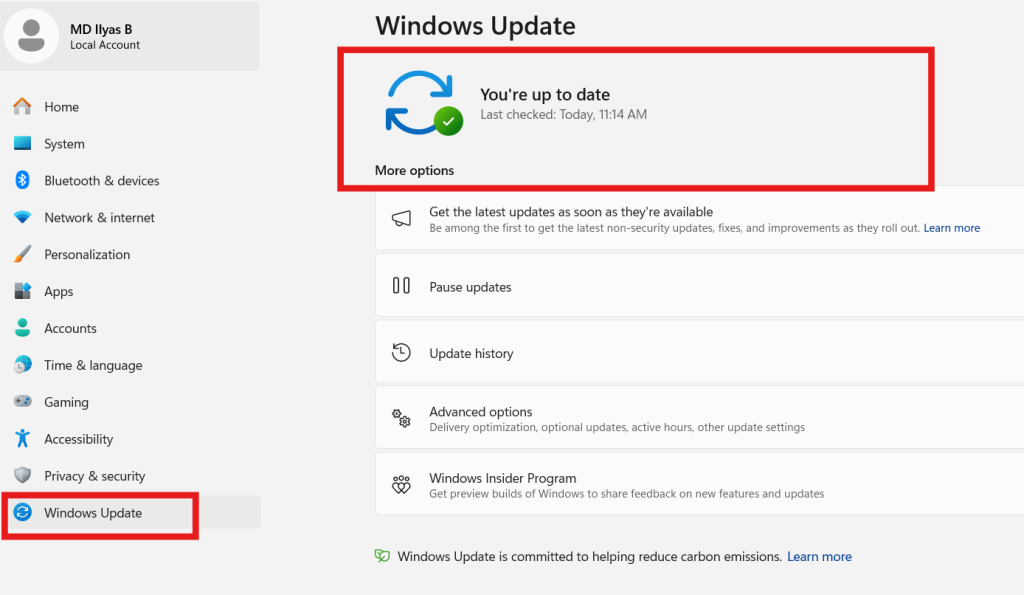
If your windows 11 security update is stuck, do not click retry yet.
Step 3: Click on Advanced Options
- Inside Windows Update
- Click Advanced options
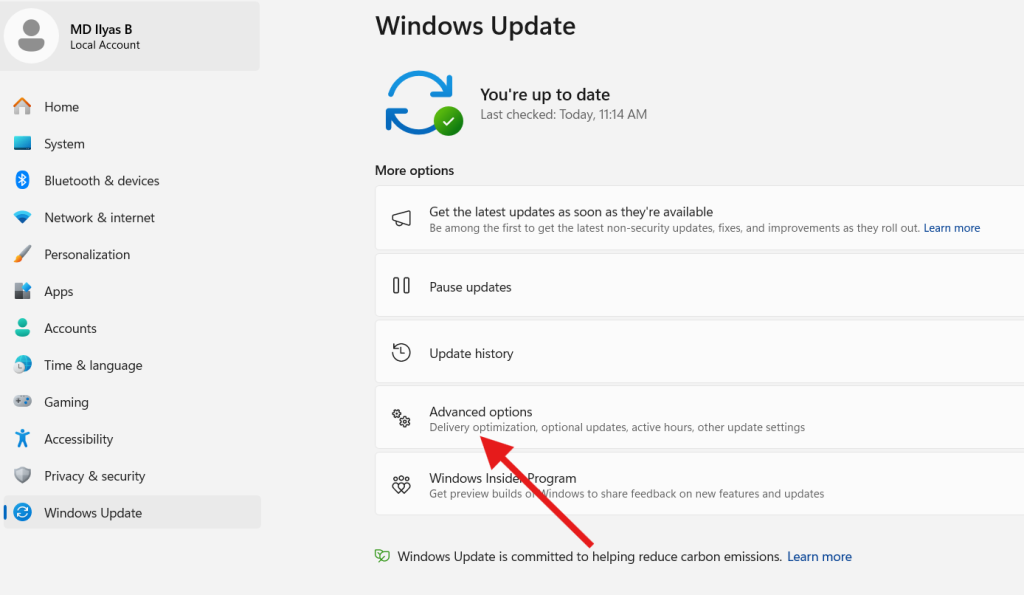
This section contains update dependencies that often block security patches.
Step 4: Choose Optional Updates
- Scroll down and click Optional updates
- Look for:
- Driver updates
- Preview updates
- Pending component updates
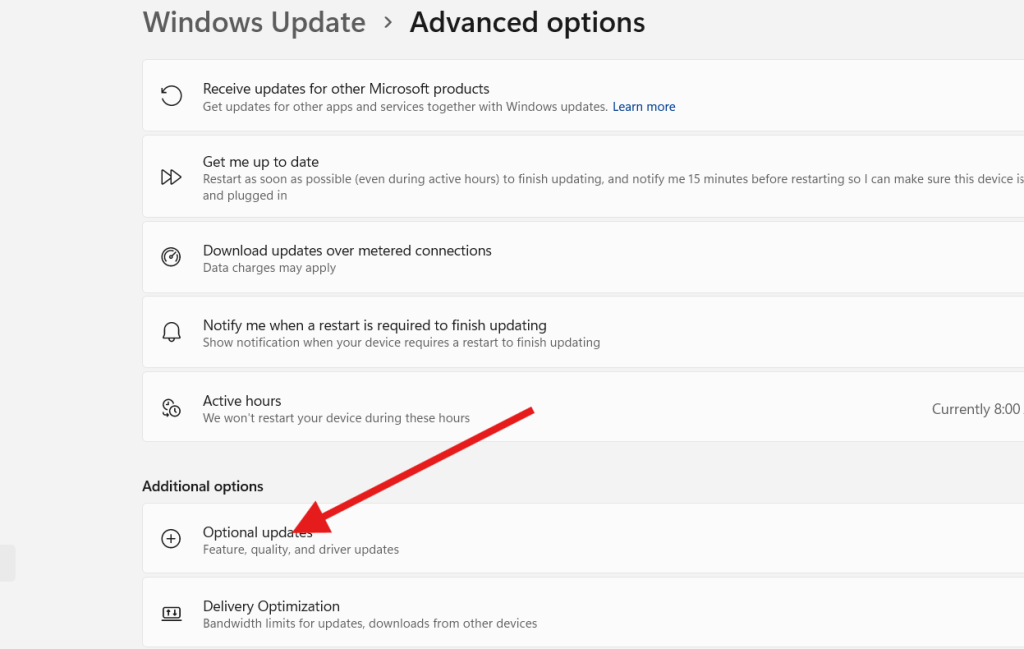
If any optional updates are available, select all and install them.
This step is crucial. Many windows 11 security update failures happen because optional updates are ignored.
Step 5: Complete Optional Updates
- Click Download & install
- Wait for the process to complete
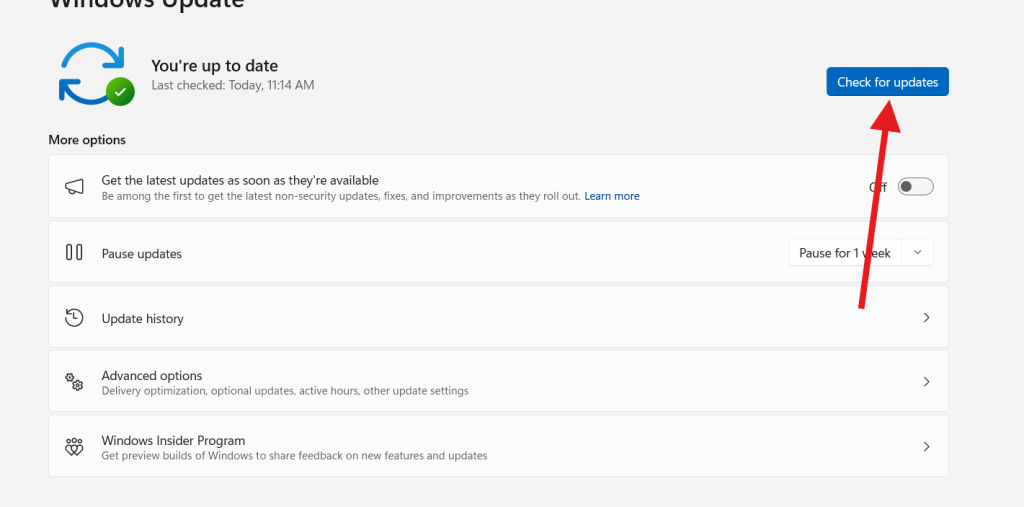
Do not shut down or force restart during this step.
Step 6: Return to Windows Update
After optional updates are installed:
- Go back to Windows Update
- You will now see the pending security update ready
This happens because Windows has cleared dependency conflicts.
Step 7: Click Restart to Complete the Update
- Click Restart
- Windows will apply the windows 11 security update
- Your PC may restart multiple times
Once complete, you will see the “You’re up to date” message.
🎉 Your windows 11 security update is now successfully installed.
What Happens After a Successful Windows 11 Security Update
After completing the update, Windows will:
- Patch known vulnerabilities
- Improve system stability
- Update Defender security definitions
- Fix kernel and system-level bugs
- Improve compatibility with apps and drivers
You may also notice better performance and fewer errors.
Common Mistakes Users Make
Avoid these mistakes when dealing with a windows 11 security update:
- Ignoring optional updates
- Skipping restarts
- Force shutting down during updates
- Running out of disk space
- Using third-party update blockers
These mistakes are the most common reasons updates fail repeatedly.
Best Practices to Avoid Future Windows 11 Security Update Issues
Follow these tips to keep updates smooth:
1. Restart regularly
Windows queues updates silently.
2. Keep at least 20 GB free on C drive
Low space blocks updates.
Internal link: /free-up-c-drive-space
3. Keep drivers updated
Driver conflicts delay patches.
4. Avoid cracked software
They often block Windows Update services.
5. Fix slow system issues
Performance problems affect updates.
Internal link: /fix-slow-windows-pc
Video Guide:
FAQs – Windows 11 Security Update
Why is my Windows 11 security update stuck?
Usually due to pending optional updates or a required restart.
Are optional updates safe?
Yes. They are Microsoft-verified and often required.
How long does a security update take?
Anywhere from 5 to 30 minutes depending on system speed.
Can I skip security updates?
Not recommended. It exposes your system to risks.
Do security updates affect files?
No. They do not delete personal data.
What if updates keep failing?
Run Windows Update Troubleshooter or reset update components.
You can this too
