Introduction
Reset administrator password is a situation many Windows users face at least once. Forgetting the administrator password can lock you out of your own PC, prevent software installation, block system changes, and stop you from accessing important files. This problem becomes more serious when there is no secondary admin account available.
Fortunately, you can reset administrator password safely using trusted recovery tools without reinstalling Windows or losing data. In this guide, you will learn how to reset administrator password on a Windows PC step by step using a multi-boot USB, Ventoy, and Hiren Boot ISO. This method is widely used by IT professionals and works reliably on most Windows systems.
Table of Contents
What Does Reset Administrator Password Mean
To reset administrator password means removing or changing the existing admin login password so you can regain full access to your Windows PC. This process does not delete files or reinstall Windows when done correctly.
Resetting the administrator password restores your ability to:
- Log in to Windows
- Install software
- Change system settings
- Manage other user accounts
Why Administrator Password Reset Is Needed
You may need to reset administrator password when:
- You forget the admin password
- A previous user locked the PC
- The admin account is disabled
- Password was changed accidentally
- You bought a second-hand PC
Without administrator access, Windows becomes very limited.
Common Reasons for Administrator Lockout
Administrator lockout usually happens due to:
- Long gaps between logins
- Complex passwords forgotten
- Password hints disabled
- No password recovery email
- Single admin account setup
In such cases, resetting administrator password is the only practical solution.
Tools Required to Reset Administrator Password
To reset administrator password using this method, you need:
- A working PC with internet access
- A USB pendrive (8 GB or larger)
- Ventoy software
- Hiren Boot ISO file
These tools are free and widely trusted in the Windows troubleshooting community.
Why Ventoy Is Used for Password Reset
Ventoy allows you to create a bootable USB that supports multiple ISO files without formatting repeatedly.
Ventoy helps reset administrator password because:
- Easy ISO copy and paste
- Supports Hiren Boot ISO
- Works on both legacy and UEFI systems
- Saves time and effort
Once installed, Ventoy turns your USB into a recovery toolkit.
What Is Hiren Boot ISO
Hiren Boot ISO is a powerful recovery environment that includes tools for:
- Password reset
- Disk repair
- Data recovery
- Malware removal
- System diagnostics
The Windows Login Unlocker tool inside Hiren Boot ISO is specifically designed to reset administrator password.
Step-by-Step Guide to Reset Administrator Password
This is the exact process you shared, explained clearly and safely.
Step 1: Download Ventoy
Go to Google and type Ventoy download.
Open the official Ventoy website and download the latest version.
Step 2: Install Ventoy on Pendrive
Extract the downloaded Ventoy file.
Connect your USB pendrive to the PC.
Run Ventoy installer and select your USB drive.
Click Install and confirm.
Your pendrive is now Ventoy-ready.
Step 3: Download Hiren Boot ISO
Go to Google and type Hiren Boot ISO.
Click the first official link and download the ISO file.
Step 4: Copy ISO to Ventoy Pendrive
Open the Ventoy-installed pendrive.
Copy the Hiren Boot ISO file.
Paste it directly into the USB drive.
No additional setup is required.
Booting Hiren Boot ISO Using Ventoy
To proceed with reset administrator password:
Step 5: Restart the Locked PC
Insert the Ventoy pendrive into the locked PC.
Restart the system.
Step 6: Open Boot Menu
Press F12 (or your system’s boot key).
Step 7: Select USB Device
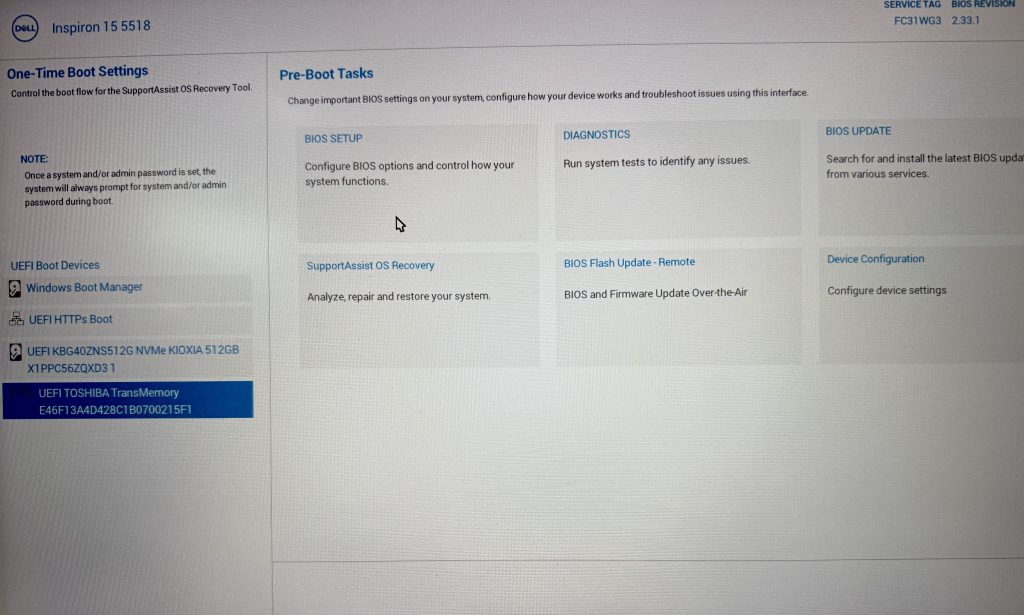
Choose the Ventoy USB from the boot menu.
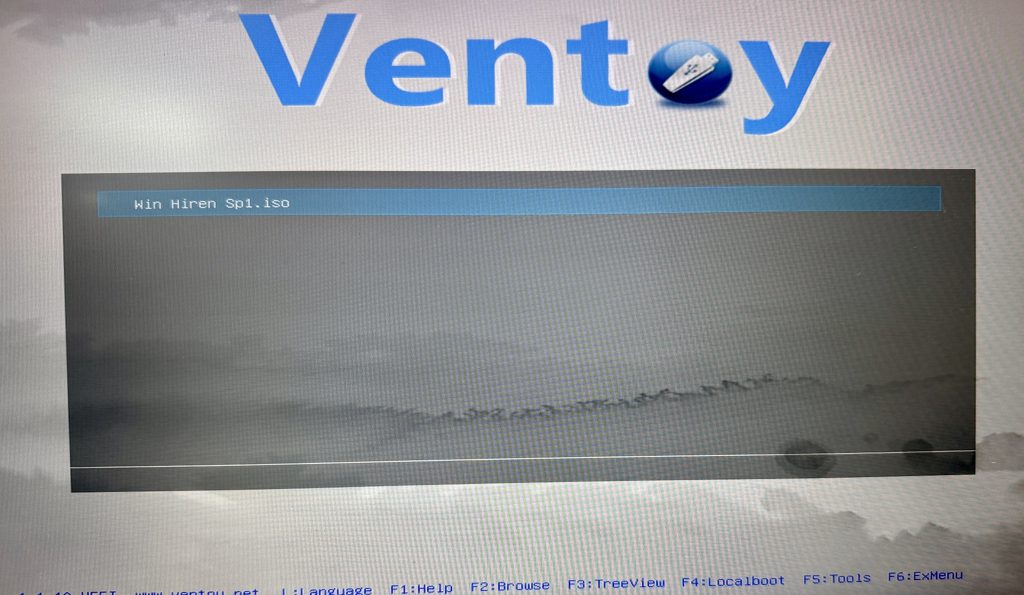
Step 8: Load Hiren Boot ISO
Ventoy menu appears.
Select Hiren Boot ISO and press Enter.
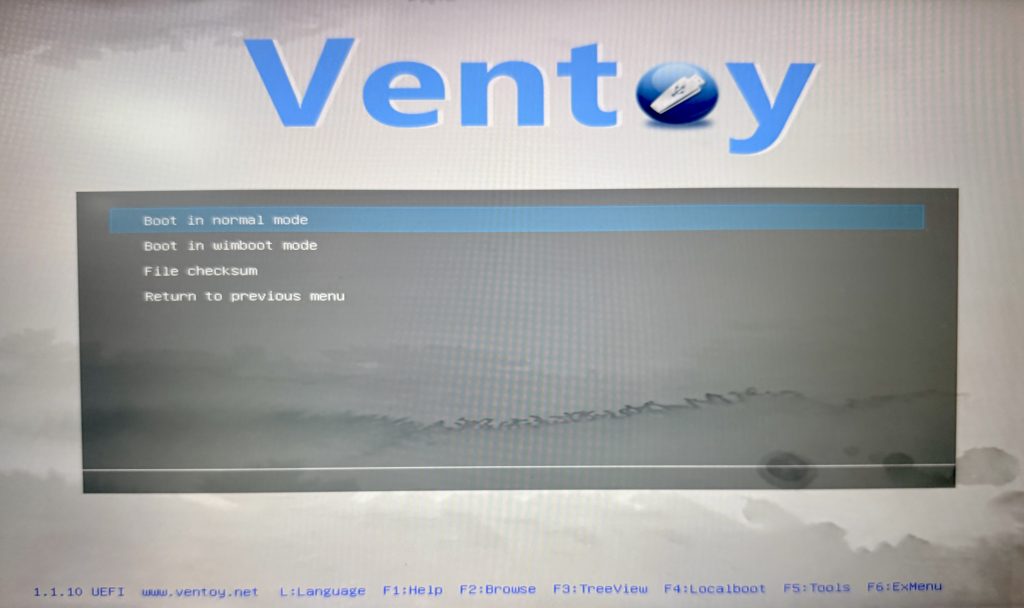
Hiren Boot environment will load.
Resetting Administrator Password Using Windows Login Unlocker
Once Hiren Boot loads:
Step 9: Open Windows Login Unlocker
Click Start Menu
Go to All Programs
Select Security
Click Passwords
Open Windows Login Unlocker
Step 10: Reset Administrator Password
Right-click on the Administrator account
Select Reset Password
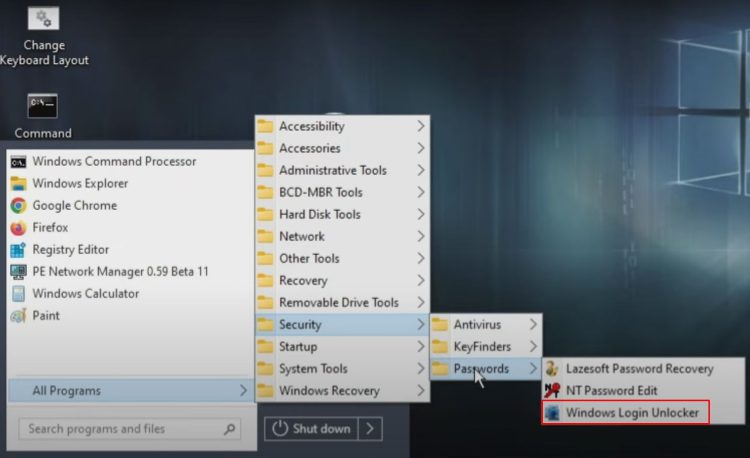
That’s it. The administrator password is now reset.
What Happens After You Reset Administrator Password
After resetting:
- Restart the PC normally
- Remove the USB pendrive
- Log in to Windows without password
- Set a new password from settings
You regain full administrator access without data loss.
Safety and Legal Considerations
Reset administrator password should be done only on:
- Your own PC
- Authorized systems
- Machines you have permission to access
Using this method on unauthorized systems may be illegal. Always follow ethical and legal guidelines.
Internal Windows Recovery Guides
Password reset often goes hand in hand with system recovery.
Internal link suggestion:
Read How to Create a Multi Boot Pendrive
Internal link suggestion:
Check Windows Recovery Options Explained
External Resources for Password Recovery
DoFollow external resources for reference:
These sources provide official documentation and trusted recovery information.
Final Thoughts
Knowing how to reset administrator password on a Windows PC is an essential skill for users and technicians alike. With Ventoy and Hiren Boot ISO, the process becomes straightforward, safe, and effective.
Instead of reinstalling Windows or losing data, this method restores access within minutes. Once you create this recovery USB, keep it safe. It can save you or others from serious lockout situations in the future.
FAQs
Can I reset administrator password without reinstalling Windows
Yes. This method resets the password without affecting files or apps.
Is Ventoy safe to use
Yes. Ventoy is open-source and widely trusted.
Does Hiren Boot ISO work on Windows 10 and 11
Yes. It supports most modern Windows versions.
Will this delete my data
No. Reset administrator password does not remove personal files.
Can I set a new password after reset
Yes. You can create a new password once you log in.
You check this too
Increase File Transfer Speed on Windows 11 PC With This Simple Guide
