Introduction
PC memory checker tools are one of the most overlooked yet powerful ways to understand how your computer actually performs. If your PC feels slow during gaming, video editing, or heavy multitasking, the problem is often not the processor or graphics card. It is usually the RAM.
Many users upgrade hardware blindly without first checking memory performance. A proper PC memory checker helps you verify RAM speed, detect bottlenecks, and decide whether an upgrade is needed. This guide explains everything in a simple, practical way using built-in Windows tools. No third-party software required.
Table of Contents
What Is a PC Memory Checker
A PC memory checker is a tool or command that measures how fast your system reads and writes data from RAM. It shows memory bandwidth, latency, and overall performance.
Unlike storage speed tests, a PC memory checker focuses only on RAM, which directly affects:
- Game loading times
- Frame stability
- Application switching
- Video editing performance
- Browser multitasking
Why RAM Speed Matters for Gaming and Multitasking
Modern games and applications rely heavily on memory speed. Even with a powerful CPU, slow RAM can create lag, stutter, and delays.
For gaming:
- Faster RAM improves minimum FPS
- Reduces stuttering in open-world games
- Helps high-refresh-rate monitors
For multitasking:
- Faster app switching
- Smooth background processes
- Better performance with virtual machines
A PC memory checker helps confirm whether your RAM is helping or hurting performance.
Types of PC Memory Checker Tools
There are three main ways to check RAM performance:
1. Built-in Windows Tools
Simple and reliable. Ideal for most users.
2. Third-Party Software
More detailed but not always necessary.
3. BIOS-Level Checks
Useful for enthusiasts and overclockers.
For beginners and professionals alike, the built-in Windows PC memory checker is more than enough.
Built-in Windows PC Memory Checker Explained
Windows includes a hidden performance tool called WinSAT. It evaluates system components including memory.
The winsat mem command acts as a powerful PC memory checker without installing anything.
Benefits:
- Accurate results
- No ads or malware
- Works on all modern Windows versions
Step-by-Step Guide: How to Check RAM Memory Using CMD
This is the exact method you shared and it works perfectly.
Step 1: Open Start Menu
Press the Windows button
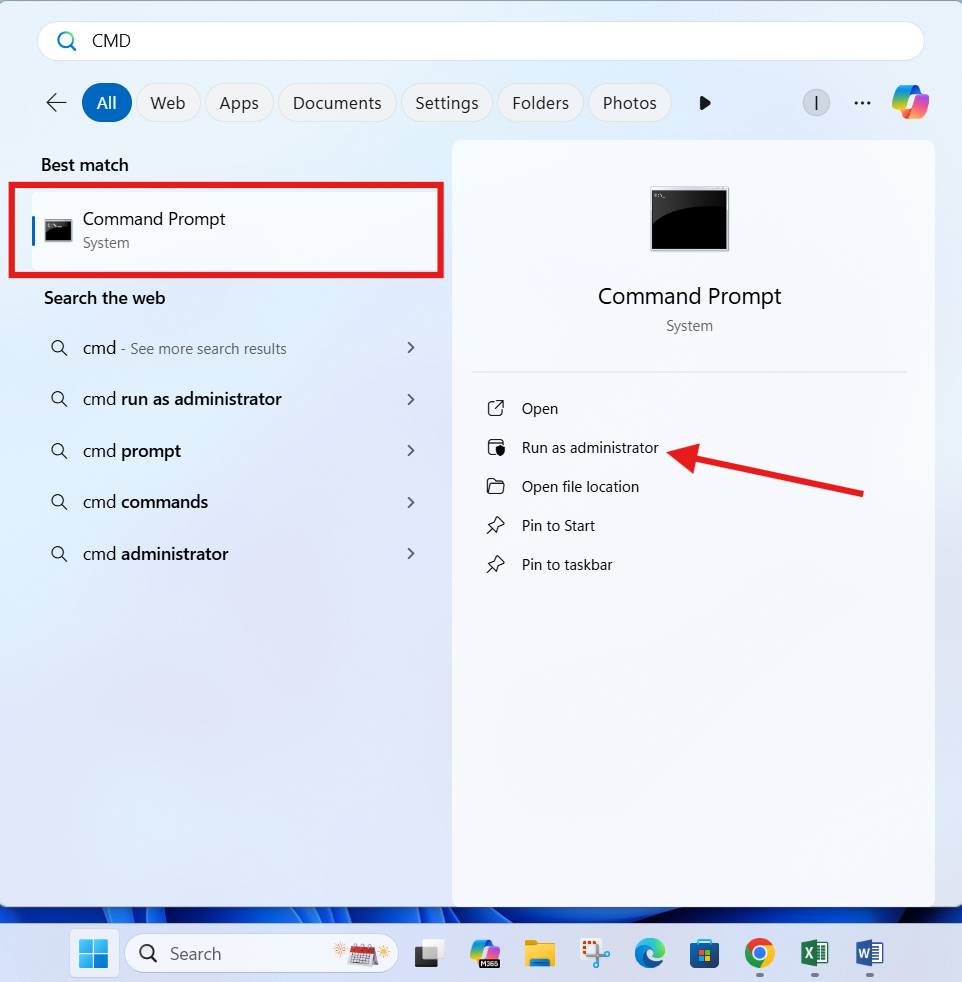
Step 2: Search for Command Prompt
Type CMD
Step 3: Run as Administrator
Right-click and choose Run as administrator
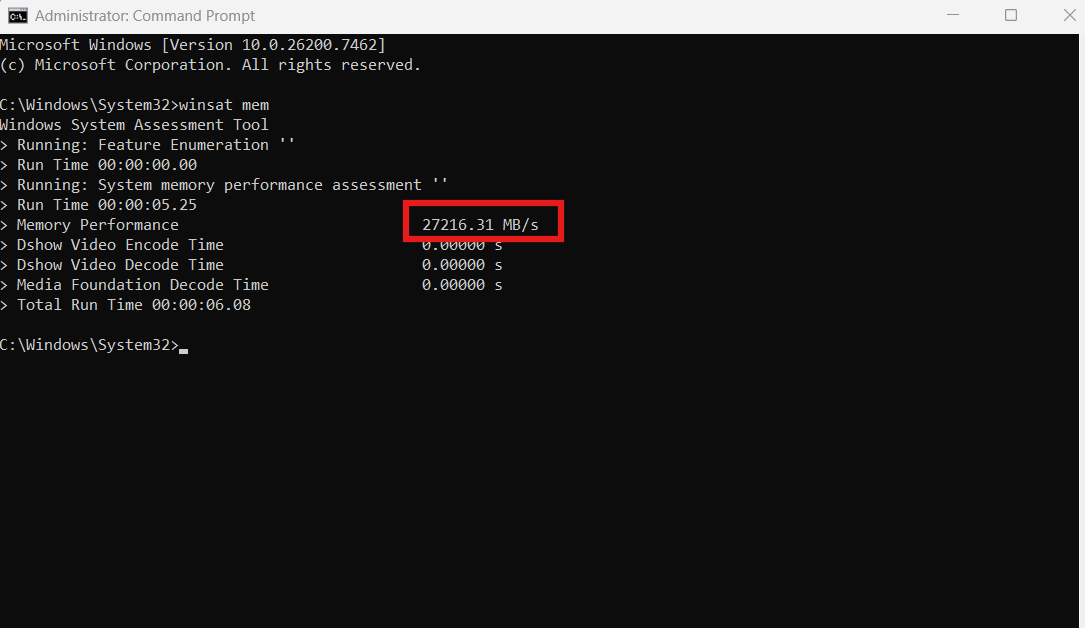
Step 4: Run the PC Memory Checker Command
Type the following command and press Enter:
winsat mem
Step 5: View the Results
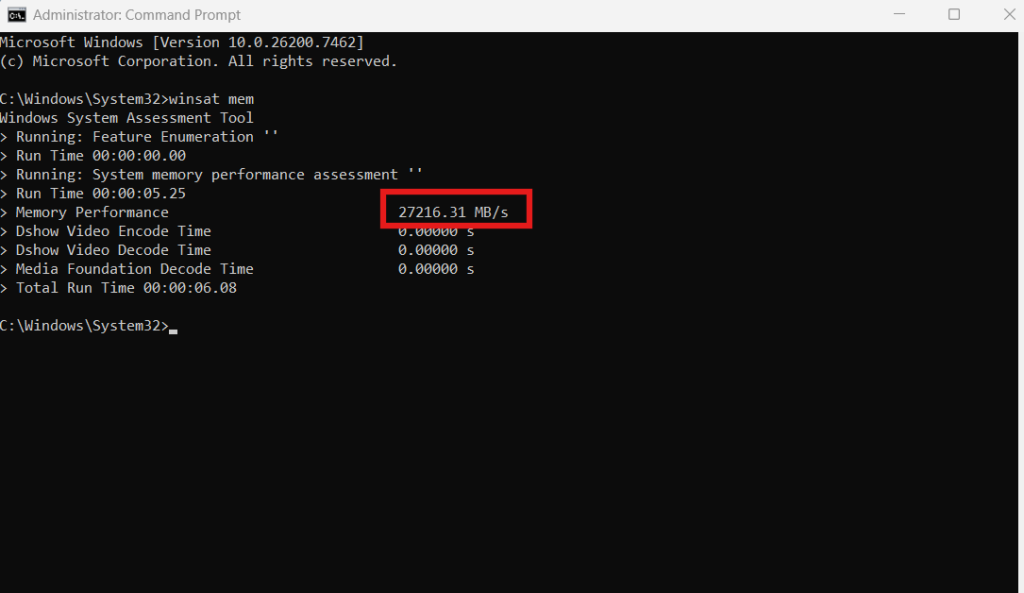
Look for Memory Performance and MB/s score
This simple PC memory checker command shows real-world memory bandwidth.
Understanding WINSTAT MEM Results
The result appears in MB/s (Megabytes per second).
Example:
- 26,080 MB/s
This score indicates how fast data moves between RAM and CPU.
How to Interpret the Score
- Below 15,000 MB/s: Low performance
- 15,000–22,000 MB/s: Average
- 22,000–30,000 MB/s: Good
- Above 30,000 MB/s: Excellent
For DDR4 systems, a PC memory checker score around 26,000 MB/s is considered good.
What Is a Good Memory Speed for DDR4 and DDR5
DDR4 RAM
- Good PC memory checker score: 22,000–30,000 MB/s
- Ideal for gaming and editing
DDR5 RAM
- Good score: 40,000 MB/s and above
- Designed for heavy multitasking and future workloads
Always compare your PC memory checker result with your RAM generation.
PC Memory Checker Tips for Gamers
If gaming performance is not smooth, use a PC memory checker before upgrading hardware.
Action steps:
- Enable XMP in BIOS
- Use dual-channel RAM
- Avoid mixing RAM brands
- Keep background apps minimal
Internal link suggestion:
Check our guide on How to Optimize Windows for Gaming Performance
PC Memory Checker Tips for Multitasking Professionals
For professionals using editing software, browsers, and virtual machines:
- Minimum 16GB RAM
- Prefer higher RAM frequency
- Regularly test RAM using PC memory checker
- Close unused startup programs
Internal link suggestion:
Read Windows Performance Tweaks for Working Professionals
Common RAM Performance Issues
A PC memory checker may reveal problems like:
- RAM running at base frequency
- Single-channel mode
- BIOS misconfiguration
- Incompatible RAM sticks
Fixing these issues often improves performance without spending money.
External Tools for Advanced Memory Checking
If you want deeper analysis, you can explore external tools.
DoFollow external resources:
- https://www.cpuid.com/softwares/cpu-z.html
- https://www.memtest86.com
- https://learn.microsoft.com/windows
These tools complement a PC memory checker but are not mandatory.
Internal Optimization Tips
To get better PC memory checker results:
- Update BIOS
- Enable XMP profile
- Keep Windows updated
- Avoid unnecessary startup apps
Internal link suggestion:
See Beginner Guide to PC Hardware Optimization
Final Thoughts
A PC memory checker is one of the simplest yet most powerful tools to understand your system’s real performance. The built-in winsat mem command gives accurate results without any software installation.
Before upgrading RAM, CPU, or GPU, always check memory performance first. Many performance issues can be fixed with proper configuration rather than expensive upgrades.
FAQs
What is the best PC memory checker for Windows
The built-in winsat mem command is one of the best PC memory checker options for Windows users.
Is 26,000 MB/s good RAM speed
Yes. For DDR4 RAM, a PC memory checker score around 26,000 MB/s is considered good for gaming and multitasking.
Does RAM speed affect gaming performance
Yes. A PC memory checker often reveals RAM bottlenecks that cause stuttering and low FPS.
Do I need third-party software for memory checking
No. Windows CMD provides a reliable PC memory checker for most users.
How often should I check RAM performance
Run a PC memory checker after hardware upgrades, BIOS changes, or performance issues.
You can check this
Activate Administrator Account in Windows 11 to Unlock Hidden Settings
