Introduction
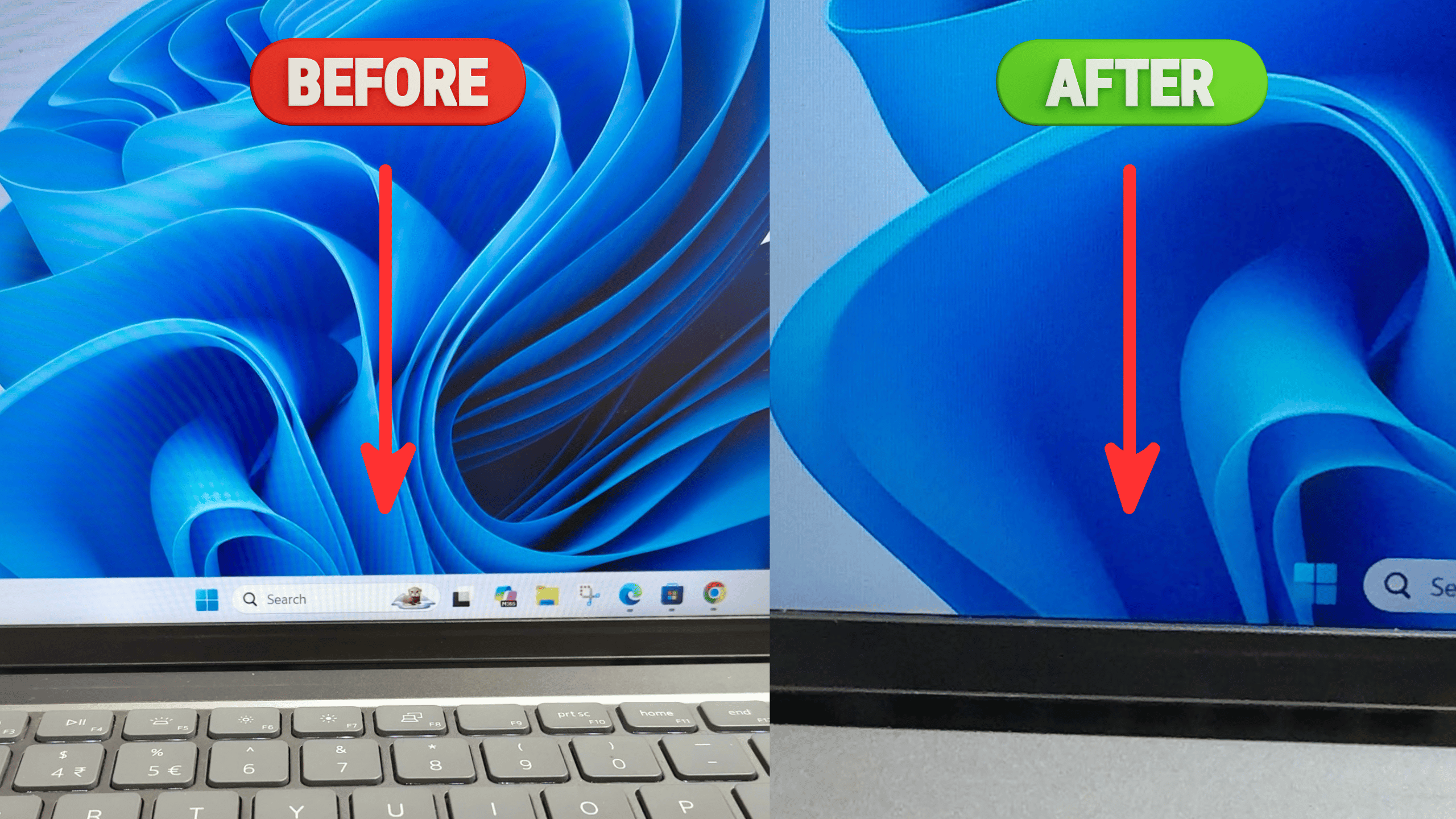
Make taskbar attractive is something many Windows users want, especially after seeing clean and modern desktop setups online. The Windows taskbar is always visible, yet most people leave it in its default look, even though it can be customized easily.
If your Windows PC looks dull or outdated, the taskbar is often the reason. The good news is that you can make taskbar attractive in less than a minute using a free and safe tool from the Microsoft Store. This guide explains how to make taskbar attractive on a Windows PC step by step, without modifying system files or installing risky software.
Table of Contents
What Does Make Taskbar Attractive Mean
To make taskbar attractive means improving the visual appearance of the Windows taskbar so it looks clean, modern, and visually appealing. This usually involves transparency, blur effects, and better integration with the desktop wallpaper.
An attractive taskbar does not just look good. It also improves focus by reducing visual clutter and creating a smoother desktop experience.
Why Taskbar Appearance Matters
The taskbar is one of the most used parts of Windows. It shows running apps, system icons, notifications, and shortcuts.
A cluttered or opaque taskbar:
- Makes the desktop feel crowded
- Distracts from wallpapers
- Looks outdated on modern displays
When you make taskbar attractive, the entire desktop feels lighter, cleaner, and more professional.
Built-in Taskbar Customization vs Advanced Styling
Windows offers limited built-in options like:
- Taskbar color
- Auto-hide
- Icon alignment
These settings help but do not fully make taskbar attractive. Advanced styling such as transparency and blur requires a trusted third-party tool. That is where TranslucentTB comes in.
Best Tool to Make Taskbar Attractive on Windows
The most popular and safe tool to make taskbar attractive is TranslucentTB, available directly from the Microsoft Store.
Why this tool is recommended:
- Free and lightweight
- No ads
- No system file changes
- Trusted by millions of users
Because it comes from the Microsoft Store, it is safe to use on any Windows PC.
Step-by-Step Guide to Make Taskbar Attractive
This is the exact step-by-step method you shared, explained clearly.
Step 1: Open Start Menu
Press the Windows button
Step 2: Open Microsoft Store
Type Microsoft Store and open it
Step 3: Search the App
In the search box, type TranslucentTB and press Enter
Step 4: Install the App
Click on Get and wait for the installation to complete
Step 5: Open the App
Click Open once installed
Step 6: Enjoy the New Look
Your taskbar instantly becomes transparent or translucent
This simple process helps make taskbar attractive in seconds.
What Is TranslucentTB and How It Works
TranslucentTB is a small background utility that modifies how the taskbar renders visually. It does not interfere with system performance or security.
Once enabled, it:
- Makes the taskbar transparent
- Adapts to wallpaper colors
- Keeps icons clearly visible
- Works automatically at startup
This is why many users choose it to make taskbar attractive without hassle.
Visual Benefits After You Make Taskbar Attractive
After applying TranslucentTB, you will notice:
- Cleaner desktop appearance
- Better wallpaper visibility
- Modern Windows look
- Reduced visual clutter
The taskbar blends naturally with the desktop, making the system feel more premium.
Who Should Customize the Windows Taskbar
You should make taskbar attractive if you are:
- A home user who likes clean design
- A student using Windows daily
- A professional working long hours
- A gamer who wants a stylish setup
Even basic systems benefit visually without affecting performance.
Common Mistakes While Customizing Taskbar
Avoid these mistakes:
- Installing taskbar tools from unknown websites
- Using multiple customization apps together
- Overloading taskbar with icons
- Disabling system tray icons blindly
Stick to one trusted tool to safely make taskbar attractive.
Tips to Keep Taskbar Clean and Minimal
Once you make taskbar attractive, keep it clean by:
- Unpinning unused apps
- Hiding unnecessary system icons
- Aligning taskbar icons properly
- Using auto-hide if preferred
A minimal taskbar enhances both looks and usability.
Internal Windows Customization Guides
Taskbar customization works best with overall system tuning.
Internal link suggestion:
Read How to Improve Windows Desktop Appearance
Internal link suggestion:
Check Best Windows Personalization Settings
External Resources for Windows Personalization
DoFollow external resources for trusted guidance:
These resources explain Windows customization and personalization safely.
Final Thoughts
If you want to make taskbar attractive on your Windows PC, TranslucentTB is one of the easiest and safest solutions available. It transforms the look of your desktop instantly and gives Windows a modern, polished feel.
This small change makes a big difference in daily use. Once you try it, going back to the default taskbar feels outdated.
FAQs
How do I make taskbar attractive on Windows PC
You can make taskbar attractive by installing TranslucentTB from the Microsoft Store.
Is TranslucentTB safe to use
Yes. It is available on the Microsoft Store and does not modify system files.
Does making taskbar attractive affect performance
No. TranslucentTB is lightweight and does not impact system performance.
Can I disable the effect anytime
Yes. You can close or uninstall the app to restore the default taskbar.
Does this work on Windows 10 and Windows 11
Yes. You can make taskbar attractive on both Windows 10 and Windows 11.
You can check this too
Gaming Performance on Windows PC Improves with the Right Graphics Settings
