Introduction
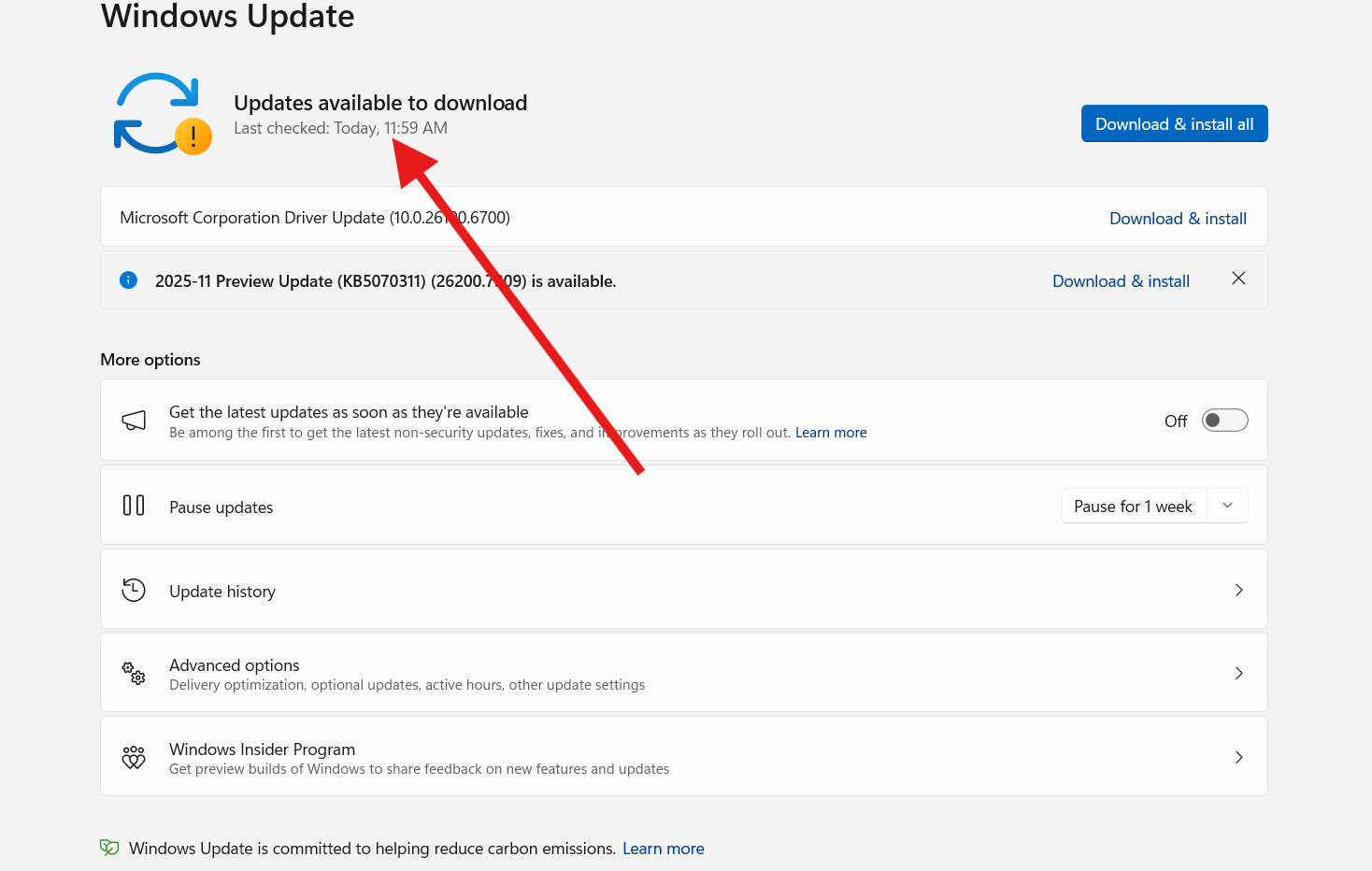
If you’re trying to fix Windows update errors, you’re not alone. Windows updates fail for many reasons: corrupted files, missing patches, incomplete downloads, outdated drivers, or simply skipped optional updates that Windows needs to run correctly. These errors often appear at the worst time — when you need your system to update before installing new apps or security patches.
The good news is that one of the simplest and most effective ways to fix Windows update errors is built right into Windows: the Optional Updates feature. Many users don’t realize that optional driver updates, security patches, and feature fixes are required for smooth system performance.
This article expands your step-by-step script into a full tutorial with images, explanations, FAQs, and best practices.
Let’s walk through the fix.
Table of Contents
Why Windows Update Errors Happen
Before you learn how to fix Windows update errors, it helps to understand why they occur. Common causes include:
- Incomplete downloads
- Paused or stuck updates
- Outdated drivers
- Missing compatibility patches
- Corrupted update cache
- Disabled services
- Not restarting after previous updates
- Using outdated BIOS or device firmware
Most of these issues are resolved by installing optional updates, which include drivers and patches required for major updates to work.
How to Fix Windows Update Errors (Step-by-Step Guide)
Your original script is perfect. Below is the polished, expanded version.
Step 1: Press Windows + I to Open Settings
- Press the Windows key + I
- This opens the Windows Settings menu
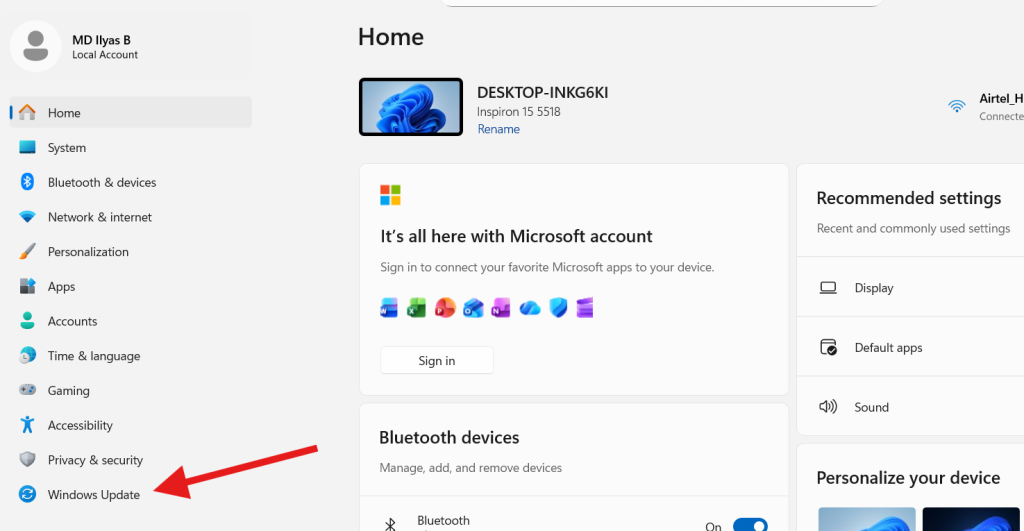
From here, you can manage security, system updates, apps, and device settings.
If your goal is to fix Windows update errors, this is the first place to go.
Step 2: Go to Windows Update
In the left sidebar:
- Click Windows Update
- Your PC will display the update status, including available downloads, paused updates, or error messages
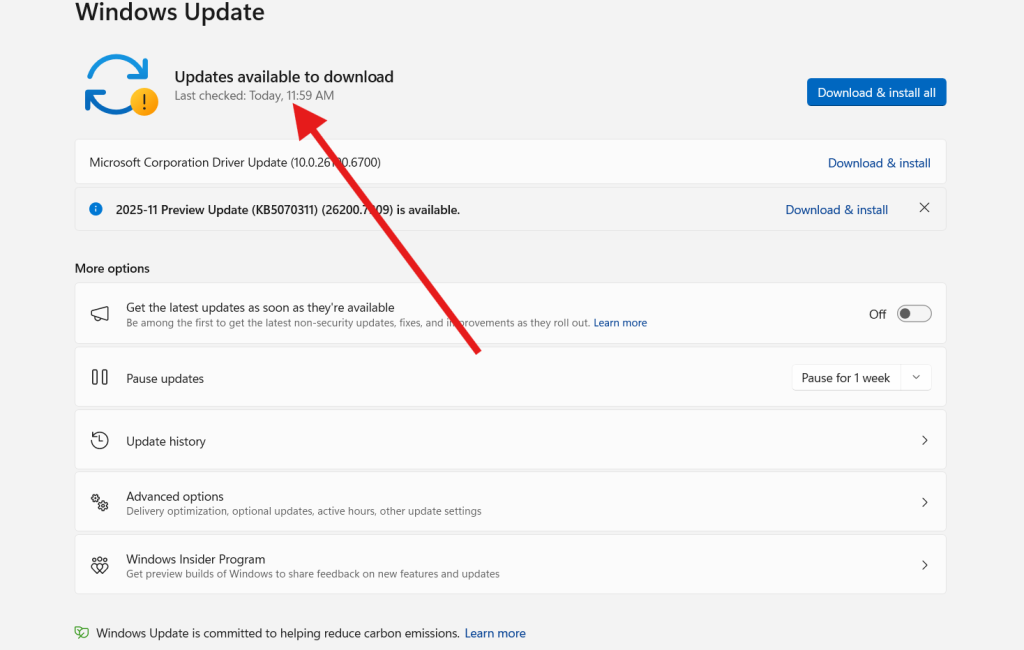
This section controls all update-related tasks.
Step 3: Scroll Down and Click on Advanced Options
Once you’re in Windows Update:
- Scroll down
- Find Advanced options
- Click on it
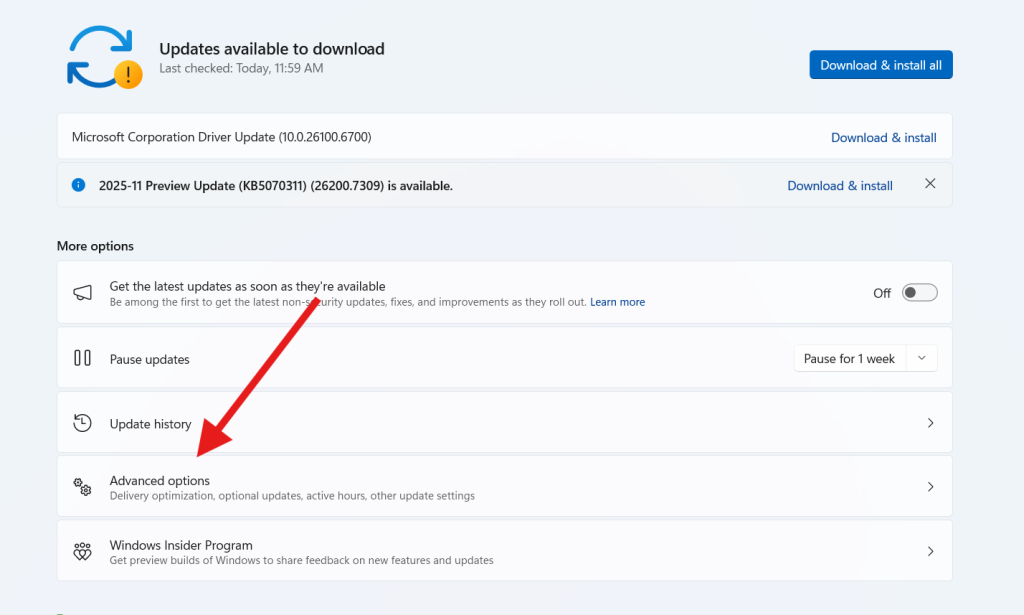
This opens deeper update settings that many users never explore.
Optional updates are located here — and they often contain missing drivers or patches needed to fix Windows update errors.
Step 4: Choose Optional Updates
Inside Advanced Options:
- Click Optional updates
- Windows will display categories such as:
- Driver updates
- Security patches
- Non-critical updates
- Feature previews
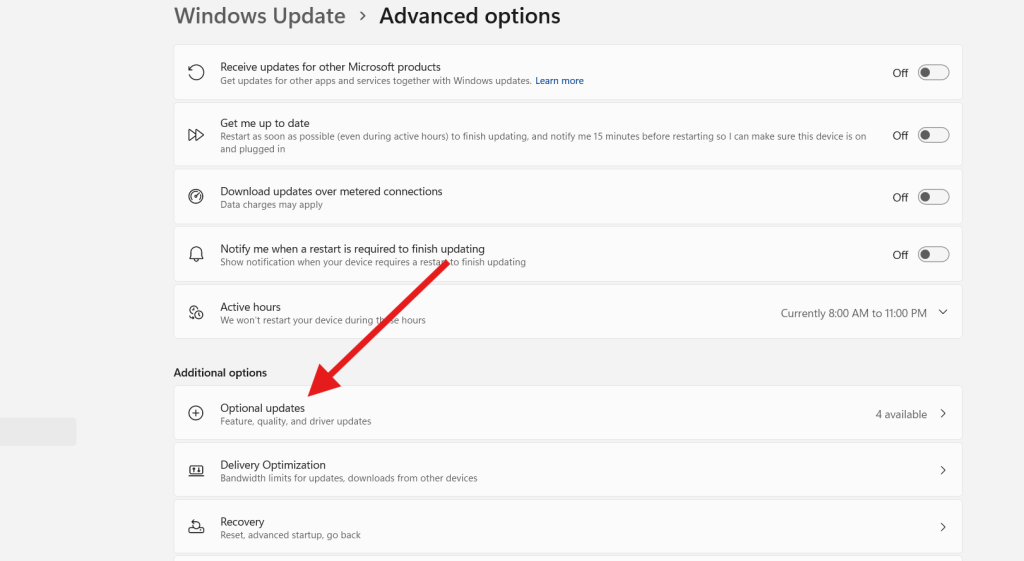
In most cases, Windows includes important drivers here, especially for:
- Graphics
- Audio
- Network
- Bluetooth
- USB controllers
If these are outdated, major updates fail.
Step 5: Select All Available Updates
- Check all the boxes
- Click Download & Install
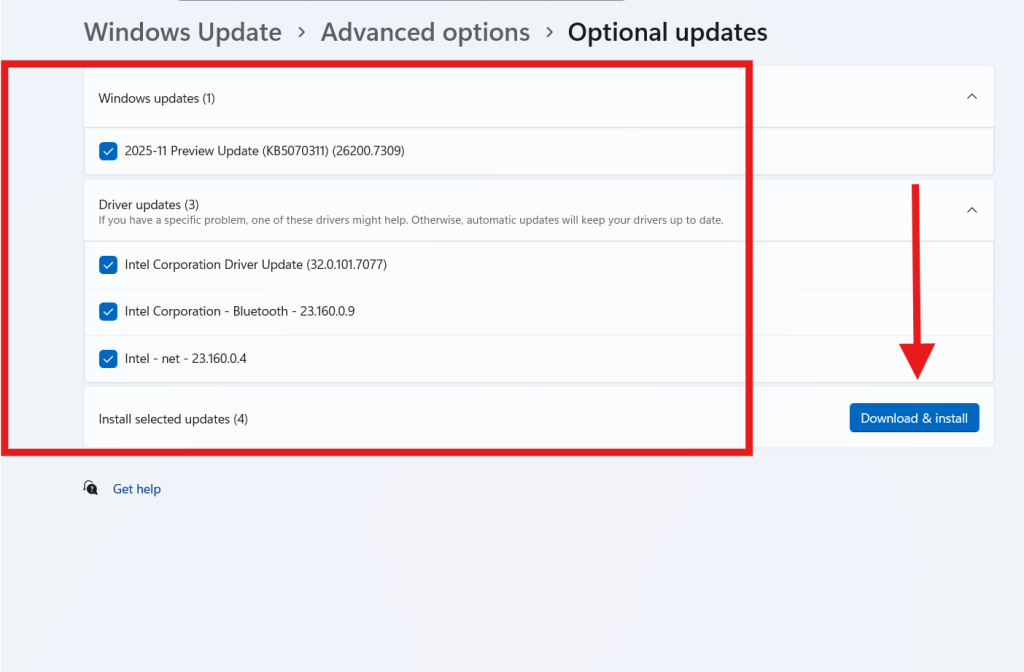
Windows will now begin downloading all patches and drivers that may be required to complete the update process.
This simple step alone resolves update failures for millions of systems — especially after fresh installations or major version upgrades.
Step 6: Wait for the Process to Complete
Depending on your system, updates may take:
- A few minutes
- Several restarts
- Multiple download cycles
Do not shut down your PC in the middle of updates.
Windows will show progress indicators like:
- “Installing…”
- “Pending restart”
- “Preparing Windows”
Once updates finish, the system will be ready for reboot.
Step 7: Click Restart and Enjoy
After everything is installed:
- Click Restart now
- Let your PC reboot completely
Once restarted, Windows update errors are usually resolved. Optional updates patch missing components that often block main Windows updates from working correctly.
If your PC completes the update successfully, you’ve successfully learned how to fix Windows update errors using built-in system tools.
Why Optional Updates Fix Windows Update Errors
Optional updates often include:
- Drivers your hardware needs to communicate with Windows
- Compatibility patches required for major updates
- Fixes for system crashes that interrupt updates
- Updated firmware or microcode for CPUs
- Improvements for Windows Update components
When these are missing, Windows cannot complete update cycles, which leads to errors like:
- 0x80070002
- 0x800f0831
- Update failed to install
- We couldn’t complete the updates
Installing optional updates fills in these gaps.
Microsoft supports this approach in their official documentation:
https://support.microsoft.com/windows
Additional Methods if Optional Updates Do Not Fix the Problem
If you still can’t fix Windows update errors, try these:
1. Run Windows Update Troubleshooter
Settings → System → Troubleshoot → Other troubleshooters → Windows Update
2. Clear Windows Update Cache
Run Command Prompt as administrator:
net stop wuauserv
net stop bits
del /f /s /q %windir%\SoftwareDistribution
net start wuauserv
net start bits
3. Repair system files
Run:
sfc /scannow
DISM /Online /Cleanup-Image /RestoreHealth
4. Reset Windows Update Components
Microsoft provides an official script on their support site.
5. Perform an In-Place Upgrade
Download the Media Creation Tool (DoFollow):
https://www.microsoft.com/software-download/windows11
This reinstalls Windows without deleting your files.
FAQs About How to Fix Windows Update Errors
Why do Windows updates fail?
Mostly because of missing drivers, corrupted files, or incomplete installations.
Are optional updates safe to install?
Yes. They come directly from Microsoft or trusted hardware vendors.
Do I need to restart after installing updates?
Yes — restarting is required to apply changes
What if updates still fail after restarting?
Run SFC or DISM scans to repair corrupted system files.
Can slow internet cause update errors?
Yes. Interrupted downloads often lead to corruption.
What if my PC freezes during updates?
Wait. Interrupting may cause deeper system corruption.
You can this also
Setup Fingerprint Password on Windows Easily With This Simple Guide
