Introduction
del /q/f/s %TEMP% command is one of the fastest and most effective ways to free up disk space and improve performance on a Windows PC. Over time, Windows creates thousands of temporary files that are no longer needed, yet they continue to occupy valuable storage and slow down the system.
Many users notice their PC becoming sluggish, applications opening slowly, or storage filling up without understanding the real cause. In most cases, the problem lies in accumulated temporary files. Using the del /q/f/s %TEMP% command allows you to clean these files safely using Command Prompt without installing any third-party software.
This guide explains exactly how the del /q/f/s %TEMP% command works, how to use it step by step, and why it is trusted by IT professionals to maintain Windows performance.
Table of Contents
What Is DEL /Q /F /S %TEMP% Command
The del /q/f/s %TEMP% command is a built-in Windows Command Prompt instruction used to delete all temporary files stored in the system TEMP folder. These files are created by applications, system processes, installers, and background services.
TEMP files are meant to be temporary, but many programs fail to clean them automatically. As a result, they pile up and consume disk space. The del /q/f/s %TEMP% command removes these files quickly and efficiently.
Why Temporary Files Slow Down Windows PC
Temporary files affect performance in multiple ways:
- Consume disk space unnecessarily
- Increase file indexing time
- Slow down storage access
- Cause software conflicts
- Reduce available space for updates
When storage is nearly full, Windows struggles to manage memory and background processes. Using the del /q/f/s %TEMP% command helps restore balance and improve responsiveness.
How DEL /Q /F /S %TEMP% Command Works
The del /q/f/s %TEMP% command targets the system-defined TEMP directory. Windows automatically resolves the %TEMP% variable to the correct path for the current user.
This command deletes files silently, forcefully, and recursively, ensuring that all unneeded temporary files are removed without manual confirmation.
Step-by-Step Guide to Use DEL /Q /F /S %TEMP% Command
This is the exact method you shared, explained clearly.
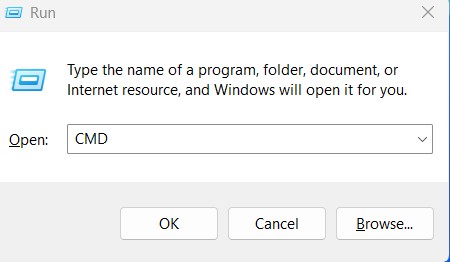
Step 1: Open Run Dialog
Press Windows + R
Step 2: Open Command Prompt
Type CMD and press Enter
Step 3: Run the Cleanup Command
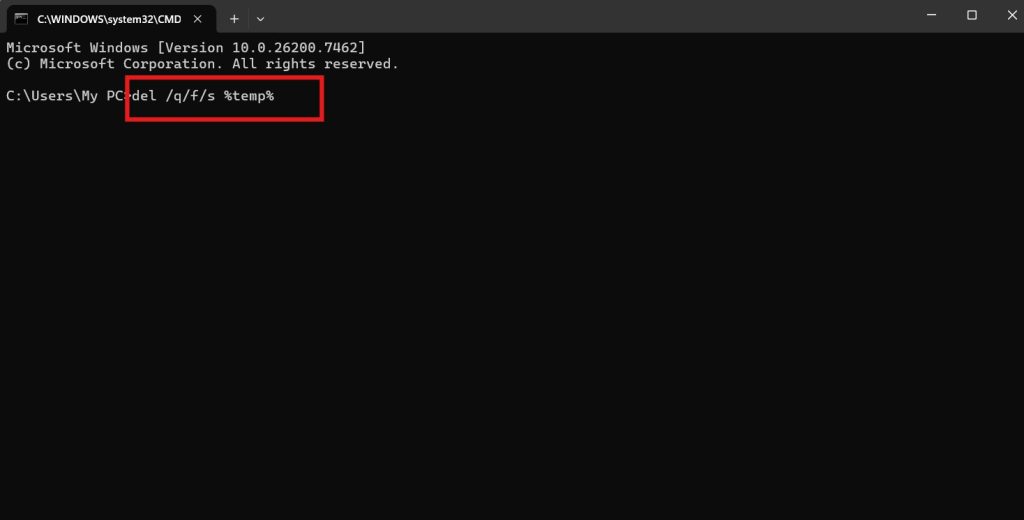
Type the following command and press Enter:
del /q/f/s %TEMP%\*
Step 4: Wait for Completion
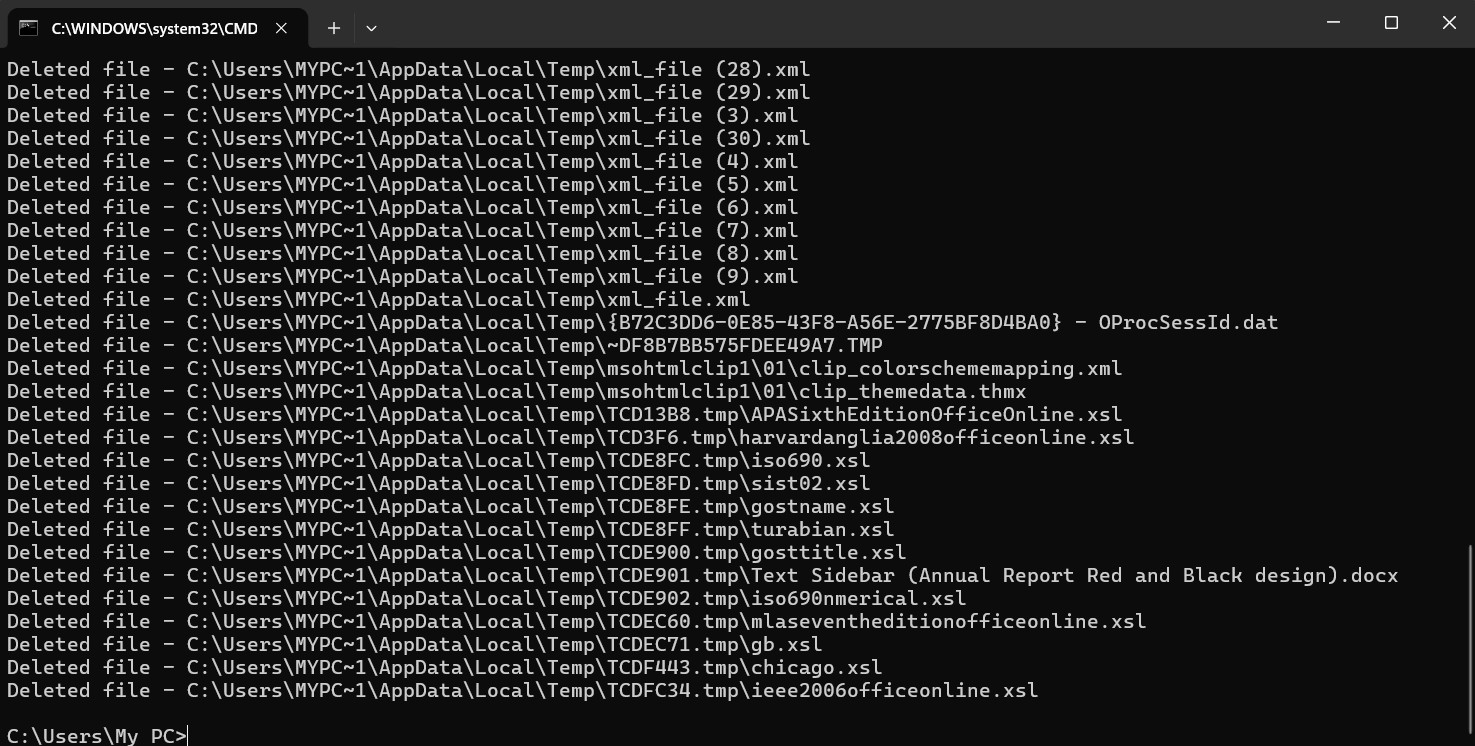
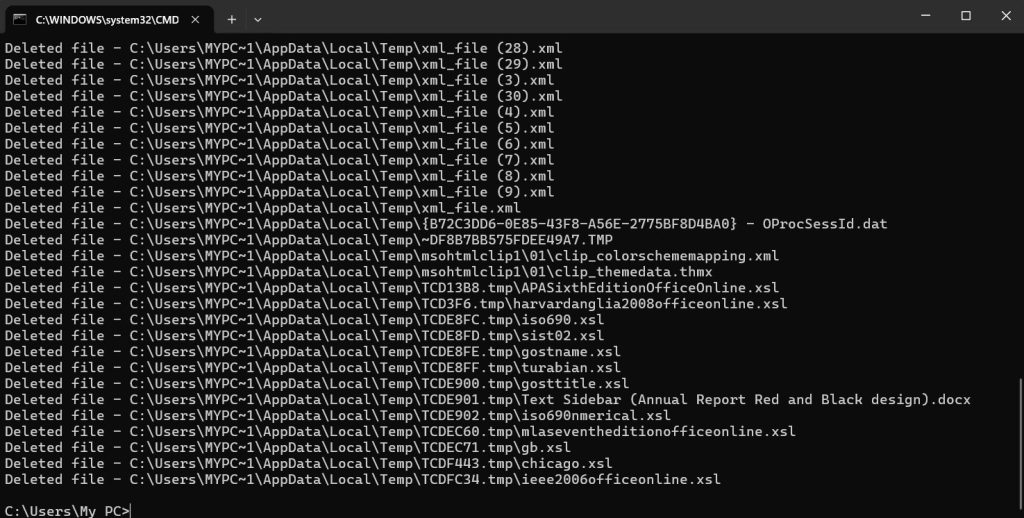
The command runs silently. Once the prompt returns, the cleanup is complete.
Using the del /q/f/s %TEMP% command regularly helps keep your system clean and fast.
Understanding Each Parameter in the Command
Breaking down the del /q/f/s %TEMP% command:
- del: Deletes files
- /q: Quiet mode (no confirmation prompts)
- /f: Forces deletion of read-only files
- /s: Deletes files in subdirectories
- %TEMP%: Environment variable pointing to temporary files folder
Each parameter ensures thorough cleanup without user interruption.
Benefits of DEL /Q /F /S %TEMP% Command
Using the del /q/f/s %TEMP% command offers multiple benefits:
- Frees up disk space instantly
- Improves overall system performance
- Reduces application lag
- Helps Windows updates run smoothly
- Clears leftover installation files
This command is especially useful for low-storage laptops and older systems.
When You Should Use DEL /Q /F /S %TEMP% Command
You should use the del /q/f/s %TEMP% command when:
- Disk space is running low
- Windows feels slow
- Applications crash unexpectedly
- System updates fail
- PC has not been cleaned for months
Running it once every few weeks is a good maintenance habit.
Common Issues Fixed by Clearing TEMP Files
Many common Windows problems are solved by clearing TEMP files:
- Slow startup
- High disk usage
- Installer errors
- Browser lag
- Update failures
The del /q/f/s %TEMP% command addresses these issues by removing outdated cached data.
Safety Tips Before Running DEL /Q /F /S %TEMP% Command
The del /q/f/s %TEMP% command is safe, but keep these points in mind:
- Close all running applications
- Do not interrupt the command mid-process
- Some files in use may not delete, which is normal
- Never modify the command path manually
Internal link suggestion:
Read Windows Command Prompt Safety Tips for Beginners
Alternative Ways to Free Up Space on Windows
In addition to the del /q/f/s %TEMP% command, you can:
- Use Disk Cleanup tool
- Enable Storage Sense
- Remove unused applications
- Clean browser cache
Internal link suggestion:
Check Complete Windows PC Performance Optimization Guide
External Resources for Windows Cleanup
DoFollow external resources for official guidance:
These resources provide verified information on Windows maintenance and storage management.
Final Thoughts
The del /q/f/s %TEMP% command is a simple yet powerful Windows tool that helps free up space and improve PC performance without any risk when used correctly. Many performance problems blamed on hardware are actually caused by years of accumulated temporary files.
Before upgrading storage or reinstalling Windows, try this command. It takes seconds and often delivers immediate results.
FAQs
What does del /q/f/s %TEMP% command do
The del /q/f/s %TEMP% command deletes all temporary files stored in the Windows TEMP folder.
Is del /q/f/s %TEMP% command safe
Yes. It only removes temporary files and does not affect personal data.
Will this command delete important files
No. It targets only temporary system files that are no longer required.
How often should I run del /q/f/s %TEMP% command
Once every few weeks or whenever storage space is low.
Can this command improve PC speed
Yes. Clearing temporary files often results in faster performance and smoother system operation.
You can this
DriverQuery Command on Windows PC Reveals Hidden Driver Problems
