Introduction
Boost PC performance is one of the most common goals for Windows users who feel their system has become slow over time. Even powerful computers can suffer from reduced speed due to background system processes that quietly consume resources. Many people look for third-party tools, but Windows already includes built-in commands that can help boost PC performance instantly.
In this guide, you will learn how to boost PC performance on a Windows PC in under 30 seconds using a safe Command Prompt tweak. This method focuses on disabling unnecessary file access updates that slow down systems with large numbers of files or frequent disk activity.
What Does Boost PC Performance Mean
To boost PC performance means improving how fast your Windows PC responds to commands, opens applications, and handles file operations. Performance is affected by disk activity, background services, system indexing, and file system behavior.
Even small system-level changes can significantly boost PC performance when applied correctly.
Why Windows PCs Slow Down Over Time
Several factors reduce system speed:
- Constant file read and write operations
- Background services running unnecessarily
- Large numbers of files on storage drives
- Outdated system configurations
- Default Windows behaviors not optimized for performance
Windows tracks file access times by default, which adds extra disk operations. Disabling this feature can help boost PC performance, especially on older systems or HDD-based PCs.
How File Access Tracking Affects Performance
Every time a file is accessed, Windows updates a timestamp known as Last Access Time. This process occurs silently in the background.
While useful in some enterprise environments, it is unnecessary for most home users. On systems with many files, this constant updating increases disk usage and slows overall performance. Turning it off helps boost PC performance by reducing file system overhead.
Built-in Windows Method to Boost PC Performance
Windows includes a powerful command-line utility called FSUTIL. It allows administrators to modify file system behavior safely.
One specific command disables Last Access Time updates. This tweak is widely used by system administrators to boost PC performance on both HDD and SSD systems.
Step-by-Step Guide to Boost PC Performance in 30 Seconds
This is the exact method you shared, explained clearly.
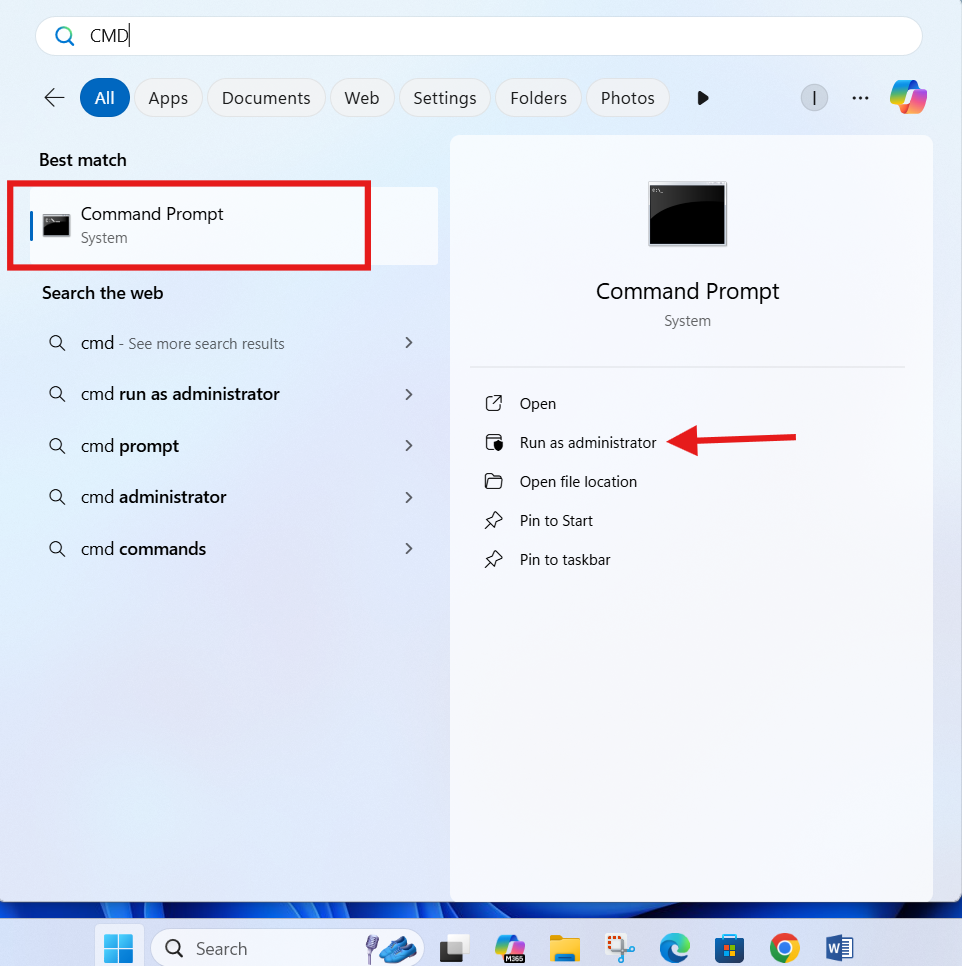
Step 1: Open Start Menu
Press the Windows button
Step 2: Open Command Prompt as Administrator
Type CMD, then right-click Command Prompt and select Run as administrator
Step 3: Enter the Performance Command
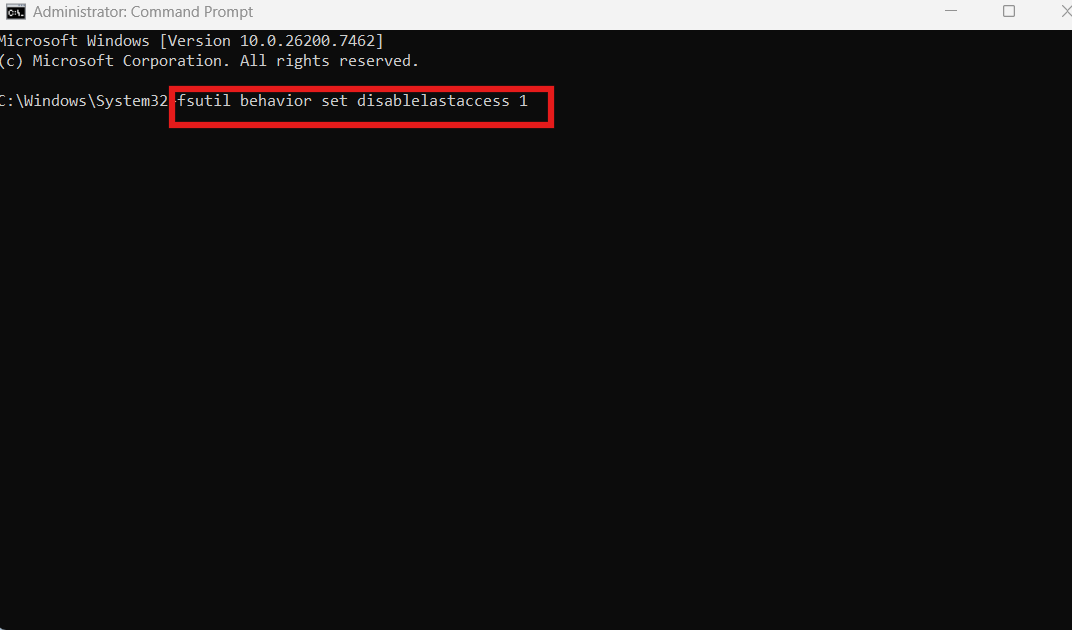
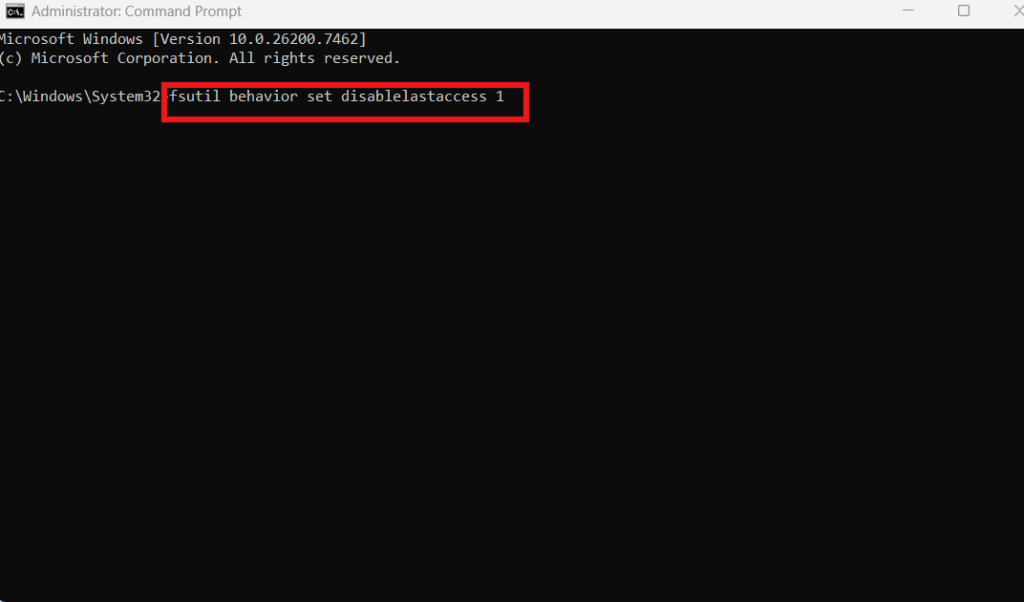
Type the following command and press Enter:
fsutil behavior set disablelastaccess 1
Step 4: Restart the PC
Restart your system to apply the changes.
This simple action helps boost PC performance by reducing unnecessary disk updates.
Understanding the FSUTIL Command
Breaking down the command:
- fsutil: File system utility
- behavior: Controls file system behaviors
- set: Applies a configuration change
- disablelastaccess: Turns off file access time updates
- 1: Enables the setting
This configuration change is safe and reversible if needed.
How Disabling Last Access Updates Boosts PC Performance
Disabling Last Access updates improves performance by:
- Reducing disk write operations
- Lowering background system load
- Improving responsiveness on file-heavy systems
- Enhancing performance on older HDDs
This method is especially effective when working with applications that access many files frequently.
Who Should Use This Performance Tweak
This tweak is ideal for:
- Home users experiencing slow PCs
- Systems with traditional HDD storage
- PCs used for file-heavy workloads
- Users seeking quick ways to boost PC performance
It may offer smaller benefits on newer SSD-only systems, but it still reduces unnecessary system operations.
Safety and Compatibility Considerations
This tweak is safe for:
- Windows 10
- Windows 11
- NTFS file systems
Important notes:
- Requires administrator access
- Does not delete files
- Does not affect personal data
- Can be reversed by setting value to 0
Always restart the system after applying system-level changes.
Additional Tips to Boost PC Performance
Along with this command, you can:
- Disable unnecessary startup programs
- Keep at least 20% disk space free
- Update Windows regularly
- Avoid third-party system boosters
Internal link suggestion:
Read How to Clean Temporary Files on Windows PC
External Resources for Windows Performance
DoFollow external resources for verified information:
These resources provide official and trusted Windows performance documentation.
Final Thoughts
If you want to boost PC performance quickly without installing software, this simple FSUTIL command is an excellent starting point. It removes unnecessary background work and allows Windows to focus on what matters most.
Small system-level optimizations like this often deliver noticeable improvements, especially on older or heavily used PCs. Try this method, restart your system, and enjoy a smoother Windows experience.
FAQs
How does this command boost PC performance
It disables file access timestamp updates, reducing disk activity and improving responsiveness.
Is this tweak safe for Windows PC
Yes. It is a built-in Windows feature and does not affect files or applications.
Can I reverse this change later
Yes. You can re-enable it by using value 0 instead of 1.
Does this work on SSD and HDD
Yes, but performance gains are more noticeable on HDD-based systems.
How often should I use this tweak
You only need to apply it once unless Windows is reinstalled.
You can check this
5X Your Laptop Performance on Windows 11 With This Simple Guide
