Introduction
How to take screen short in PC like professional is something many Windows users search when they want clean, high-quality screenshots for work, tutorials, blogging, or social media. Most people only use the basic Print Screen key, but that method lacks editing tools, annotations, and quick sharing options.
If you want to take screenshots like a professional, you need the right combination of keyboard shortcuts and advanced tools. In this guide, you will learn how to take screen short in PC like professional using both built-in Windows features and a powerful free tool called Flameshot.
Table of Contents
Why Learning How to Take Screen Short in PC Like Professional Matters
Screenshots are used daily for:
- Online classes
- Technical support
- Blogging
- Office work
- Tutorials
- Social media posts
Knowing how to take screen short in PC like professional helps you create clear, organized, and visually appealing content instead of plain, unedited captures.
Built-in Screenshot Methods in Windows
Windows includes basic screenshot options:
- Print Screen (PrtScn) captures the entire screen
- Alt + PrtScn captures the active window
- Windows + PrtScn saves screenshot automatically
These methods are simple but lack editing and annotation features.
Using Snipping Tool
Snipping Tool is built into Windows.
Steps:
- Press Windows key
- Type Snipping Tool
- Choose capture type
- Save image
Snipping Tool allows basic cropping but still lacks professional editing tools.
Using Windows + Shift + S Shortcut
Press:
Windows + Shift + S
This opens the screen snipping overlay. You can select:
- Rectangular snip
- Freeform snip
- Window snip
- Full-screen snip
The image is copied to clipboard for editing.
This is better than Print Screen but still limited for professional use.
How to Take Screen Short in PC Like Professional Using Flameshot
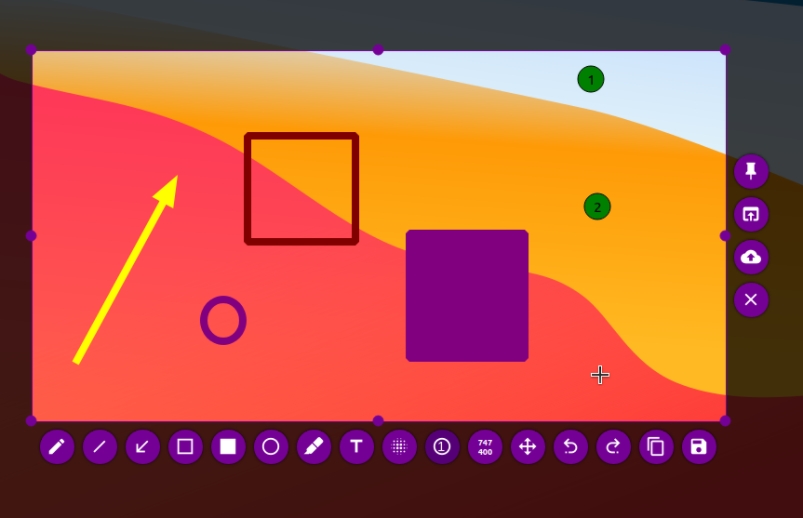
Flameshot is a free, open-source screenshot tool designed for professional use.
Official Website:
https://flameshot.org/#download
Why Flameshot Is Better
- Instant annotation tools
- Highlight and blur options
- Arrow and text tools
- Copy to clipboard
- Save instantly
- Lightweight and fast
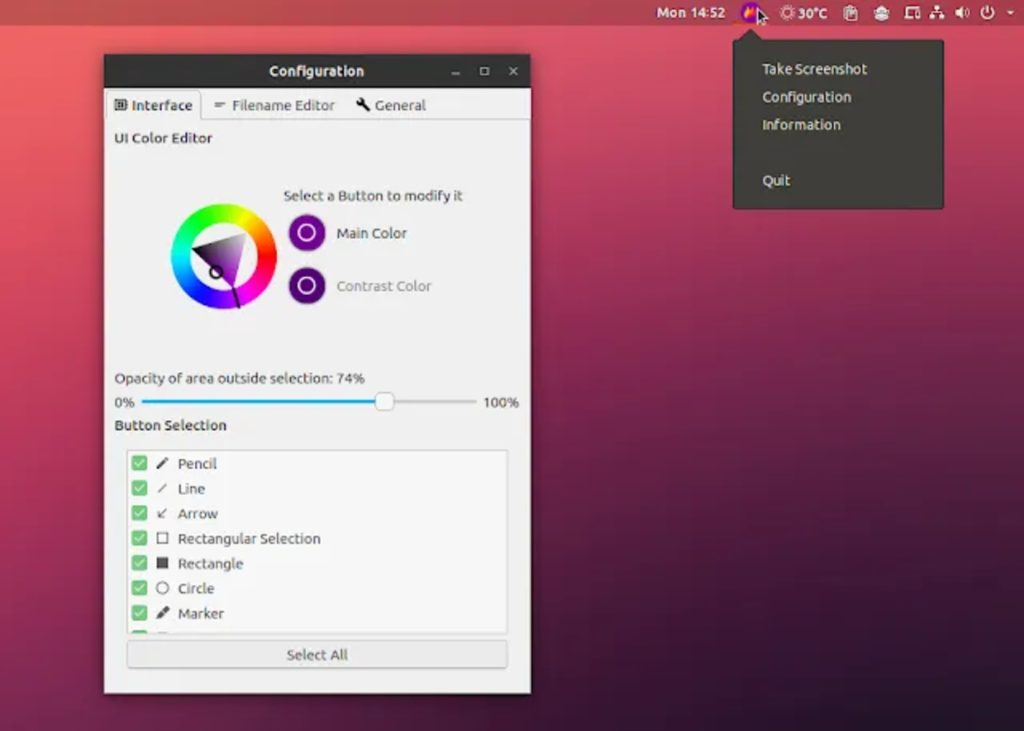
Flameshot makes it easy to take screen short in PC like professional without complex software.
Step-by-Step Guide to Install Flameshot
- Visit official website
- Download Windows version
- Install normally
- Launch Flameshot
- Assign shortcut if needed
After installation, right-click system tray icon and choose capture.
Editing Screenshots Like a Professional
When you capture using Flameshot, you can:
- Add arrows
- Draw shapes
- Highlight important areas
- Blur sensitive information
- Add text
- Change colors
These features allow you to present information clearly and professionally.
Saving and Sharing Screenshots Quickly
Flameshot allows:
- Direct save to folder
- Copy to clipboard
- Upload online
- Export in multiple formats
This workflow makes it easy to share screenshots instantly.
Common Screenshot Mistakes
Avoid these mistakes:
- Capturing entire screen unnecessarily
- Sharing unedited screenshots
- Exposing private information
- Using low resolution
Professional screenshots are clean, focused, and properly annotated.
You can check this too
Difference Between HDD vs SSD vs NVMe Explained for Better Performance
Laptop Not Turning On but Power Light Is On Can Be Fixed at Home
Essential Windows 11 Commands for Error Fixing That Actually Work
External Screenshot Resources
DoFollow external resources:
These resources provide official documentation and tools.
Final Thoughts
Learning how to take screen short in PC like professional improves your workflow instantly. While Windows built-in tools are useful for quick captures, Flameshot provides advanced editing features that make your screenshots look polished and clear.
If you create tutorials, teach online, provide technical support, or write blogs, upgrading your screenshot method will significantly improve your presentation quality.
Install Flameshot, practice annotations, and start capturing screenshots like a professional today.
FAQs
What is the best way to take screen short in PC like professional
Using Flameshot is one of the best and easiest ways.
Is Flameshot free to use
Yes. It is completely free and open-source.
Does Flameshot work on Windows 11
Yes. It works on Windows 10 and Windows 11.
Can I blur sensitive information in screenshots
Yes. Flameshot includes a blur tool.
Are built-in Windows tools enough
For basic tasks yes, but professional editing requires better tools.
