Introduction
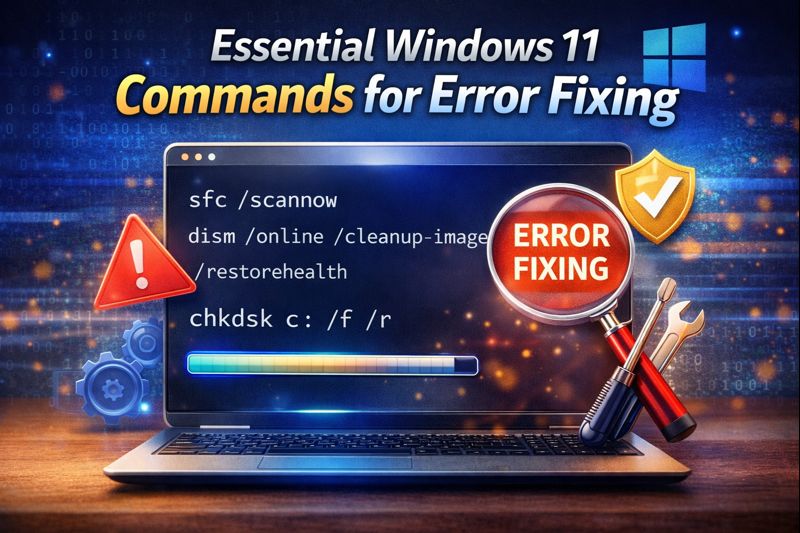
Essential Windows 11 commands for error fixing are something every Windows user should know. Windows 11 is stable, but over time it can develop issues like freezing, crashes, corrupted files, network problems, or slow performance. Many users immediately think about reinstalling Windows, but in most cases, that is not necessary.
Windows 11 includes powerful built-in Command Prompt tools that can diagnose and fix errors at the system level. These commands are trusted by IT professionals and work without installing any third-party software. In this guide, you will learn the top 10 essential Windows 11 commands for error fixing, how to use them, and when each command is most effective.
Table of Contents
What Are Essential Windows 11 Commands for Error Fixing
Essential Windows 11 commands for error fixing are built-in CMD commands that allow users to scan, diagnose, and repair system-level issues. These commands work directly with Windows core components such as system files, disks, drivers, and network settings.
They are designed to:
- Fix corrupted system files
- Repair disk errors
- Resolve boot issues
- Reset network configuration
- Improve system stability
Why Windows 11 Errors Occur
Windows 11 errors can appear due to:
- Improper shutdowns
- Corrupted system files
- Driver conflicts
- Malware or bad software
- Disk errors
- Network misconfiguration
Using essential Windows 11 commands for error fixing helps resolve these issues before they become serious problems.
How Command Prompt Helps Fix Windows Errors
Command Prompt allows direct interaction with Windows services that are not accessible through the graphical interface. Many error-fixing operations can only be performed properly using CMD with administrator privileges.
This is why CMD remains one of the most powerful troubleshooting tools in Windows 11.
How to Open Command Prompt as Administrator
Before using any essential Windows 11 commands for error fixing:
- Press the Windows button
- Type CMD
- Right-click Command Prompt
- Select Run as administrator
Administrator access is required for most repair commands.
Essential Windows 11 Commands for Error Fixing Overview
Below are the most reliable and widely used Windows 11 repair commands. Each command targets a specific type of error.
1. SFC Command for System File Errors
Command:
sfc /scannow
This command scans protected Windows system files and repairs corrupted or missing files.
Use this when:
- Windows freezes
- Apps crash frequently
- System behaves unpredictably
This is one of the most essential Windows 11 commands for error fixing.
2. DISM Command for Image Repair
Command:
DISM /Online /Cleanup-Image /RestoreHealth
DISM repairs the Windows system image itself.
Use this when:
- SFC fails
- Windows updates fail
- System files keep getting corrupted
Run DISM before running SFC for best results.
3. CHKDSK Command for Disk Errors
Command:
chkdsk c: /f /r
This command scans the hard drive for errors and bad sectors.
Use this when:
- Disk errors appear
- PC crashes randomly
- Files become unreadable
Replace c: if Windows is installed on a different drive.
4. Netsh Command for Network Errors
Command:
netsh int ip reset
This resets the network stack and fixes connectivity issues.
Use this when:
- Internet is slow
- Network disconnects
- DNS errors appear
This command is essential for fixing network-related Windows 11 errors.
5. IPConfig Command for Internet Issues
Command:
ipconfig /flushdns
This clears the DNS cache stored on your PC.
Use this when:
- Websites load slowly
- Browser shows DNS errors
- Internet feels unstable
6. Bootrec Command for Startup Errors
Command:
bootrec /fixmbr
bootrec /fixboot
bootrec /rebuildbcd
These commands fix boot-related errors.
Use this when:
- Windows fails to start
- Boot error messages appear
- System gets stuck at startup
Bootrec is one of the most critical Windows 11 error fixing commands.
7. DriverQuery Command for Driver Problems
Command:
driverquery
This displays a list of installed drivers.
Use this when:
- Hardware stops working
- Driver conflicts occur
- Blue screen errors appear
Checking drivers helps identify problematic or outdated drivers.
8. Tasklist Command to Monitor Processes
Command:
tasklist
This command shows all running processes.
Use this when:
- System becomes slow
- Unknown processes run
- CPU usage is high
9. Taskkill Command to End Frozen Apps
Command:
taskkill /im appname.exe /f
This force closes unresponsive programs.
Use this when:
- Apps freeze
- Task Manager cannot close programs
10. Event Viewer Command for Error Logs
Command:
eventvwr
This opens Windows event logs.
Use this when:
- Errors repeat
- System crashes unexpectedly
- You need detailed error reports
Event Viewer helps diagnose root causes.
When to Use Essential Windows 11 Commands for Error Fixing
Use these commands when:
- Windows behaves abnormally
- Errors repeat frequently
- Performance suddenly drops
- Startup problems occur
Running these commands early can prevent major system failures.
Internal Troubleshooting Resources
Internal link suggestion:
Simple Tricks to Make Old Laptops Fast Again Without Spending Money
Internal link suggestion:
Free Alternatives of MS Office That Save Money and Work Smoothly
External Microsoft Resources
DoFollow external resources:
These provide official Windows troubleshooting documentation.
Final Thoughts
Learning the essential Windows 11 commands for error fixing can save hours of frustration and prevent unnecessary Windows reinstallation. These commands are safe, powerful, and designed to fix common and advanced Windows issues.
If you regularly use Windows 11, mastering these commands gives you control over system stability and performance. Bookmark this guide and use it whenever Windows starts misbehaving.
FAQs
Are Windows 11 error fixing commands safe
Yes. These are built-in Windows tools used by professionals.
Do I need admin rights to run these commands
Yes. Most commands require administrator privileges.
Can these commands fix blue screen errors
Yes. Many BSOD issues are caused by corrupted files or drivers.
How often should I run SFC or DISM
Run them whenever you notice system instability.
Do these commands work on Windows 10
Yes. Most essential Windows 11 commands for error fixing also work on Windows 10.
